
Resident-FRONTSTEPS Community- Visitor Management-Manage Guests
We’re updating this article. Some screenshots or names may look older than what you see in the product.
Notes
- The feature is available to all users as follows:
- Residents
- Availability - This enhancement will be activated and available to all customers who purchase the Visitor Management Product integration.
Features
This enhancement provides the following features:- Invite New Guests
- Send ePasses to Existing Guests
- Edit Guests
Managing Guests in FRONTSTEPS Community
From the Resident Dashboard>Visitor Management
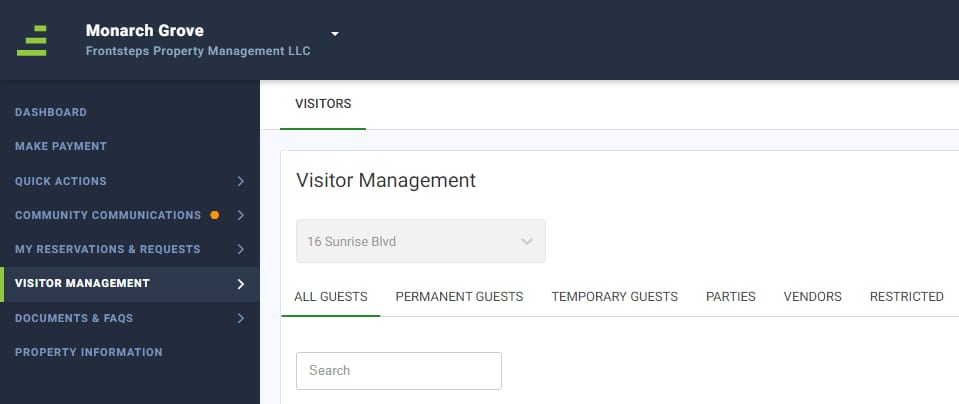
For a Temporary Guest
For a Vendor
For a Restricted Guest
For Parties
To Add a Guest on the FRONTSTEPS Community Portal: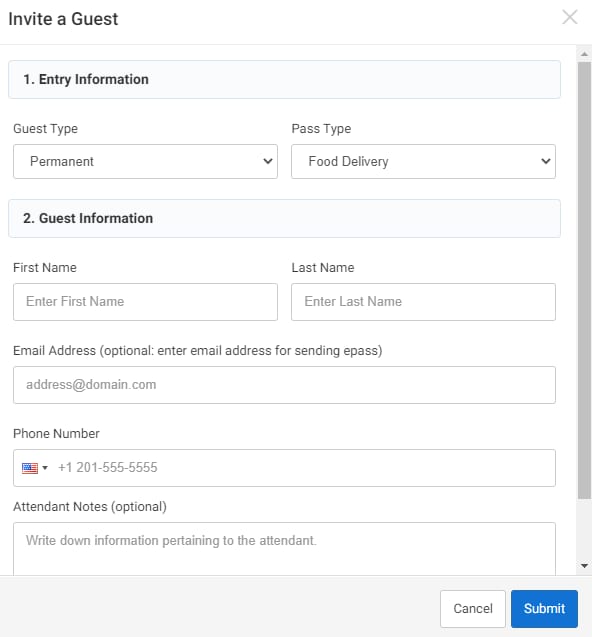
From the Resident Dashboard>Visitor Management
- The tabs filter by type of Permanent Guest Temporary Guest, Party (Event), Vendor or Restricted individuals.
- The allowed Actions from the drop down include:
- Edit
- Remove
- ePasses can be sent to Permanent Guests via email (not text).
For a Temporary Guest
- Edit
- Remove
- ePasses can be sent to Temporary Guests via email (not text)
For a Vendor
- Remove (unassigned to a Unit).
- Remove
- Edit
For Parties
- Edit
- Remove
To Add a Guest on the FRONTSTEPS Community Portal:
- Navigate to Visitor Management>use the filter tabs and select either a Permanent or Temporary Guest.
- Select the Invite a Guest button. Alternatively, the Manage Guests button can be used.
- When the Invite New Guest button is selected, the Resident will enter the Invite a Guest window.
- Select the Guest Type (Permanent or Temporary) from the dropdown.
- Select the Pass Type (Guest or Vendor). Pass Types are completely customizable. Pass Types may have associated rules, such as times and access areas, which are also customizable. This is set up in dwellingLIVE.
- Enter the Guest’s First and Last Names.
- Enter the Guest’s Email Address. In general, the email address is optional, however required to send an ePass to the Guest.
- Write any notes for the Attendant (optional).
- Select Submit.
- A toast message will appear that confirms that the Guest was added.
To Send an ePass to an Existing Guest:
 To Edit a Guest:
Homeowners may edit Guest information.
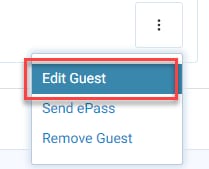
- Navigate to Visitor Management>use the filter tabs and select either a Permanent or Temporary Guest.
- Select the Actions Icon.
- Select Send ePass from the Actions dropdown.
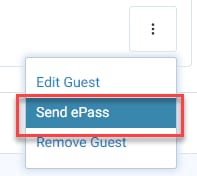
4. A toast message will appear that confirms the ePass was sent successfully.
Homeowners may edit Guest information.
- Navigate to the Dashboard>Visitor Management menu option.
- Select the Guest (from the All, Permanent and Temporary tabs).
- Choose the Actions dropdown menu option.
4. Select the Edit Guest option.
5. Enter the necessary changes.
6.Select the Save Changes button.