
Resident-FRONTSTEPS Community- Visitor Management-Create Parties
We’re updating this article. Some screenshots or names may look older than what you see in the product.
Notes
- The feature is available to all users as follows:
- Residents
- Availability - This enhancement will be activated and available to all customers who purchase the Visitor Management Product integration.
Features
This enhancement provides the following features:- Create a New Party
- Create a Party from an Existing Party
To Create a New Party
Homeowners can create new parties or parties from existing parties. A new party is created using the following steps:
- Navigate to the Visitor Management menu option on the Dashboard
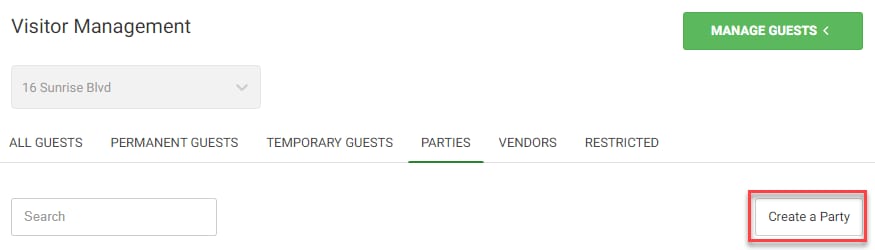
- Select the Parties tab.
- Select the Create a Party button.
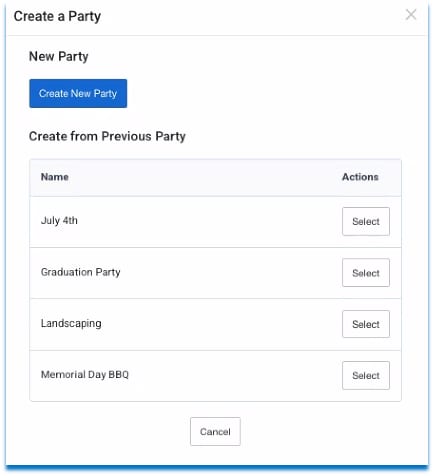
- On the Create a Party window, select the Create New Party button.
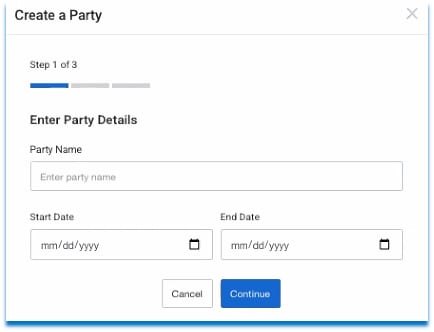
- On the next window, Enter the Party Name.
- Enter the Start and End Dates for the Party.
- Select Continue.
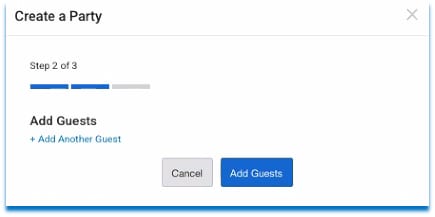
- Use the +Add Another Guest button to add Guests.
- On the next window, enter the First Name and Last Name of the Guest. Note: ePasses are not generated from here for the Guests.
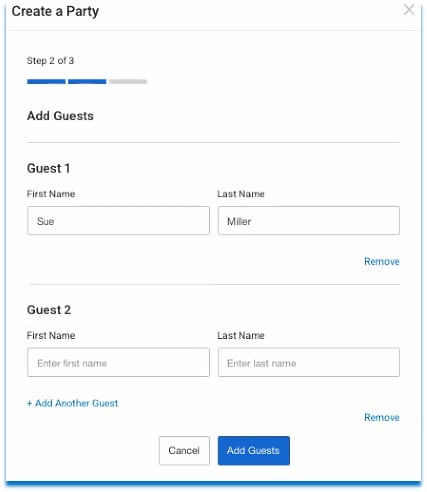
- Use the +Add Another Guest button to add Guests
- Use the Remove button (which will appear once Guests are added) to remove a Guest, if needed.
- Select the Add Guests button.
- As Guest are added, they will display. Note: Guests do not receive a notification. However, the Guards (Attendants) and Hosts can view a list of Party Guests.
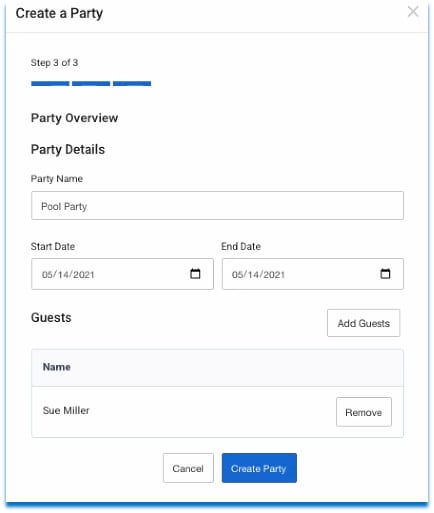
- Select the Create Party button.
- A confirmation message will display
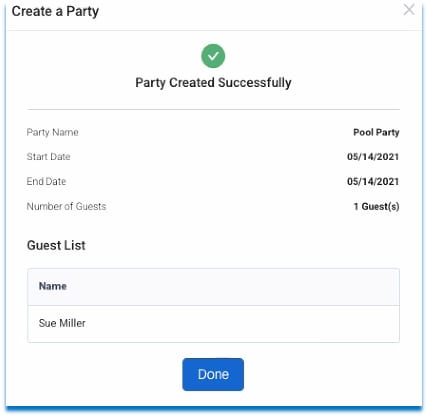
- Select Done.
To Create a New Party from an Existing Party:
A new Party can be created from an existing party. This provides the ease and convenience of carrying guests over from the original party. New Guests can be added, and others can be deleted from the list. A case use example is when a homeowner has had a Graduation Party for several years, with the same Guests invited each time.
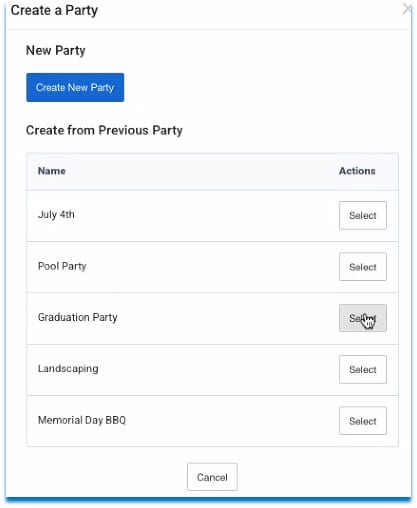
- Navigate to the Visitor Management menu option on the Dashboard.
- Select the Parties tab.
- Select the Create a Party button.
- From the parties displayed underneath the Create from Previous Party, select the original Party.
- Choose Select.
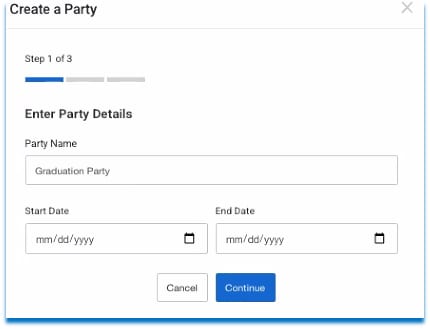
- Change the Party Name, if needed.
- Enter the new Start and End Dates.
- Choose Continue.
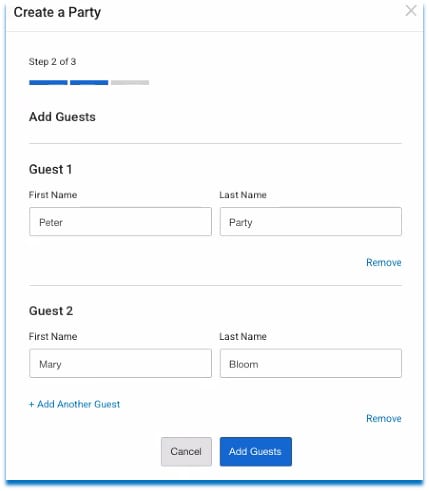
- Add additional Guests that were not invited to the original party, using the +Add Another Guest button.
- Remove Guests, using the Remove button.
- Select the Add Guest button.
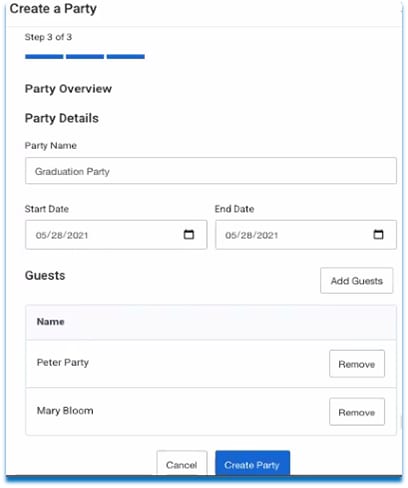
- Select Create Party.
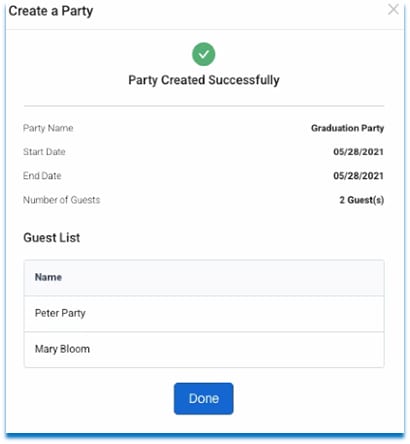
- A window will appear that confirms the party was successfully created.
- Select Done.