
Resident - Creating Work Order/Common Area Work Orders
Submitting a Work Order/Common Area Work Order Request
Residents can easily submit Work Order requests directly through their Community Portal. Whether the issue is within your individual unit or in a common area, you can quickly log a request and track its progress from start to finish.
-
- Note: This feature will function with TOPS, Jenark and Caliber accounting integration providers and creating a Work Order with Jenark or TOPS AIS may very slightly.
- Note: This feature will function with TOPS, Jenark and Caliber accounting integration providers and creating a Work Order with Jenark or TOPS AIS may very slightly.
Creating a Work Order:
From the Resident Dashboard, select My Reservations & Requests, My Work Orders
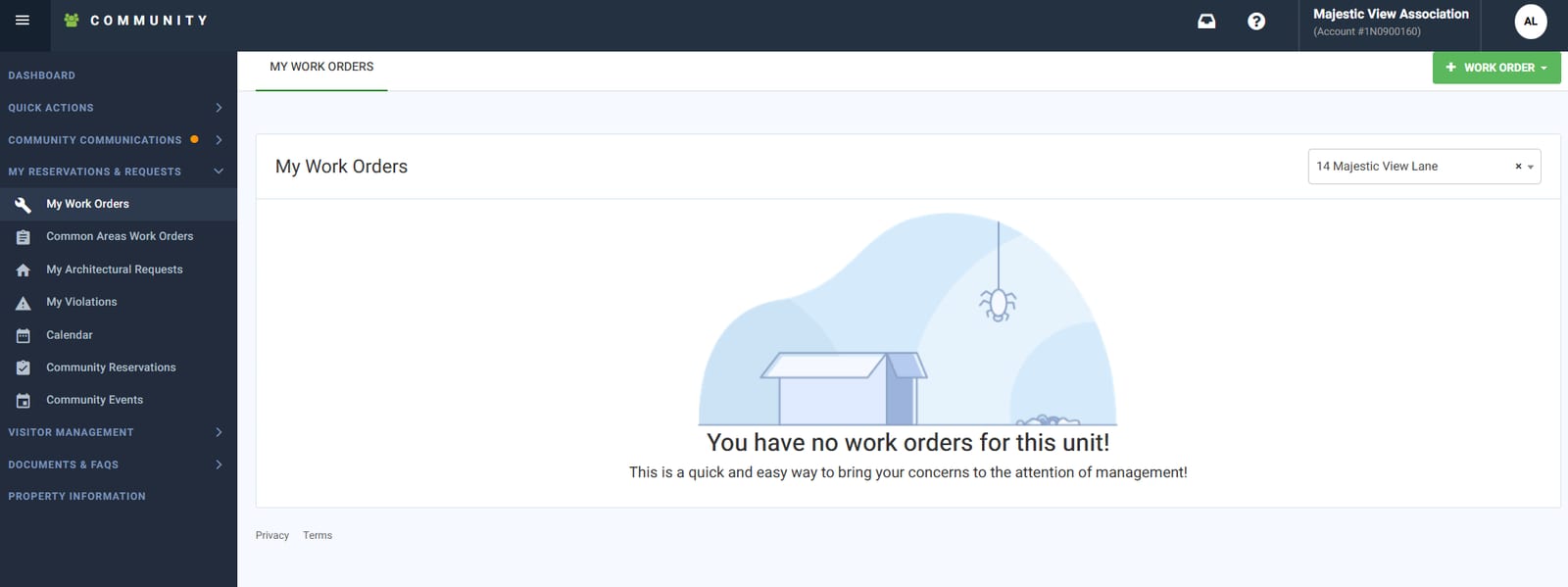
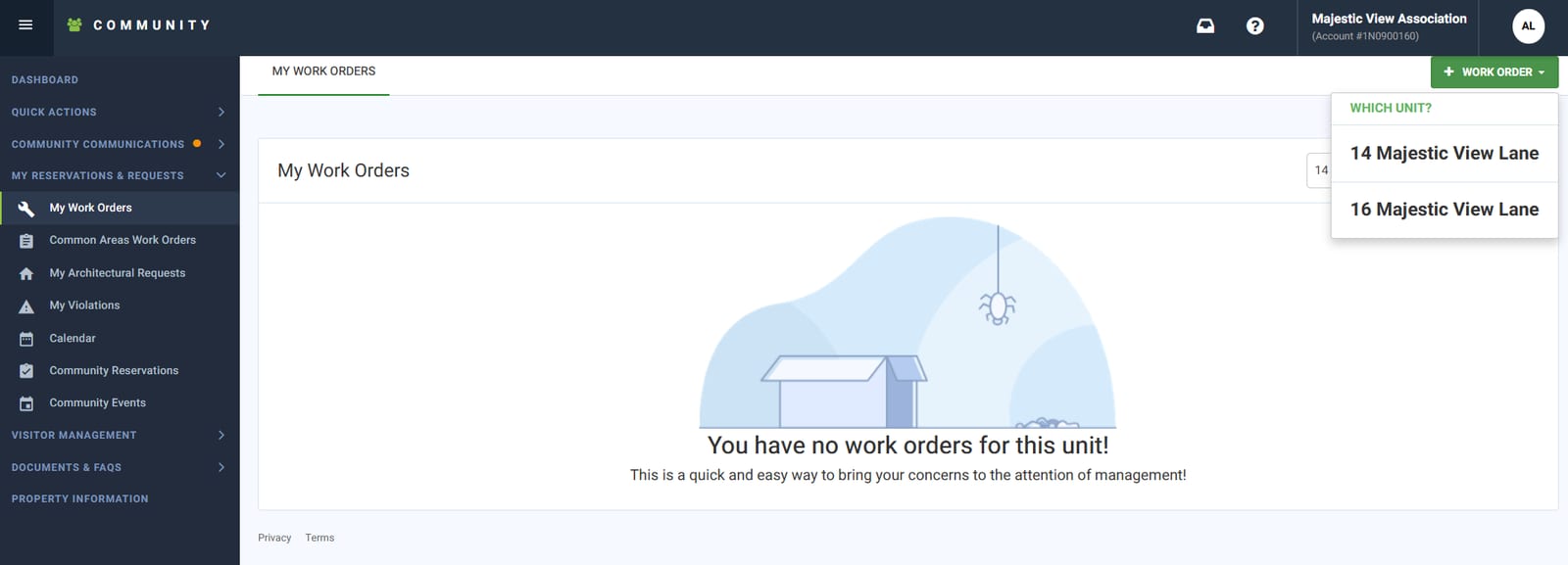
Select the + WORK ORDER option in the Top Right. The Create a Work Order window appears.
-
- For more than one property, it will ask you to pick your address during the initial creation and submission of the work order.
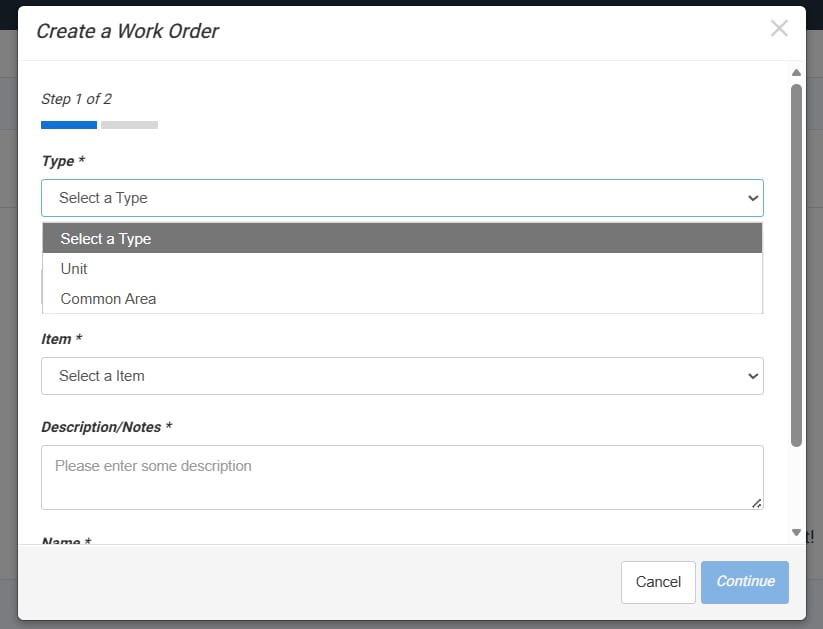
Select the Type of Work Order (Unit or Common Area) from the drop-down list and then follow the steps below as an example that can be used in both instances of work order creation.
-
-
Unit Work Order – for maintenance requests specific to your home or unit.
-
Common Area Work Order – for shared spaces such as hallways, pools and clubhouse for example.
-
Select the Category and Item from the drop-down list, such as Category “Landscaping” and Item "Trees" are defined by Caliber AIS and may vary, and change based on Submission Type.
-
- Common Area Submission has an additional Category needed for submission
- Replaces Address with Common Area Location
- Common Area Submission has an additional Category needed for submission
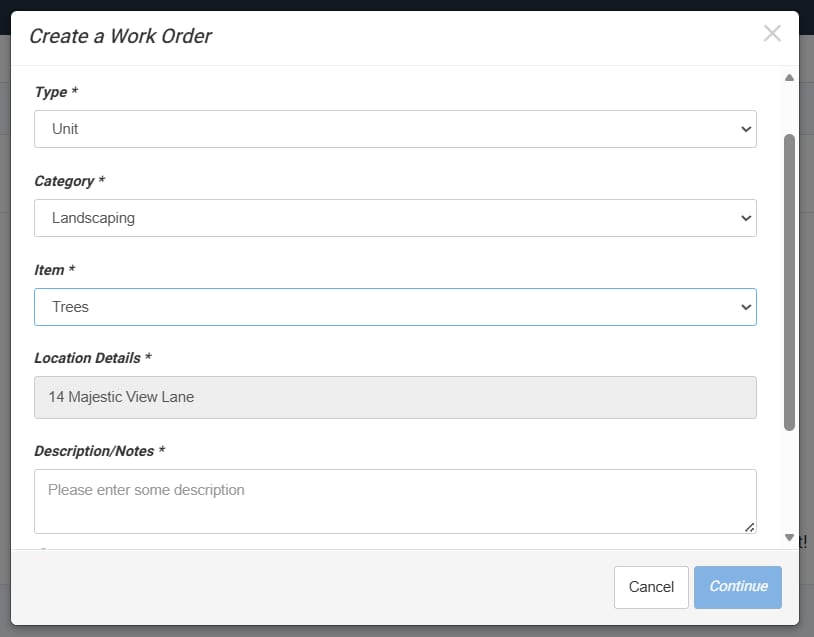
In the Description/Notes field, provide detail for the Work Order/Common Area Work Order.
-
- Once information is entered correctly, and verified, click Continue
Final Step: Review & Submit Your Work Order:
Before submitting, take a moment to review your request for accuracy. Confirm that all details are complete and upload any supporting images or documents that may help describe the issue. The more information you provide, the quicker your Community Manager can review, update, or escalate your request.
-
- To upload documents, you can drag and drop files directly from your desktop or click the blue “Upload Your Files” button to select them manually.
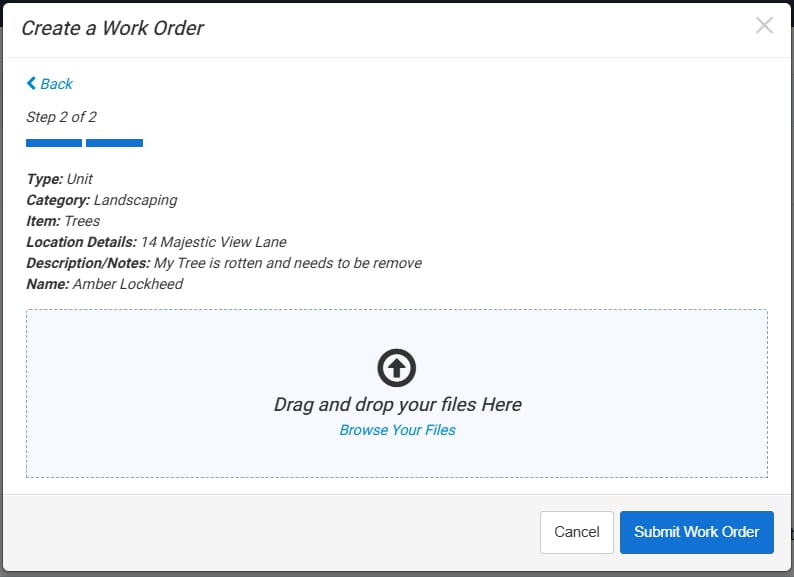
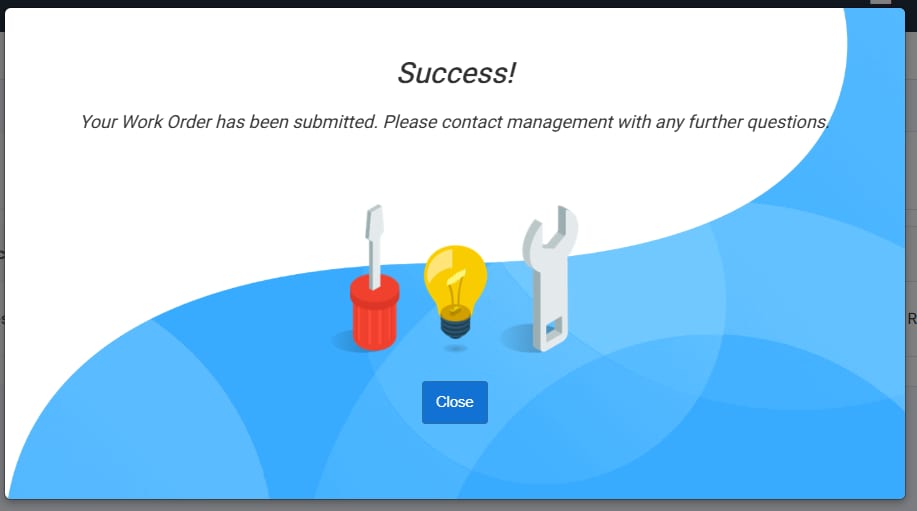
Once everything is ready, click Submit Work Order to process your request. Fronsteps will acknowledge your submission and give you a Success confirmation.
-
- Click Close to procced
- Notification is sent to your Community Manager
Reviewing Your Requests:
To review your submitted requests, navigate to My Reservations and Requests located on the right-side navigation menu. From there, select either My Work Orders or Common Area Work Orders, depending on the type of request you submitted.
-
- You’ll be able to view real-time updates, including status changes, notes from your Community Manager, and any actions taken toward resolving your request.