
Resident- Community Mobile Work Order Pictures
We’re updating this article. Some screenshots or names may look older than what you see in the product.
Within the FRONTSTEPS Community Mobile app, Residents can now add or upload pictures to Work Order requests.
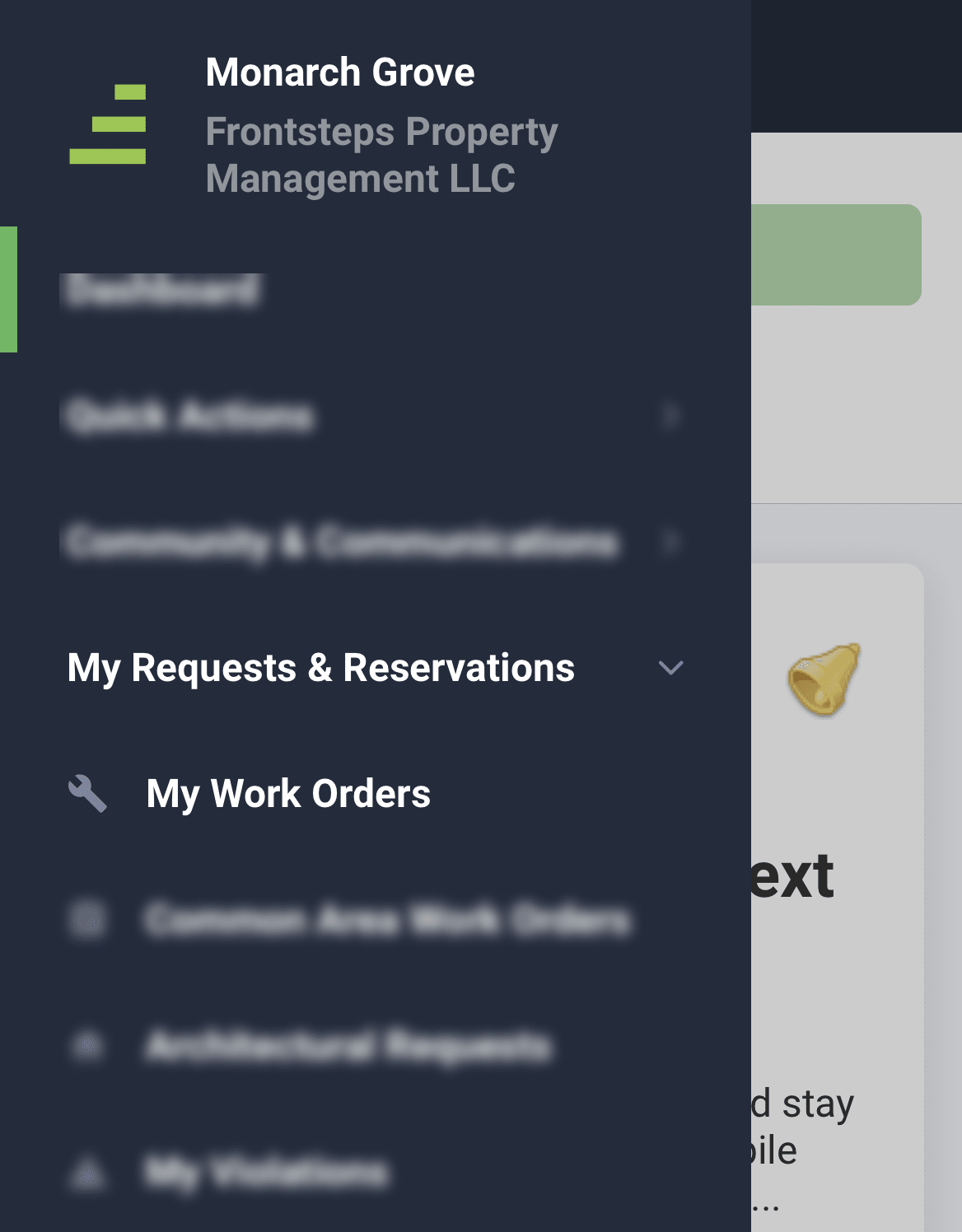
From the FRONTSTEPS Mobile App menu select the ‘My Requests & Reservations’ and then choose ‘My Work Orders’
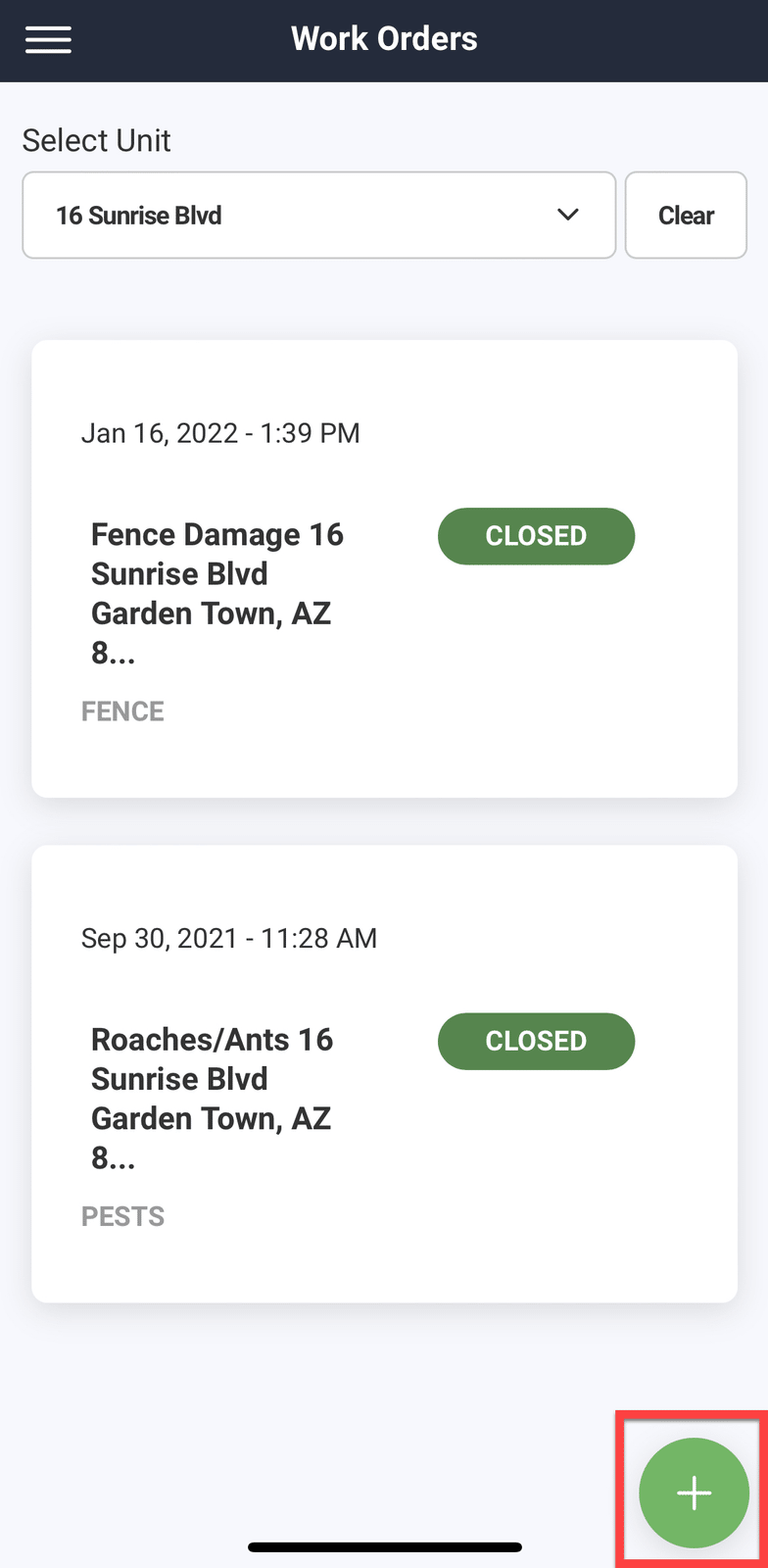
To create a new Work Order request, choose the green + button.
Fill out the Work Order details, including Unit, Category, Item, Description/Notes and Location Details
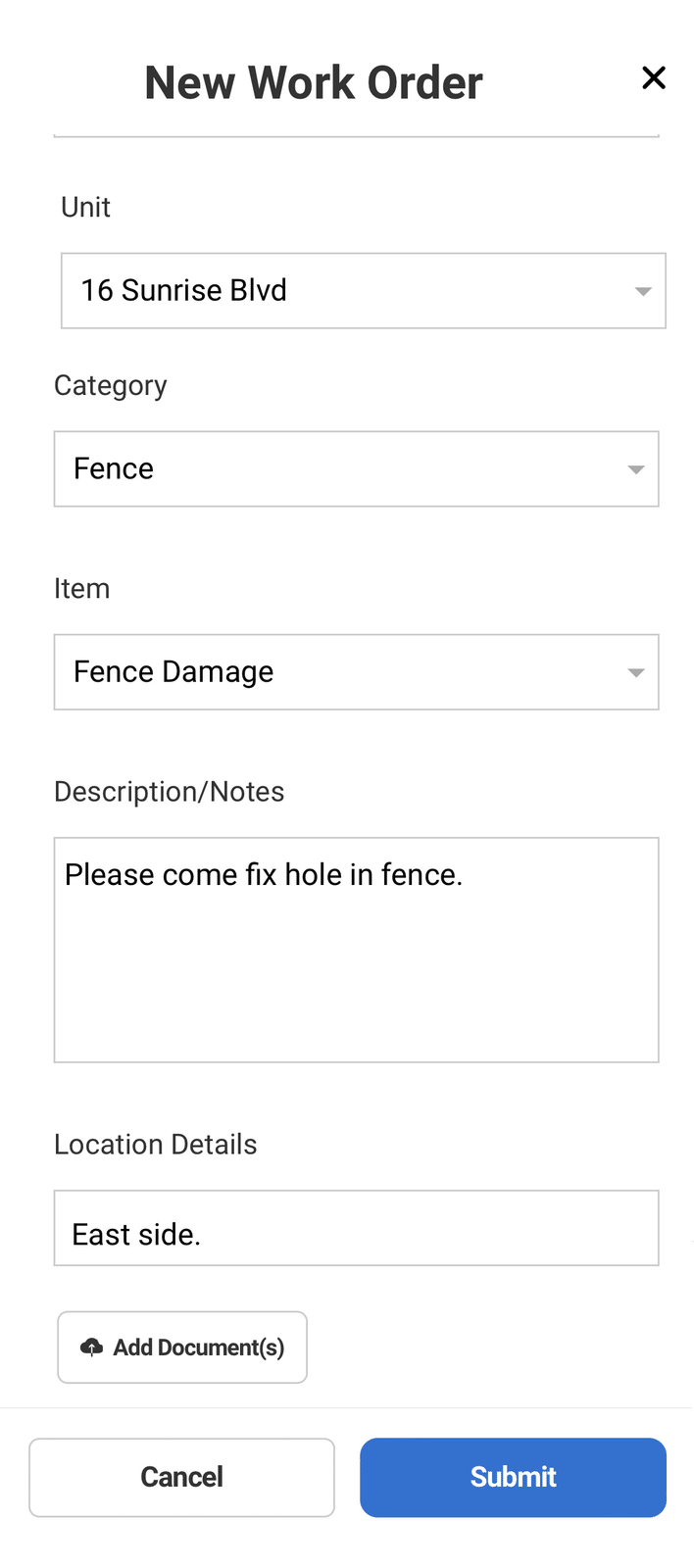
To add any Documents, including pictures, click the ‘Add Documents’ button. This will pop up a selection menu allowing you to choose an existing photo, take a new photo or add a file.
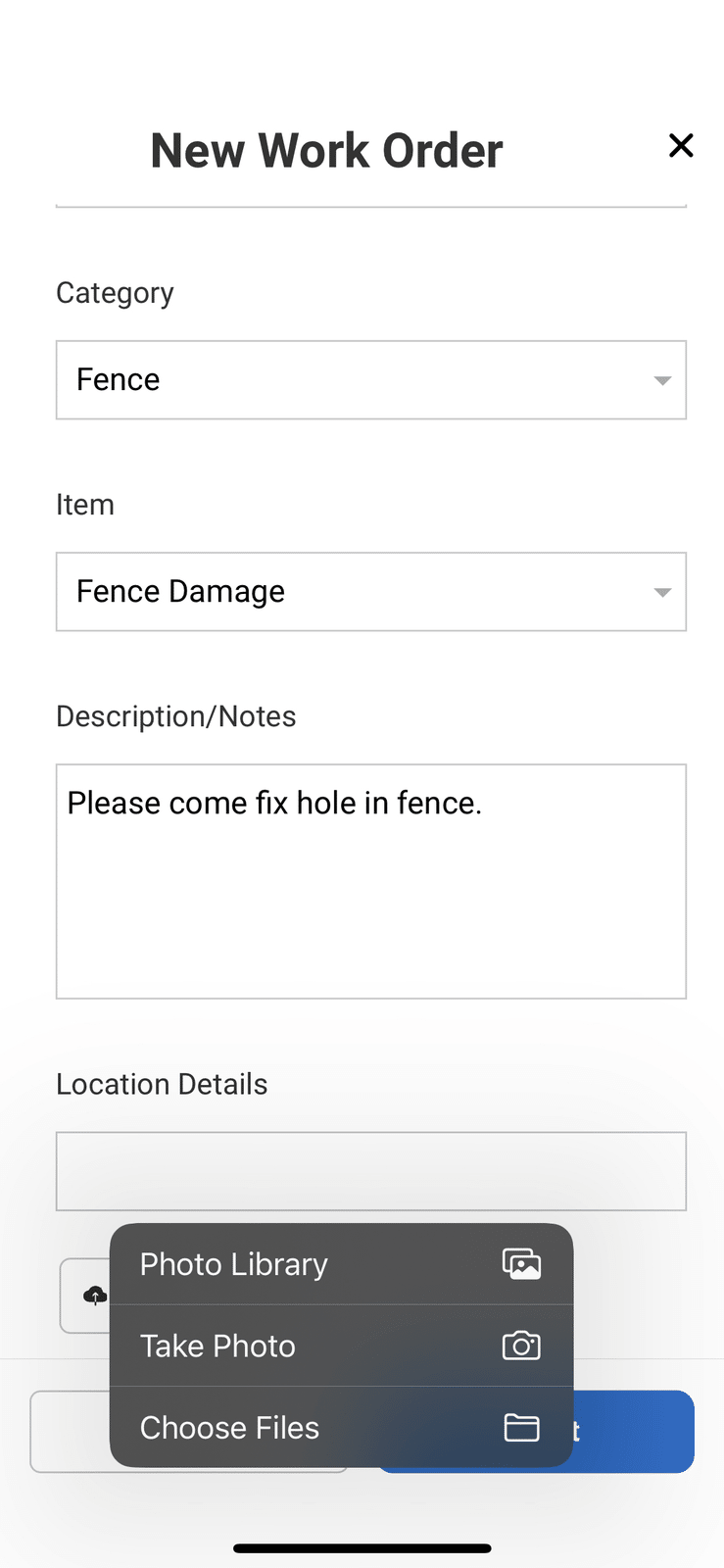
If you select ‘Take Photo’ the camera will open on the device and you may take a picture and attach it to the work order request.
Once the image or file has been added you will see it appear below the ‘Add Documents’ button.
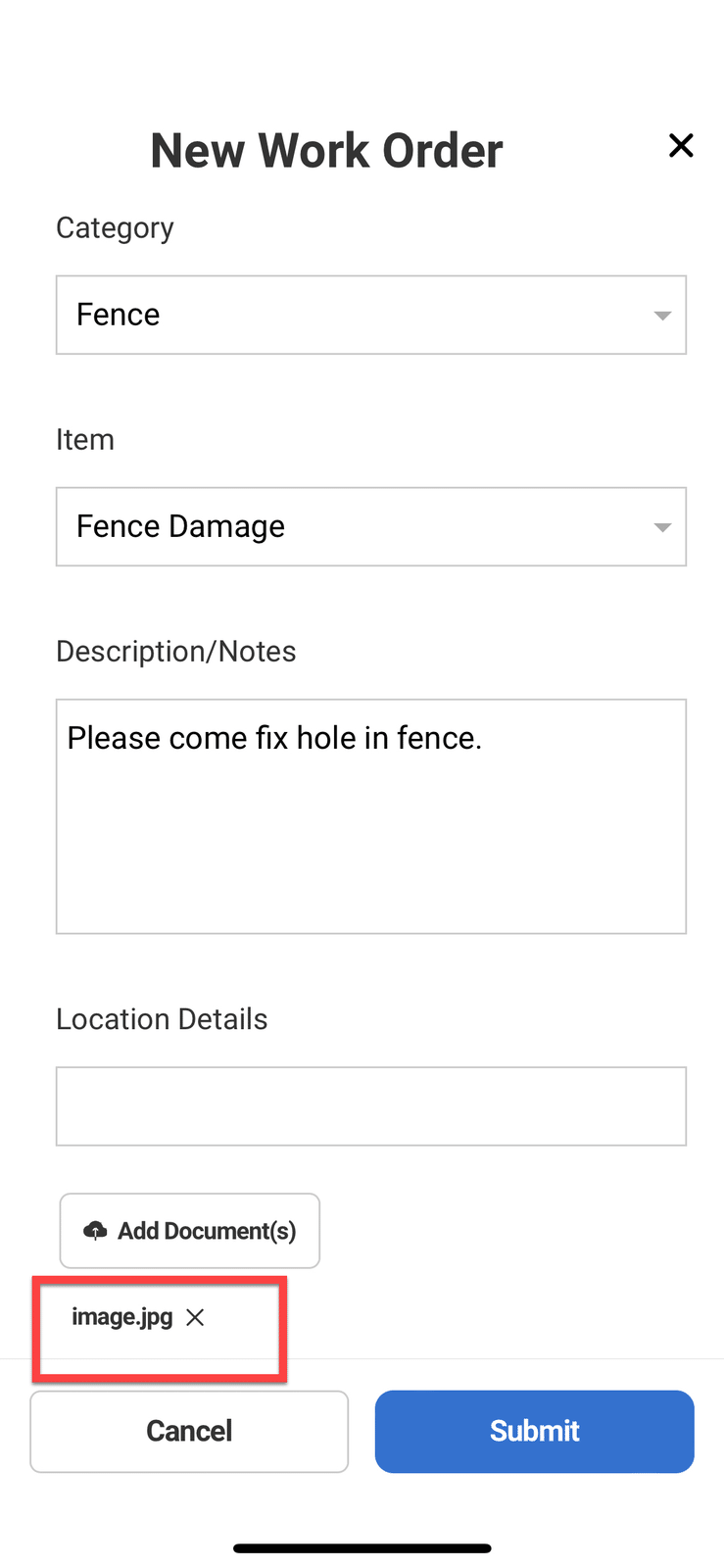
You can click the ‘Add Documents’ button again to add additional files or pictures.
If you added a file or picture by mistake, you can click the X next to the file/image to remove it.
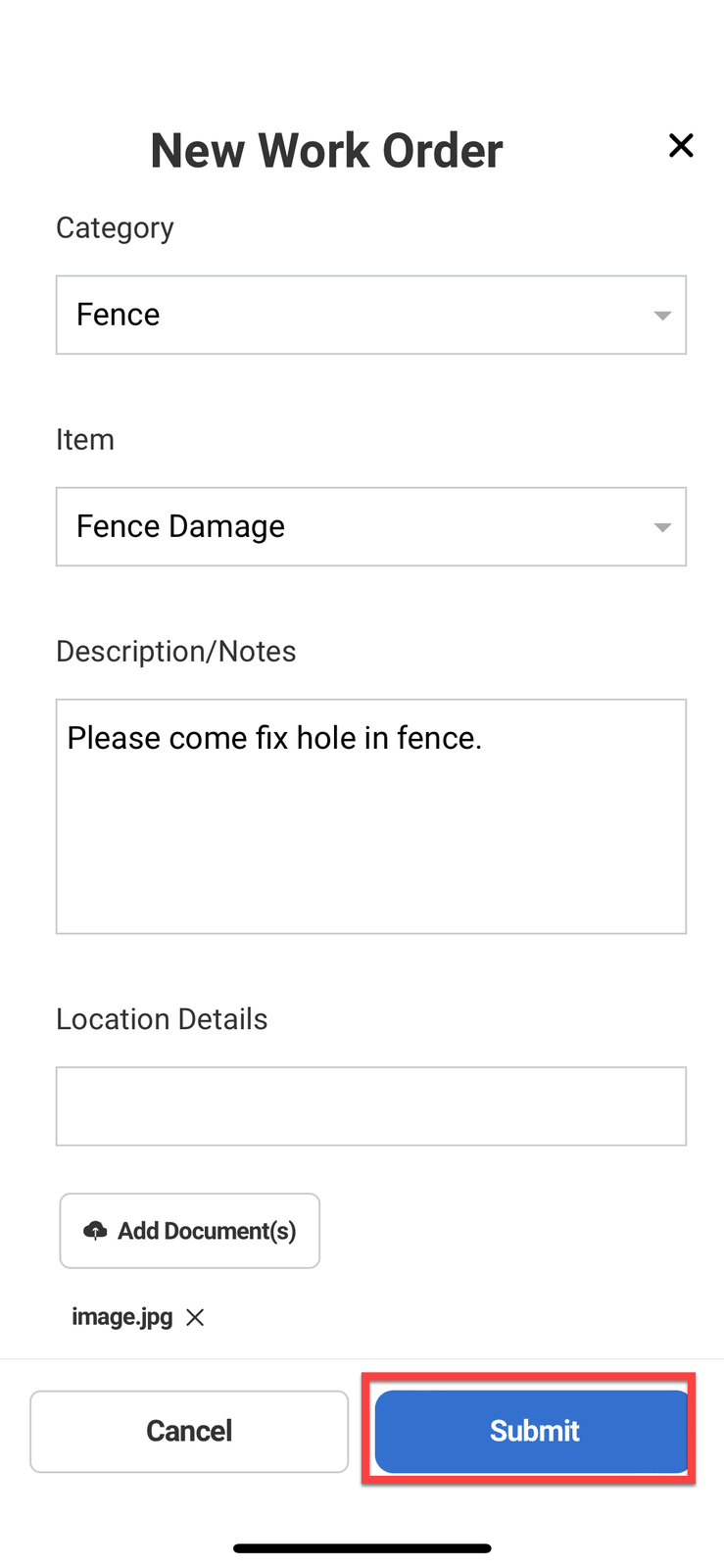
Once everything is filed out, click the ‘Submit’ button.
From the FRONTSTEPS Mobile App menu select the ‘My Requests & Reservations’ and then choose ‘My Work Orders’
To create a new Work Order request, choose the green + button.
Fill out the Work Order details, including Unit, Category, Item, Description/Notes and Location Details
To add any Documents, including pictures, click the ‘Add Documents’ button. This will pop up a selection menu allowing you to choose an existing photo, take a new photo or add a file.
If you select ‘Take Photo’ the camera will open on the device and you may take a picture and attach it to the work order request.
Once the image or file has been added you will see it appear below the ‘Add Documents’ button.
You can click the ‘Add Documents’ button again to add additional files or pictures.
If you added a file or picture by mistake, you can click the X next to the file/image to remove it.
Once everything is filed out, click the ‘Submit’ button.