
Resident: How to create and update Architectural Request
Architectural Requests
Depending on your community’s configuration, residents can submit and monitor Architectural Requests directly through the portal. Homeowners can add notes to communicate with their Community Manager and upload any additional documents that may be missing during the initial submission process.
Note: The ability to submit Architectural Requests is only available to homeowners.
Viewing and Managing Architectural Requests
-
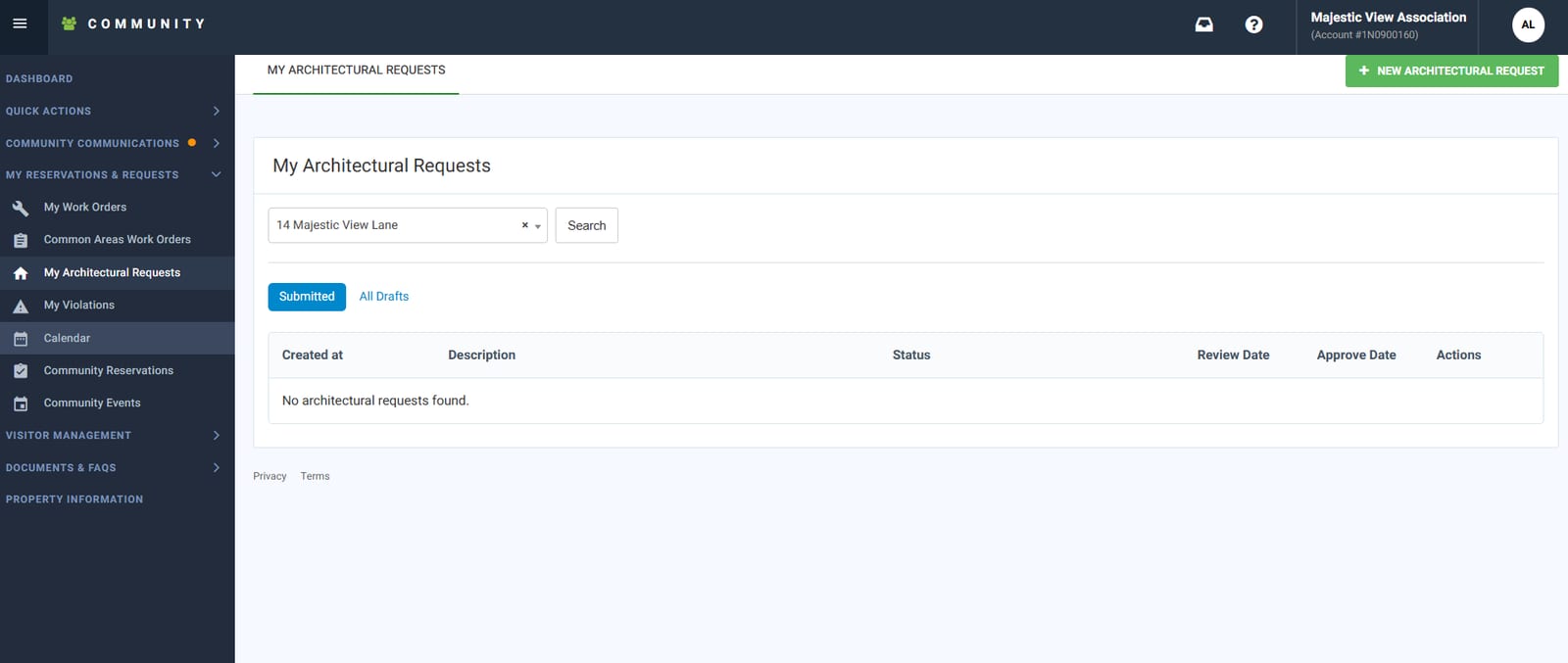
From the Resident Dashboard, select My Reservations & Requests > My Architectural Requests.
-
The Architectural Requests landing page displays all requests, including their description and current status.
- You can filter and sort by addresses linked to your property
-
To view detailed information about a specific request, select View located to the left of the application.
Creating an Architectural Request
-
From the Resident Dashboard, select My Reservations & Requests > My Architectural Requests.
-
Select + New Architectural Request.
-
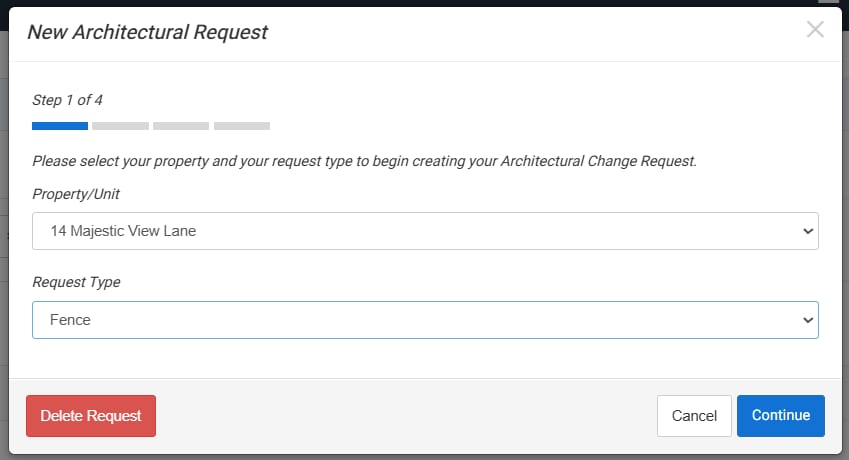
Choose the Property/Unit and Request Type, then select Continue.
- Request Types may verify based on community Configuration
-
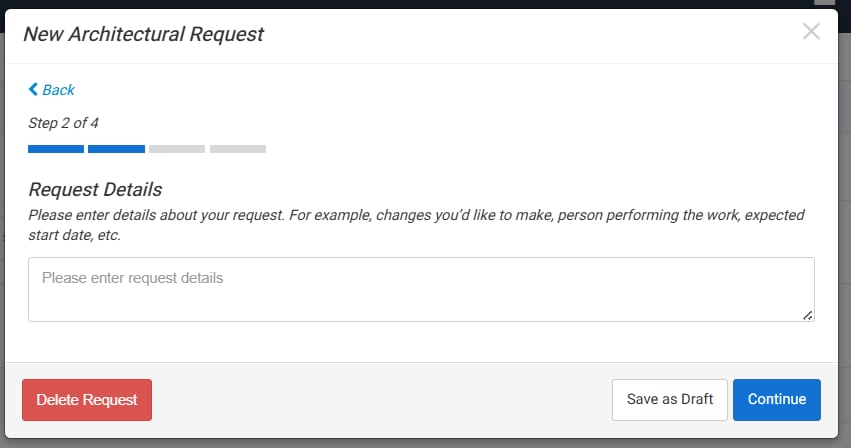
In the Request Details field, provide any relevant information requested by your management company, such as project start and end dates or contractor details.
-
Select Continue, or choose Save as Draft if you wish to return later.
-
Drafts will appear on the Architectural Requests landing page with a Draft status.
-
You may delete a draft using the Delete Request button.
-
-
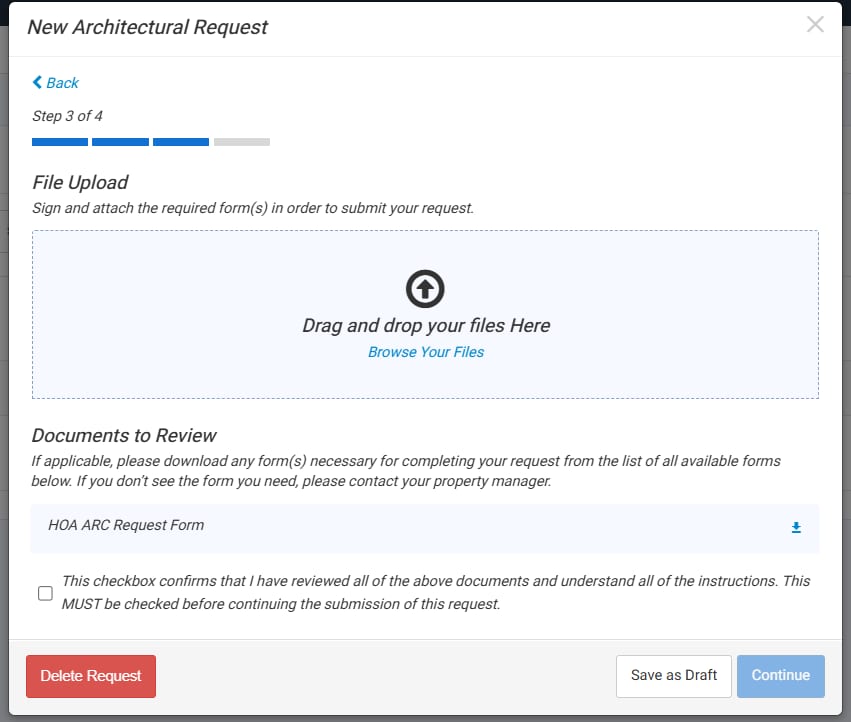
Upload any required files by dragging and dropping them into the upload area or selecting Browse Your Files.
-
Files must be under 4 MB in size.
-
File names should not contain spaces.
-
- Acknowledgement
- Check the box to verify all documents uploaded and information is correct and accurate.
-
Select Continue.
-
Review your request details and uploaded documents.
-
You may Save as Draft, Delete, or Submit the request.
-
-
Select Submit to send your request for review.
-
A confirmation message will display, and the submitted request will appear on the Architectural Requests page with full details.
Adding Notes and Documents
After a request has been created, homeowners can provide updates or add additional documentation:
-
Add Notes: Enter your message in the note box and select Add Note to communicate directly with your Community Manager.
-
Add Documents: Select Add Document, choose the file to upload, and click Open.
- Add Images: Select Add Images, Choose the file to upload, and click Open
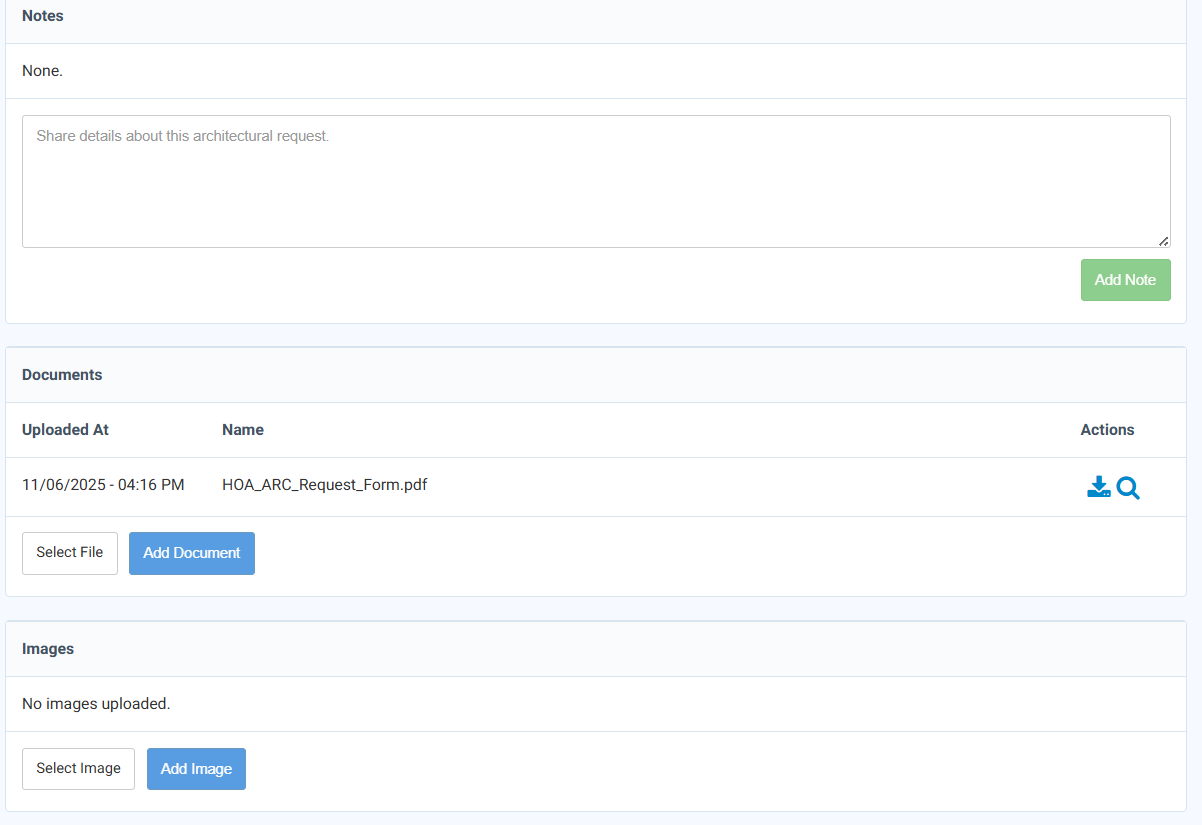
All activity related to the request, including notes, updates, and attached files can be viewed within the request details.
Drafts
If you are not ready to submit your request:
-
Select Save as Draft to store your progress.
-
Drafts can be accessed anytime from the My Architectural Requests dashboard.
Architectural Request via eForm
Some communities now utilize the eForm submission process for Architectural Requests.
This version allows homeowners to complete and submit requests directly through a guided electronic form that captures all required fields, attachments, and project details in a single submission.
The eForm is available for use today; however, its activation depends on each community’s configuration and approval guidelines.
If your community uses eForms for Architectural Requests, you will be directed to the form automatically when starting a new request.
Because Architectural Review requirements vary by community, the submission process may differ slightly based on your management company’s setup and your community’s governing guidelines.