
Resident- Architectural Change Request Guide - FRONTSTEPS Community
We’re updating this article. Some screenshots or names may look older than what you see in the product.
Background
FRONTSTEPS has built out the architectural change requests process as part of our best-in-class integration between FRONTSTEPS Community and FRONTSTEPS Caliber. Homeowners are able to submit architectural requests using the FRONTSTEPS Community website and the FRONTSTEPS Mobile App.Notes
- This feature is available to communities integrated with the FRONTSTEPS Caliber Desktop system. It is not available with other Accounting integrations.
Features
The following functionality is provided:
- Create Architectural Requests within FRONTSTEPS Community
- Save as Draft in the FRONTSTEPS Community
- Update Architectural Requests from FRONTSTEPS Community
- Update and Add Architectural Requests via the FRONTSTEPS Mobile App
To Create an Architectural Request
From the Dashboard, select My Reservations and Requests>My Architectural Requests.
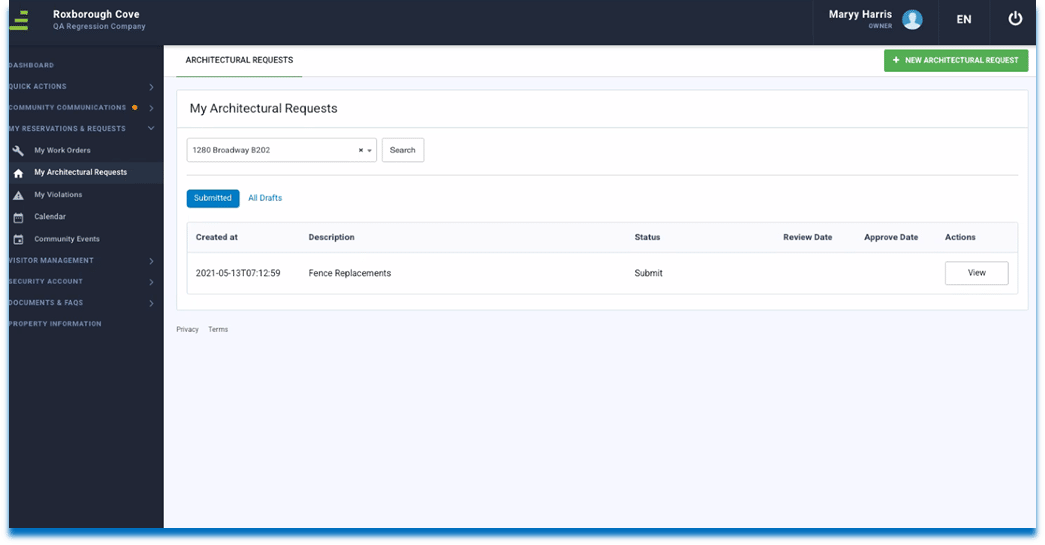
- Select the green +New Architectural Request button.
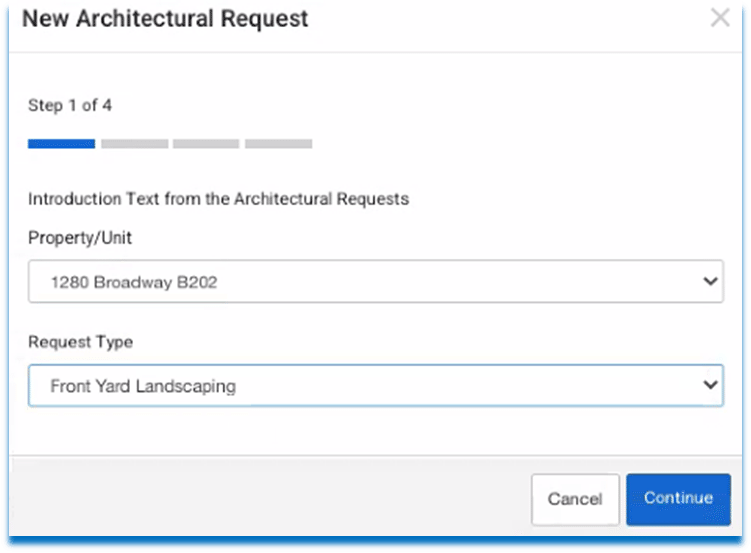
- Select the Property/Unit.
- Select the Request Type.
- Select Continue.
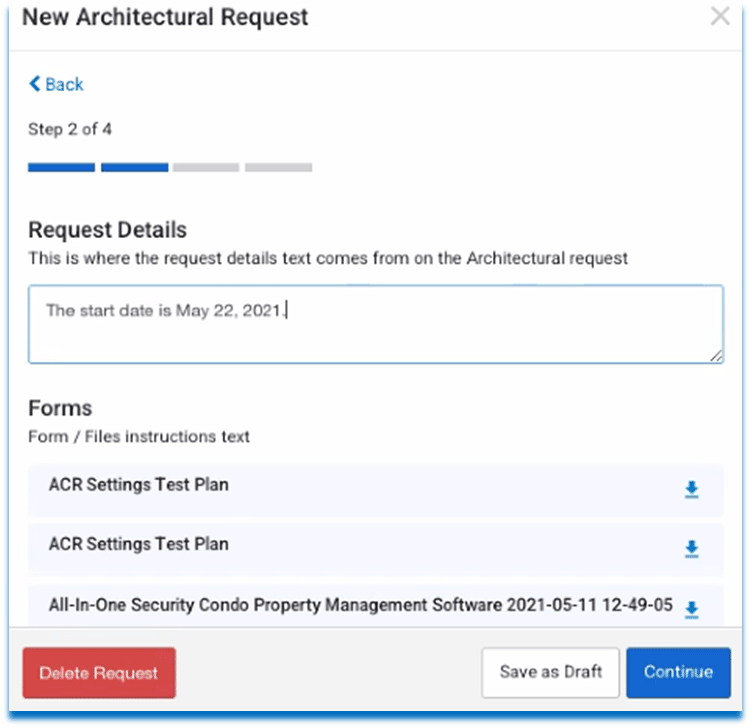
- Enter the Request Details in the box. The Request Details box allows space to provide information requested by the Management Company. The use of this field is optional. It may include items such as expected project start and end dates, or contractor information for instance.
- Download the required forms using the download arrow.
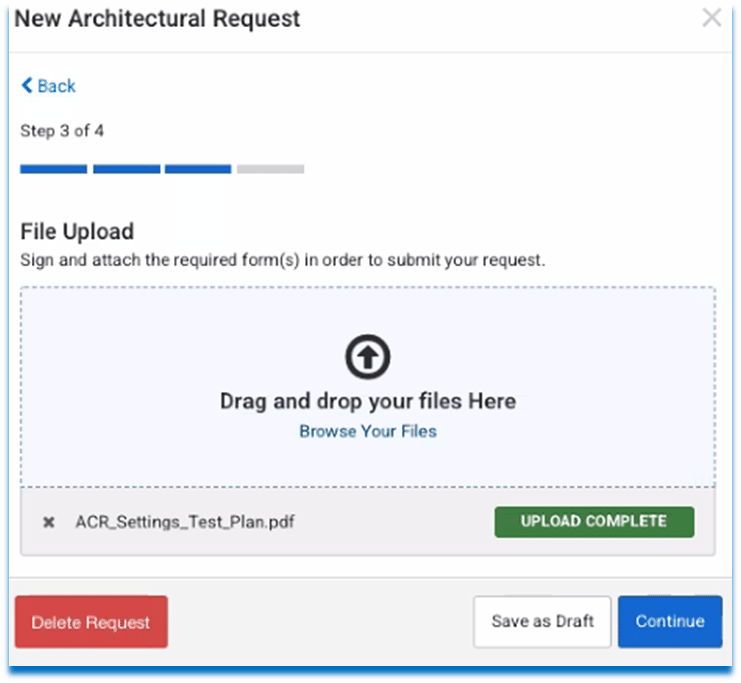
- Select Continue. You may also save the Architectural Request as a draft and return to it later. Use the Save as Draft button to use this feature. A Draft will display on the Architectural Requests landing page with the Draft status. Or you may delete the request using the Delete Request button.
- Upload the required file(s) by dragging and dropping or by using the Browse Your Files link.
- Select Continue.
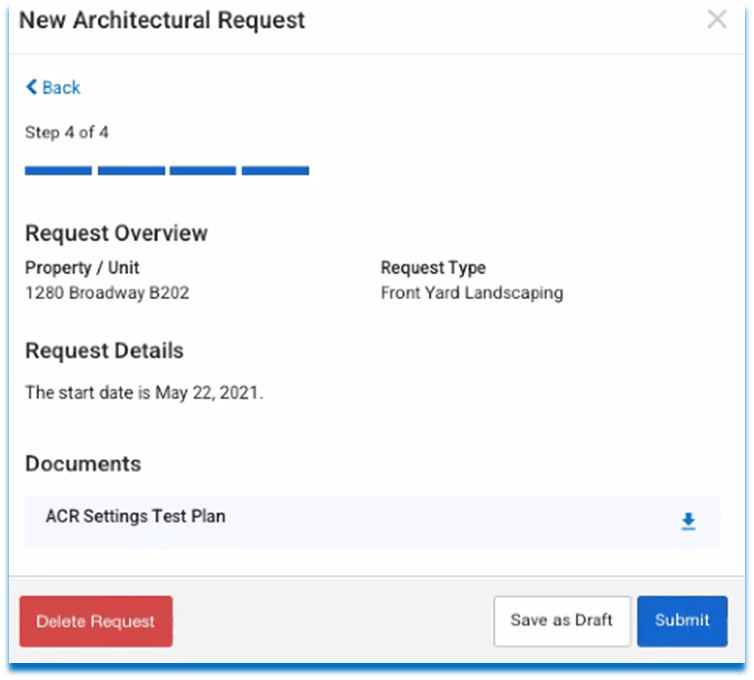
- The Request details display, along with the accompanying documents that were uploaded. The request can be saved as a draft, deleted, or submitted. Use the respective button. The Submit button will submit the request immediately.
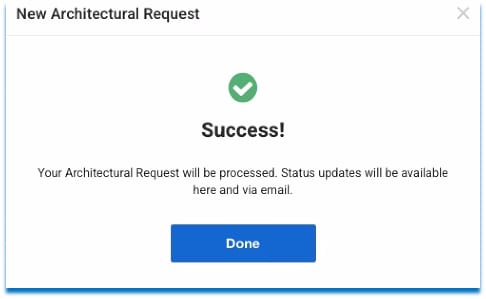
- A message displays indicating the request was successfully submitted, and the details of the request display on the Architectural Request page.
To Use the Draft
From the Dashboard, select My Reservations and Requests>My Architectural Requests.
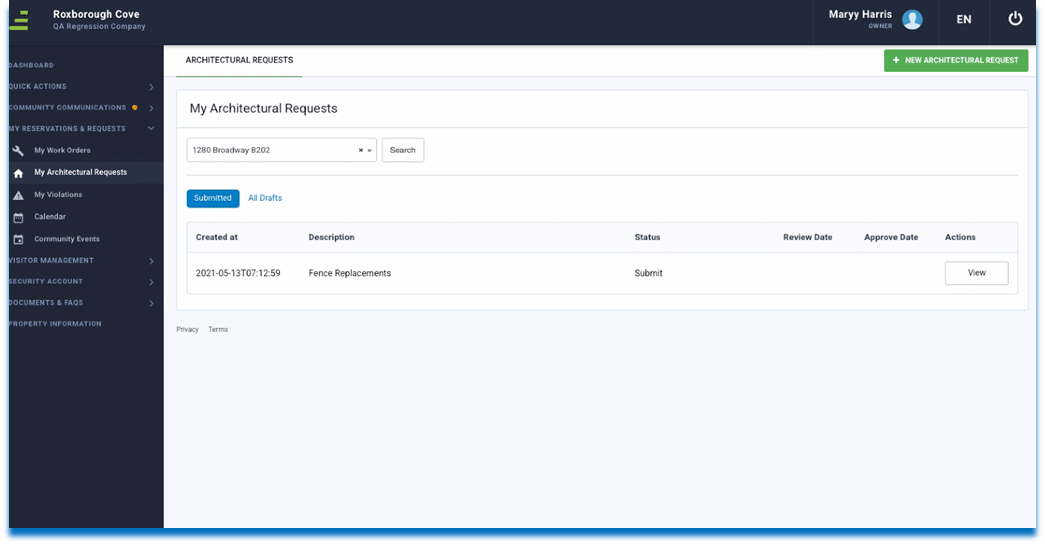
- Select All Drafts.
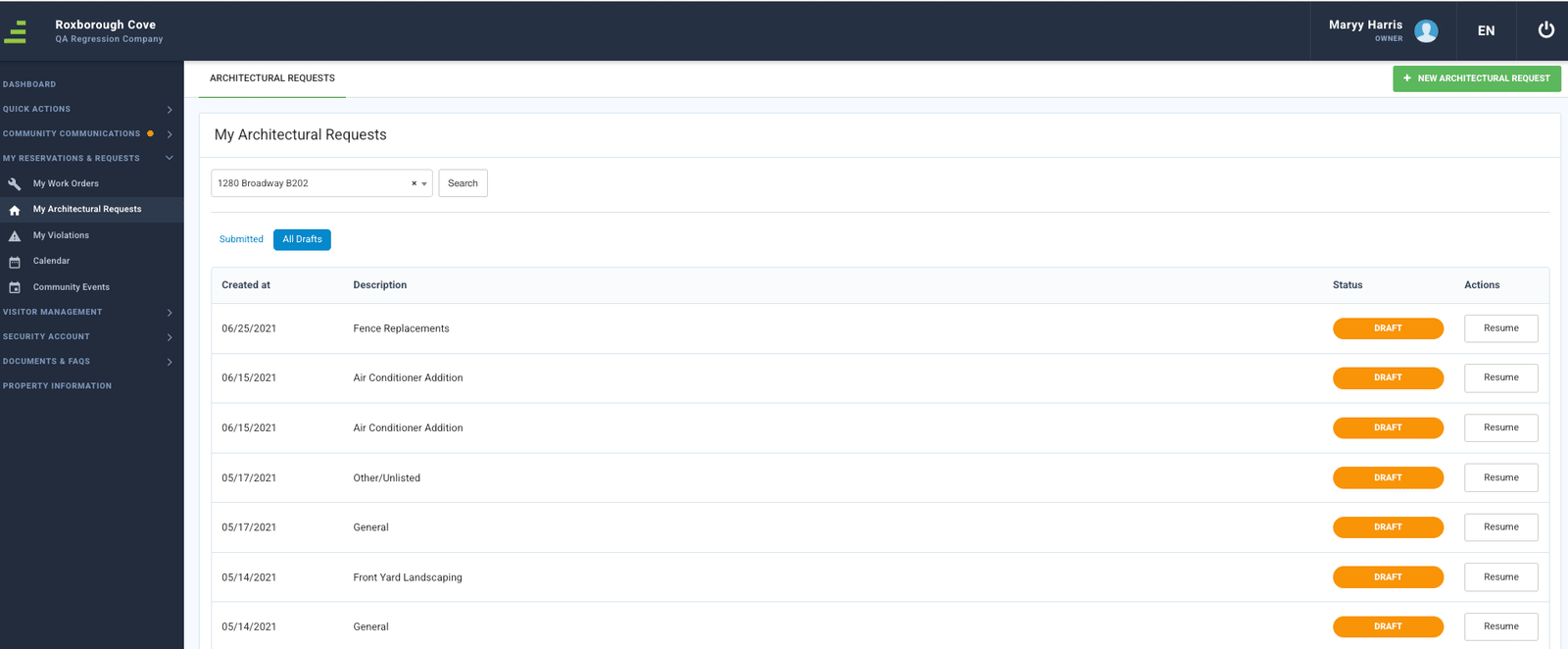
- Select Resume.
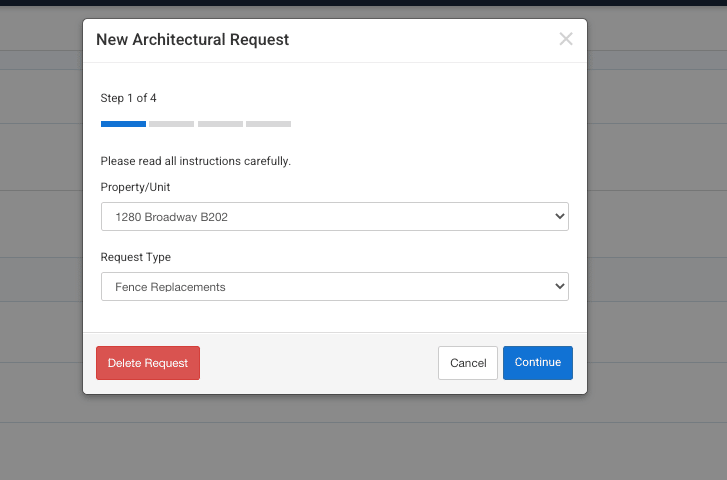
- Either select Delete Request or Continue to resume the Architectural Request.
To Add Notes and Documents
Homeowners can add notes and documents after the Architectural Request has been submitted.
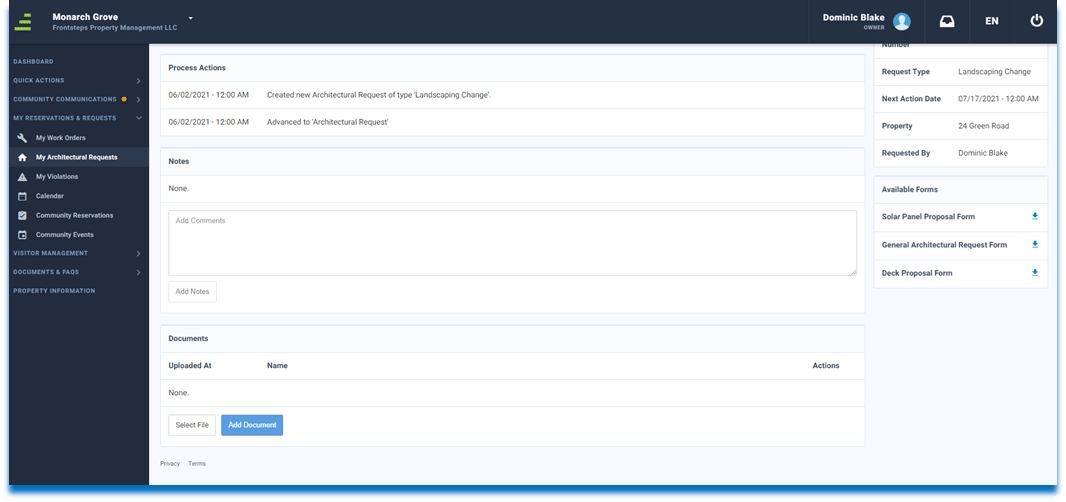
- Go to My Reservations and Requests>My Architectural Requests.
- Select the View button next to the Architectural Request.
- In the Notes section, add any comments, then select Add Notes.
- To upload documents, choose the Select File button.
- Select Add Document.
Downloading Forms
Residents can download the same forms that are available during the initial creation of the Architectural Request.
- Go to My Reservations and Requests>My Architectural Requests.
- Select the View button next to the Architectural Request.
- Select the form to download from the Available Forms box.
ACR Approval on the FSC Web Portal
Homeowners with approval rights can approve or reject Architectural Requests. Homeowners may have the Resident or Director role in FRONTSTEPS Community. Approval rights for the individuals are determined by settings in FRONTSTEPS Caliber.
- Select Community Records.
- Select ACRs.
- Select View to view the details.
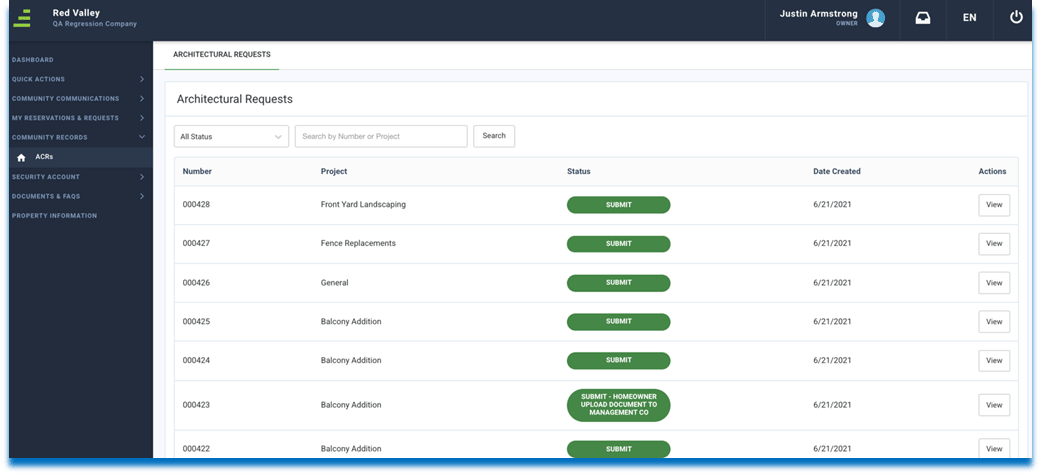
- Select Approve or Reject from the dropdown menu. If the Architectural Request is rejected, a comment must be added.
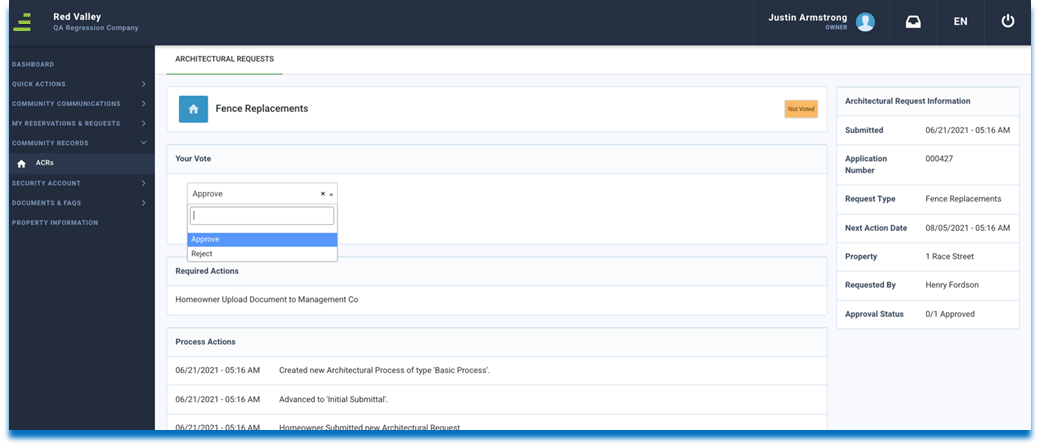
- Select Cast Vote to submit the vote.
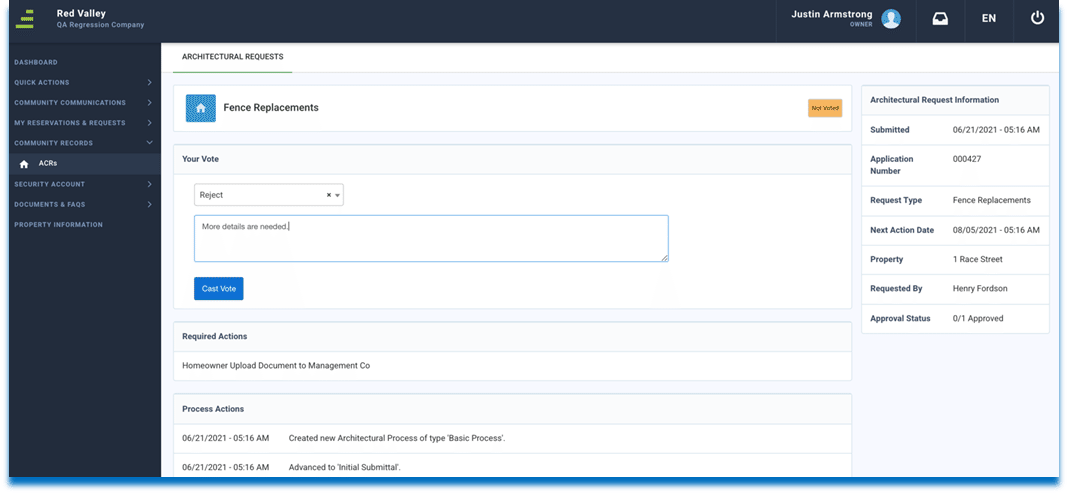
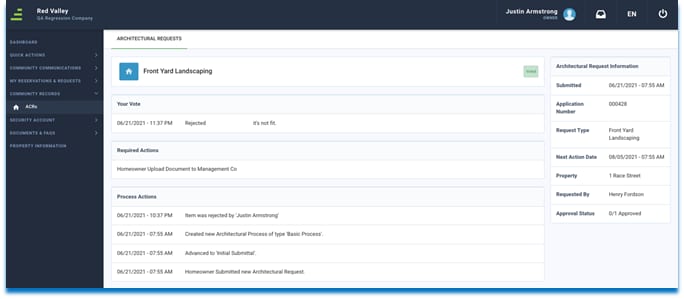
After the vote, the status on the Architectural Request changes to Voted.
For a video showing what the process looks like when submitting a new Request click here.
For a video showing what the is when reviewing an Architectural request click here.