
Report Runner
Report Runner is a module within Caliber Desktop that allows users to run a preset group of reports at one time. This feature is only available for Client level reports and can include Defined Reports.
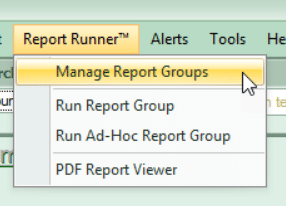
To begin, go to Report Runner from the top ribbon and choose Manage Report Groups.
 '
'
In the Master Report Groups window, you will make selections to set up your Report Group.
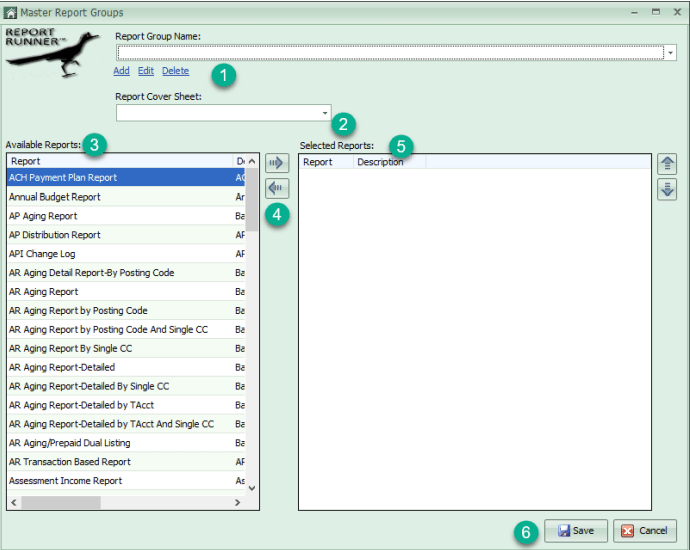
1. Report Group Name: If this is your first time creating a report group, nothing will show here. Click Add to create a new group. A box will come up allowing you to choose a name for the group. Once groups have been created, you will have the option of selecting one of those groups from the dropdown and either editing it or deleting it.
2. Report Cover Sheet: You can select a specific report cover sheet to be produced with this group every time it is ran. Additional cover sheets can be created in the Templates area. Please see the Templates document for additional information.
3. Available Reports: This is the list you will choose from to create your group.
4. Arrows: Use these arrows to add or remove the selected report.
5. Selected Reports: This is a list of the reports that have been chosen to be included in the report group. These can be re-ordered by using the arrows on the right.
6. Save.
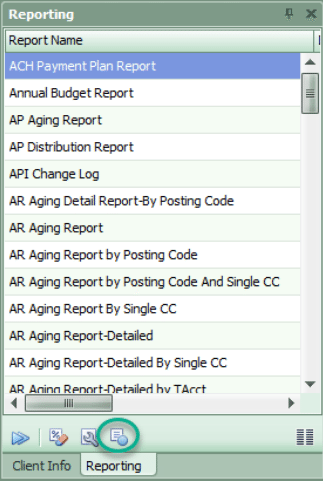
Once the group has been created, certain reports will have to be configured at the client level. To do this, go to the Client Dashboard > Reporting toolbox. Click the fourth icon at the bottom of the toolbox to open the Report Groups screen.
In the Client Report Groups window, various selections can be made in addition to configuring the reports.
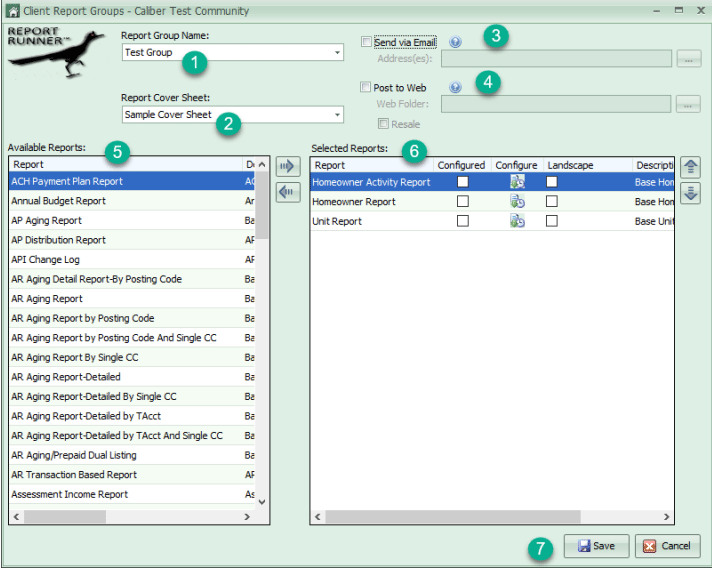
1. Report Group Name: Choose the report group you want to configure.
2. Report Cover Sheet: This will show the default selection from the master. It can be changed at the client level, if needed.
3. Send via Email: If this box is checked, click the ellipsis button to add email addresses. When the report group is generated, the system will send a copy to any email addresses listed here.
4. Post to Web: If this client is using Caliber Portal, checking this box will allow the user to select a folder to upload the report group to after generation. Click the ellipsis button to select the folder. Depending on the permissions of the folder, the report group document will be available to board members, homeowners, or both. Permissions can be checked by viewing the Caliber Portal settings for that client.
5. Available Reports: This allows additional reports to be added for just this client, if needed.
6. Selected Reports: These are the reports that are included in the group. If the box under Configured is not checked, click the button under Configure. If selections are available for that report, a separate window will come up where those choices can be made. If no additional selections are available, the Configured box will check. If a specific report will not fit properly in portrait mode, landscape can be chosen by checking the box.
7. Save.
These steps will need to be completed at each client for any groups that will be used by that client.
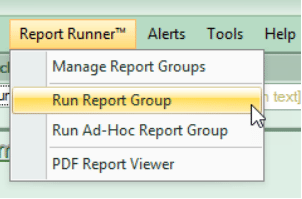
Once the report group has been configured, go to Report Runner > Run Report Group.
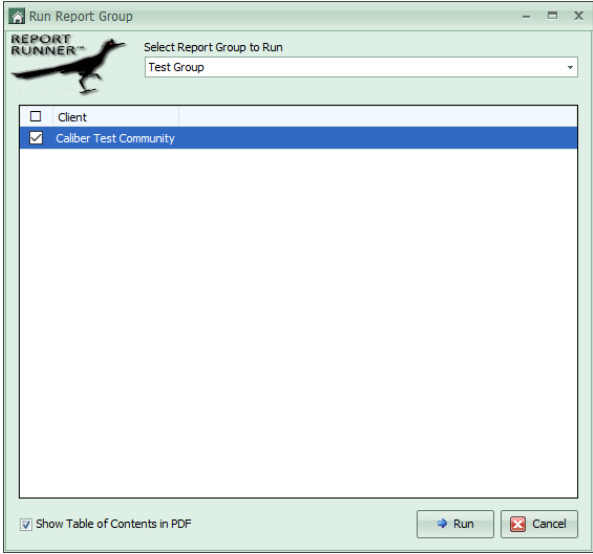
In the following window, choose the report group you wish to run from the dropdown. Then select the client(s) that the report will be run for. If multiple clients are chosen, a separate file will be created for each client. Choose whether or not to include a Table of Contents by checking/unchecking the box at the lower left. Click Run.
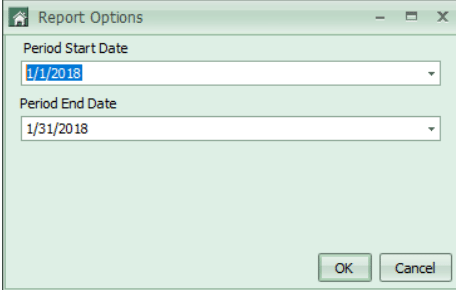
Depending on the reports included, additional selection boxes may come up prior to the report group being generated. Make selections based on the expected results for the report group.
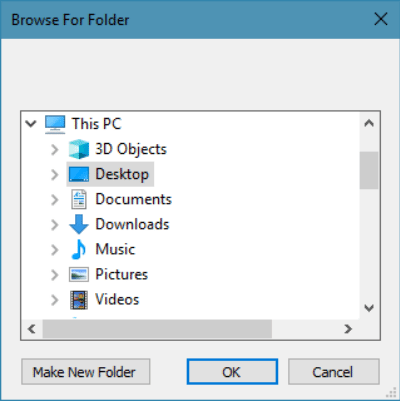
The system will then ask you to choose a folder to save the file to.
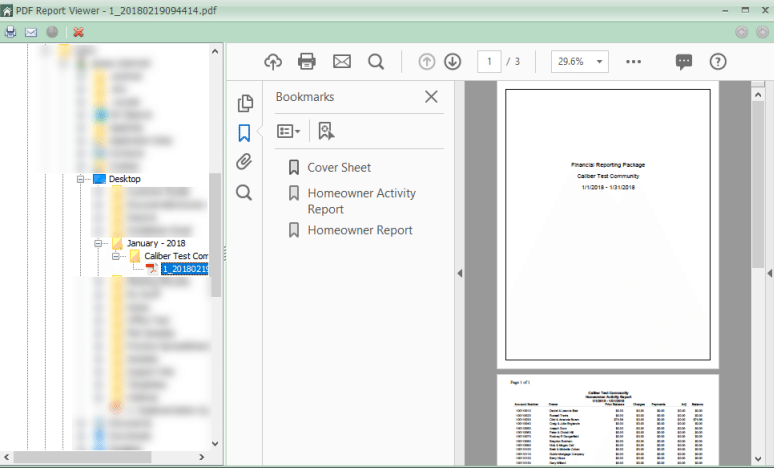
Once the report group has been generated, the PDF Report Viewer will come up. In the list of folders on the left, locate the folder where the document was saved. Within the folder that you chose, there will be a folder with the month and year for the report. Once that is opened, there will be a folder for each client that you ran the group for. Expand the folder for that client and click the .pdf file. A preview of the document will show on the right.
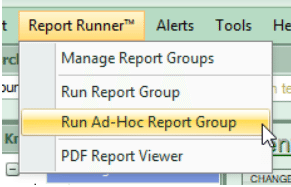
Under the Report Runner, there is also an option for Run Ad-Hoc Report Group. This gives you the ability to create a one-time report group. This is useful if the group will never need to be used again. The process works the same as running a normal report group.
The last option under Report Runner for PDF Report Viewer will bring up the window shown above for viewing previews of the report groups that have already been run.
To begin, go to Report Runner from the top ribbon and choose Manage Report Groups.
'In the Master Report Groups window, you will make selections to set up your Report Group.
1. Report Group Name: If this is your first time creating a report group, nothing will show here. Click Add to create a new group. A box will come up allowing you to choose a name for the group. Once groups have been created, you will have the option of selecting one of those groups from the dropdown and either editing it or deleting it.
2. Report Cover Sheet: You can select a specific report cover sheet to be produced with this group every time it is ran. Additional cover sheets can be created in the Templates area. Please see the Templates document for additional information.
3. Available Reports: This is the list you will choose from to create your group.
4. Arrows: Use these arrows to add or remove the selected report.
5. Selected Reports: This is a list of the reports that have been chosen to be included in the report group. These can be re-ordered by using the arrows on the right.
6. Save.
Once the group has been created, certain reports will have to be configured at the client level. To do this, go to the Client Dashboard > Reporting toolbox. Click the fourth icon at the bottom of the toolbox to open the Report Groups screen.
In the Client Report Groups window, various selections can be made in addition to configuring the reports.
1. Report Group Name: Choose the report group you want to configure.
2. Report Cover Sheet: This will show the default selection from the master. It can be changed at the client level, if needed.
3. Send via Email: If this box is checked, click the ellipsis button to add email addresses. When the report group is generated, the system will send a copy to any email addresses listed here.
4. Post to Web: If this client is using Caliber Portal, checking this box will allow the user to select a folder to upload the report group to after generation. Click the ellipsis button to select the folder. Depending on the permissions of the folder, the report group document will be available to board members, homeowners, or both. Permissions can be checked by viewing the Caliber Portal settings for that client.
5. Available Reports: This allows additional reports to be added for just this client, if needed.
6. Selected Reports: These are the reports that are included in the group. If the box under Configured is not checked, click the button under Configure. If selections are available for that report, a separate window will come up where those choices can be made. If no additional selections are available, the Configured box will check. If a specific report will not fit properly in portrait mode, landscape can be chosen by checking the box.
7. Save.
These steps will need to be completed at each client for any groups that will be used by that client.
Once the report group has been configured, go to Report Runner > Run Report Group.
In the following window, choose the report group you wish to run from the dropdown. Then select the client(s) that the report will be run for. If multiple clients are chosen, a separate file will be created for each client. Choose whether or not to include a Table of Contents by checking/unchecking the box at the lower left. Click Run.
Depending on the reports included, additional selection boxes may come up prior to the report group being generated. Make selections based on the expected results for the report group.
The system will then ask you to choose a folder to save the file to.
Once the report group has been generated, the PDF Report Viewer will come up. In the list of folders on the left, locate the folder where the document was saved. Within the folder that you chose, there will be a folder with the month and year for the report. Once that is opened, there will be a folder for each client that you ran the group for. Expand the folder for that client and click the .pdf file. A preview of the document will show on the right.
Under the Report Runner, there is also an option for Run Ad-Hoc Report Group. This gives you the ability to create a one-time report group. This is useful if the group will never need to be used again. The process works the same as running a normal report group.
The last option under Report Runner for PDF Report Viewer will bring up the window shown above for viewing previews of the report groups that have already been run.