
Manager - Creating Recurring Events
We’re updating this article. Some screenshots or names may look older than what you see in the product.
Managers can create recurring Events with the following options:
The ability to create a wider variety of Recurring Events – Events can still be set to recur on a daily, weekly, or monthly basis. The new enhancement allows events to recur by day of the week (every Monday), every ‘x’ day (every 2nd Tuesday) or on a specific date of the month (on the 11th).
The ability to view Recurring Events on the Calendar - As with other Events, Recurring Events can be views on the Community Calendar.
Creating a Recurring Community Event
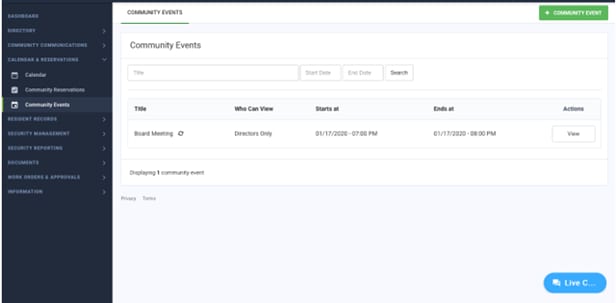
Select + Community Event
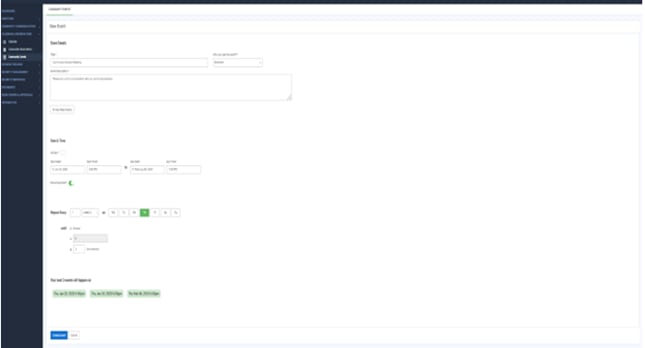
1. Enter the Event Title.
2. Select who can see the Event in the ‘Who can see this event?’ option from the drop-down menu.
3. Enter the Event Description.
4. Add attachments, if needed.
5. To choose an all day event, check All Day. For an hourly event, leave the toggle off.
6. Select Start and End dates and times.
For a Weekly Recurring Event: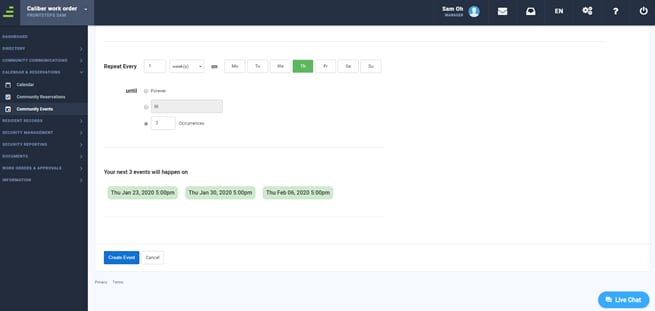
In the Repeat Every field, choose:
The weekly frequency (every week, every 2 weeks, etc).
Select the days of the week for the event to occur.
Select an End Date (Forever, a specific date, or a number of occurences)
Your Next 3 Events will display.
Select Create Event.
For a Monthly Recurring Event: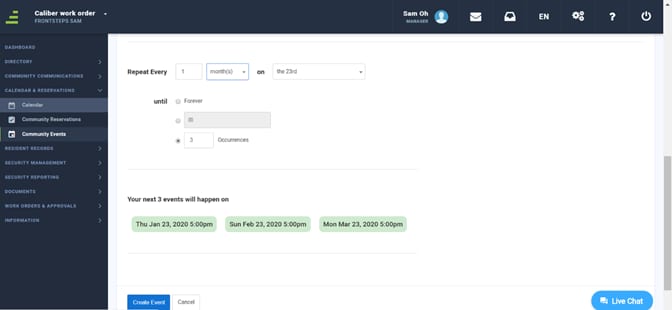
In the Repeat Every fields as seen above, choose:
The monthly frequency (every month, every 2 months, etc)
Choose from the dropdown box whether the event is recurring on the date (each month on the 23rd) or the day (the 4th Thursday of each month).
Note: This dropdown will dynamically change based on the day you input in your start date field. In this example, the date selected is the 4th Thursday, so the dropdown presented that option.
Select an End Date (Forever, a specific date, or a number of occurences).
Your Next 3 Events will display.
Select Create Event.
Viewing a Recurring Event on the Community Calendar
From the Manager Dashboard> Menu options, select Calendar.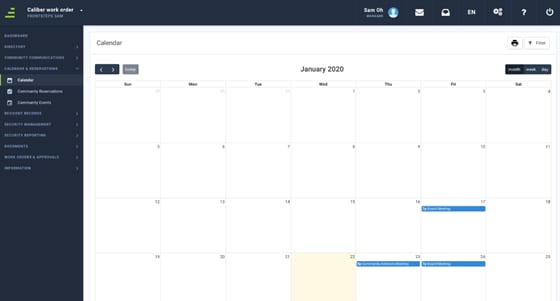
The Recurring Events are displayed in blue.
Calendar Event Preview
Hover over a Community Event entry on the Calendar.This provides the name of the User who made the reservation, along with start and end times and dates of the event.
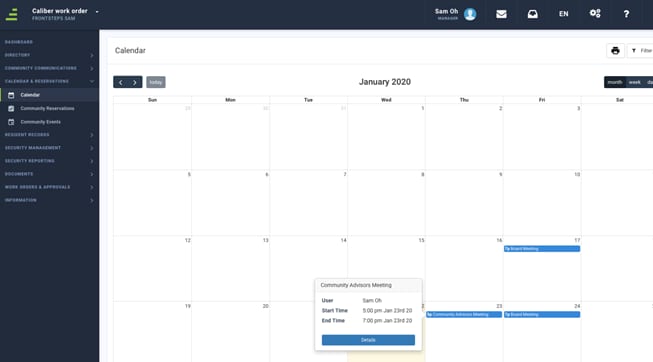
The Details option redirects you to the Calendar Event review screen.
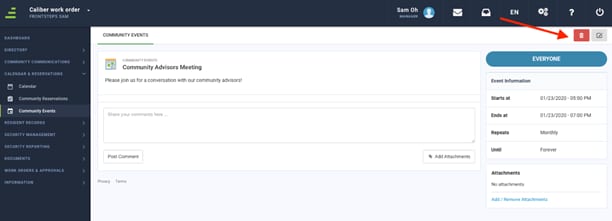
Here you can:
§ View details about the Event
§ Post comments about the Event
§ Add attachments to the Event
§ Edit the Event
§ Delete the Event