
QR Codes
Introduction
QR Codes are a type of barcode that is used in mobile phone applications to quickly take the user to a website. Caliber has the ability to add owner specific QR Codes to homeowner statements and coupons which will take them directly to FRONTSTEPS Payments (Quick Pay) with a simple scan. This allows your homeowners to easily make an accurate and secure online payment.The Management Company and the Property must both be using our FRONTSTEPS Payments product for the QR Codes feature to function.
Owners do not need to be registered for the web portal to use the QR Code.
Please be aware that QR Codes cannot be used with every Coupon and Statement Output option in Caliber. The list below is accurate as of November 2023.
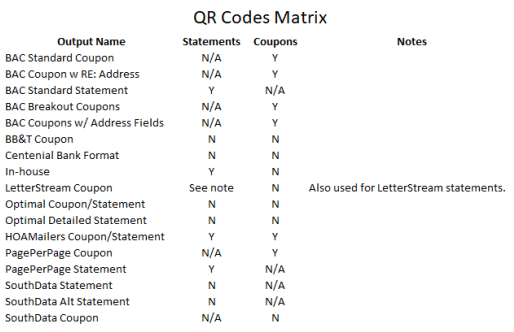
Global Set-Up
To enable QR Codes globally, go to Admin at the top ribbon, then Management Company. This enables QR Codes for all clients, so individual clients do not need to be enabled.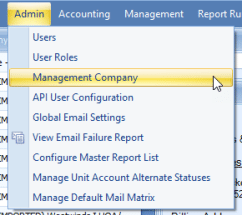
When the Management Company Settings Toolbox opens, go to the Coupons/Statements tab, and click ‘Include QR Code on statements.’ Although it only says ‘statements’ it enables QR Codes for coupons as well.
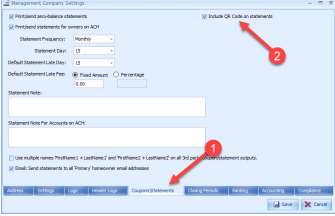
When done, click Save.
If the QR Codes are not being used for some clients, follow the steps below, unchecking ‘Include QR Code on statements and coupons’ instead for those.
Client Set-Up
If QR Codes are only being used for some clients, they can be enabled individually. Go to the Client Info Toolbox on the Client Dashboard, and select the Accounting Setup tab.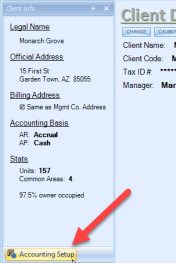
When the Change Client Details Toolbox opens, go to the AR Statements tab, and click on ‘Include QR Code on statements and coupons.’
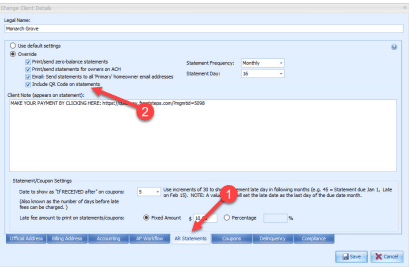
When done, click Save.
Coupon Layout Set-Up
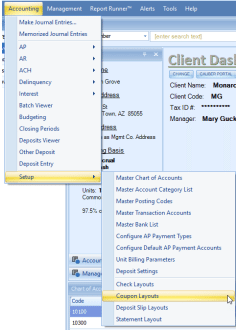
This step is necessary for any coupons generated using the ‘In-house’ output option. It is not necessary for statements generated with a coupon attached.Go to Accounting at the top ribbon, select Setup, and finally Coupon Layouts.
In the Coupon Layout Toolbox, select the Coupon Layout for which the QR Code is to be included, then click on the ‘QR Code’ box. A CTA Image can be included as well by clicking on ‘Include CTA Image.’ Items already included on the existing Coupon Layout may need to be moved or deleted to make space for the QR Code.
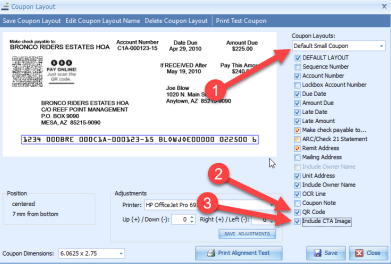
When done, click Save.
Repeat the steps above for all Coupon Layouts as needed.
All statements and coupons can now be generated as normal.