
Process to Install Tagmaster LPR Hardware
PROCESS TO INSTALL TAGMASTER LPR HARDWARE
-
Install the JetManagementSuite (JMS) software on the PC which will perform the LPR processing.
-
Set Network Adaptor - set the IP address of your computer’s adapter to something on the same IP schema as the camera default (e.g. 192.168.127.2).

-
Connecting the LPR Camera
a) Connect AC power into the camera via an M12 connector ensuring it is fully screwed in and secured; supply should be a clean 24V DC. (see Appendix 6 for details)
b) Connect the Ethernet cable from the camera either directly to your computer or into a switch on the same network as your computer.

-
Setting Camera’s IP Address
a) Go to C:\ANPR\utilities\IPCameraFinder and launch IP Camera Finder application as an administrator.
b) The window below will appear which shows LPR cameras connected and their IP addresses.
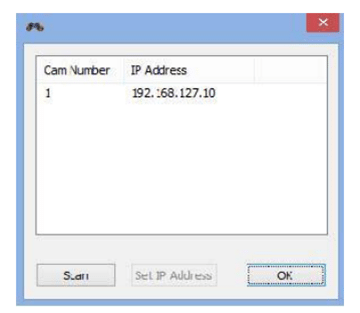

c) If you are happy with the IP address press OK and continue to Step 5, setting up the JMS software.
d) To change a camera’s IP address, click on the camera and then the newly enabled “Set IP address” button.
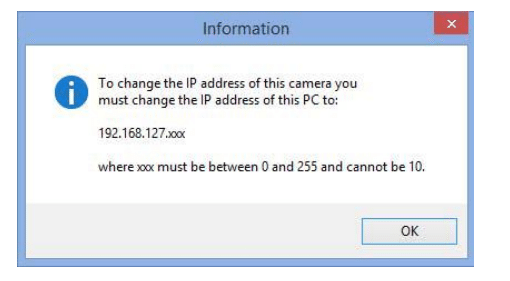
e) If the IP address is greyed out, the camera is not on the same subnet and the following error message will appear advising you to change network settings:
 f) Once the computer is on the camera’s subnet, enter the desired IP address for the camera into the pop-up box:
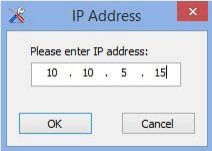
g) Press “OK” when done or repeat for further cameras.
h) Once all camera IP addresses have been set, remember to reconfigure your network if the new addresses are on a different subnet.
-
Setting up the JMS Software
a) Run JMS Live.
b) If this is the first-time running JMS Live, use the following credentials to sign in:
i. Username: administrator
ii. Password: lpr
c) Follow the next prompted steps to set up any needed users

d) Click on the “Options” button at the top of the JMS Live Page and then select “JMS Live Preferences.”
e) Select Input System Details and ensure that “JetManagementSuite-IP2” is enabled.
f) Navigate to Camera setup and, in Camera Settings, choose JetManagementSuite-IP2 as the Video System.
g) Enter the IP address which you chose for the camera in step 4.
h) Click test and you will see confirmation showing the connection was successful.
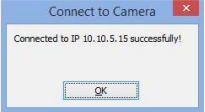
i) Click OK to close the window, exit preferences and the camera should now be visible in the live video window.