
Process to Install OPENALPR Hardware
PROCESS TO INSTALL OPENALPR HARDWARE
-
Unzip file and run FrontstepsOpenLPRAgent-x86.exe.
-
Accept License Terms.
-
click Install.
-
Follow OpenALPR Agent Setup instructions.
-
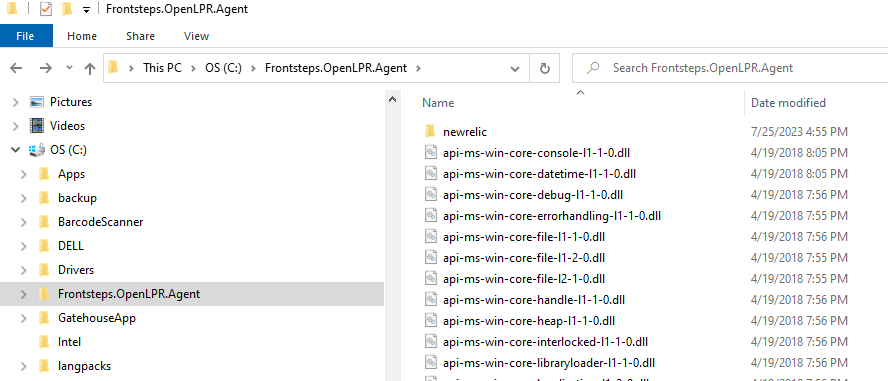
Open Explorer and go to folder “C:\Frontsteps.OpenLPR.Agent”.
-
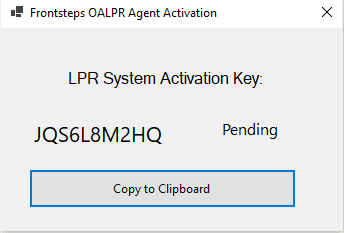
Open program Frontsteps.OpenLPR.Agent.ActivationForm.exe

-
Click Button “Copy to Clipboard“.
-
Open DL Web page.
-
Login to AZQA as a Dealer.
-
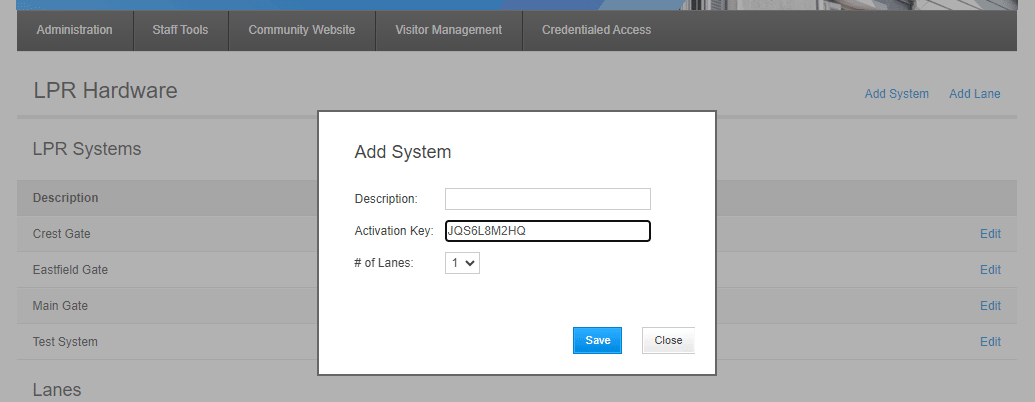
Locate and ‘Manage' the community of the client. On the top navigation, select 'Visitor Management' Then 'LPR Hardware'.
-
Click 'Add System'.

-
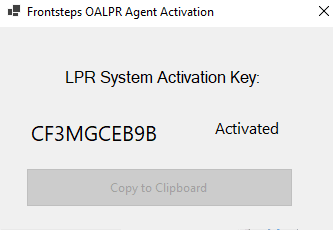
Write System Name, Paste Activity Key and click 'Save' (wait until form .exe says activated!)

-
launch the newly installed OALPR software from the menu labeled 'configure OALPR agent' or click 'configure OALPR agent' (camera iris icon) on the desktop after installation.
-
Click 'Configure' menu in the OpenALPR software.
-
click 'legacy licensing' tab and see system ID.
-
copy system ID and close the OpenALPR agent.
-
Request the SDK license key from the FRONTSTEPS Procurement team ([email protected]), providing the system ID that was copied in the previous step so the SDK license can be generated.
-
Once you receive the license, return to the FRONTSTEPS Dwelling portal page and on the site menu, select 'Visitor Management' then 'OpenALPR'.
-
Click 'Add OpenALPR Agent'.
-
Select system added on step 11.
-
Name the Agent.
-
Paste License Key provided by the FRONTSTEPS Support team.
-
Click Save.
-
On the FRONTSTEPS Dwelling portal page, select 'Visitor Management' then 'OpenALPR'.
-
Click ‘edit’ on the system that was just added.

-
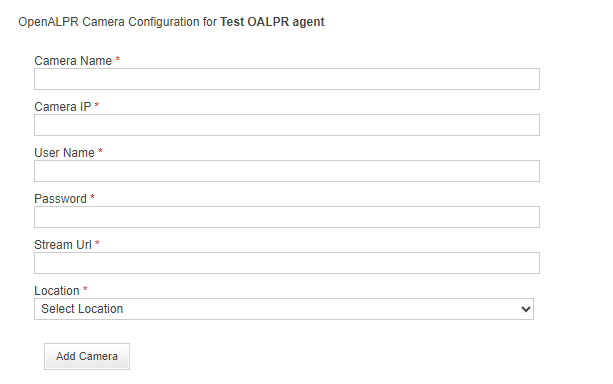
Click ‘Add OpenALPR Cameras’
-
Fill in the correct information.

-
Click ‘add camera’
-
See ‘update successful’
-
On the LPR PC, Open the start menu, then 'configure OALPR agent’.
-
Click the 'Configure ' menu in the OpenALPR software.
-
See lanes listed on the left menu
-
Camera should start streaming in the software if the camera settings are correct.
-
Click 'legacy licensing' and see system ID and license (license comes pulled from the portal if correctly configured).