
Posting Codes
What is a Posting Code?
In Caliber, a Posting Code is a transaction label used to easily post and identify Charges and Credits on homeowner accounts and the general ledger (GL). Examples of Posting Codes include ‘Payment’, ‘Assessment’, and ‘Late Fee’.

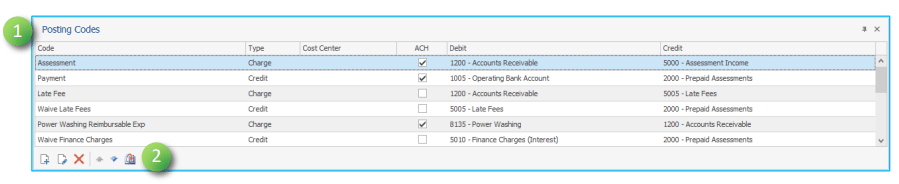
When setting up Posting Codes, we designate the appropriate debit and credit GL accounts that are affected by the transaction type. Posting Codes can allow for the automatic application of payments, ACH, and Lockbox. Payment application precedence can be assigned per Posting Code to prioritize the application of homeowner payments.
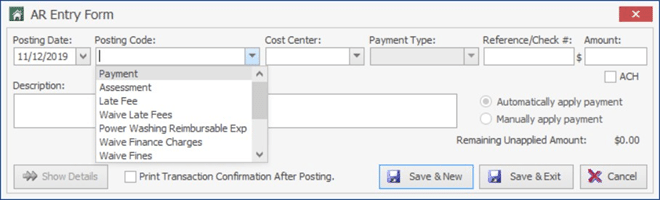
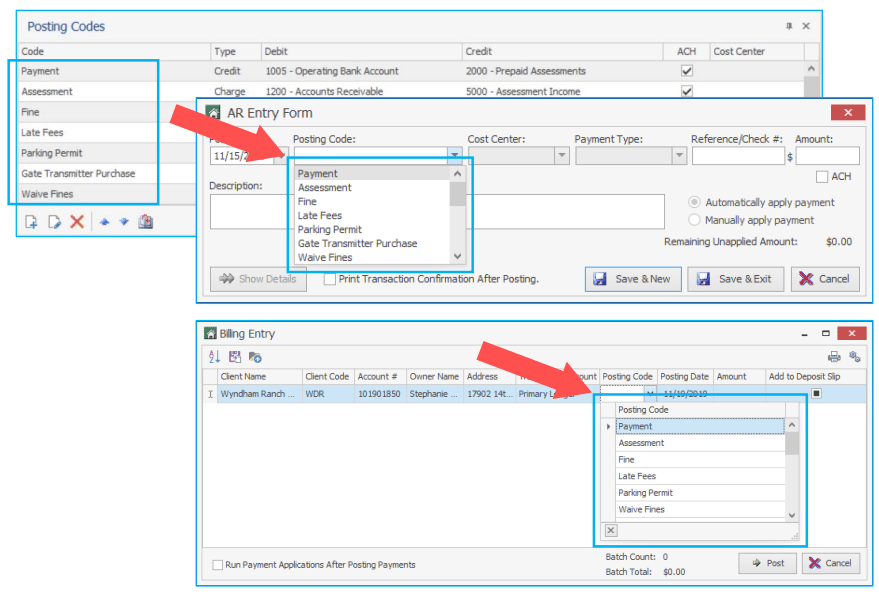
You have the option to select a Posting Code from any window where you enter transactions in Caliber, including the AR Entry Form and Billing Entry window.
Master Posting Codes vs. Posting Code Toolbox
During your initial training with Caliber, our Transition team imports your Master Posting Codes based on your income accounts. When the import is complete, the Master Posting Codes can be applied to the client level.
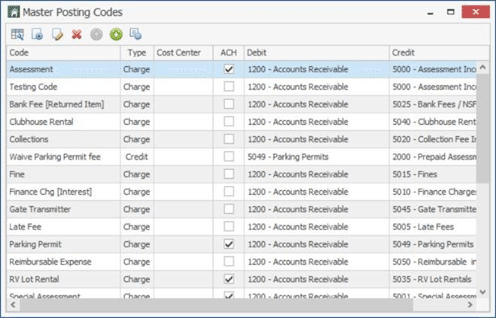
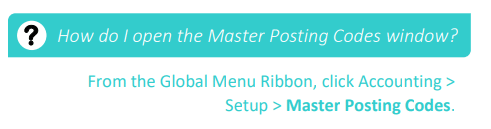
You can customize the Master Posting Codes for individual clients using the Posting Code toolbox on the Client Dashboard.


Adding New Posting Codes

Over time, your community may decide to create new charges that require new Posting Codes. Examples include a new special assessment billed to homeowners to build a reserve fund or a new clubhouse rental charge for a clubhouse that was recently built for your community. New Posting Codes are added at the client level:
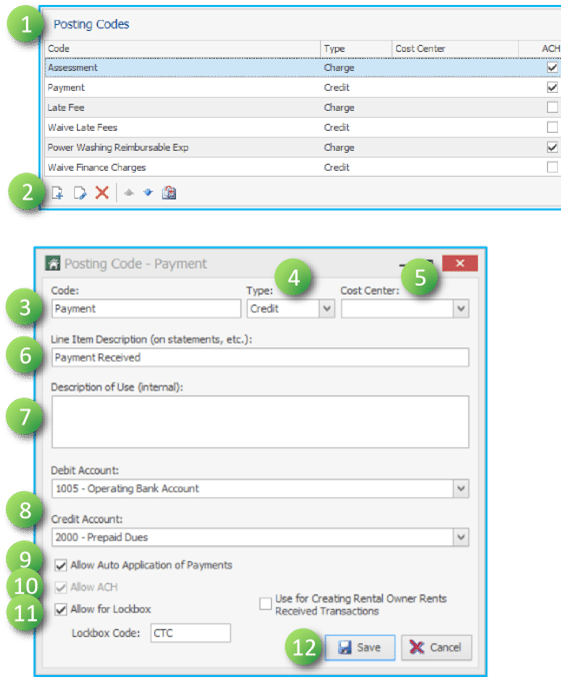
- From the Client Dashboard, open the Posting Codes toolbox.
- Click the New Posting Code icon (
 ).
). - Enter a Code. This is the name of the Posting Code.
- Select a Type (Charge or Credit).
- Select a Cost Center, if applicable.
- Enter a Line Item Description. This will appear on account history and statements.
- Enter a Description of Use. This appears only on this window for those with Posting Codes permissions.
- Select a Debit and Credit Account. All GL accounts are available from the dropdown.
- If you want to allow payments to be automatically applied to this Posting Code, check the Allow Auto Application of Payments box.
- If you want to allow this Posting Code to work via ACH, check the Allow ACH box.
- If the Posting Code is a Credit-Type and you want it to work via Lockbox, check the Allow Lockbox box and enter the Lockbox Code that corresponds with your bank list.
- Click Save when complete.
Setting Posting Code Precedence

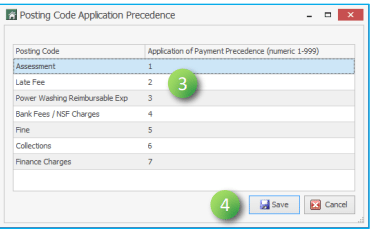
Posting Code Precedence (known as payment application precedence in Caliber) can be assigned to your ChargeType Posting Codes at the master and client level. This sets a numerical order defining which Posting Code to apply homeowner payments to first. This order can be individually adjusted at the client level.
Many states have laws that require payments to be applied against open charges in a certain order. Caliber’s Posting Code Precedence allows you to set the application precedence according to those requirements. Even when not required by law, some communities use Posting Code Precedence because their Covenants, Conditions, & Restrictions (CC&R’s) have similar requirements.
Follow the steps below to set Posting Code precedence at the client level:
- From the Client Dashboard, open the Posting Codes toolbox.
- Click the Set Payment Application Precedence icon (
 ) .
) .
- Click on a value in the Precedence column to edit. Enter a number to set the order.
- Click Save when complete.
Posting Codes in Dropdown Lists

You can change the order that Posting Codes appear in dropdown lists on transaction entry windows including the AR Entry Form and Billing Entry window. We recommend that you move your Payment Posting Code to the top of the list as it is often used the most for manual entries.
From the Posting Codes toolbox, use the Move Up ( ) and Move Down (
 ) icons to change the order of your Posting Codes.
Frequently Asked Questions

- Can I have more than one ‘Payment’ Posting Code?
Yes, you can add a second ‘Payment’ Posting Code for payments that need to be sent to a separate bank account rather than the primary bank account. Some communities set up a second Payment Posting Code for their reserve funds.
- How can I print out a list of our Posting Codes?
From the Reporting toolbox, double-click on the AR Transaction Based Report. On the Report Options window, click the Check All box to select all Posting Codes and click OK. When the report opens, click the Print icon ( ) to print the report.
You can also print/email a report of a homeowner’s open charges broken down by Posting Code. Navigate to the homeowner’s the ledger that you want to report on (Account Dashboard > Accounting Summary > double-click to open a ledger) and click the Breakdown by Posting Code icon ( ).
).