Resident - Payment Confirmation Landing Page
We’re updating this article. Some screenshots or names may look older than what you see in the product.
Background
When Residents made an online payment, they received a “toast” flash message which indicated the payment was successfully processed. Many Residents didn’t see the “toast” message, since it disappeared so quickly. There was also no information indicating when the payment would process. With this, and also because payment balances do not update immediately, at times Residents might make double payments, thinking that their payments had not been successfully submitted.
Solution
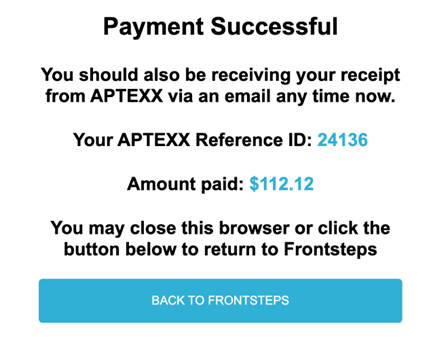
To provide Residents with clear payment confirmations, the ”toast” message will be eliminated, and Residents will be redirected to a Payment Confirmation page, which will include the following message:
- Payment Successful"
- "You should also be receiving your receipt from APTEXX via an email any time now.
- “Your APTEXX Reference ID” (in case the user needs to contact support in reference to this payment
- “Amount paid
- "Back to FRONTSTEPS" button
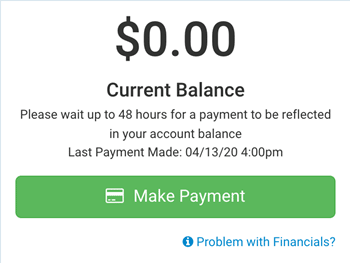
From the Dashboard, select the Make Payment button, or from the Dashboard>Quick Actions>My Payments, select the Make Payment button.
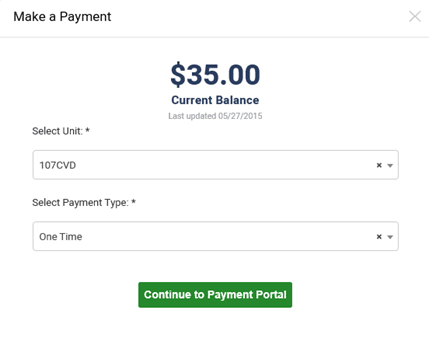
Select Continue to Payment Portal.
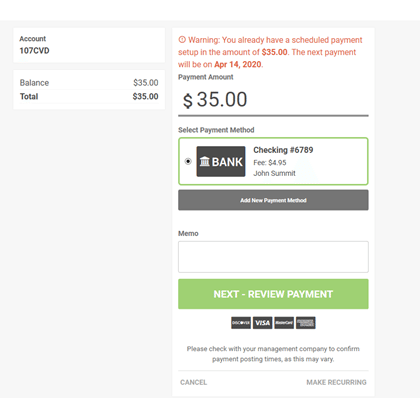
Select NEXT - REVIEW PAYMENT.
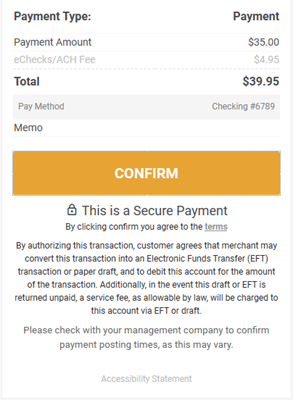
Select CONFIRM.
You are redirected to the Payment Confirmation page.