
Paygami Bank Integration
We’re updating this article. Some screenshots or names may look older than what you see in the product.
Introduction
Caliber and Paygami have new integration features that work through the Paygami API. Each time data is requested, Caliber makes a call to Paygami through an API to obtain it from the bank that Paygami is providing a link to.This integration only requires a Client ID and Client Secret, and Base URL, all of which will be provided by the bank. New Caliber customers can contact their representative in Implementation for assistance, and current Caliber customers can contact Support for assistance.
Advanced Integration Features
Auto-Lockbox
Users can process lockbox payments within Caliber. This feature allows Caliber to automatically pull lockbox data and import it without any user interaction.
Auto-Reconciliation Files
This feature allows Caliber to ‘pre-check’ items that can be matched when reconciling transactions in their bank account.
Bank Statements
Users can now view their Bank Statements within Caliber from the Chart of Accounts Toolbox.These statements can be printed from the Reporting Toolbox and Report Runner.
Check Images for Accounts Payable
Users can now view check images for Accounts Payable from Vendor Management (Invoices tab), Invoice Entry (View Payments), the GL Viewer, and Payments Viewer. Images of cleared AP checks are also available.Check Images for Accounts Receivable
Coming in a future update.
Automated Scheduled Task SFTP Features
Validation and Stop FilesThese are done through an Automated Scheduled Task using a SFTP data transfer and are not part of the Automated Banking Integration Scheduled Task.
Positive Pay Files
These are an anti-fraud feature done through an Automated Scheduled Task using a SFTP data transfer and are not part of the Automated Banking Integration Scheduled Task. They provide the check date, amount, check number, and payee to the bank for each check that is cut.
Integration Set-Up
Master Bank Set-UpTo enable the integration, it must first be configured in the Master Bank List.
- From the Top Ribbon, click Accounting > Setup > Master Bank List
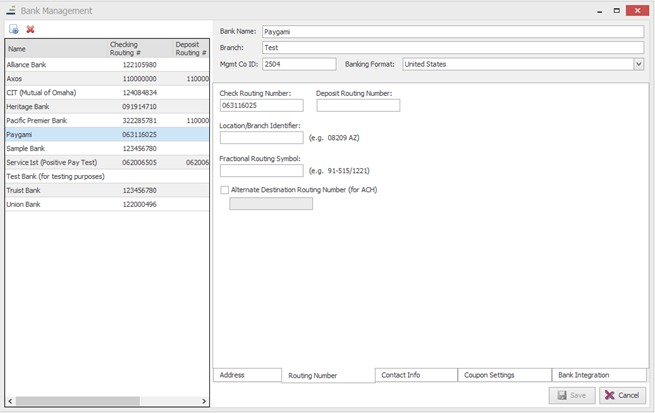
- Select the bank you wish to use from the bank list on the left.
- If there is not already an entry for the bank, one needs to be created now.
- Review the Mgmt Co ID is accurate.
- Select the Routing Number tab.
- Verify Routing numbers are accurate.
- Select the Bank Integration tab.
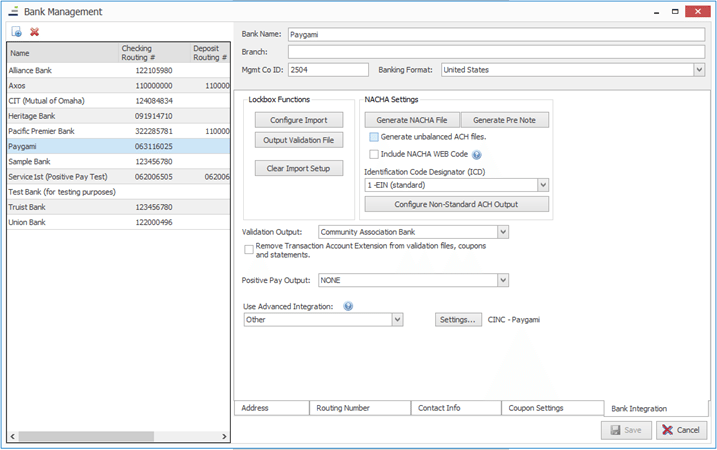
- From the Use Advanced Integration dropdown, select ‘Other.’
- Click the Settings button to the right of the dropdown, then select ‘Paygami’ from the Integration Partner pop up.
- The Integration Partner Toolbox opens. Enter in the Client ID, Client Secret, and Base URL provided to you by Paygami.
- Click ‘Save.’
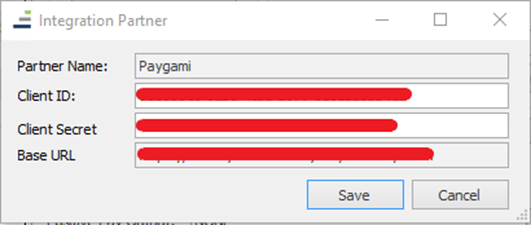
Chart of Accounts Set-Up
Once the bank is set up in the Master Bank List, make sure an account of type ‘Bank’ is set up in the Chart of Accounts with the correct Bank Account Number.
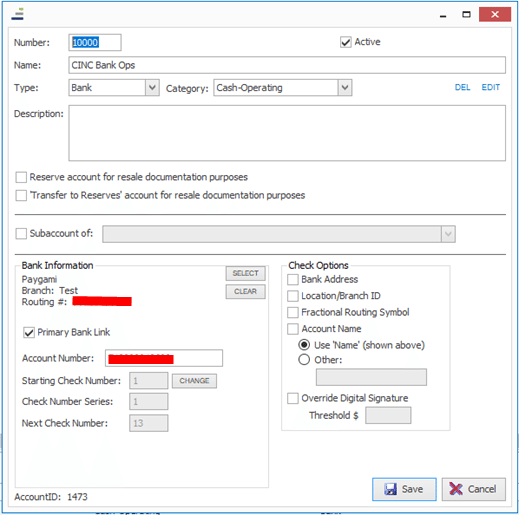
Please refer to the documentation on the Caliber support site if you require more information on setting up the Chart of Accounts.
Auto-Lockbox Set-Up
The Paygami Bank Auto-Lockbox feature utilizes the Advanced Automation feature, located within the Management menu section. Please see the Advanced Automation documentation for details on how to use this feature.
When setting up the Auto-Lockbox, select ‘Frontsteps’ as the Bank Format.
Auto-Reconciliation Set-Up
The Paygami Bank Auto-Reconciliation feature utilizes the Advanced Automation feature, located within the Management menu section. Please see the Advanced Automation documentation for details on how to use this feature.
Auto-Lockbox Alerts Setup
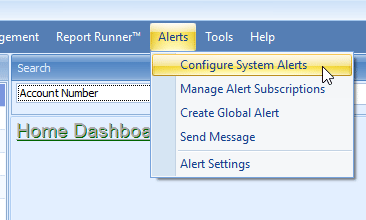
As part of the set-up, several Alerts related to the Auto-Lockbox must be configured and subscribed to.Go to Alerts at the top ribbon and select ‘Configure System Alerts.’
In the list of System Alerts, make sure that all the Auto-Lockbox Alerts have been checked, as well as the Returned Item Reported options. When that has been done, the Toolbox can be closed.
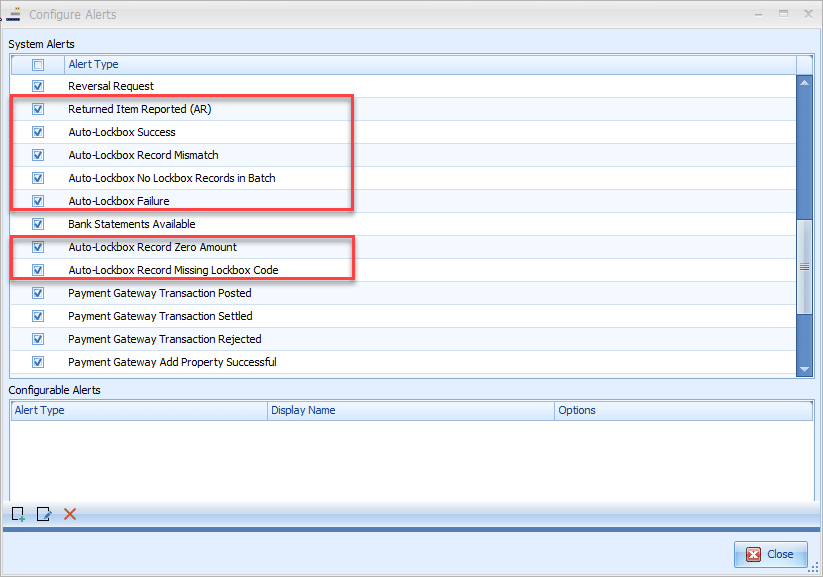
This just makes those Alerts active in Caliber. Users who need to receive those Alerts must then subscribe to them. Each user must do this individually.
To do so, go to Alerts as before, but this time, select ‘Manage Alert Subscriptions.’
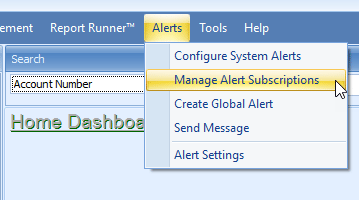
The user will then check the same Alerts as were done in the Configuration step, outlined above. Please note that these options will only show if they have been made active in the Configure Alerts Toolbox.
Set-up is now complete.
Using the Integration Features
Auto-Lockbox Processing
As of the Start Date, Caliber will automatically contact the bank’s server at the specified time to pull in the lockbox files. To avoid double postings, be sure that manual lockbox imports are not done from this date forward.A user needs to be reviewing the Auto-Lockbox Alerts daily. Most of the time the Alerts will just be that the import completed successfully. However, if Caliber experienced an issue during the process, the Alerts would state what the issue was, and the payment(s) involved. Correcting the issue will cause those payments to import when the process next runs.
Caliber lockbox reports will be available as they were previously. Go to Accounting at the top ribbon, select AR, and then View Past Lockbox Reports.
The report should be reviewed daily to make sure that no payments are shown in the Failed Items section of that day’s report. If an item is listed there, it will need to be posted manually, as in the past.
Bank Statement Viewing
To access a statement, go to the Client Chart of Accounts. There you will select the General Ledger account that corresponds to the bank account that you want to view statements for.
Right click on the highlighted account and select ‘View Bank Statement.’
A list of available statements will then be displayed. Click on the statement desired, and a PDF version of the statement will be generated.
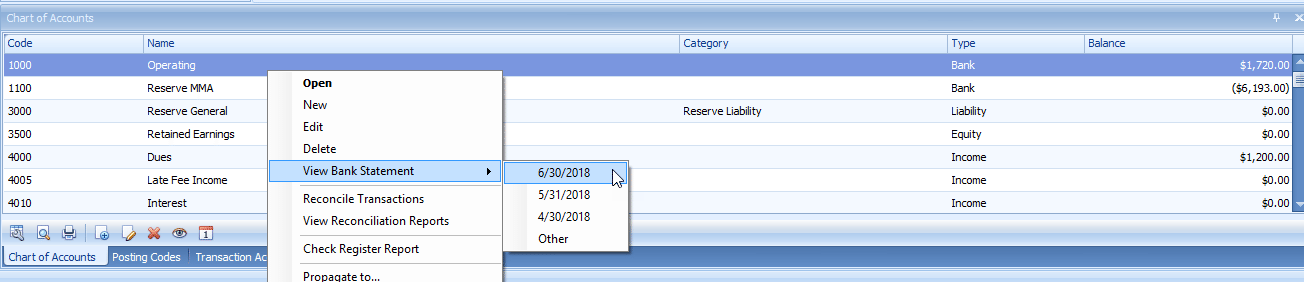
A list of available statements will be displayed. How far back statements will be available will depend upon the bank in question.