Package Tracking- Manager
We’re updating this article. Some screenshots or names may look older than what you see in the product.
Background
FRONTSTEPS has built out the Package experience as part of our best-in-class integration between dwellingLIVE and FRONTSTEPS COMMUNITY/CONNECT (FSC).To ensure the process is efficient, FRONTSTEPS is enabling users of dwellingLIVE to enter in the Package information and the Residents to view their Package details on FSC.Accessibility
- The feature is available to all Customers who have dwellingLIVE and FSC.
- dwellingLIVE is the source of the data entry and all information is Displayed in FSC.
Features
This enhancement provides the following features:- Package Details- Can view package information, including weight and tracking number
- Scan or Enter package details- in dwellingLIVE, users can scan or enter package information
Setting Up dwellingLIVE
Locations must be added before the Delivery Management tool can be utilized.Adding Locations
1. Log into community.dwellinglive.com.
2. Select Delivery Management from the Staff Tools drop-down menu.
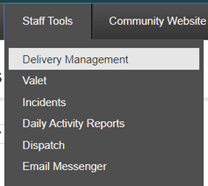
3. Select “Locations” in the upper right corner of the page. The Package Location pop-up window will appear.

4. Enter the Location Name, then select “Add Location”. The location will be added to the list below. Repeat until all package management locations have been added.
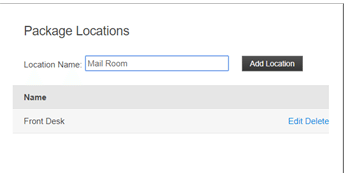
5. Select “Close” to return to the Delivery Management page.
Adding a package
6. While on the Delivery Management page, select “Add Package”.7. On the next page, under Package Details, enter the following package information:
· The tracking number on the shipping label in the Tracking No field
· Use the drop-downs to select a Carrier and Type of Package
· Who the package came From and its Weight

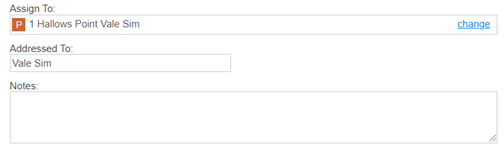
8. Enter a property address into Assign To. This will generate a list of users tied to that address. Select a user to populate Assigned To and Addressed To.
· Note: the address must be entered exactly as it shows in the community directory. It will not appear on the list otherwise.
9. Under Status/Location, use the drop-downs to set the Status and Location.
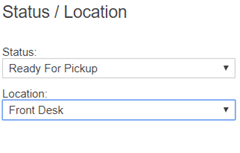
10. Select “Save”. To enter another package, select “Save and Continue”.
· Note: If entering multiple packages for one person, then check “Copy ‘Assign To’ information to next package” before selecting “Save and Continue”.
11. Once the package has been added, the recipient can be notified. Select “Notify” to the right of the package.

12. On the Package Notification window select “Via Phone” or “Via Email”.
· Via Phone – use the number listed to call the recipient. Select whether this was successful by using the Notification Result drop-down.
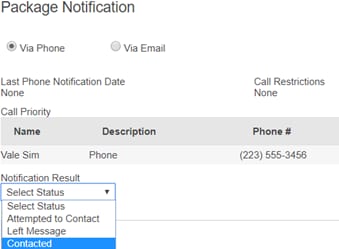
· Via Email – will send a notification to the email address listed on the recipient’s account. The individual will need to opt-in to receive this notification.
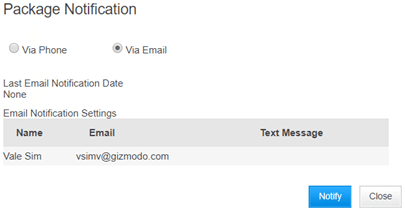
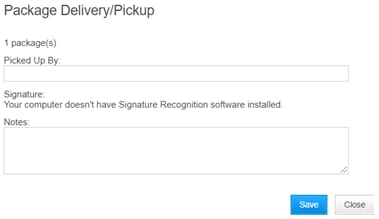
13. Once the package is picked up, select “View”. Then select “Deliver” on the next page.

14. Enter a name in the “Picked Up By” field before selecting “Save”.
View in FSC
For Residents to view their packages, they will navigate to the Quick Actions menu and then choose the Packages dashboard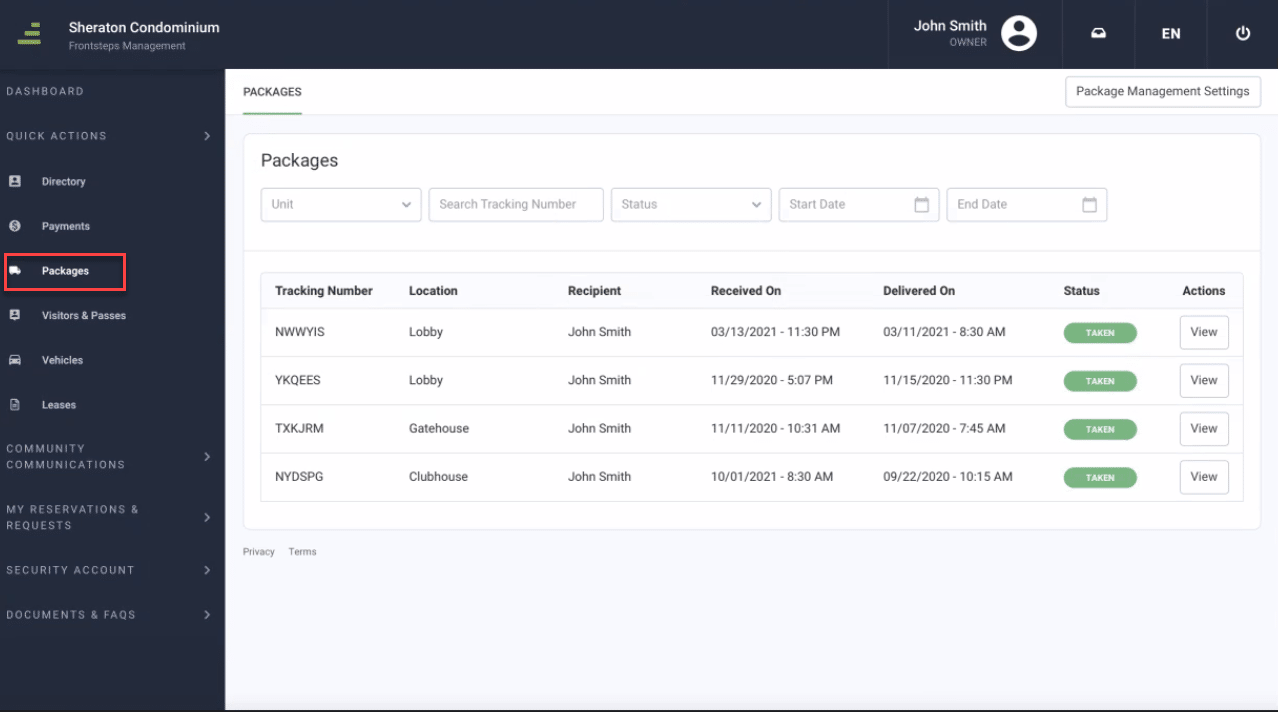
In this view Residents can see all their packages, where they currently are, delivery dates, status of the package, and they can also view additional details by clicking the View button.
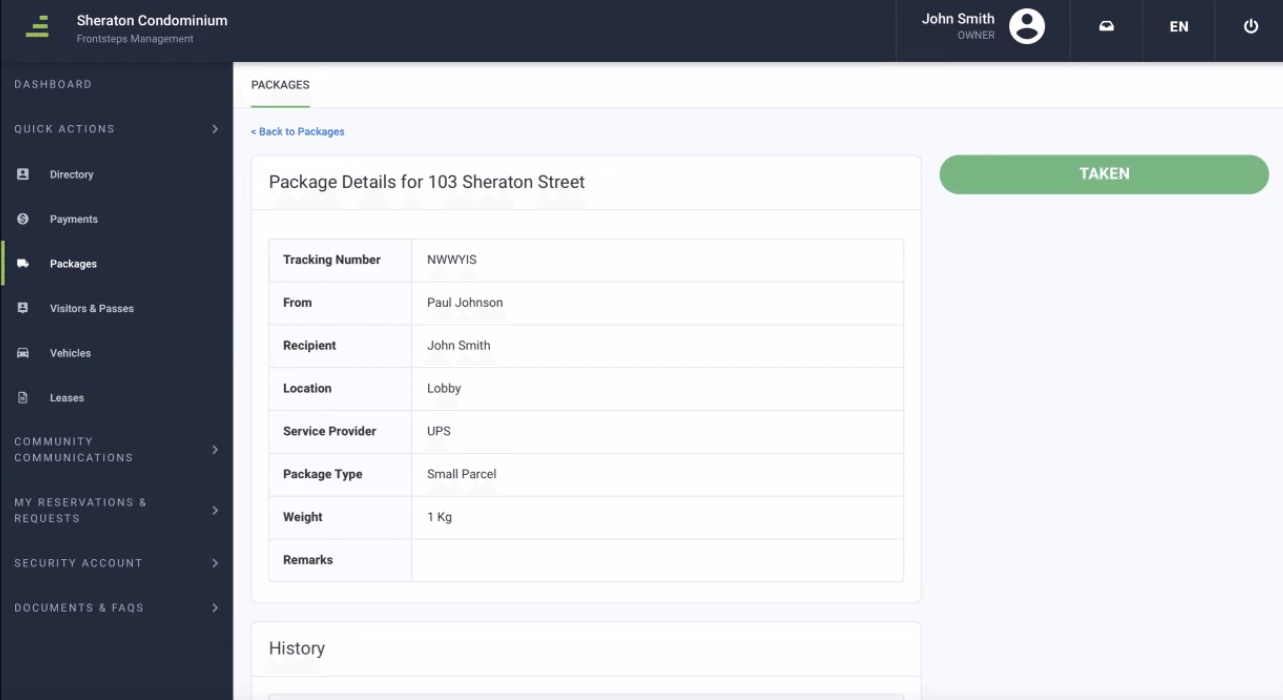
After clicking the view button, they will see additional information such as the weight, package type and any remarks.
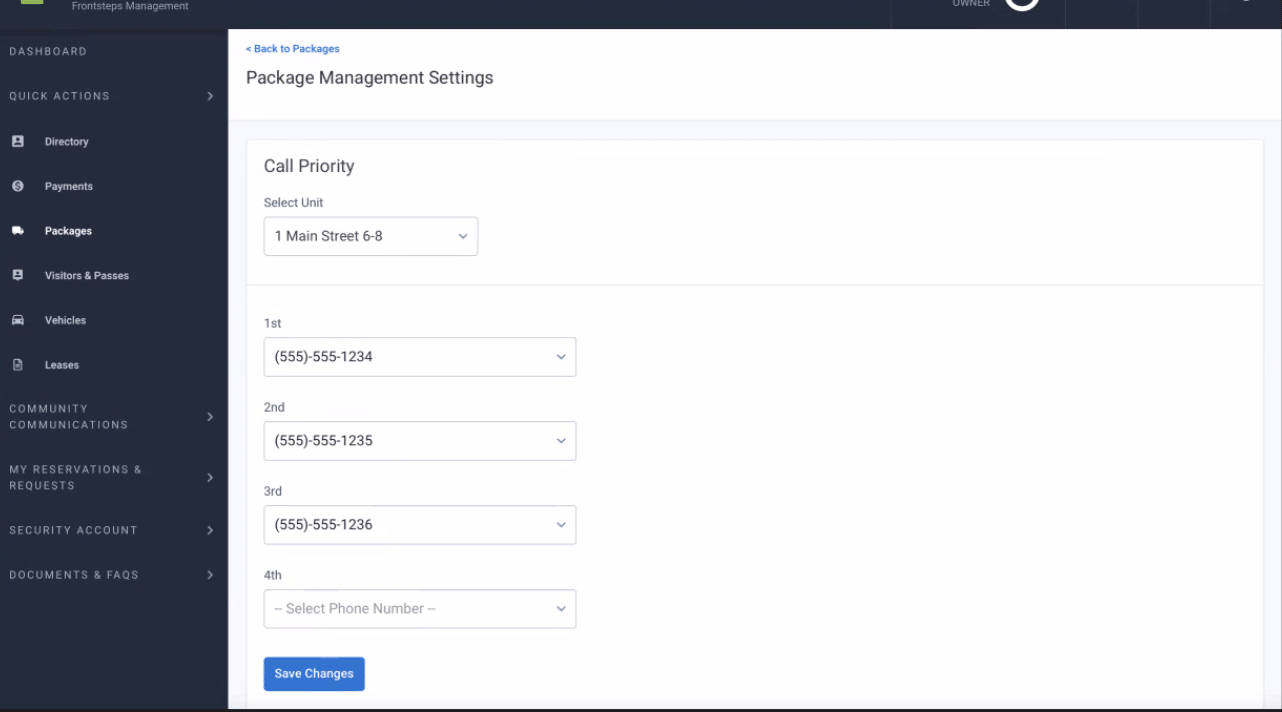
If they wanted to adjust the call priority, they can do so by clicking the ‘Package Management Settings’ button on the main page.
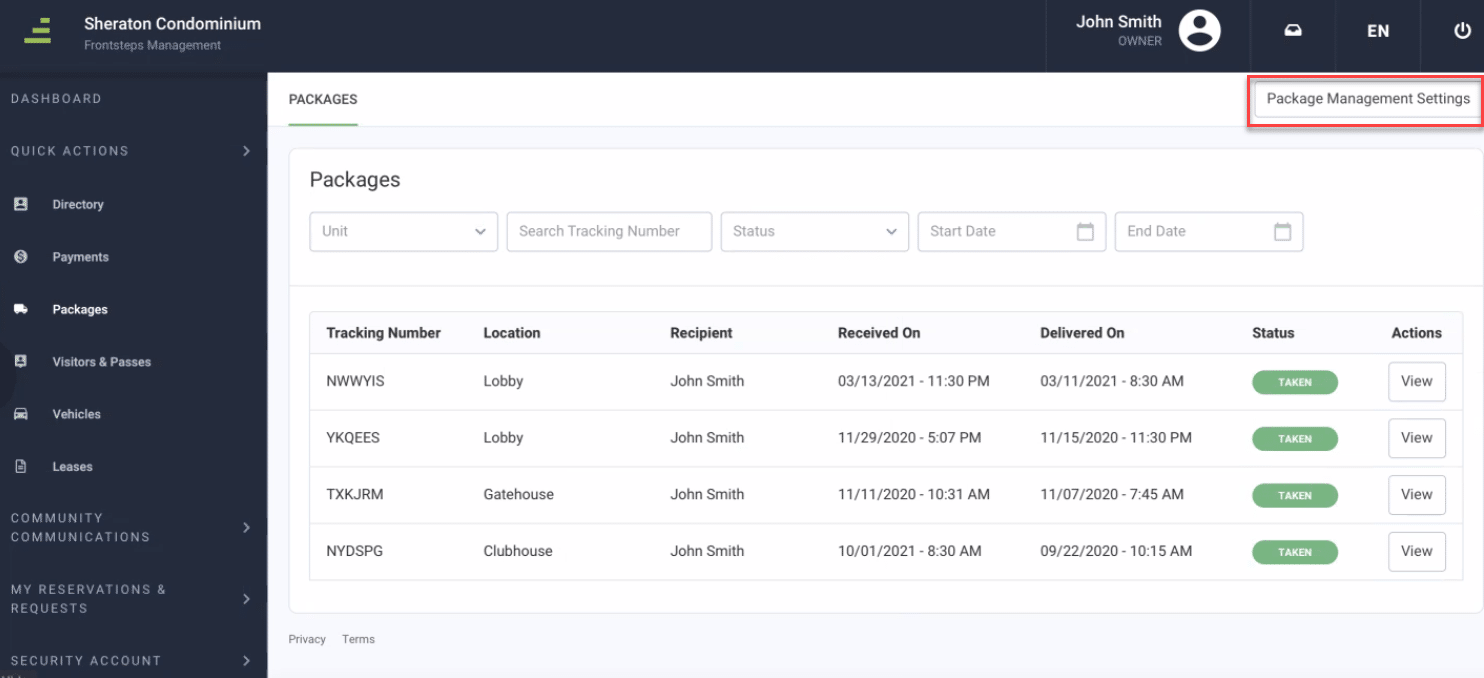
From here the Resident can set the precedent for each phone number on their record.