Owner Guide to the Caliber Portal
We’re updating this article. Some screenshots or names may look older than what you see in the product.
Introduction
This document will provide Homeowner functions only. A separate document will provide details for Board Members.
*Please keep in mind these features are available at your Management Company’s discretion.
Home
After you have registered, enter your username and password to log in. The first time you log in, you will see two red info boxes on your screen.
- Hover cursor over account name to view Account Number and Address.
- Click an item to assign as your top Quickview.
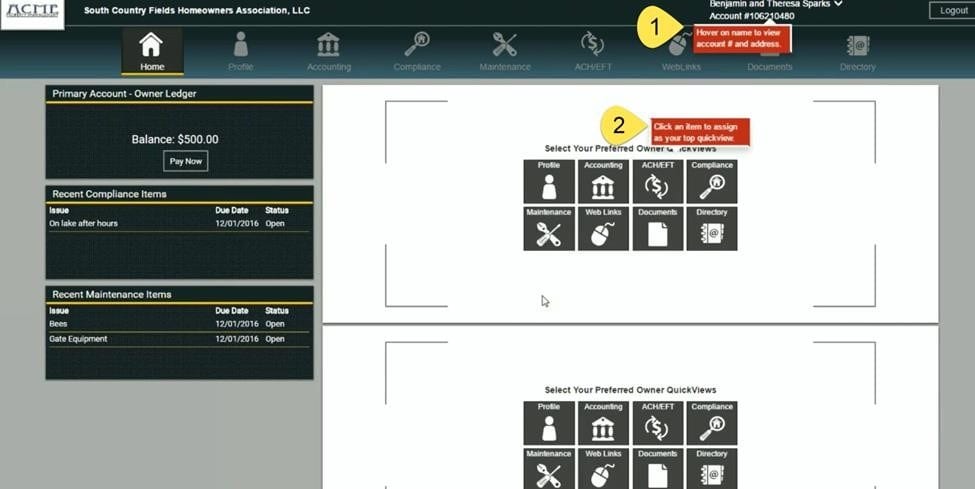
Your Quickviews allow you to view pertinent information at your Home screen.
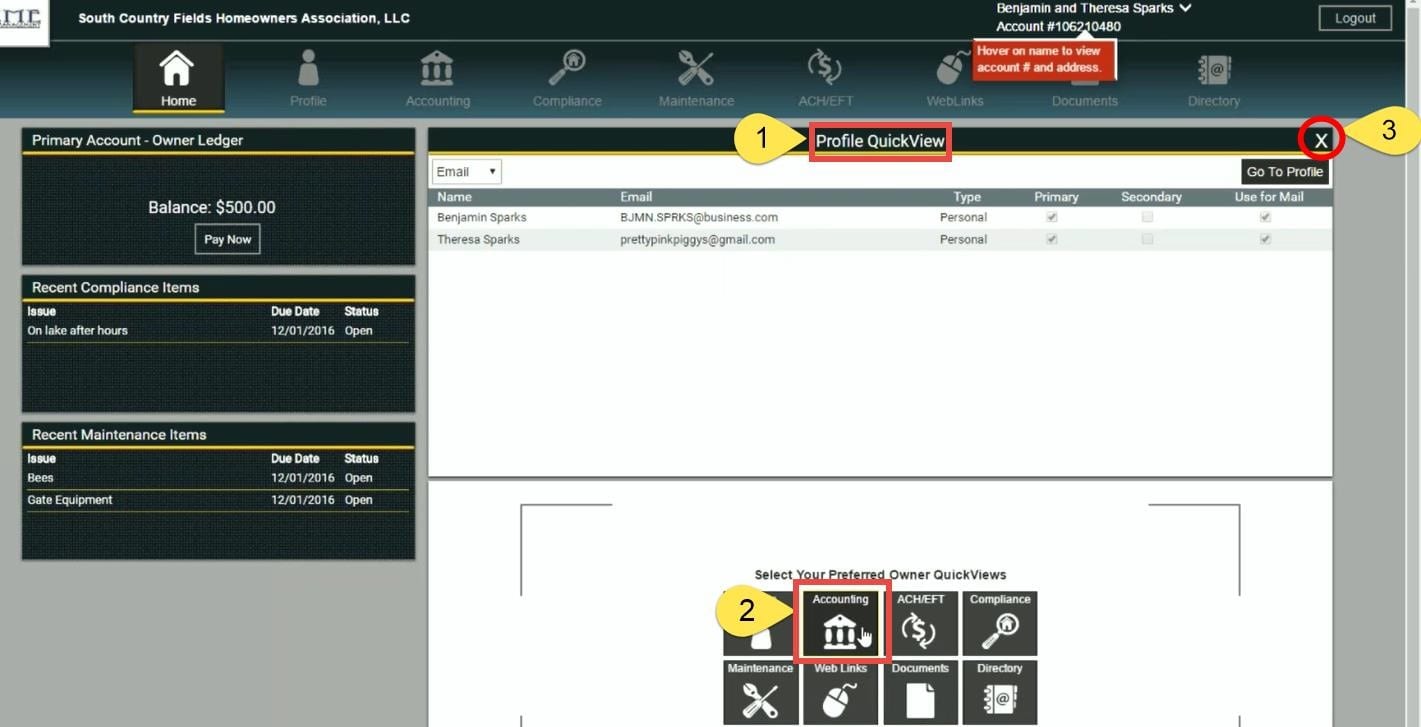
- If you would like Profile information to show in your top Quickview, click Profile.
- If you would like to have Accounting to show at the bottom Quickview, simply click Accounting.
- If you would like to change these at any time, click the X in the upper right corner of the Quickview and make new selections.
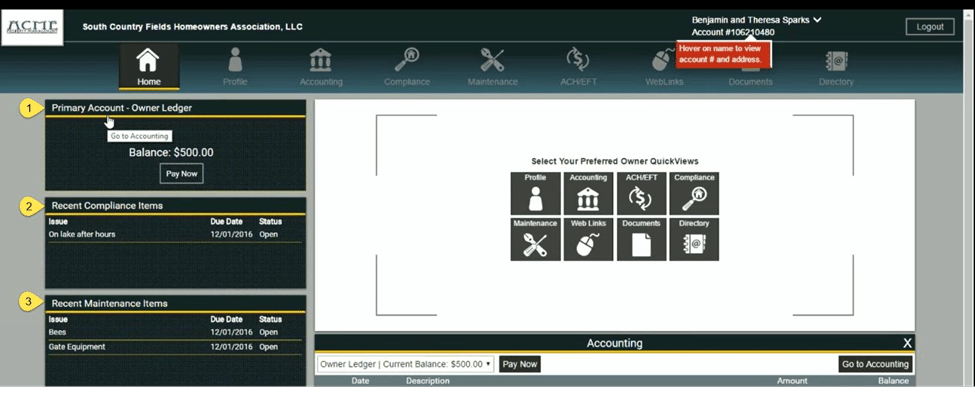
- To the Left of your Home screen you will see your Primary Account-Owner Ledger displaying your balance. Clicking the Pay Now button will allow you to make a payment on your account.
- Recent Compliance Items.
- Recent Maintenance Items. This will display issues pertaining to your Unit and Common Areas within the Association.
Profile
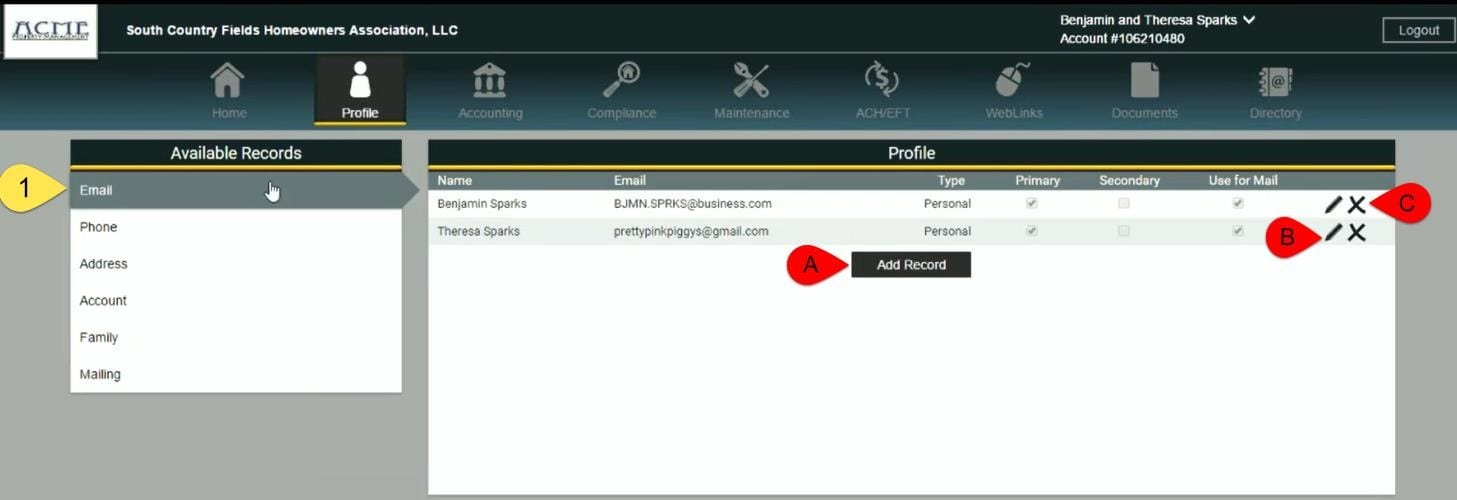
Within your Profile, you can view or update any profile or contact information.
- Email A. Add Record
- Edit Record
- Delete Record
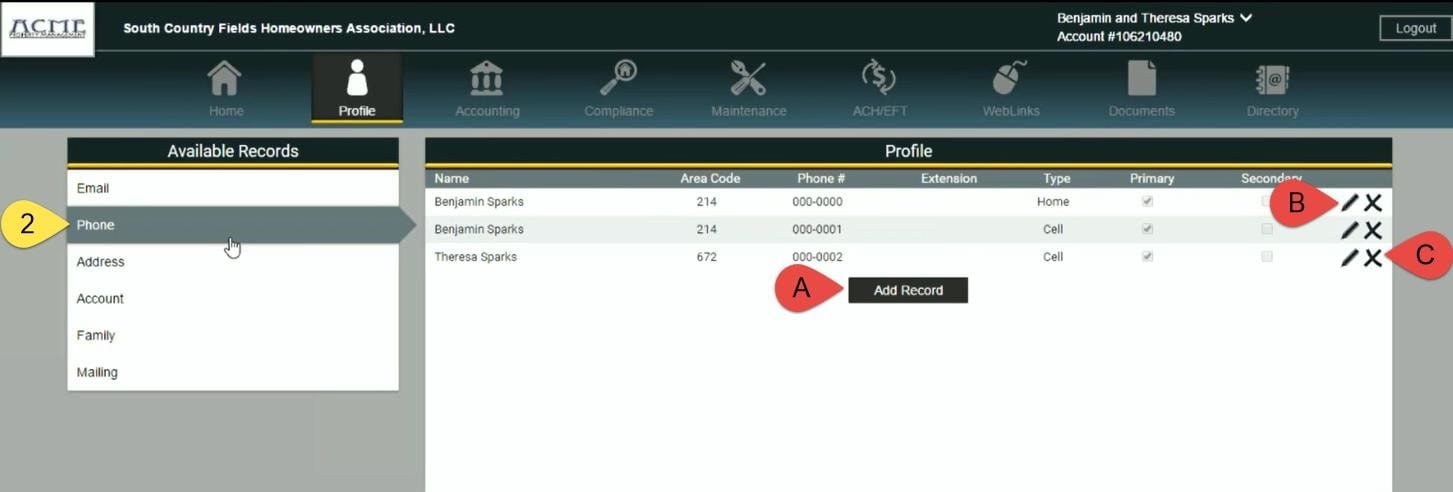
- Phone A. Add Record
- Edit Record
- Delete Record
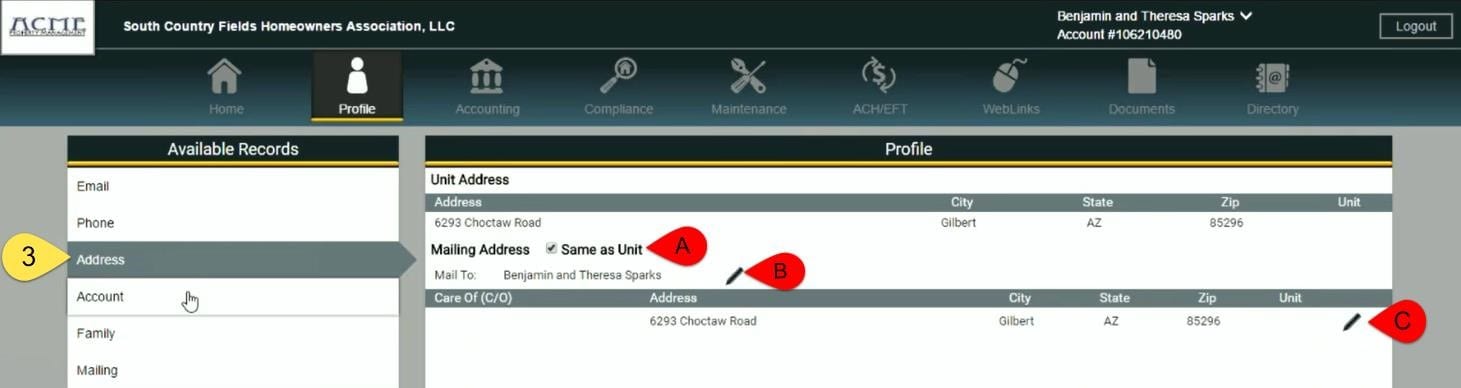
3. Address
- Make Mailing Address the same as the Unit Address
- Edit Mail To
- Edit Mailing Address
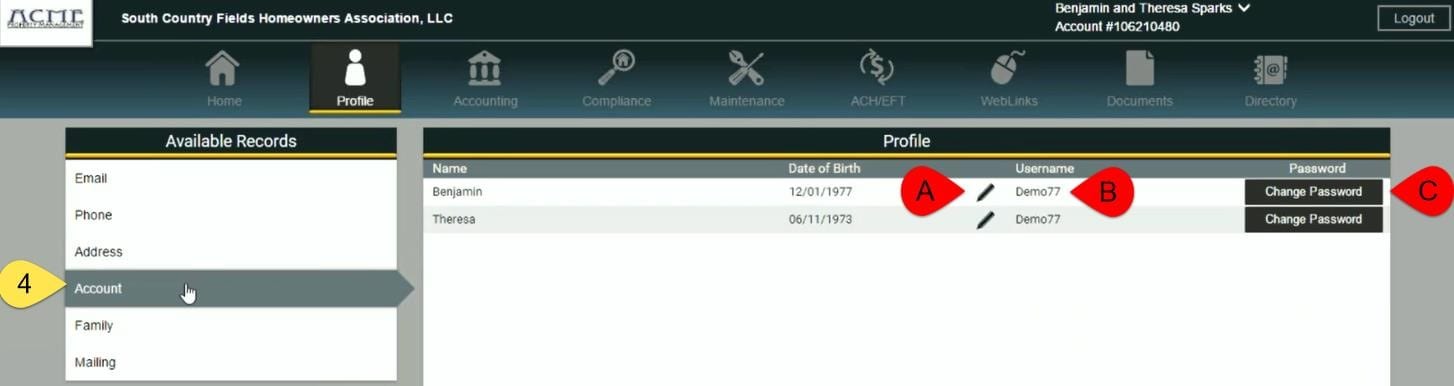
4. Account
- Edit Date of Birth (this information will only be present if your Management Company has inputted it into Caliber Desktop)
- View Portal Username
- Change Portal Password
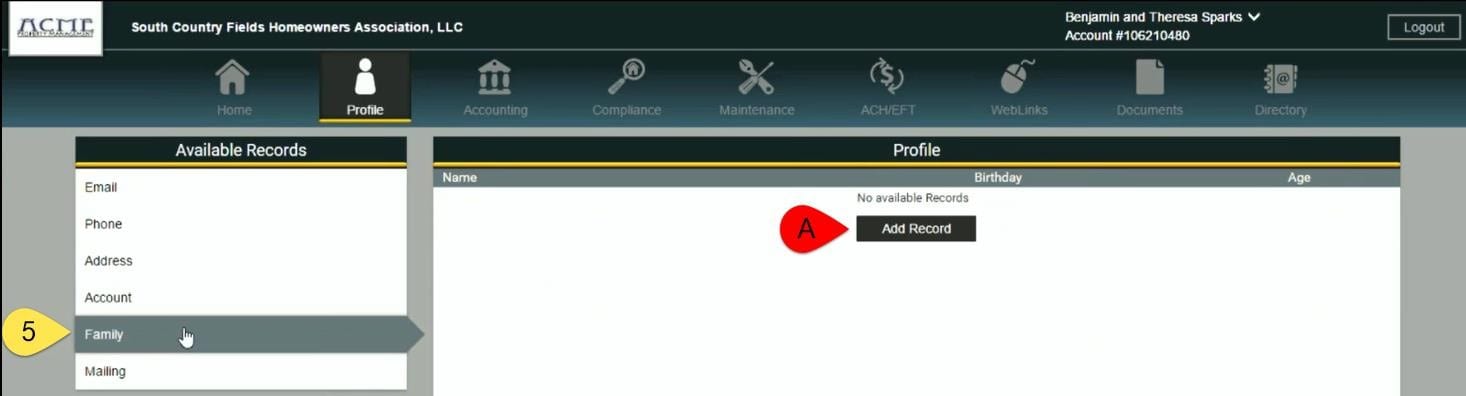
5. Family
A. Add family member record
6. Mailing: Allows you to decide how you would like to receive your Correspondence from your Management Company. Your options are Mail, Email, or you can choose both.
Please not that Caliber does not offer owners to receive Coupons via EMAIL.
A. You will click the Edit icon prior to making adjustments. Then you make your selections and SAVE.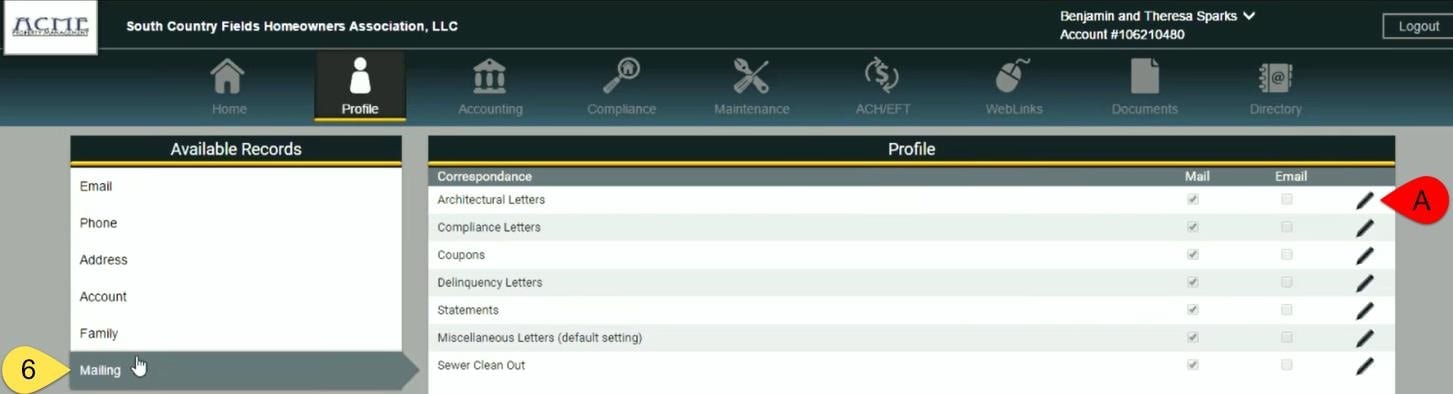
Accounting
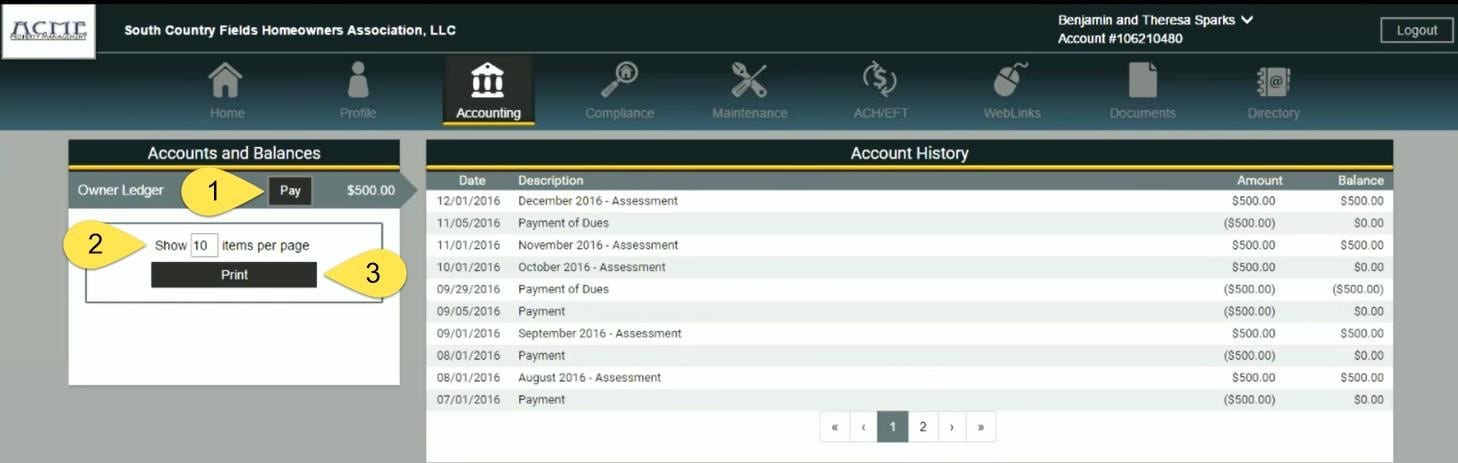
In Accounting, you can view account history and pay balance.
- Pay balance.
- Adjust how many items are shown per page.
- Print your Account History.
Compliance
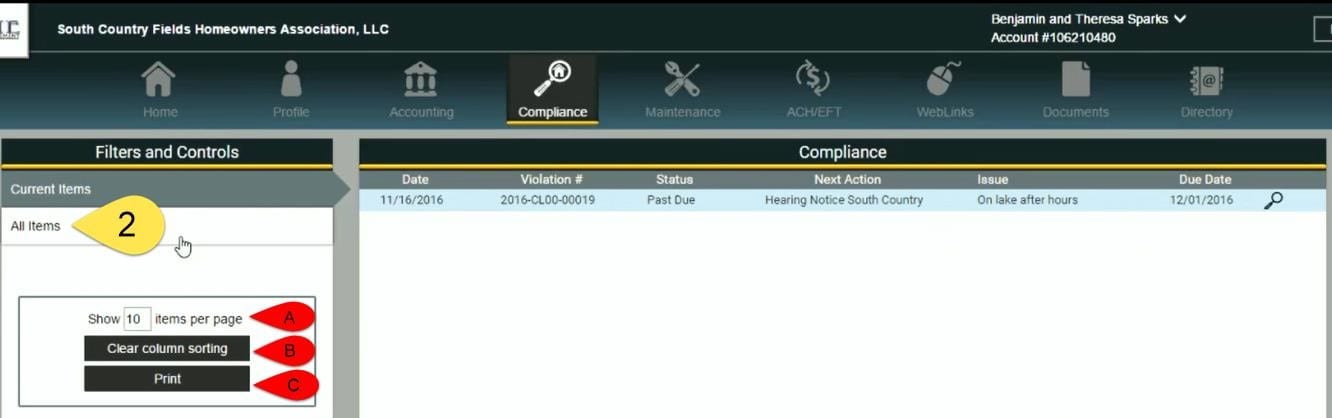
Within Compliance you will be able to view current and past violations issued on your property. Filters and Controls:
- Current Items
- Magnifying Glass displays Violation Details.
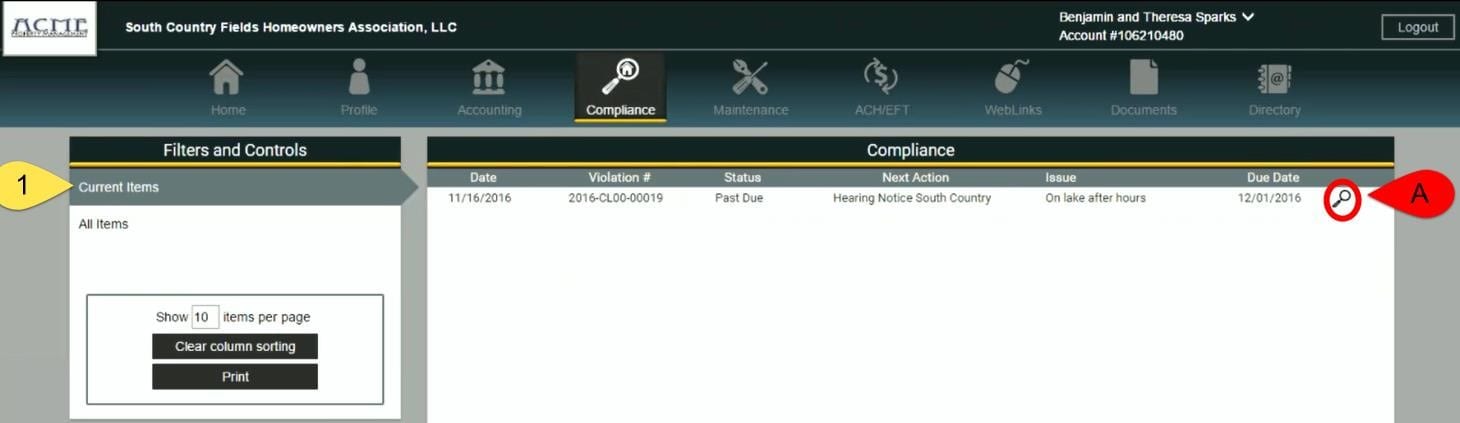
- Magnifying Glass displays Violation Details.
- By default, it only shows current items. If you would like to view past violations items, you can select All Items.
- Adjust how many items are displayed per page.
- Clear Column Sorting
- Print Compliance History
Maintenance
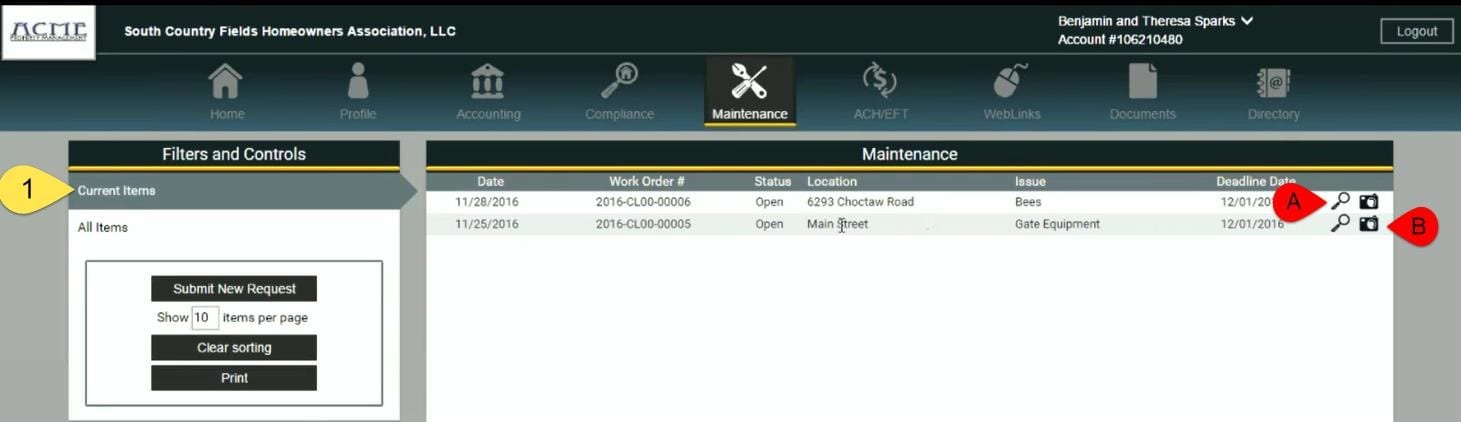
Within Maintenance, you will be able to see Maintenance Items for your Unit and for Common Areas in the Association.
- Current Maintenance Items
- Magnifying Glass displays Maintenance Details.
- Camera displays pictures associated to that Maintenance issue.
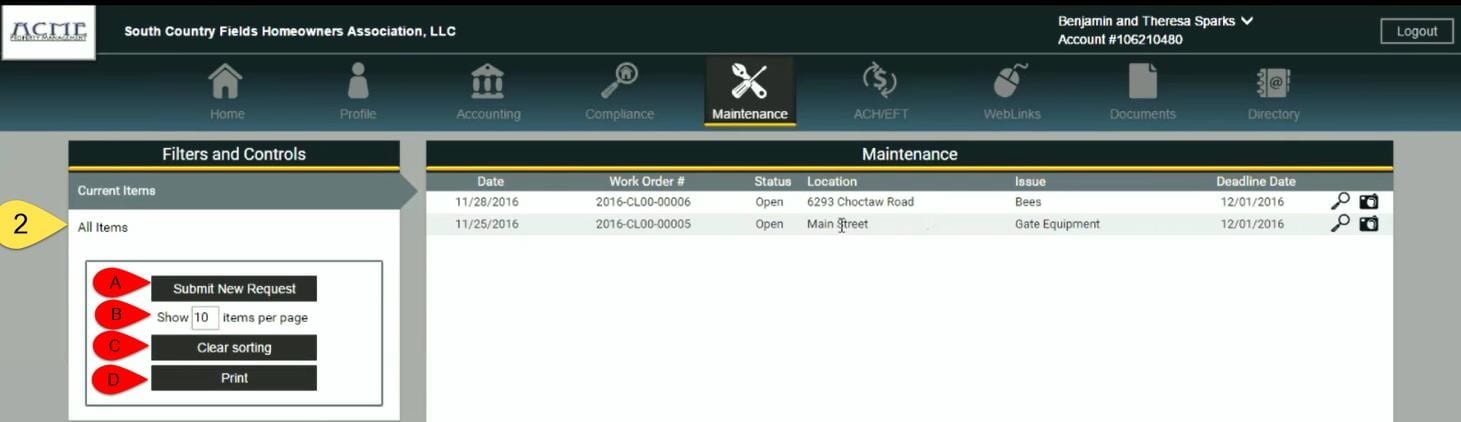
- If you would like to view History select All items A. You can submit a New Service Request.
-
- Adjust how many items are displayed per page.
- Clear Sorting
- Print Maintenance History
Architectural
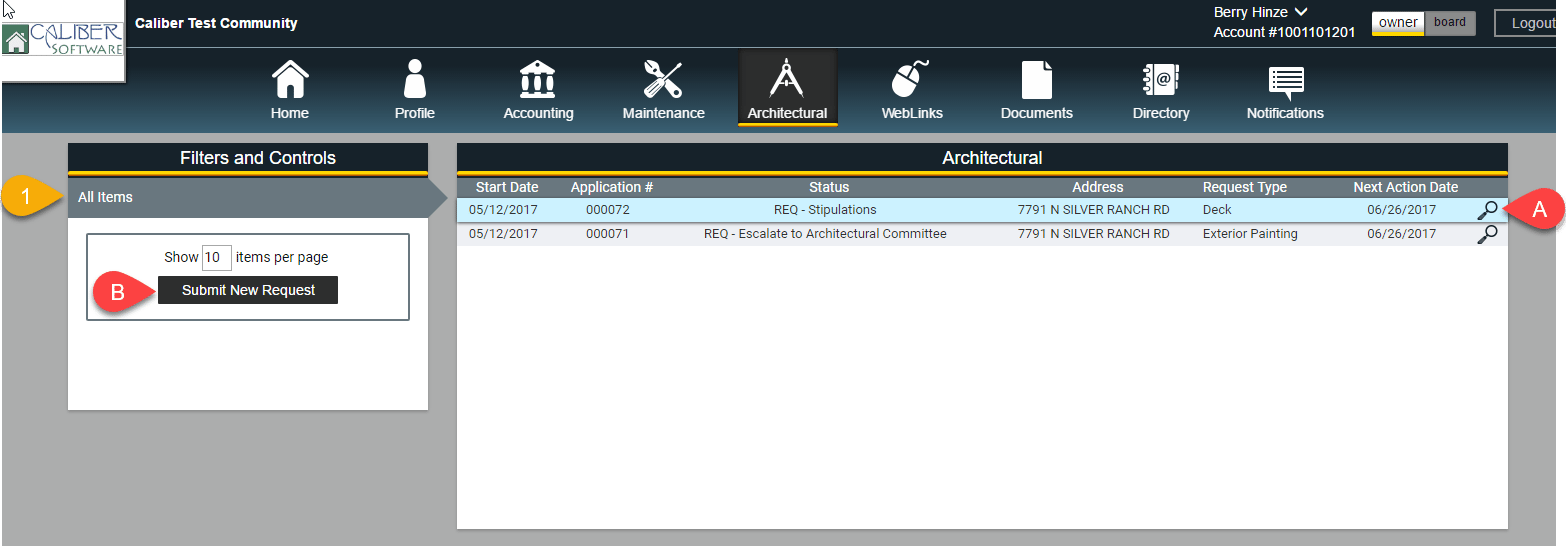
Within Architectural the Owner will be able to view their Architectural items.
1. View All items
- Magnifying glass shows Architectural Proceedings.
- Submit new Architectural Request
ACH/EFT
Allows you to set up an ACH/EFT payment plan with your Management Company. Allowing them to deduct an amount monthly.
1. Select Add New Account and Plan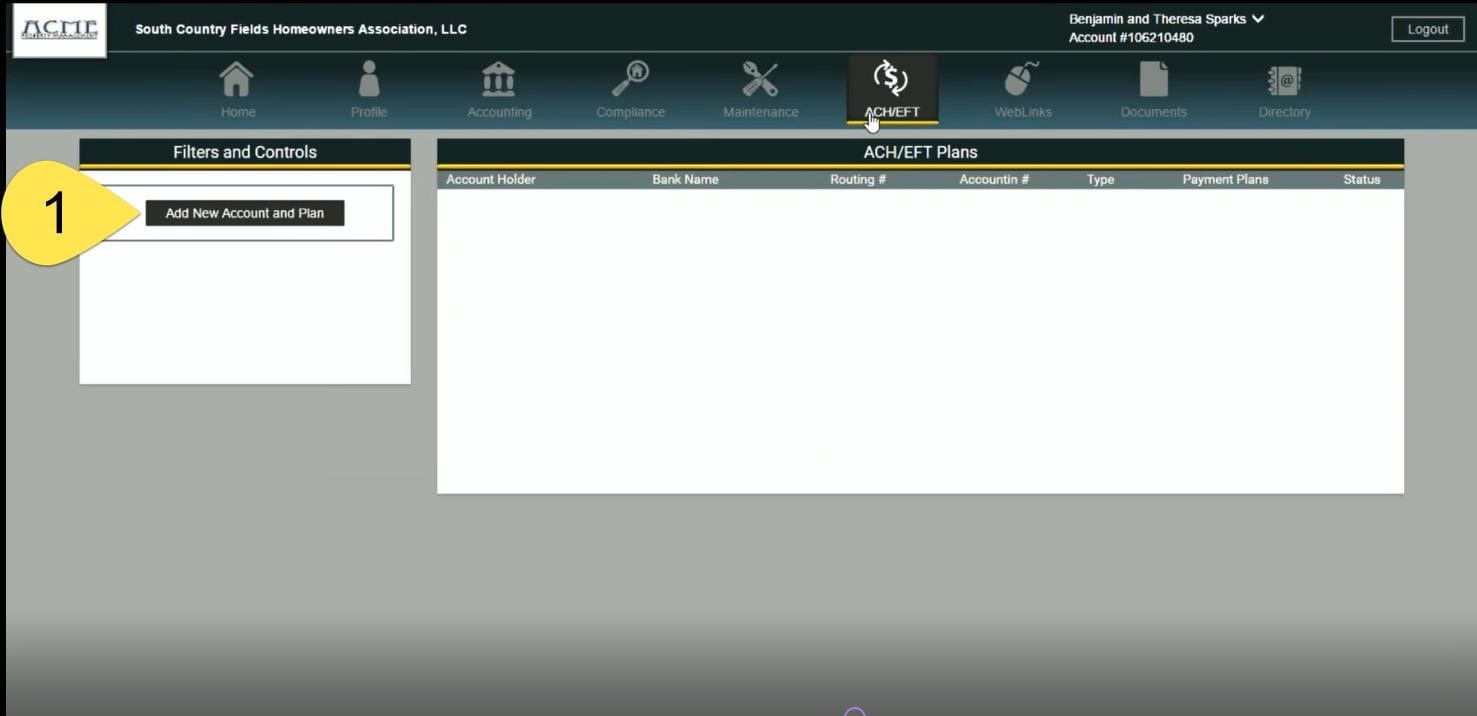
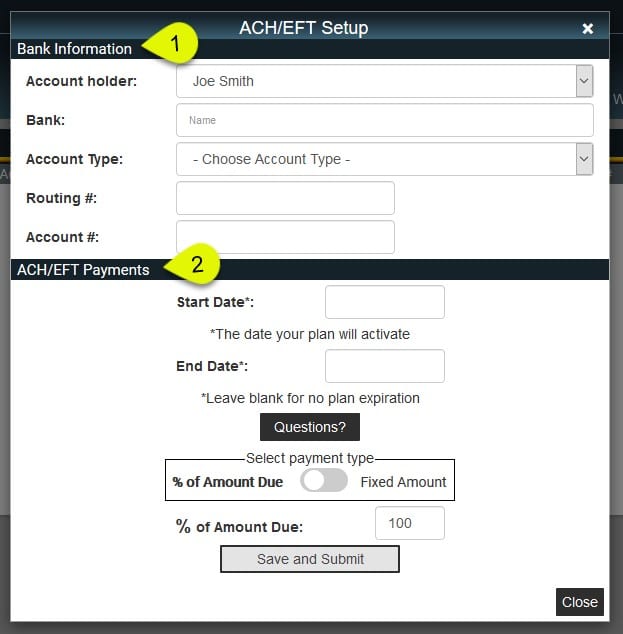
New Account and Plan
- Bank Information: Enter all bank account information.
- ACH/EFT Payments: Enter the Start Date and End Date (if there is one).
- % of Amount Due: If you would like to have 100% of what’s due to be deducted put 100. If you only want 50% deducted, put 50.
- Fixed Amount: If you would like to set a specific amount to be pulled.
*Please keep in mind, if there is nothing due, the fixed amount will still pull monthly automatically.
Web Links
Within Web Links, you will be able to view any Links or Emails your Management Company has setup to be available to you.
- Link Tree: Your Available Links will be categorized in Folders.
- Select Folder.
A. Clicking Link will direct you to Website.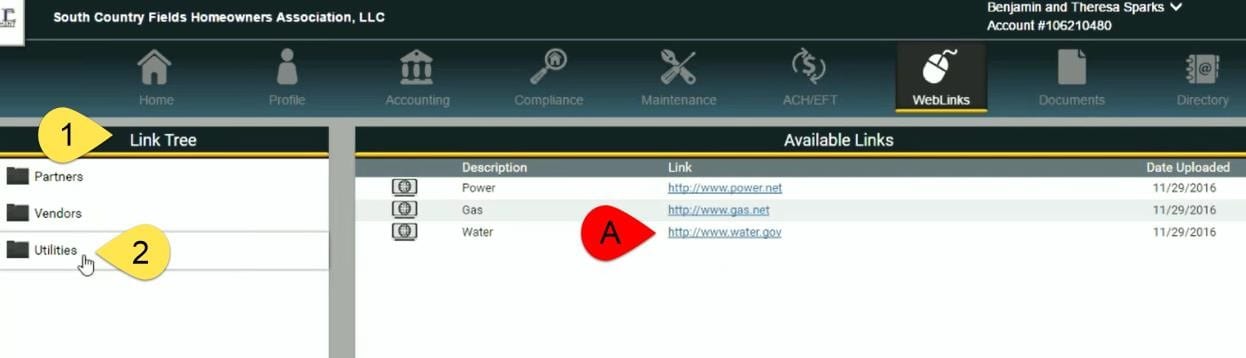
Documents
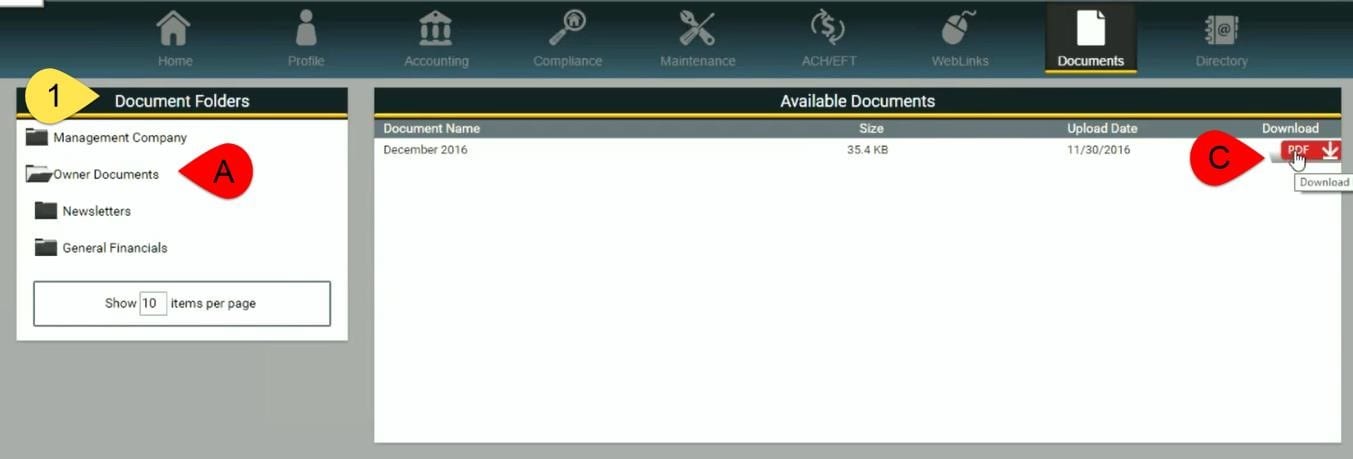
Within Documents, you will be able to view any Documents your Management Company has setup to be available to you.
1. Document Folders
- Select Folder
- Download Available Document
Directory
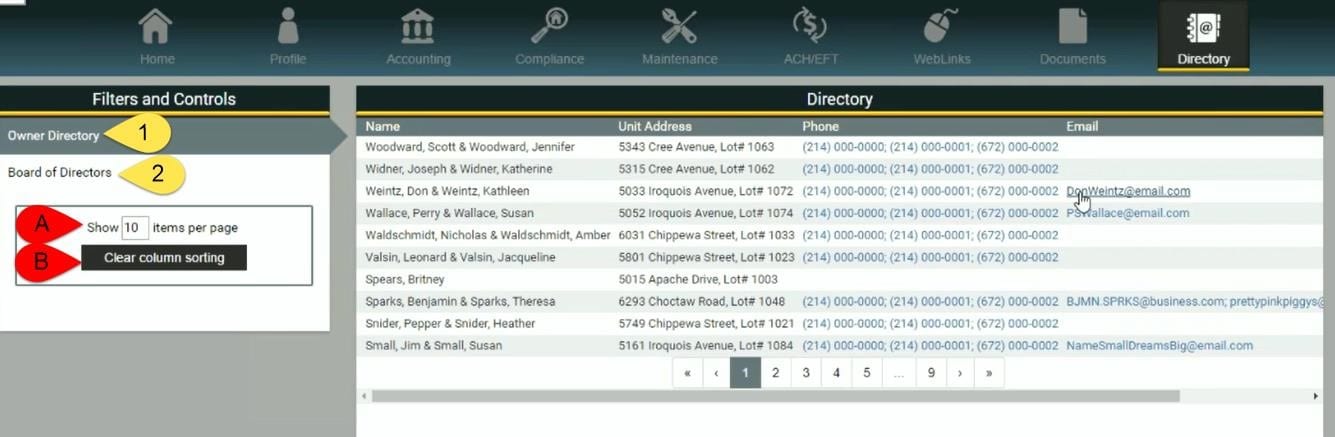
The Directory is a tool utilized to view fellow Owners or Board of Directors Contact Information. *If you would like to opt out of this please notify your Management Company Filters and Controls:
- Owner Directory
- Board of Directors Directory
- Adjust how many items are displayed per page.
- Clear column sorting
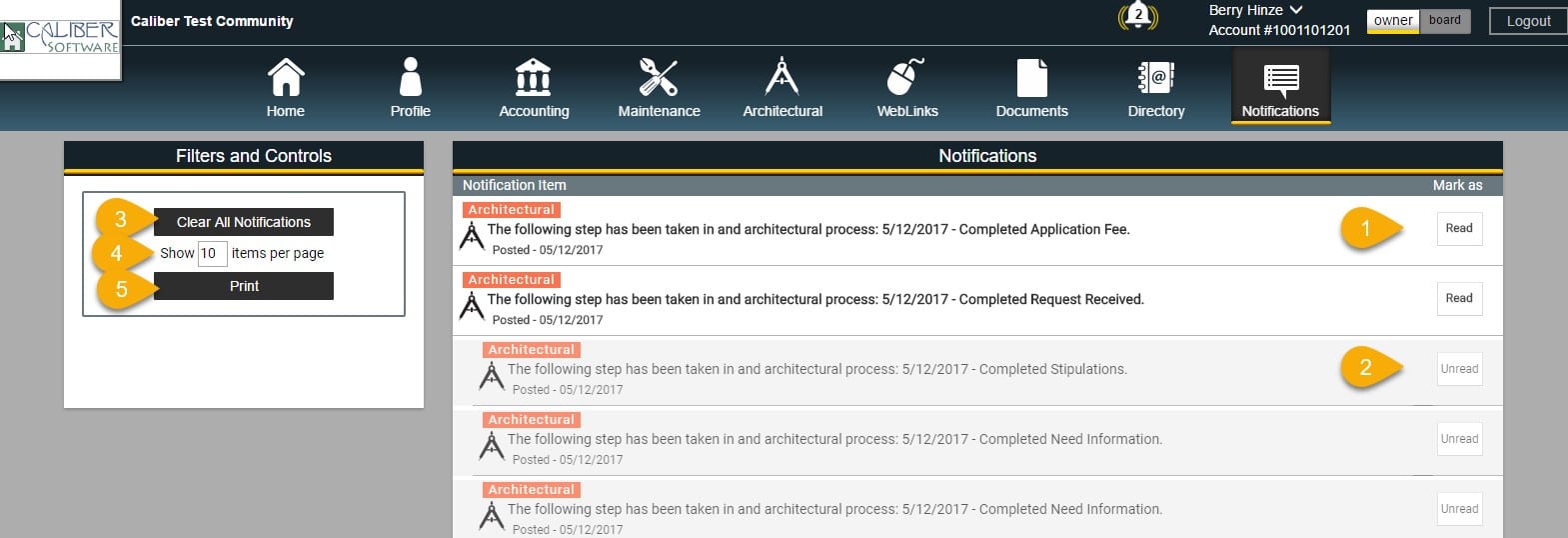
Notifications
Owner will be able to view their Architectural item notifications.
- Mark as Read
- Mark as Unread
- Clear Notifications
- Select number of items per page
- Print