
Notes and Documents Extractor
The Notes and Documents Extractor is a tool available to users with an Administrator User Role.
At the Global Menu Ribbon, select Tools > Notes and Documents Extractor.
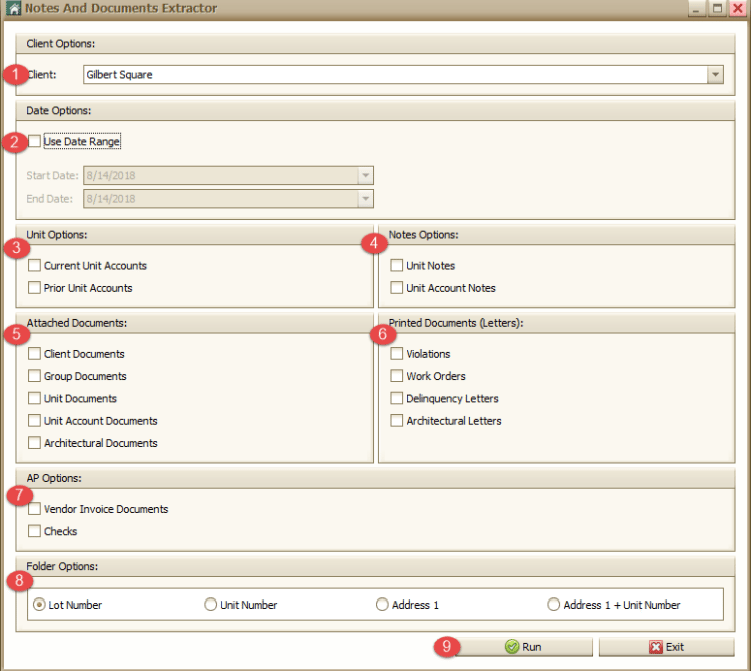
1. Choose the Client you would like to extract information from. This is required.
2. If you choose to use a date range, select it here.
3. Unit Options- include current and/or prior owners
4. Notes Options- Include Unit Notes and/or Unit Account Notes. This is optional.
5. Attached Documents- Include documents from various areas of Caliber. This is optional.
6. Printed Documents (Letters) – include letters. This is optional.
7. AP Options- Include Vendor Invoice Documents and/or Checks. This is optional.
8. Folder Options- This will indicate how the information will be exported to your computer.
▪ Lot Number- will create a folder for each lot.
▪ Unit Number- Will create a folder for each Unit.
▪ Address 1- Will create a folder for each Unit using the Address field.
▪ Address 1 + Unit Number- Will create a folder for each unit using the Address field and the unit number field.
9. When ready, press Run.
Caliber will ask you to choose a location to save the resulting files. Caliber will show the progress of the extraction. When it is complete, Caliber will give the user a message.
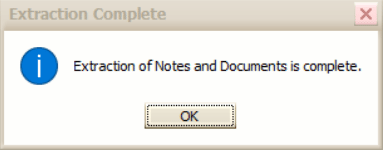
The files containing the extracted information will be saved in the location you chose.
At the Global Menu Ribbon, select Tools > Notes and Documents Extractor.
1. Choose the Client you would like to extract information from. This is required.
2. If you choose to use a date range, select it here.
3. Unit Options- include current and/or prior owners
4. Notes Options- Include Unit Notes and/or Unit Account Notes. This is optional.
5. Attached Documents- Include documents from various areas of Caliber. This is optional.
6. Printed Documents (Letters) – include letters. This is optional.
7. AP Options- Include Vendor Invoice Documents and/or Checks. This is optional.
8. Folder Options- This will indicate how the information will be exported to your computer.
▪ Lot Number- will create a folder for each lot.
▪ Unit Number- Will create a folder for each Unit.
▪ Address 1- Will create a folder for each Unit using the Address field.
▪ Address 1 + Unit Number- Will create a folder for each unit using the Address field and the unit number field.
9. When ready, press Run.
Caliber will ask you to choose a location to save the resulting files. Caliber will show the progress of the extraction. When it is complete, Caliber will give the user a message.
The files containing the extracted information will be saved in the location you chose.