
New Community Payment Onboarding Process
Onboarding Process for Management Company Representatives
When a new Community is added to the Management Company portfolio, or Payments 3.0 is being added to an existing Community, a User at the Management Company needs to onboard the Community. This onboarding process allows the user to enter the Community related details into Stripe so that payments can begin to be made.
The FRONTSTEPS Solutions Delivery team will kick off the process by generating an email to the Primary contact for the Community.
Note: The primary contact is established by the Management Company/Community and is entered when a new Community is being created.
New Primary Contacts:
If the primary contact for the Community has not already registered for the FS Pay dashboard, then they will receive an email inviting them to join with a link to Set Up their Account.
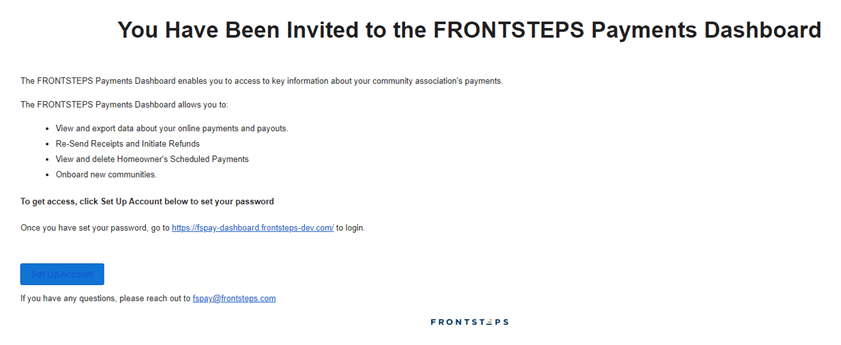
Click on “Set Up Account” button and follow the prompts to complete the setup.
Please note that if the primary contact previously registered for the FS Pay Dashboard they will not receive an invitation email.
Onboarding a New Community: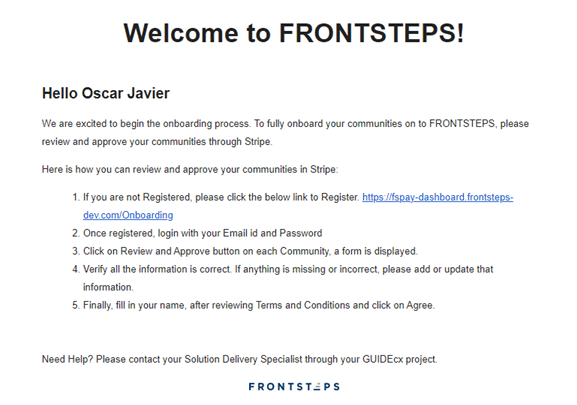
Click the link from the email to access the FS Pay Onboarding Dashboard or login directly to the FS Pay website and navigate to the Onboarding dashboard.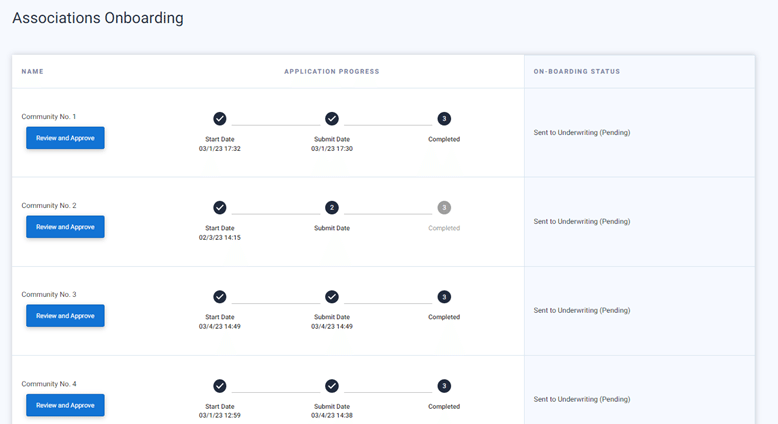
When a new Community is added to the Management Company portfolio, or Payments 3.0 is being added to an existing Community, a User at the Management Company needs to onboard the Community. This onboarding process allows the user to enter the Community related details into Stripe so that payments can begin to be made.
The FRONTSTEPS Solutions Delivery team will kick off the process by generating an email to the Primary contact for the Community.
Note: The primary contact is established by the Management Company/Community and is entered when a new Community is being created.
New Primary Contacts:
If the primary contact for the Community has not already registered for the FS Pay dashboard, then they will receive an email inviting them to join with a link to Set Up their Account.
Click on “Set Up Account” button and follow the prompts to complete the setup.
Please note that if the primary contact previously registered for the FS Pay Dashboard they will not receive an invitation email.
Onboarding a New Community:
- The primary contact will get a welcome email containing a link and steps regarding how to setup their new community.
Click the link from the email to access the FS Pay Onboarding Dashboard or login directly to the FS Pay website and navigate to the Onboarding dashboard.
- Once the user logs into Dashboard for onboarding the communities, the following screen is displayed.
- If the onboarding needs to be completed for a community the ‘Review and approve’ button will be displayed.
- Click on Review and Approve button next to the community you would like to onboard.
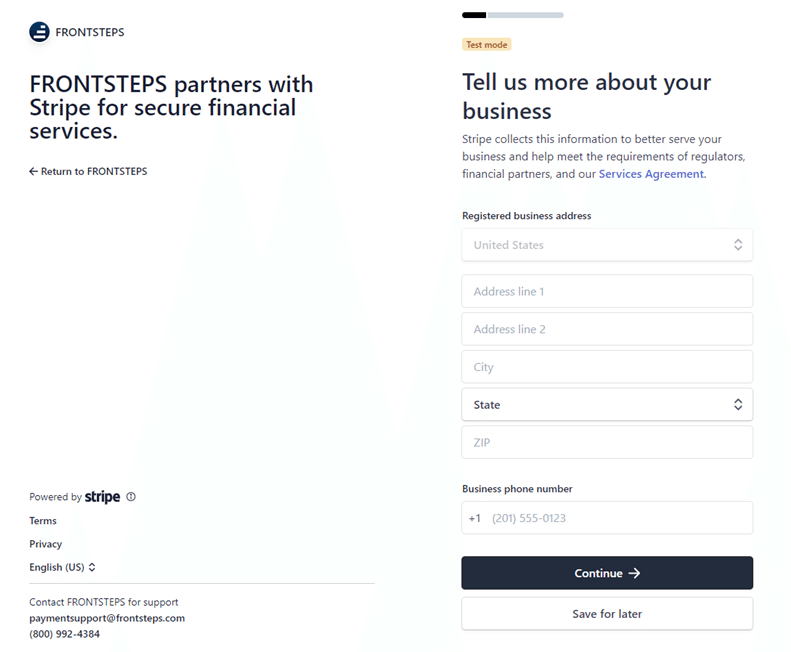
- This will open a new tab (browser page) for the Stripe Onboarding portal.
- In the First Screen you will enter the Business Registered Address and Phone number and click on Continue.
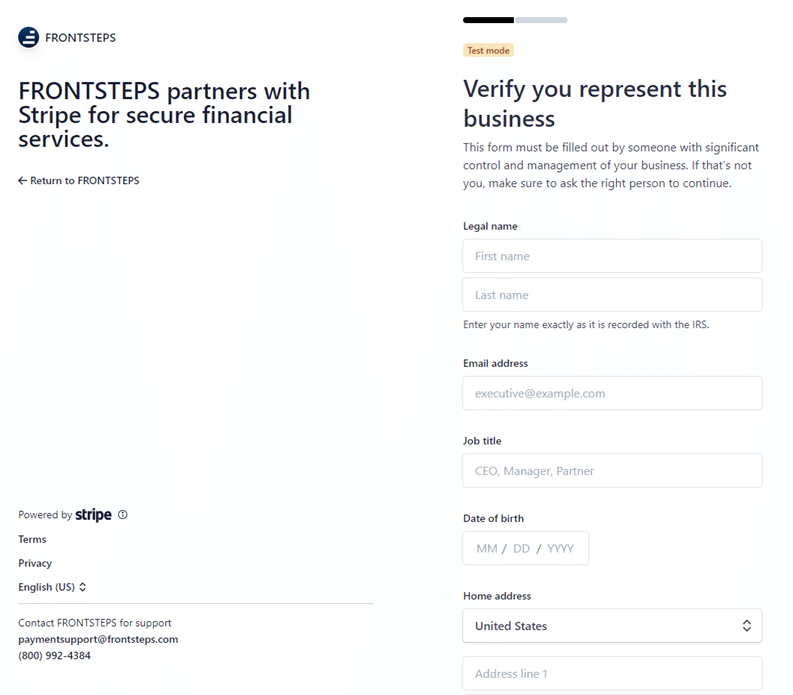
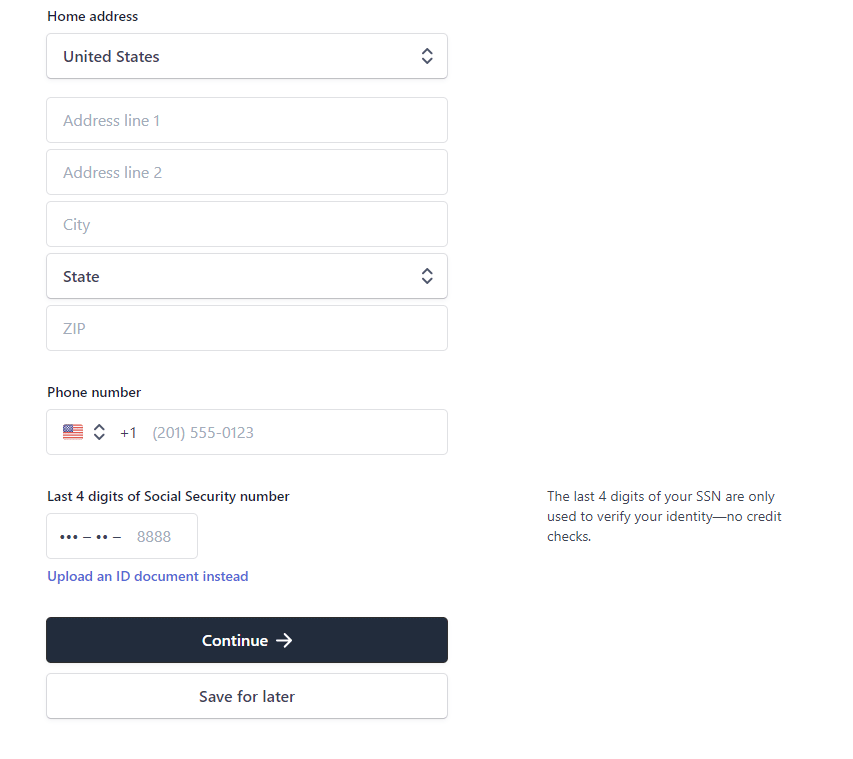
- Add the business representative details in the following screen. This will include the First and Last name, email address, job title, date of birth, home address, phone number and the last 4 numbers of the social security number. Click ‘Continue’ once all details are entered
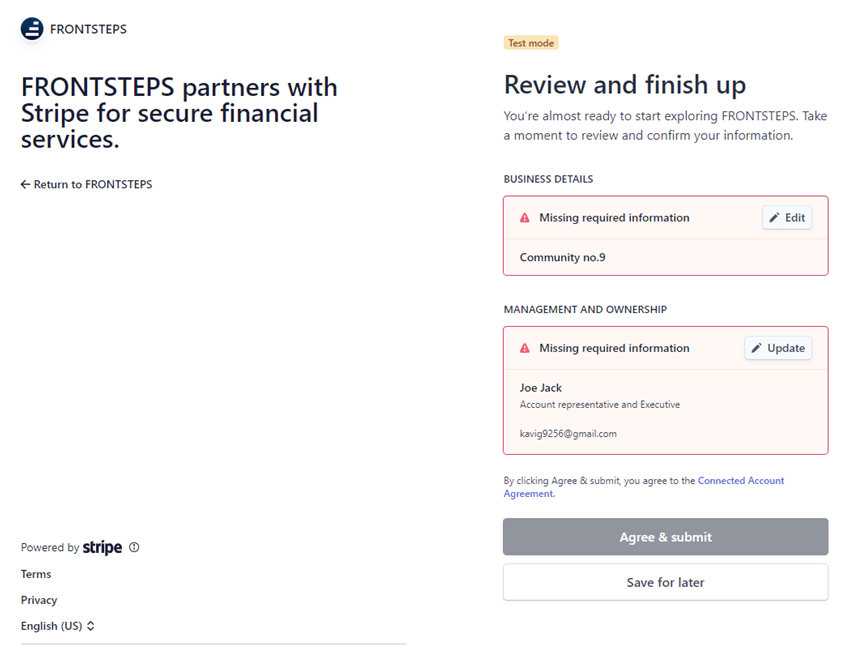
- Review all details to confirm accuracy. If any details are missing, you can add details by clicking on Edit or Update buttons. Once complete click on “Agree & Submit”. This will complete the onboarding of the Community.
- If there are any additional communities that need to be onboarded, you will repeat the same steps for other communities in “Associations Onboarding” Dashboard.