Navigating the Manager Tool and Adding a New Step
Navigating the Manager tool:
When you land on the Manager landing page you will see the MySteps view. From here you will have the following options:
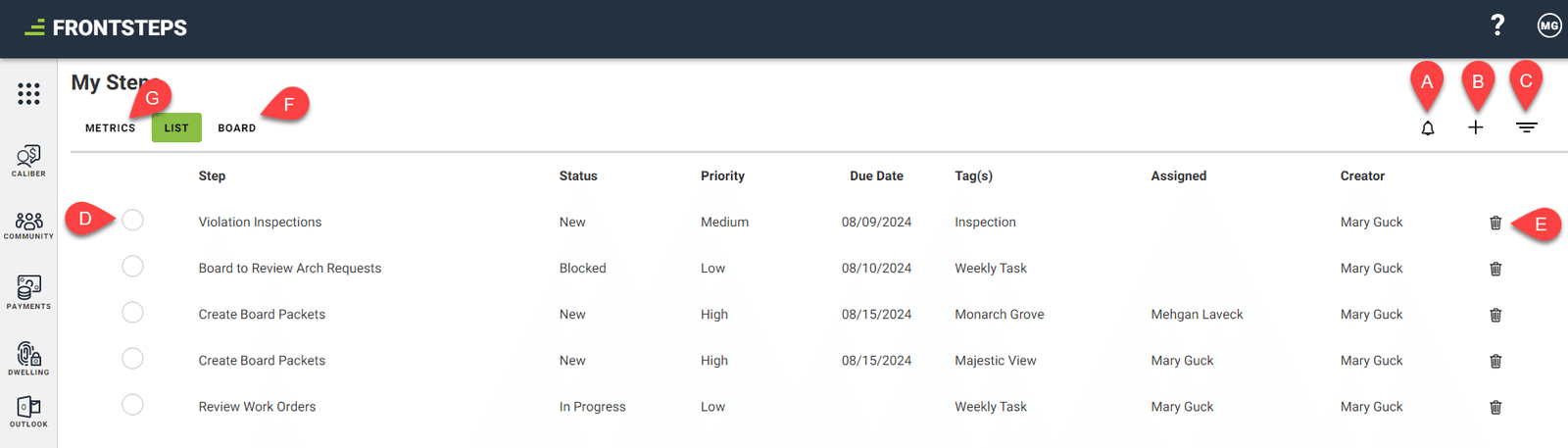
- Notifications alert.
- From here you will see any alerts for steps or comments that were made.
- Add a new Step.
- Steps are a way to track common tasks that need to be done, or recurring items.
- Steps can be assigned to other users who need to complete them, or to yourself.
- Users can see steps that they have created or steps that have been assigned to them, using their own ‘List’ tab and ‘Board’ tab
- Filter your Steps. This will allow you to filter by Status, Priority, Due date and more.
- Mark a task as done by clicking the radio button. You can also view additional details or edit the Step by clicking on the ‘Step’ field.
- Delete a Step.
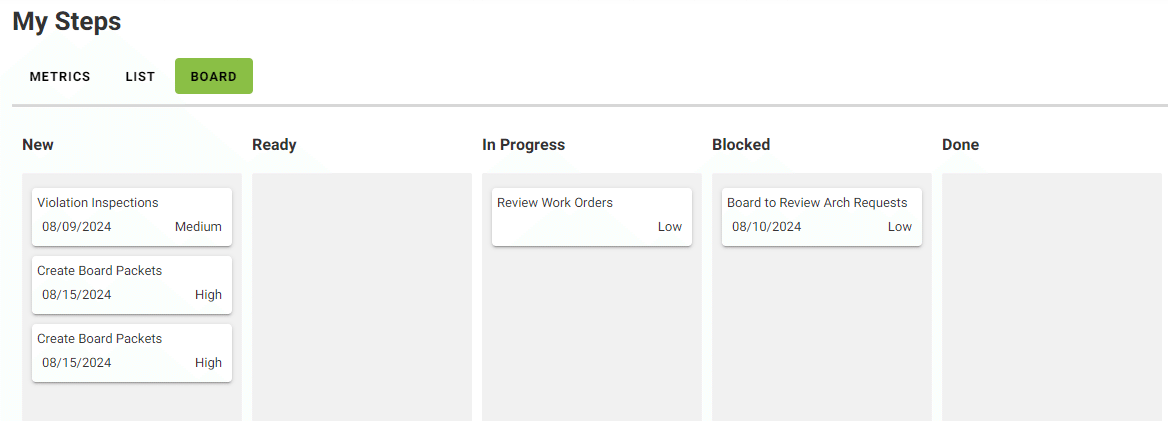
- Switch to ‘Board’ Steps. This will show the Steps assigned to or created by the user, just in a ‘Board’ view.
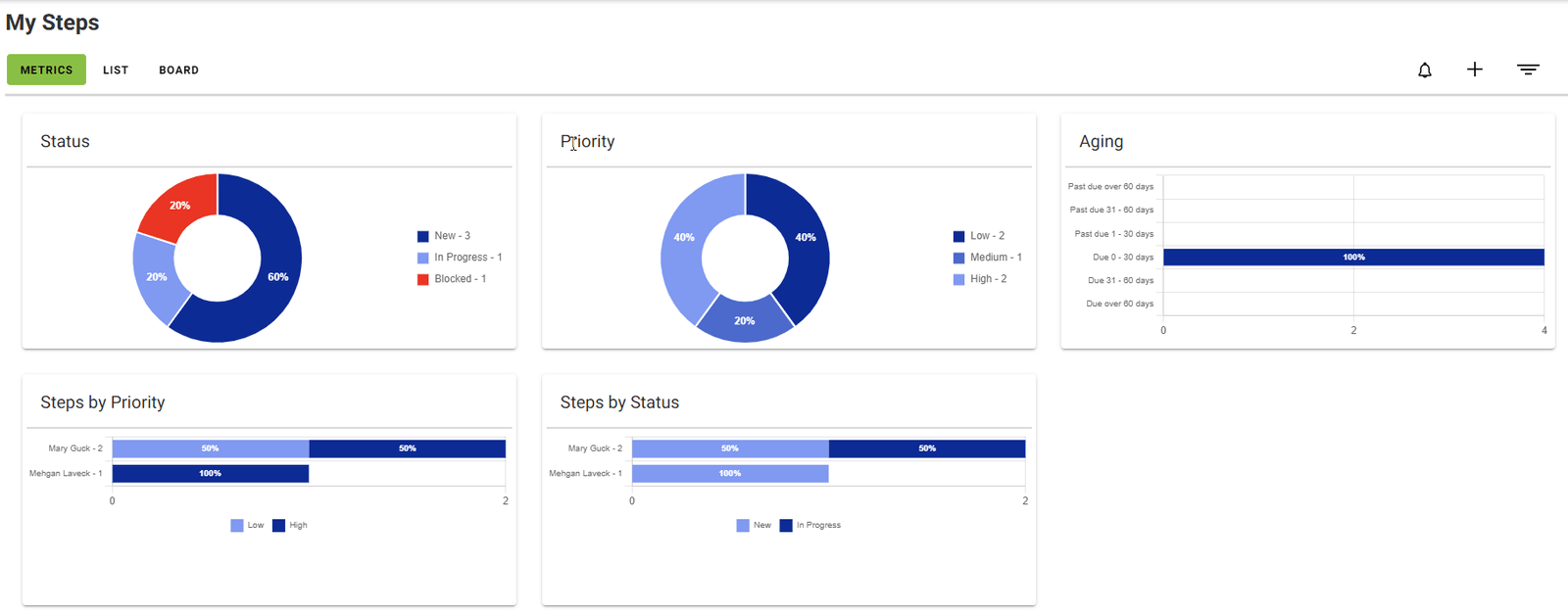
- Switch to ‘Metrics’ to see visuals of your Steps, their Status and other info.
Adding a New Step
Click the ‘Add’ icon from either the ‘List’ or ‘Board’ tab.
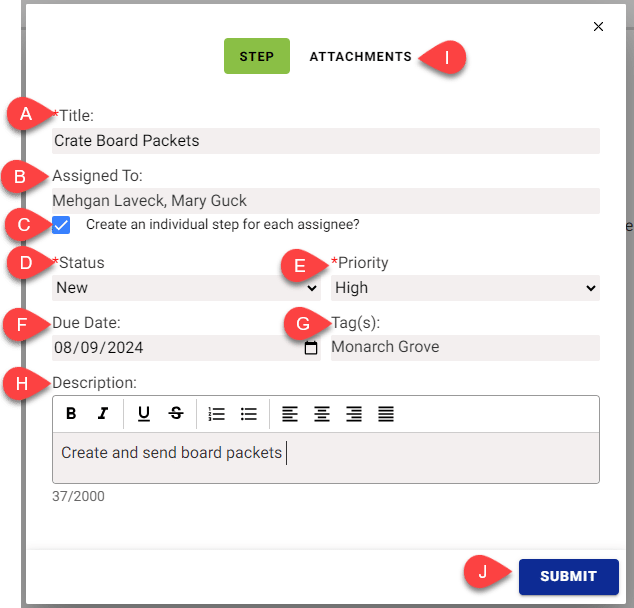
- Title: The name of this step
- Assigned To: Add the name(s) of the user who is responsible for this step
- Create an individual step for each assignee: Check this box if you are assigning this step to multiple users. This will create 1 step for each user and allow individual completion to be tracked.
- Status: Select the appropriate status (New, Ready, In Progress or Blocked).
- Priority: Select the appropriate priority level (Low, Medium or High)
- Due Date: Select the due date, if applicable.
- Tag(s): Add any tags. These may be useful when filtering data.
Note: New tags may be added by typing the name of the Tag in the search drop down and clicking the ‘enter’ key on your keyboard. You may also delete Tags by clicking the ‘x’ icon to the right of the Tag. 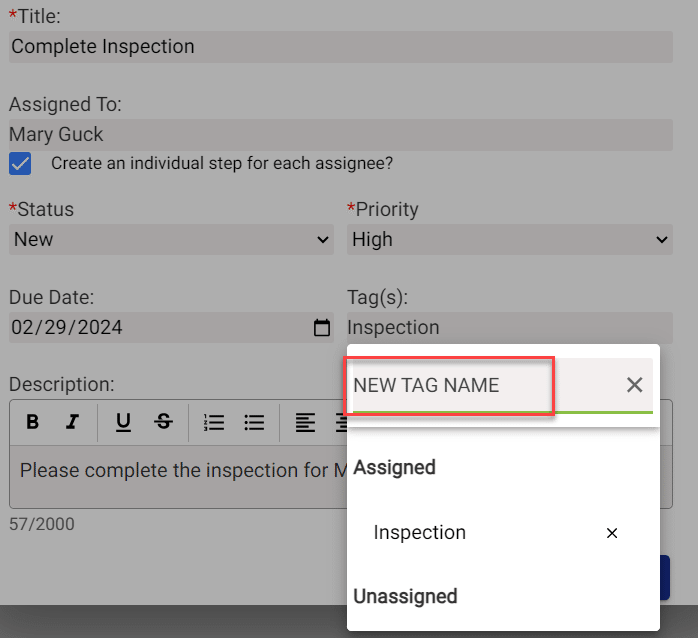
- Description: Enter in any additional details or descriptions for this Step.
- Attachments: Add any attachments that are related to this step.
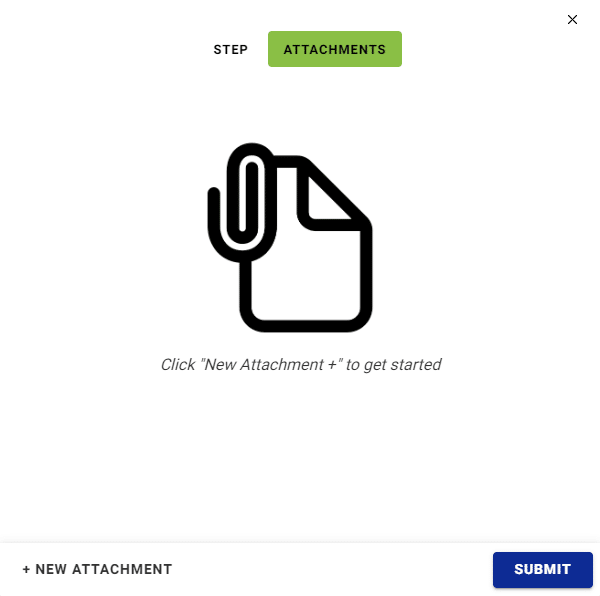
- Submit: Click submit when all details are complete.
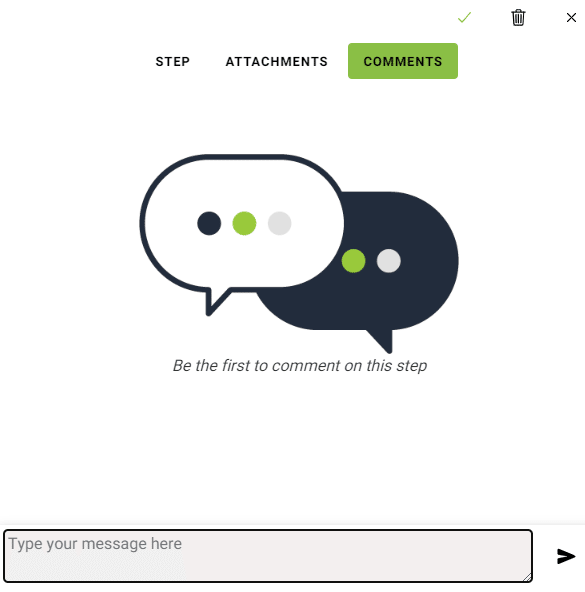
Once a Step has been created, users assigned to the Step (or the creator of the step), can add comments. To add a comment to a step, simply click on the step, then select the comments tab.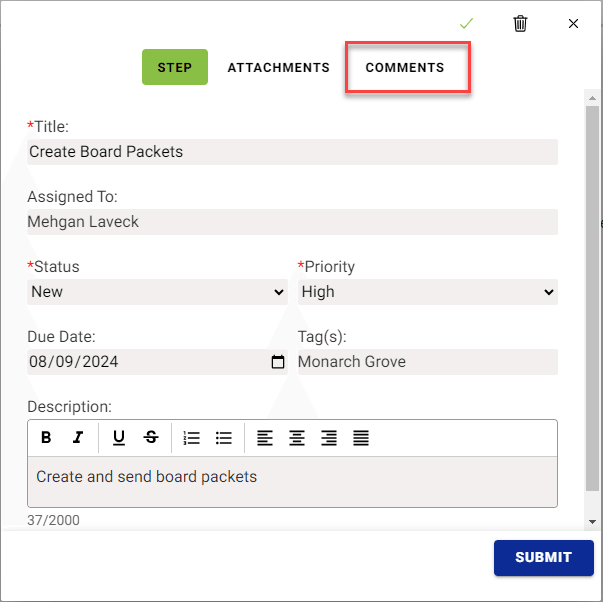
From here you can view and reply to any prior comments and add new comments.