
My Dashboard and Accessing Suite Products Within Suite Manager
My Dashboard
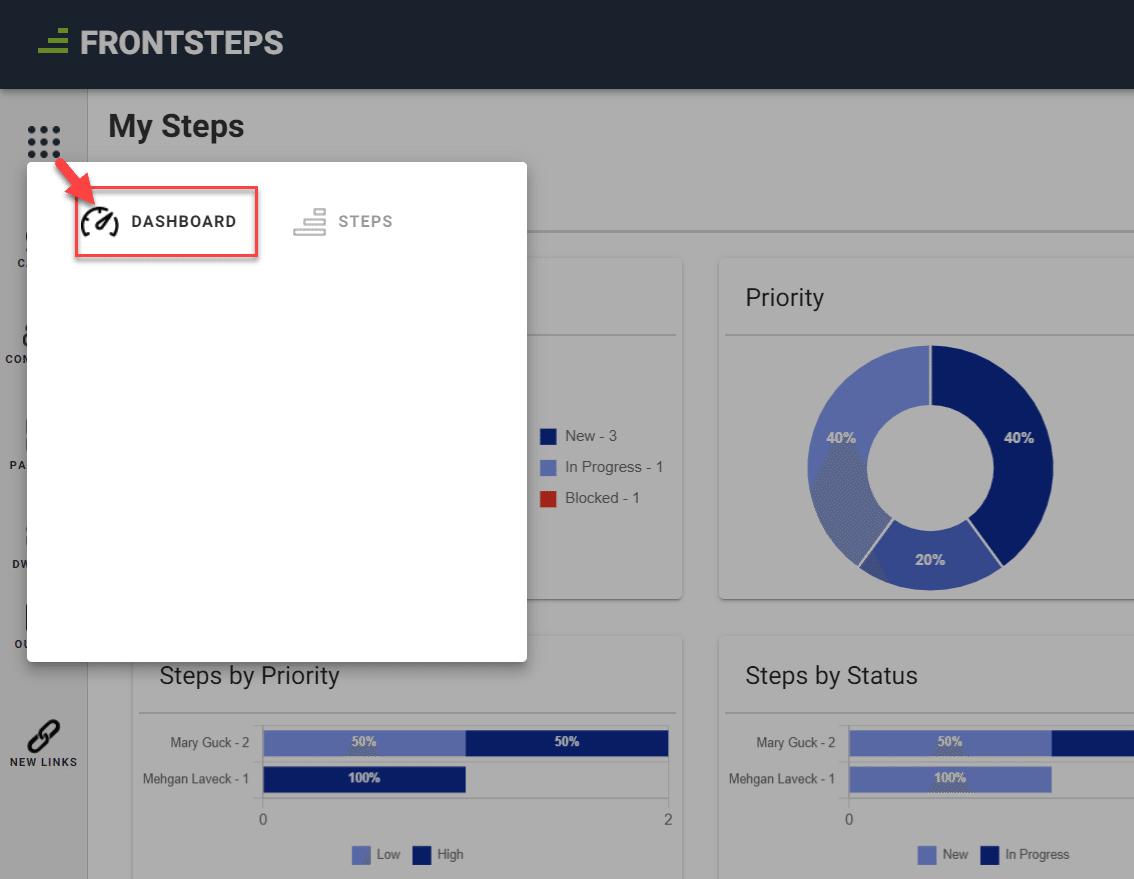
The ‘My Dashboard’ is accessible by navigating to the 9 dots in the upper left corner and selecting “Dashboard”
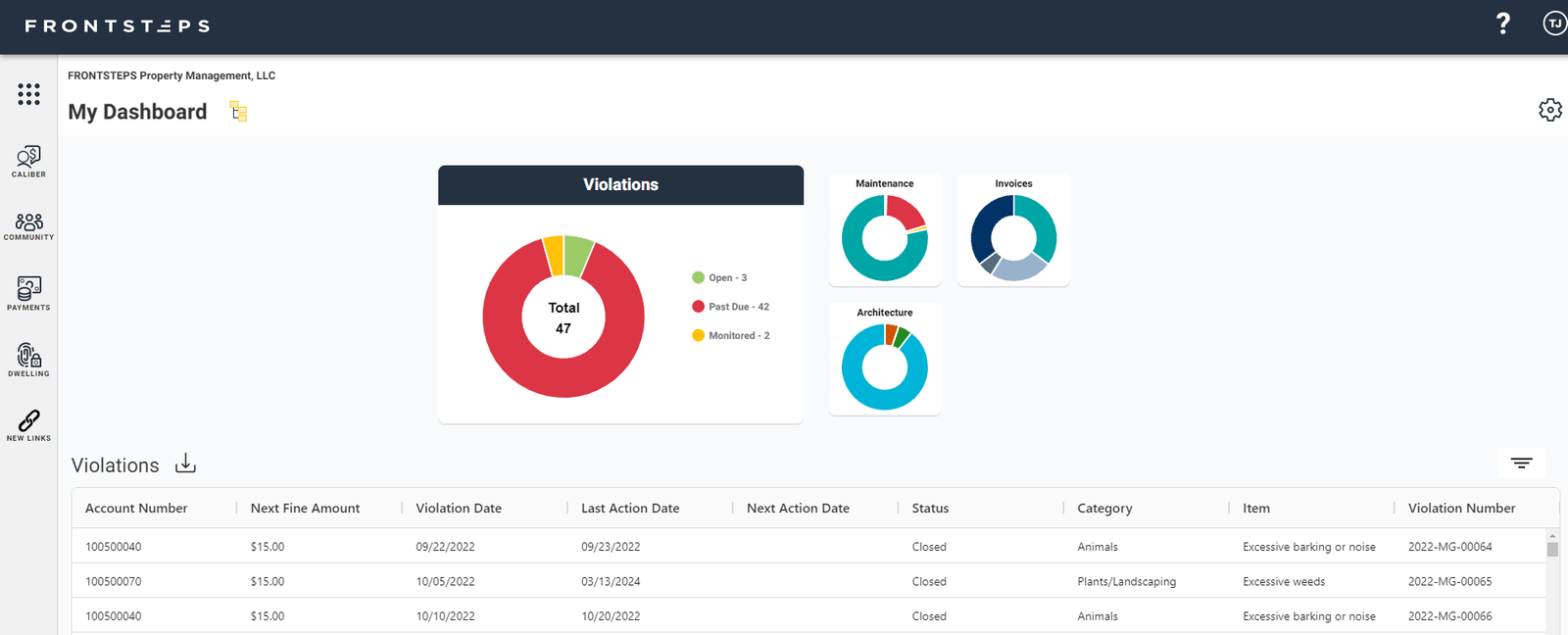
This dashboard gives the users access to see data from Caliber desktop and interact with it. This includes data for their Violations, Maintenance Requests, Architectural Requests and Invoices.
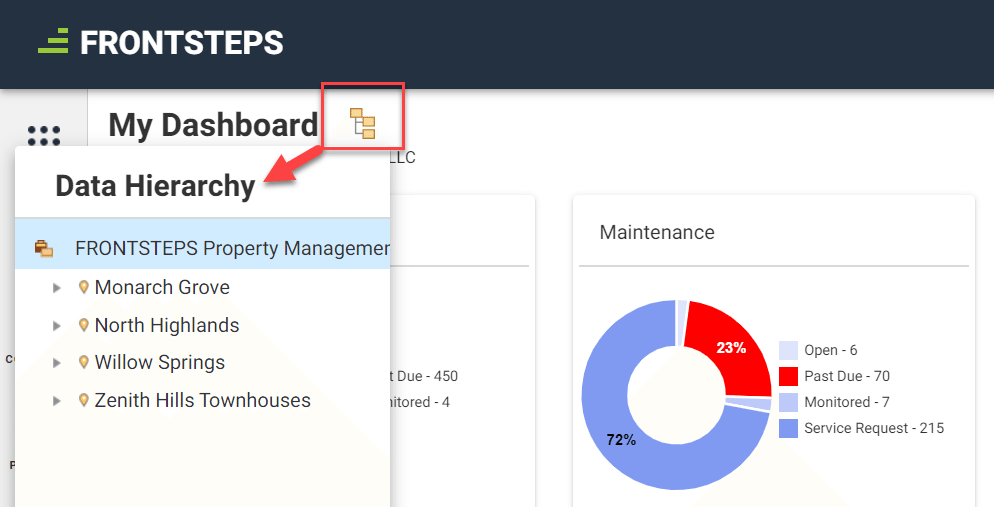
By default this will show data from all of their Communities but if you click the ‘hierarchy’ button to the right of where it says ‘My Dashboard’, they can drill down to see only data for particular communities.
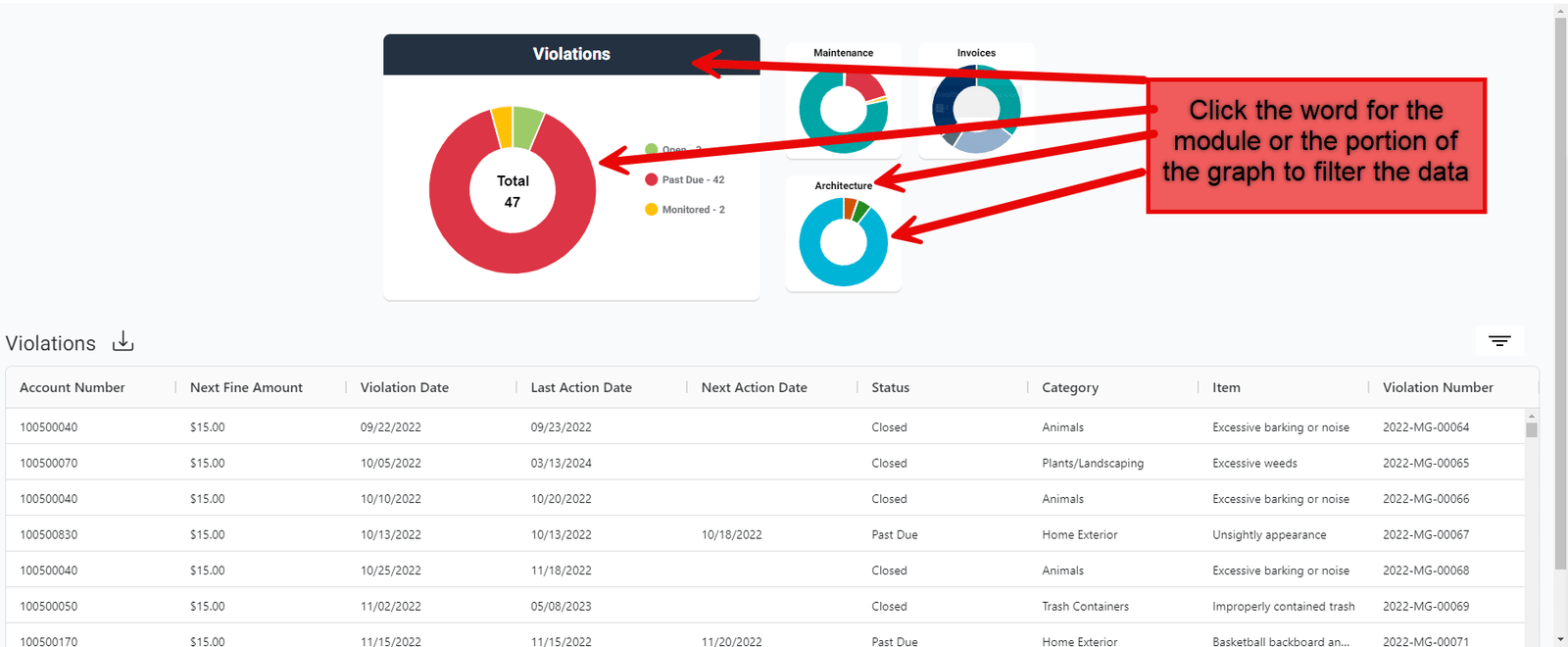
This dashboard is interactive, and users can click on particular modules (for example: Violations) to see all Violations, or they can click on a particular status within the Violations module. This update the data displayed in the bottom portion of the screen and essentially filter the data.
Accessing Suite Products:
To access other Suite products, click the product from the left hand panel. At this time, this will simply take the user to the login page for that product. They will need to enter in their user credentials to log in. Coming soon this will be a single access point for our customers and they will not need to enter their credentials for the other products.
Once logged in, they will move and operate in that product as normal.
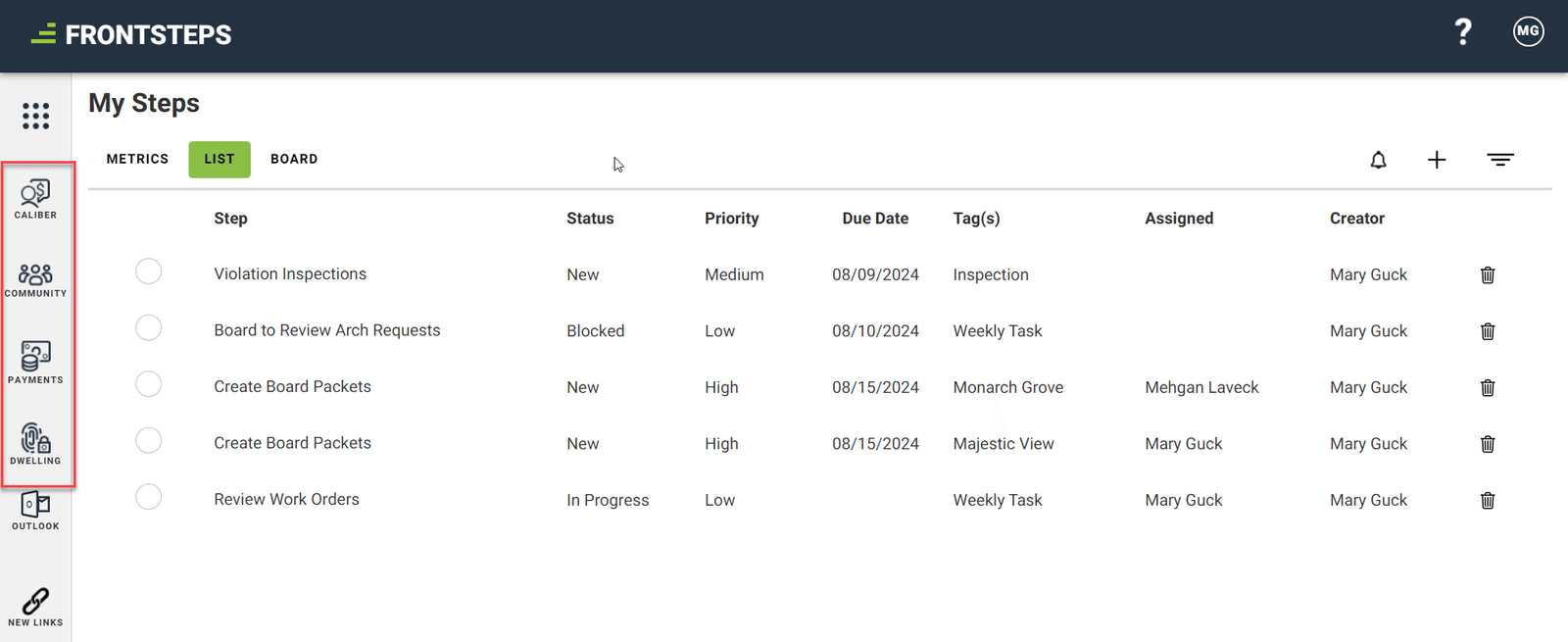
Adding External Links:
Users can add third party external links to the left hand navigation panel, enhancing the idea that users can access everything they need throughout the day from one place. This can be used for other platforms they may access throughout the day. Examples of this could include, Outlook, Monday, CAI, EdenRed pay and any other link they may want.
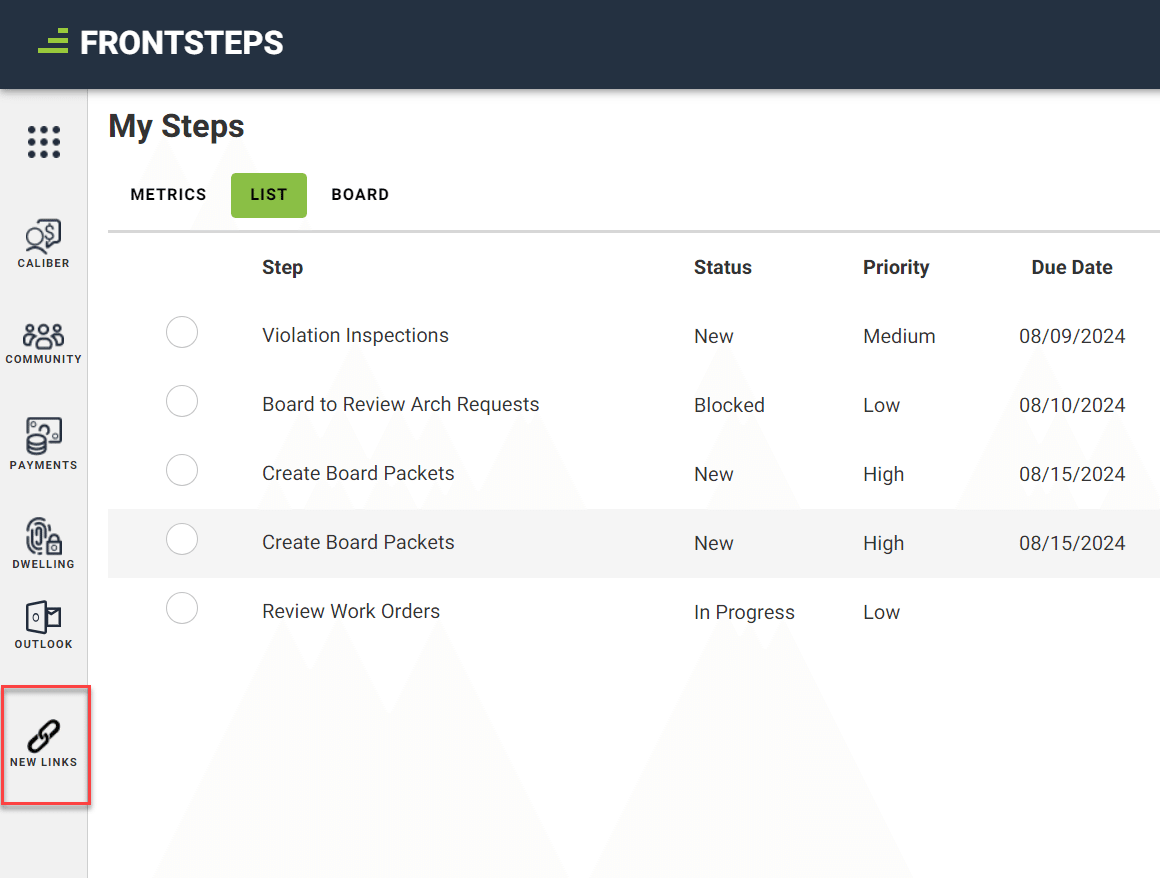
To add a link or edit an existing link, click the ‘New Links’ button.
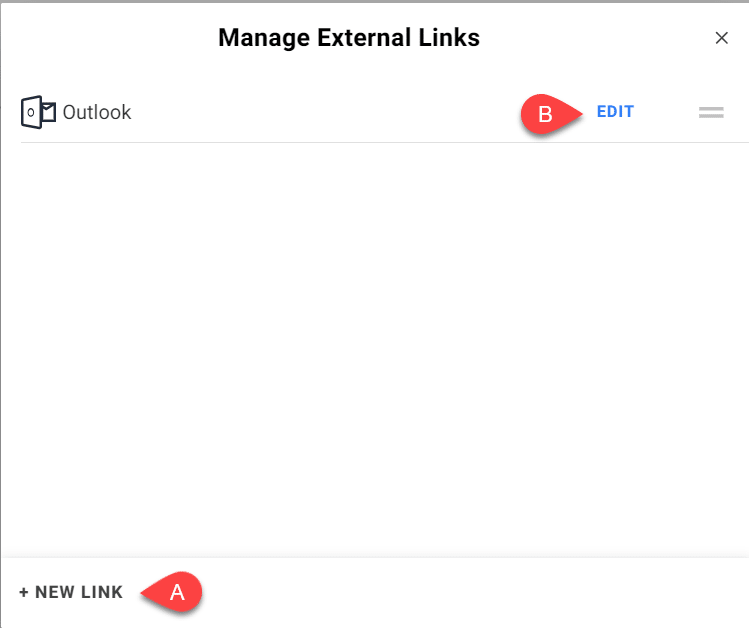
- To add a new link, select ‘New Link’ from the bottom.
a) Enter in the label name, the url link and choose the icon you want it to look like. When complete click save.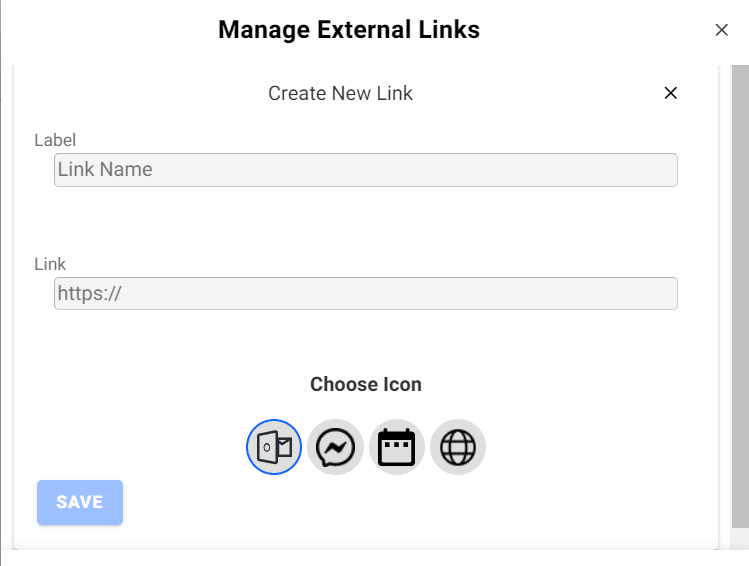
- If you need to edit an existing link, click the edit option.