
Moving Transactions Between Transaction Accounts
 Moving Transactions Between Transaction Accounts
This document is for moving transaction(s) between Transaction Accounts linked to the same owner account.
It cannot be used to move transactions between different owners.
Moving the Transaction
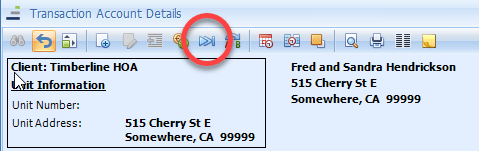
Go to the owner’s Accounting Summary and open the Transaction Account that the transaction is currently posted to, then open it.At the top of the Transaction Account Details Toolbox, click on the ‘Move Transactions to Another Transaction Account’ icon.
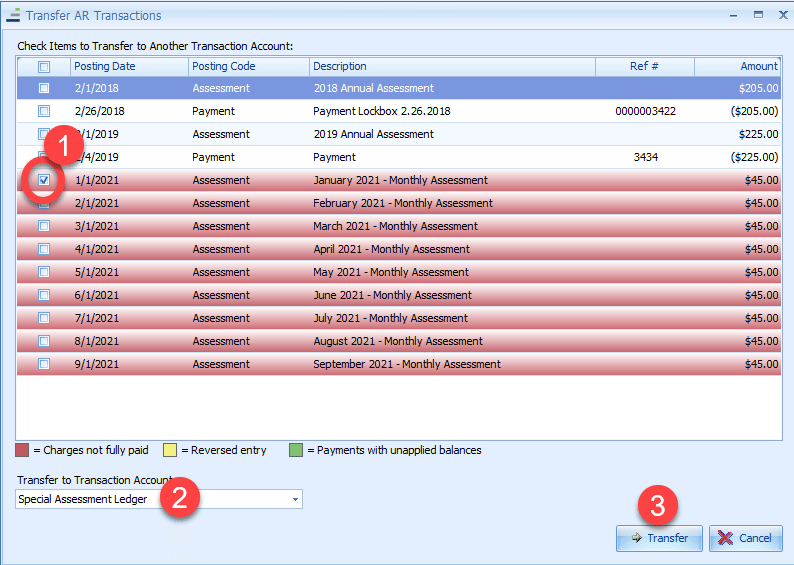
In the Transfer AR Transactions Toolbox, select the transaction(s) to be moved, and use the pull-down menu to select the Transaction Account the transaction is to be moved to. When everything has been selected, click ‘Transfer.’
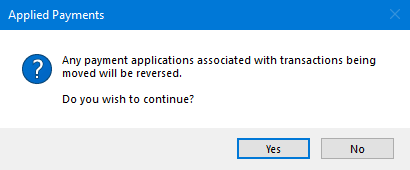
If any credits have been applied to the selected charges, those credits will automatically be unapplied as part of the process. The user will receive a notice and given the option to decide if they want to continue.
Users need to be aware that partial balances cannot be moved between Transaction Accounts. The full, original balance of the transaction will be moved. If a partial transfer is required, the transaction will need to be reversed from the Transaction Account, and new transactions for the partial amounts be posted to the Transaction Accounts.
When moving a credit transaction, it is highly recommended that all applications related to it be manually cleared before moving it.