Memorized Invoice Setup
We’re updating this article. Some screenshots or names may look older than what you see in the product.
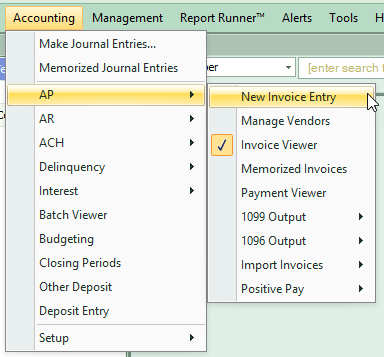
To create a memorized Invoice, go to Accounting > New Invoice Entry. In the new invoice entry screen, fill out the client name, vendor name, expense line item(s).
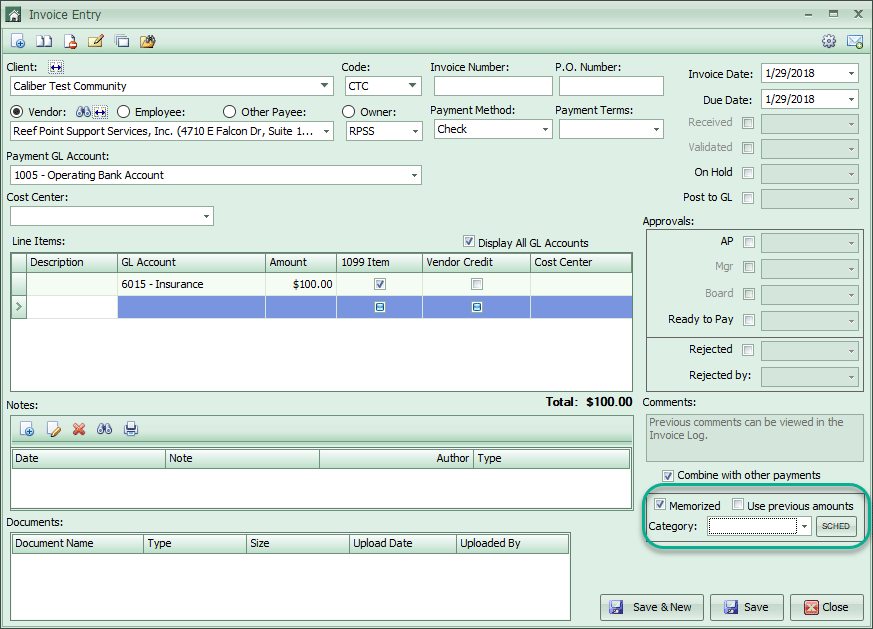
After this information is entered, check the ‘Memorized’ box in the lower right corner to memorize the information that you current have for this client and vendor. The next box “Use Previous Amounts” will also allow the invoice to be generated with the same dollar amount if the dollar will not change.
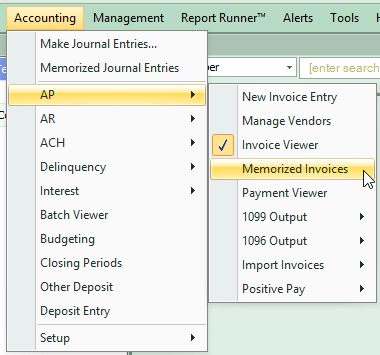
Now, the invoice that you have selected to be memorized will be in the memorized invoice screen. To open this window, go to Accounting > AP > Memorized Invoices.
In the Memorized Invoices screen, you will see all of Associations and Memorized Invoices that you have created.
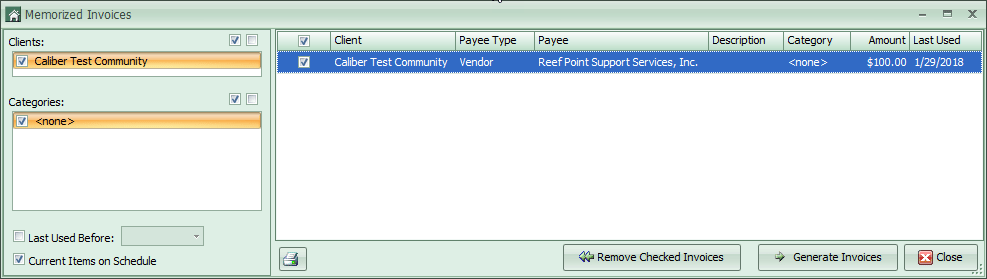
When you select Generate Invoices at the bottom of the screen or when you right click you will be asked what status you would like to place the invoices into.
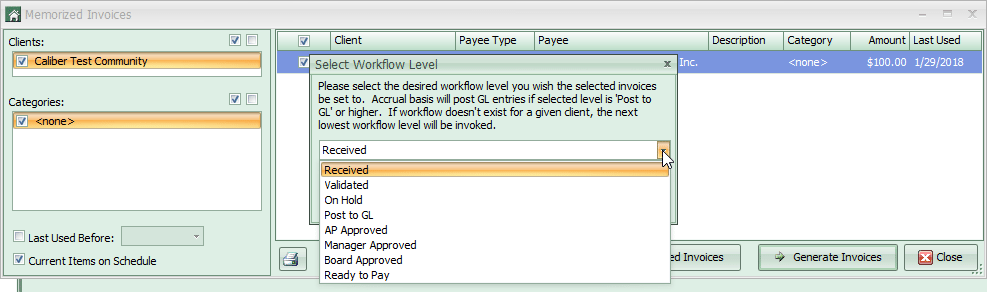
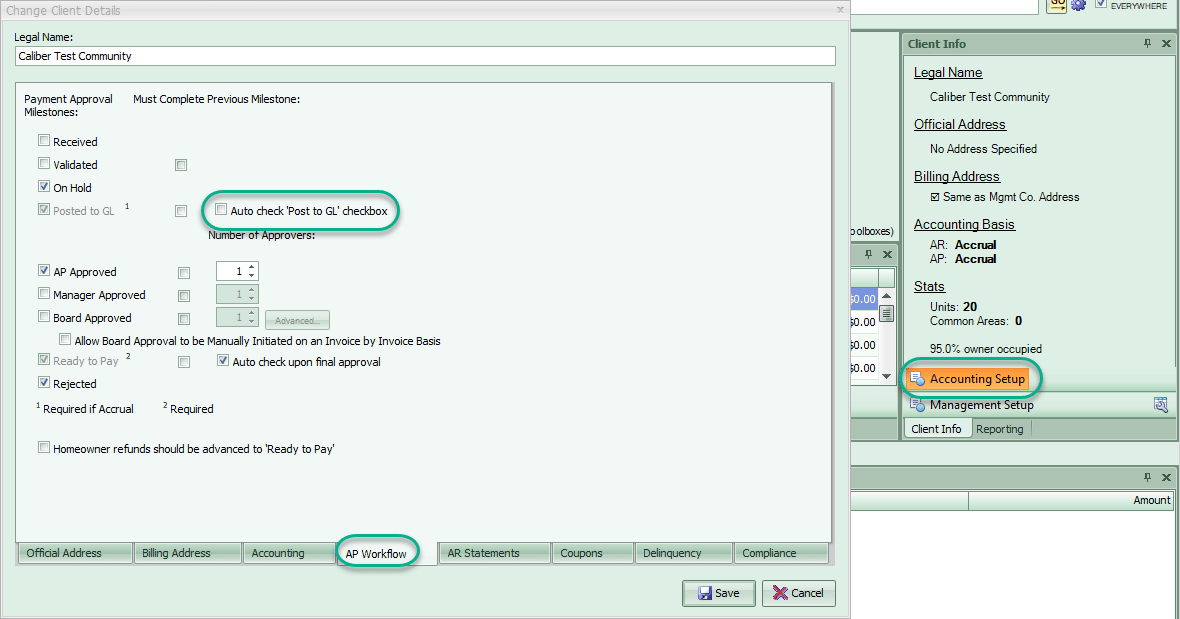
You will be able to place all Invoices in Post to GL, any of the approvals, or ready to pay status if you have “Auto check ‘post to GL’ checkbox” selected in the Accounting Setup and “use previous amount” selected when you created the Memorized Invoices.