Article
FRONTSTEPS Caliber
Managers & CAMs
Manual Positive Pay Files
Article 000002013 · Updated Mar 13, 2023
Manual Positive Pay Files IntroductionPositive Pay is a fraud prevention tool used by banks where a file is sent to the bank listing the check number, bank account number, amount, and other information for payments made through the Accounts Payable module in Caliber. When the payments are presented to the bank, they are cross referenced against the file to determine if there are any discrepancies.Positive Pay files can be generated several ways in Caliber. This document deals with a file that is user generated and manually provided to the bank. The files can also be generated by processes that can be set-up in Caliber to automatically send a file to the bank on a nightly basis. Please refer to our documents on Advanced Banking Integrations and Automated Scheduled Tasks for those options.It is important to know that a Positive Pay file will only include payments issued since the last file was generated, regardless of the method used to generate it. If no new payments have been issued from accounts with the bank in question, no file will be generated.
Set-up
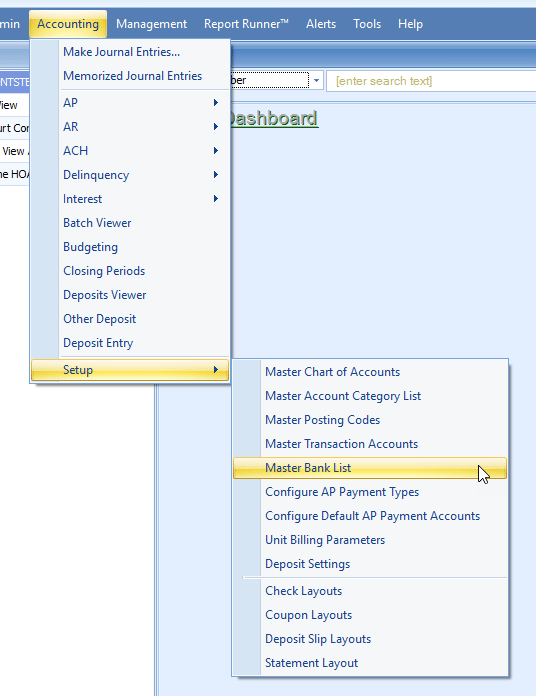
Go to the top menu bar.
Select Accounting > Setup > Master Bank List.
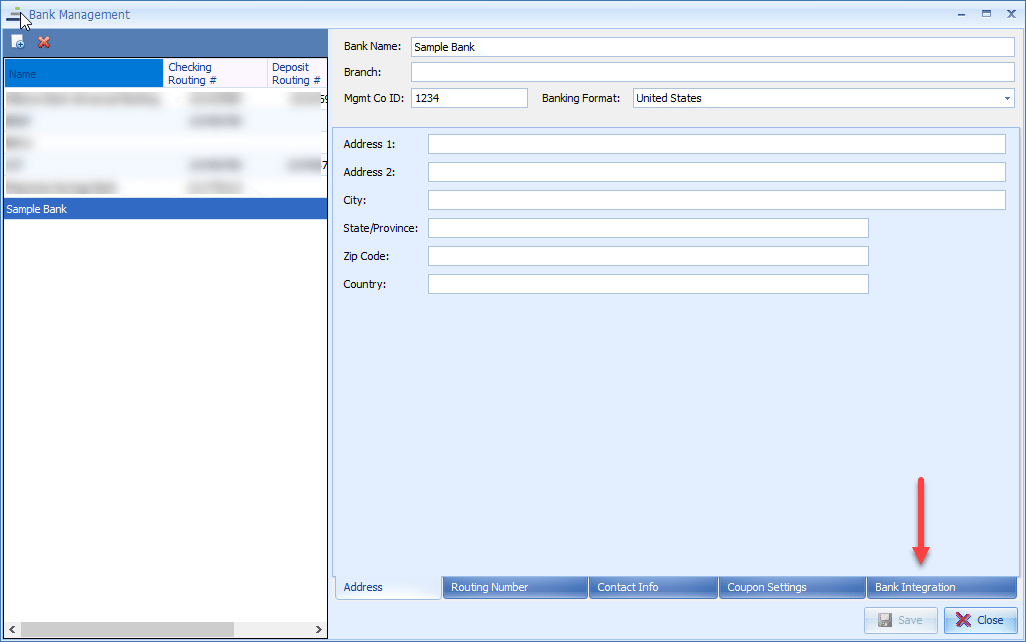
Select the bank and go to the Bank Integration tab.
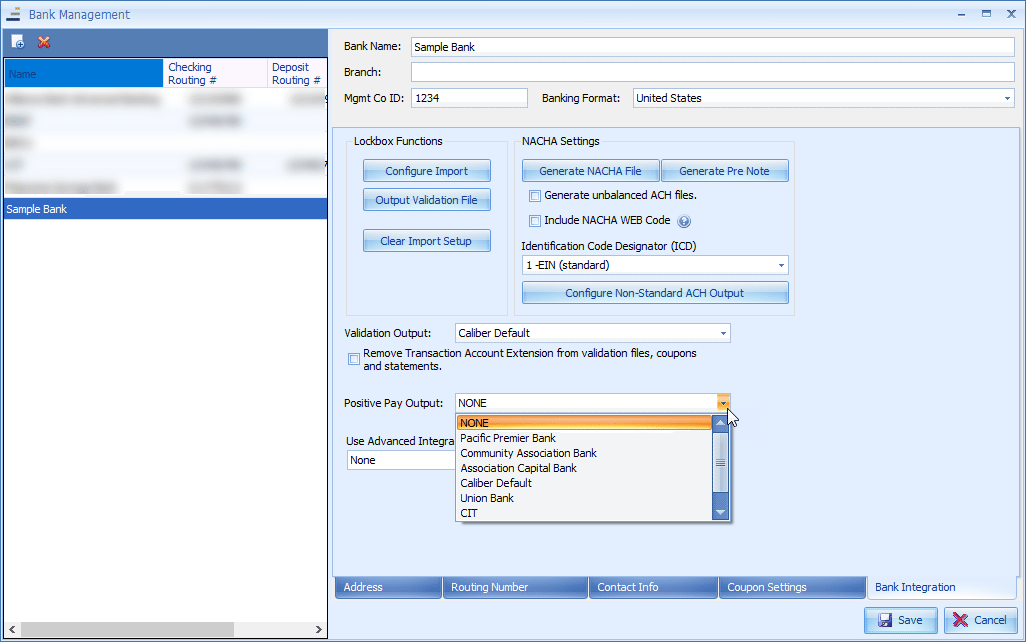
Using the Positive Pay Output pull-down menu, select the bank, then click Save. If the bank is not listed, select ‘Caliber Default.’
Set-up is complete.
Generating a Positive Pay File
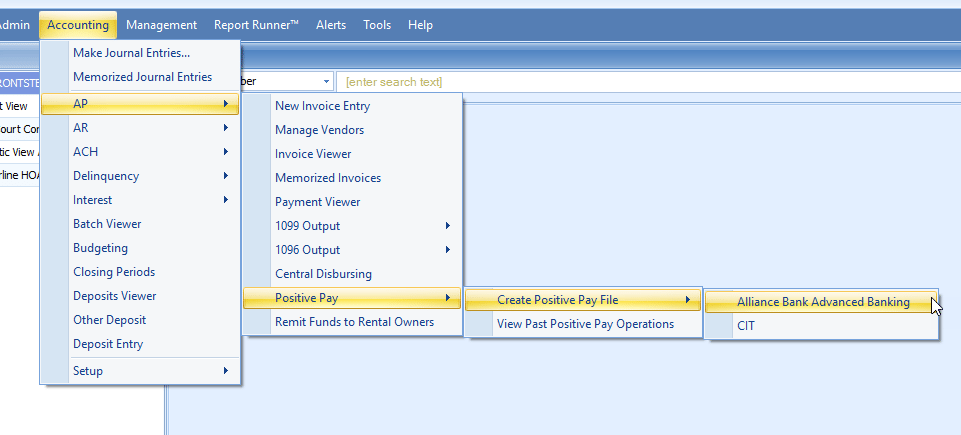
To generate a new Positive Pay file, go to the top menu bar.
Select Accounting > AP > Positive Pay > Create Positive Pay File. Then choose the bank the file is to be generated for.

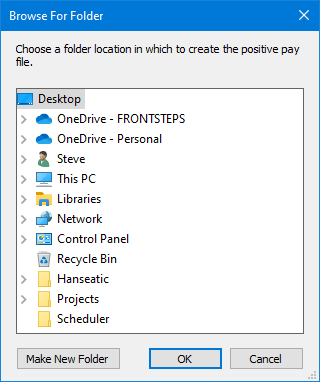
Choose a location where the file is to be saved to and click OK.

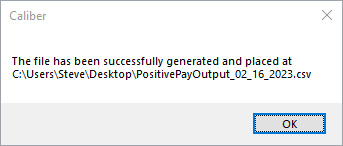
The file will be generated and saved in the selected location.

Click OK to complete the process.
The output format may vary depending upon the bank. In this case, it is a .CSV file. The user will then forward the file to the bank according to the bank’s instructions.
Past Positive Pay Files
As previously mentioned, a file only includes payments issued since the last Positive Pay file was generated, so a file cannot be rerun. Because of this Caliber saves past Positive Pay files so that they can be accessed if needed.
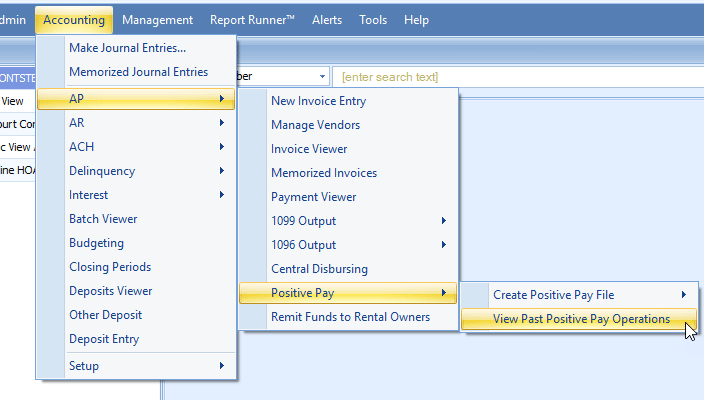
To view past files, go to the top menu bar.
Select Accounting > AP > Positive Pay > View Past Create Positive Pay Operations

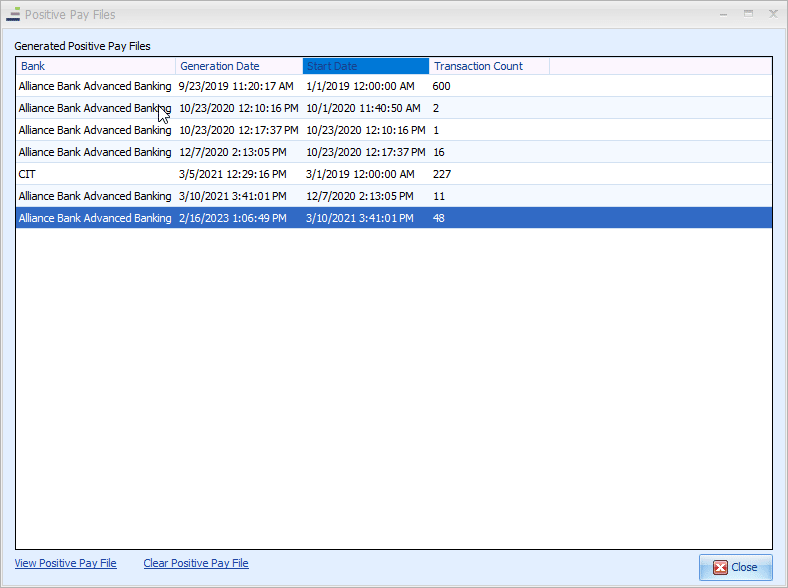
A toolbox will open that contains every past Positive Pay file, showing the bank it was generated for, when it was generated, the start date and time of the file (payments from this time up through the time the file was generated will be included in the file), and the number of payments the file contains.

To view a specific file, select it and then click View Positive Pay File at the lower left corner of the toolbox. The file will be displayed in the same format as it was originally generated in. This can be sent to the bank if needed.