
Manual Import of Lockbox File
We’re updating this article. Some screenshots or names may look older than what you see in the product.
 Introduction
This document is for the manual import of lockbox files from financial institutions (‘bank’) that do not have an integration with Caliber.
 Set-Up
Before a lockbox file can be imported, the bank must be set-up in the Master Bank List, and the import process configured. The configuration must be done by the Caliber Support staff. Before that can occur, a sample lockbox file from the bank must be provided by the user.
After the configuration has been completed, the rest of the set-up is done by the user.
First, go to the client Chart of Accounts, select the General Ledger account used for this bank account, and then select the ‘Edit’ icon at the bottom of the Chart of Accounts Toolbox.
The Account Toolbox will open.
In the Account Toolbox, use the ‘Select’ button to select the appropriate bank from the Master Bank list. Once that is done, check the box for ‘Primary Bank Link,’ and Save.
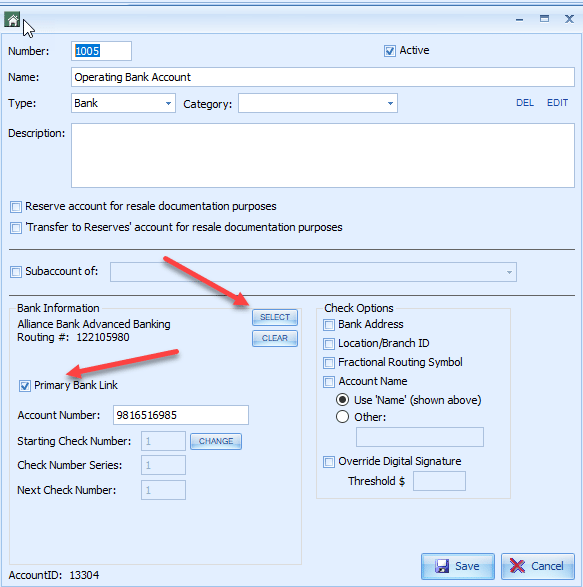
Only one account per client can be selected as the Primary Bank Link. Selecting one here automatically deselects it from any other account for that client.
Next, go to the Posting Codes for the client, select the payment Posting Code, and click on the ‘Edit’ icon at the bottom of the Posting Codes Toolbox.
The Toolbox for that Posting Code will open.
Verify that the Debit Account selected is the one that is marked as the Primary Bank Link.
Next, check the box marked ‘Allow for Lockbox,’ enter the client’s Lockbox Code in the box provided, and click Save.
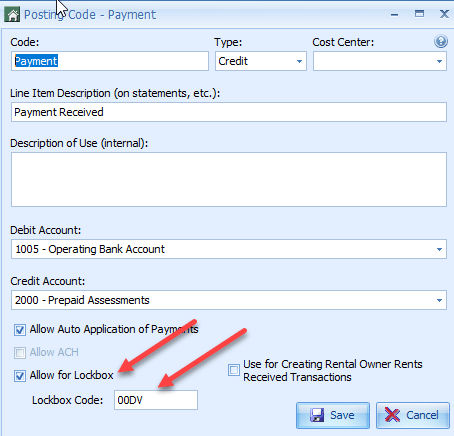
Caliber requires that the Lockbox Code be unique, but has no other restrictions for the Lockbox Code. The user should check with the bank to see if the bank has any requirements or restrictions.
The Lockbox Code entered must be identical to the one that the bank will be using for the client.
Set-up is now complete.
 Importing Lockbox
The bank will provide the customer with a data file (‘file) each day. The file includes all Lockbox payments that were processed that day. When the file is received, the user must save the file to a location on their on their computer that can be accessed later.
Next, go to Accounting>AR>Import Lockbox File, and select the appropriate import process for the bank.
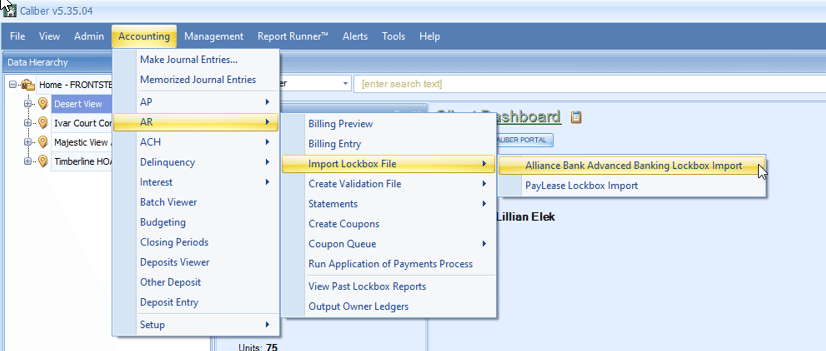
In the Toolbox that opens, use the ‘Browse’ button to locate and select the file that was saved earlier.
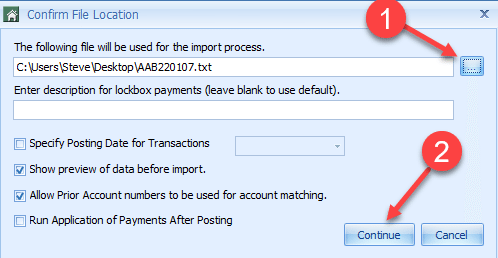
A custom description can be used for posting the payment in the file to be imported. If one is not entered, the description will default to the one from the payment Posting Code.
A Posting Date can be specified, if needed. If one is entered, it will override the date given in the file from the bank.
Application of Payments can be run after the payments post. Normally, this is only done if a delinquency process is to be initiated immediately after the payment have been posted.
Click ‘Continue.’
Caliber will begin processing the file, and when ready, will provide a Preview.
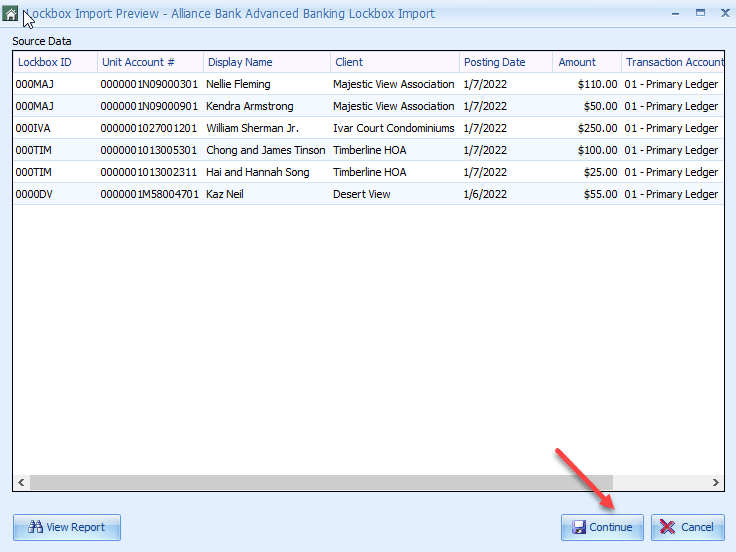
A Preview Report can be generated at this time. A Posting Report will be available after all payments have posted.
Click ‘Continue.’
Caliber will post the payments to the owners’ accounts and make the appropriate journal entries to the Primary Bank Link account selected in the General Ledger.
When posting is complete, a message will be displayed.
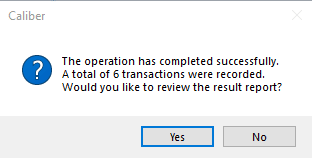
Clicking on ‘Yes’ will bring up the Posting Report for that batch of payments.
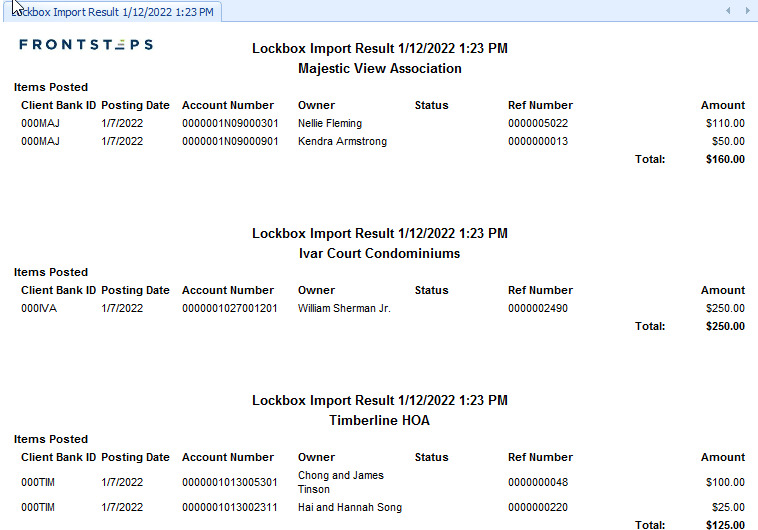
The user must review the ‘Failed Item Summary’ section of the report to see if there were any payments that could not be posted. If any are listed, the user must manually enter them. The reason for the failure is provided for reference.
The Lockbox process is now complete.
 Past Lockbox Reports
Prior Lockbox Reports can be accessed by going to Accounting>AR>View Past Lockbox Reports.
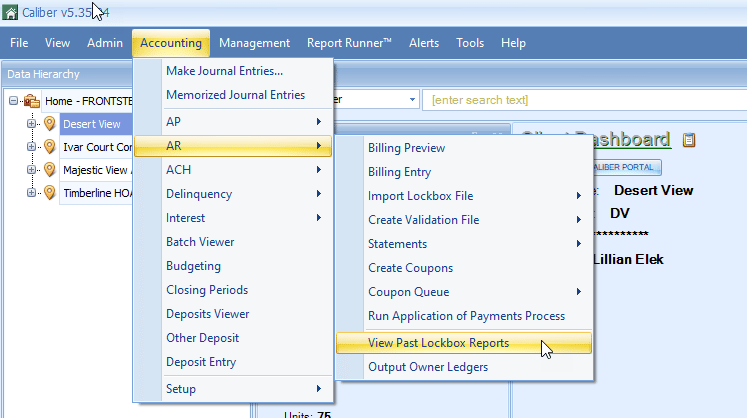
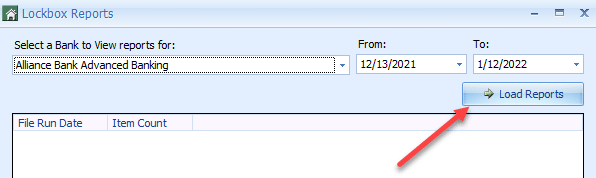
Using the options at the top of the Lockbox Reports Toolbox, select the bank, and indicate a date range. Click on ‘Load Reports.’
From the list of available reports, select the desired report, then click ‘View Report.’
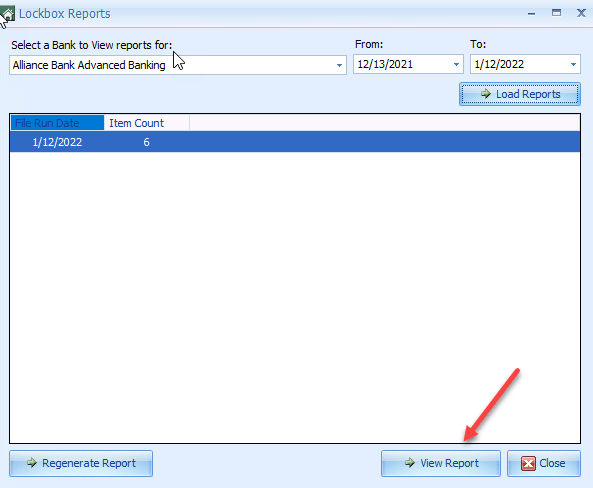
Reports are listed by the date that the file was imported, not the as of date of the payments in the file.