
Resident - Managing Notifications
We’re updating this article. Some screenshots or names may look older than what you see in the product.
Resident users can opt-in to receive a variety of email and/or text message notifications. dwellingLIVE will send notifications regarding visitor management, community updates, and credentialed access activity.
Visitor/Community Update Notification
1. Log into community.dwellinglive.com.
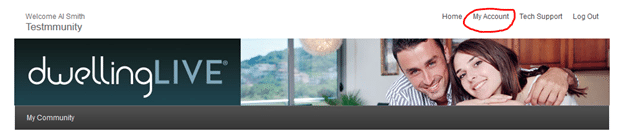
2. At the top of the page, select “My Account”.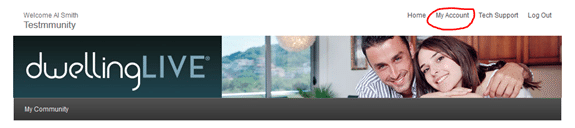
3. Select “Edit” to the right of a user profile to review the available notifications.
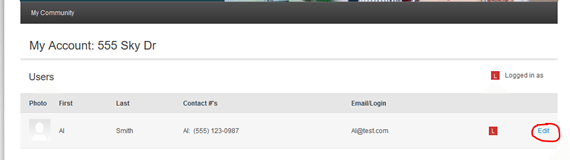
4. To opt-in, check the boxes to the right of the desired notification.
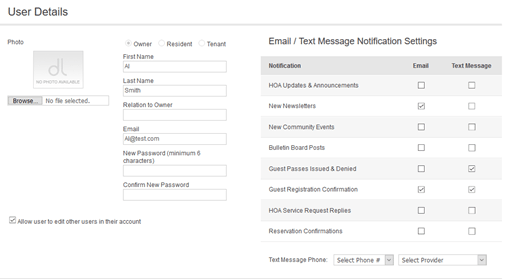
· To receive text message notifications: a valid phone number and provider must be chosen from the drop-down below the notification settings.
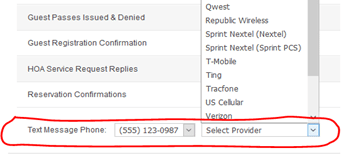
· Note: the text message notification feature will not work unless both are selected.
· To opt-out, uncheck the boxes to the right of the notification.
5. Select “Save” at the bottom of the page once notification preferences have been set.
Credentialed Access Notification
- Log in to community.dwellinglive.com.
- Select “My Account” at the top of the page.
- On the account page, scroll down to Credentialed Access Devices.
- Select “Edit” to the right of a device to view the notification options.

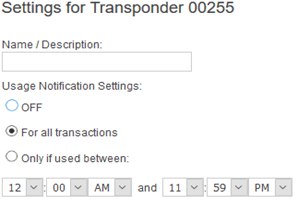
- Add a name or description to the device to label notifications.
- Under Usage Notification Settings select one of the following
- “Off” – to opt-out of credentialed access notifications.
- “For all transactions” – receive notifications every time the device is used.
- “Only if used between” – receive notifications when the device is used during a specified time frame. A start and end time must be set by using the drop-down menus.
- Under Send Notifications to, check the email and/or text message boxes to opt-in.
- Skip this step if “Off” is selected in step 6.

- Select “Save” once notification preferences have been set.
- Repeat steps 4-8 for each credentialed access device.