
Admin - Managing Inbox Settings - Automatic Response
We’re updating this article. Some screenshots or names may look older than what you see in the product.
The Auto Responder can be set up to send automatic responses to residents communicating to Managers through the in-system mailboxes. For example, if Managers are out of the office for an extended period of time, automatic responses can be sent to residents indicating when Managers will return to the office.
From the Manager Dashboard, select the Administrator Tools icon , then select Inbox Settings.
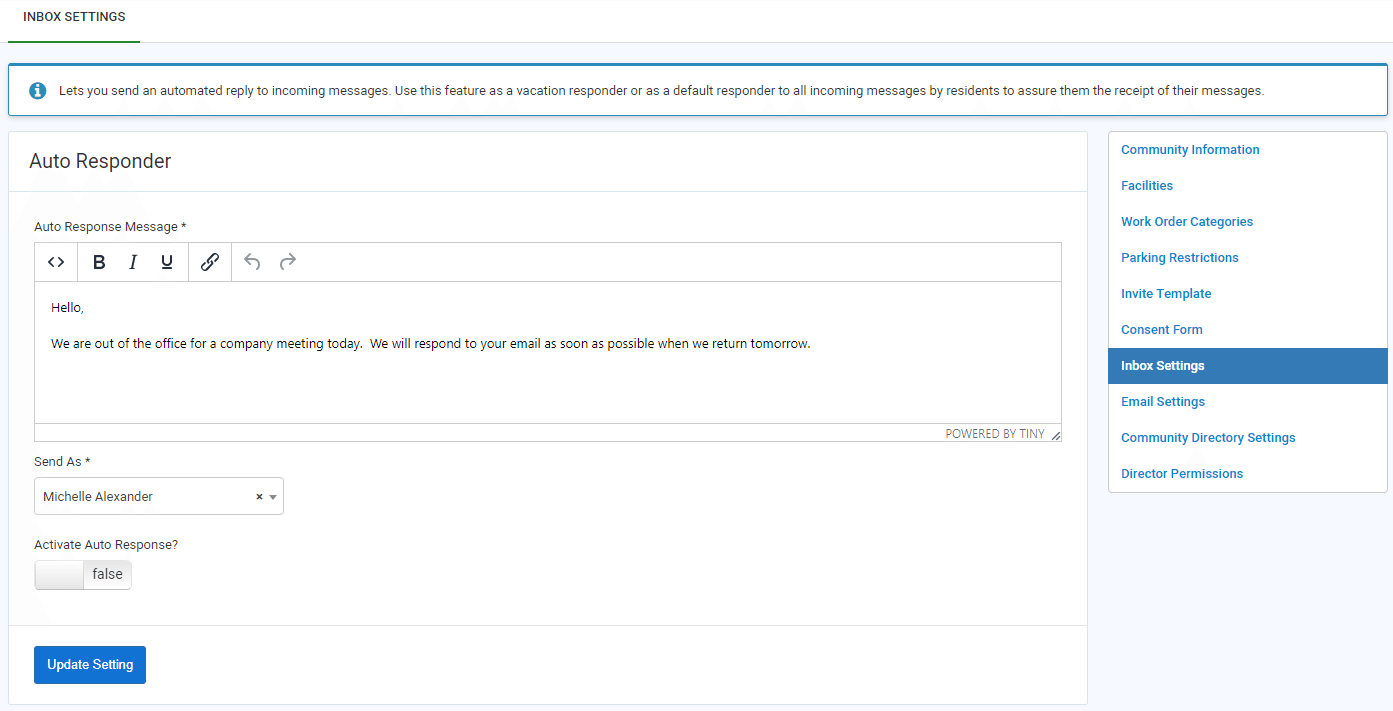 1. Add the Auto Response Message. This message can be changed any time.
2. From the Send As drop-down list, select the Manager's name to be included on the message as the "sent from" Manager.
3. Set the Activate Auto Response setting to True to begin using the auto responder. Return the setting to False when you want to turn off the auto responder.
4. Select Update Setting to save your changes.
From the Manager Dashboard, select the Administrator Tools icon
, then select Inbox Settings.1. Add the Auto Response Message. This message can be changed any time.2. From the Send As drop-down list, select the Manager's name to be included on the message as the "sent from" Manager.
3. Set the Activate Auto Response setting to True to begin using the auto responder. Return the setting to False when you want to turn off the auto responder.
4. Select Update Setting to save your changes.