
Admin - Managing Email Settings: Default Reply To Address
This feature is used to set up a default “Reply To” email address, such a general community email address, when emails are sent to residents.
From the Manager Dashboard, select the Administrator Tools icon , then select Email Settings.
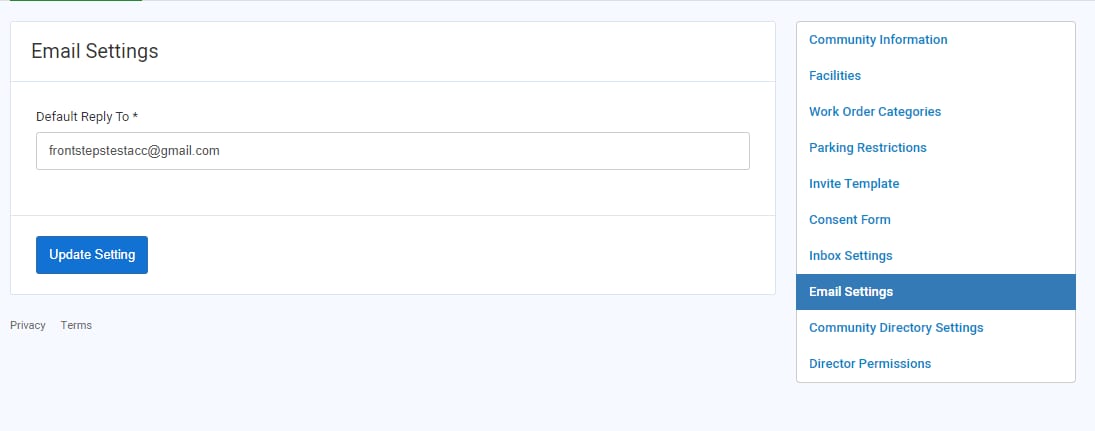
1. Complete the Default Reply To email address.
2. Select Update Setting to save your changes. You can change this email address at any time.
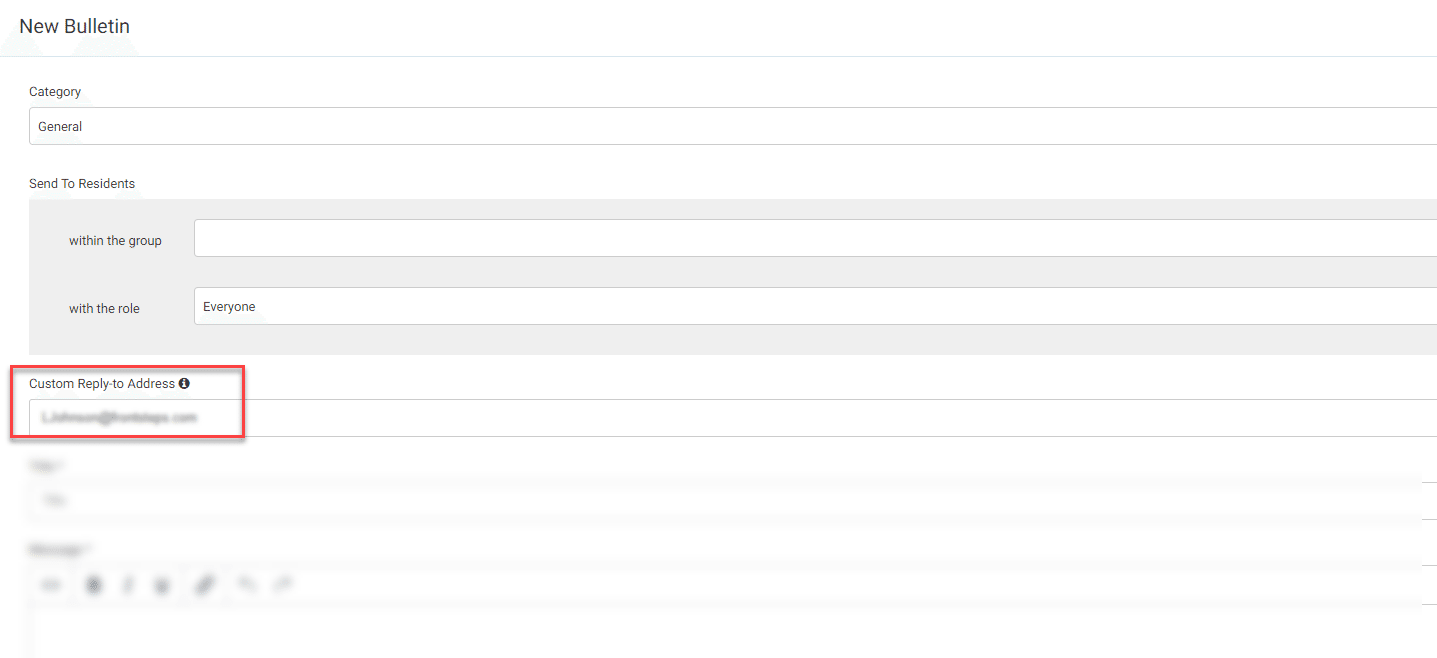
This default email address will only auto-populate in newly created Bulletins and can be edited while creating the Bulletin.
Within Newsletters, there is a 'custom reply-to address' field that can be manually populated with a reply-to address.
From the Manager Dashboard, select the Administrator Tools icon
, then select Email Settings.1. Complete the Default Reply To email address.
2. Select Update Setting to save your changes. You can change this email address at any time.
This default email address will only auto-populate in newly created Bulletins and can be edited while creating the Bulletin.
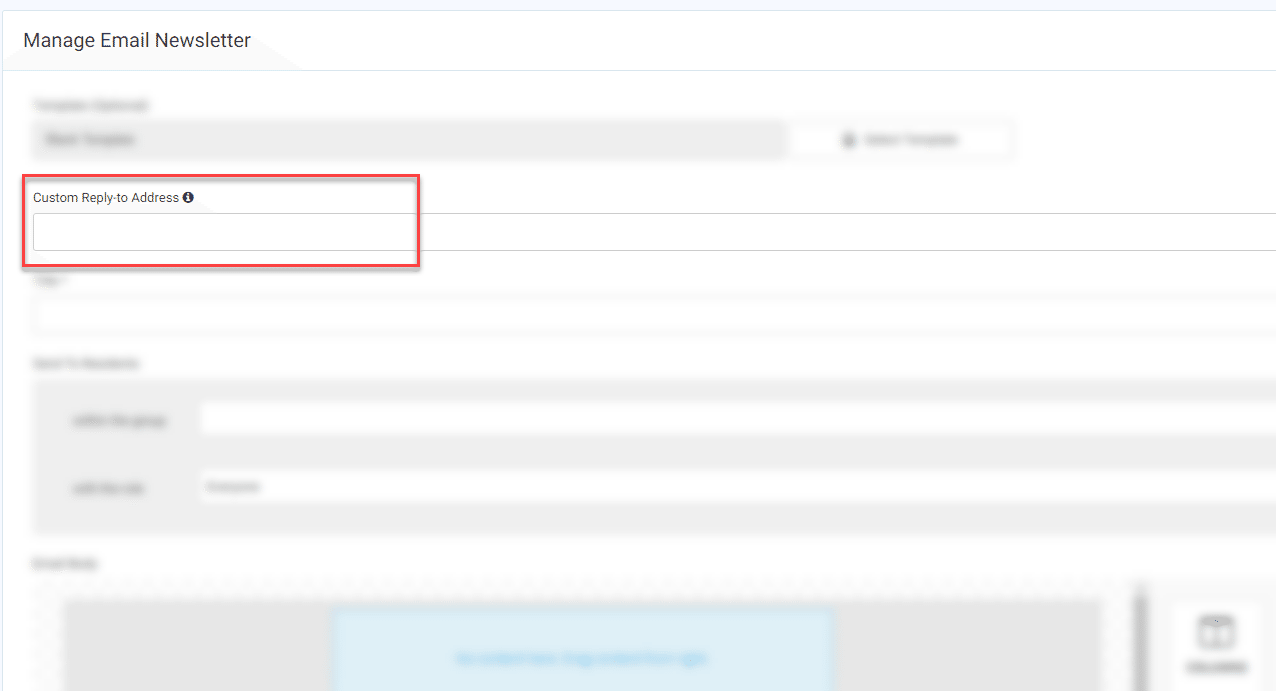
Within Newsletters, there is a 'custom reply-to address' field that can be manually populated with a reply-to address.