
Admin/Dealer - Managing Access Levels
We’re updating this article. Some screenshots or names may look older than what you see in the product.
An access level determines who has access to an area and when they have access to it. Access levels are created by combining door groups and schedules. Before an access level can be defined, schedules and door groups must be created.
A door group is a set of access points where entry is permitted. The schedule determines the time frame in which access will be granted. Access levels can be created by Dealers and Community Administrators only.
· Note: Access levels should be created prior to the addition of access devices.
Steps
Create/Edit Schedules
1. Log into community.dwellinglive.com as a Community Administrator or Dealer.
2. Select Access Levels from the Credentialed Access drop-down menu.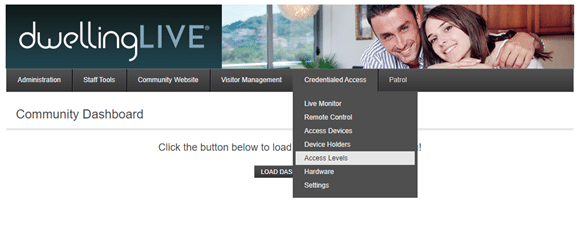
3. Select “Add Schedule” in the upper right corner. To make changes to an existing schedule, select “Edit” to the right of that schedule.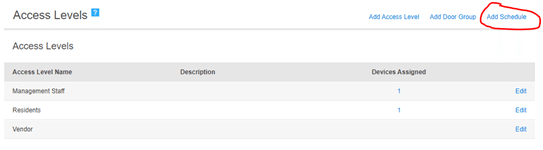
4. The Add Schedule pop-up will appear where the schedule name and a description (optional) must be entered.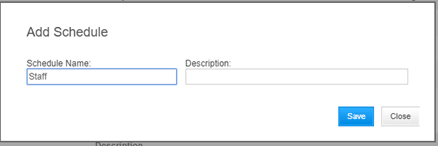
5. Select “Save” to reveal the schedule building drop-downs.
6. Use the drop-downs to set day, start time, and end time, then select “Add” to attach them to the schedule. Repeat this step until preferred days and times have been set.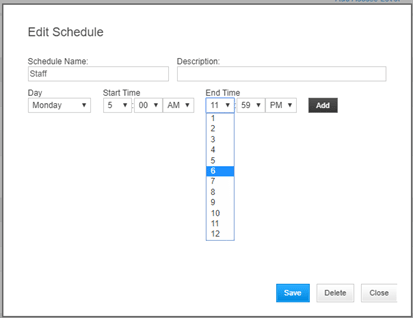
7. When the schedule is complete, select “Save”.
Create/Edit Door Groups:
8. Back on the main Access Level page select “Add Door Group” in the upper right corner of the page. To make changes to an existing door group, select “Edit” to the right of that door group.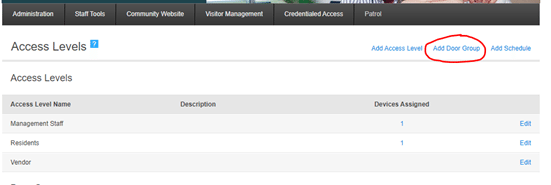
9. Enter a name and description (optional) into the Add Door Group pop-up window.
10. Below the name and description will be a list of readers and door/gate locations. Select the check box to the right of each location to be added to the door group.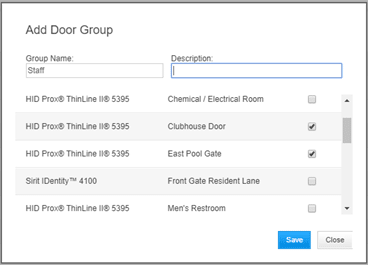
11. Select “Save” after all preferred doors have been chosen.
Create/Edit Access Levels:
12. Select “Add Access Level” in the upper right corner of the Access Levels page. To make changes to an existing access level, select “Edit” to the right of that access level.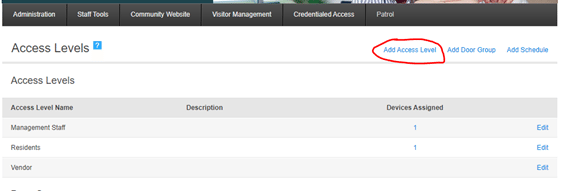
13. Enter the Access level name and a description(optional), then select “Save”.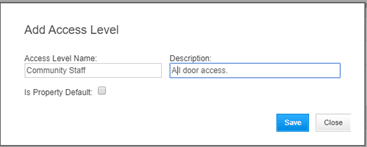
14. Select “Edit” to the right of the newly created access level.
15. Use the drop-downs to select a door group and schedule, then select “Add” to attach them to the access level.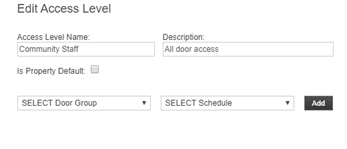
· Note: More than one door group or schedule may be assigned to an access level. Do not assign overlapping door groups and schedules, as this will cause permission issues.
16. When the access level is complete, select “Save”.