
Managers/Admin- Adding a User
For Management Companies using FRONTSTEPS Community users can be imported via a spreadsheet during the initial setup process. However, this document will focus on how to add a user manually after the initial import.
Please note that if your community has an accounting integration, the user must be created using your accounting platform. If you add the user following the below instructions the user will not sync with your accounting platform.
Managers/Admin:
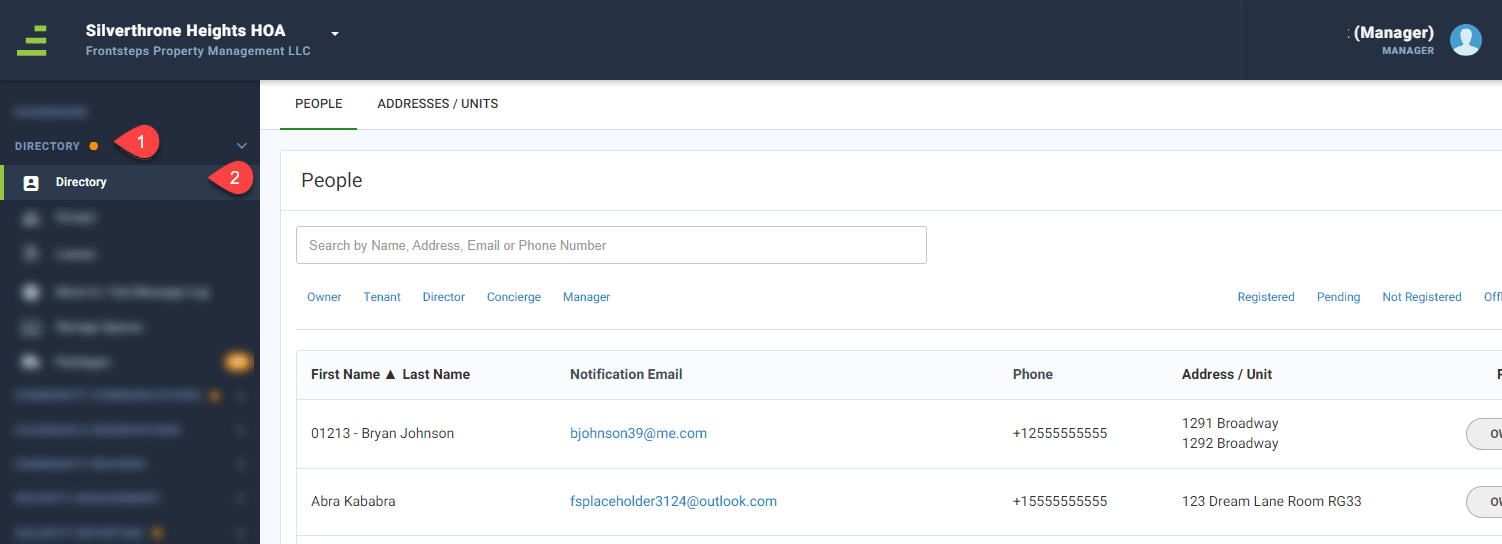
To add a new User navigate to the ‘Directory’ menu and select the ‘Directory’ menu option.
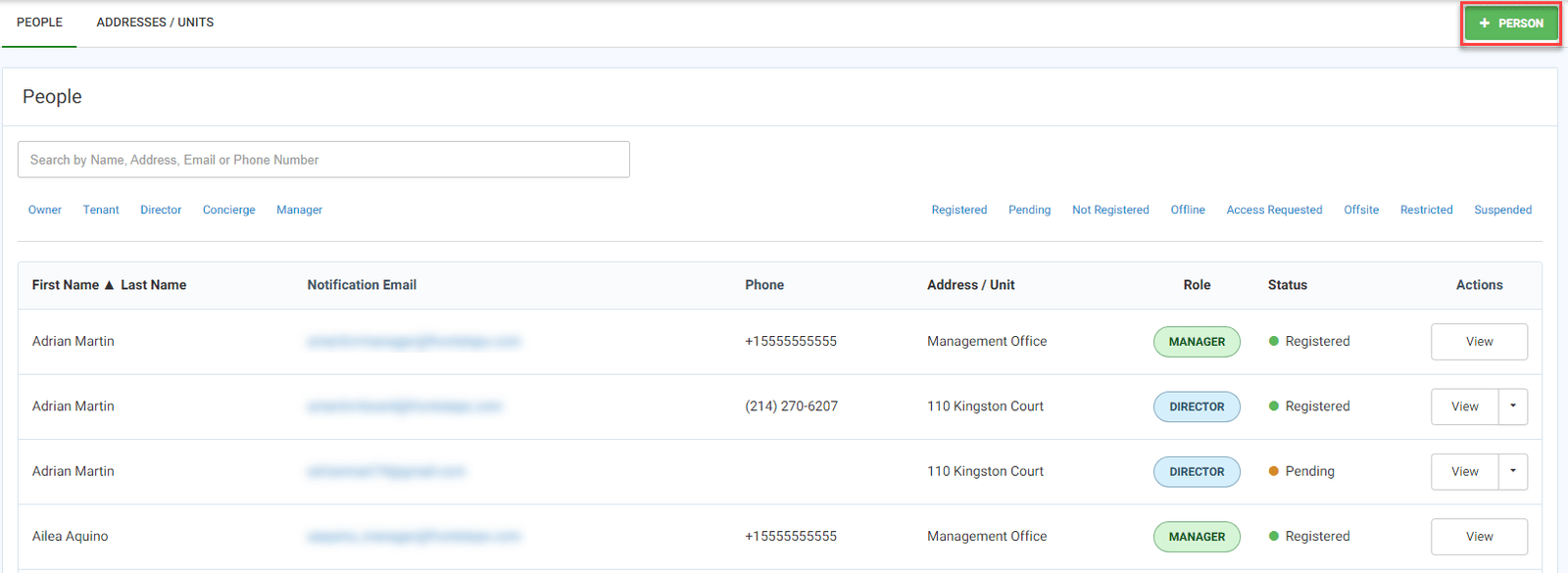
From here you can add a new User by clicking the green ‘+Person’ button.
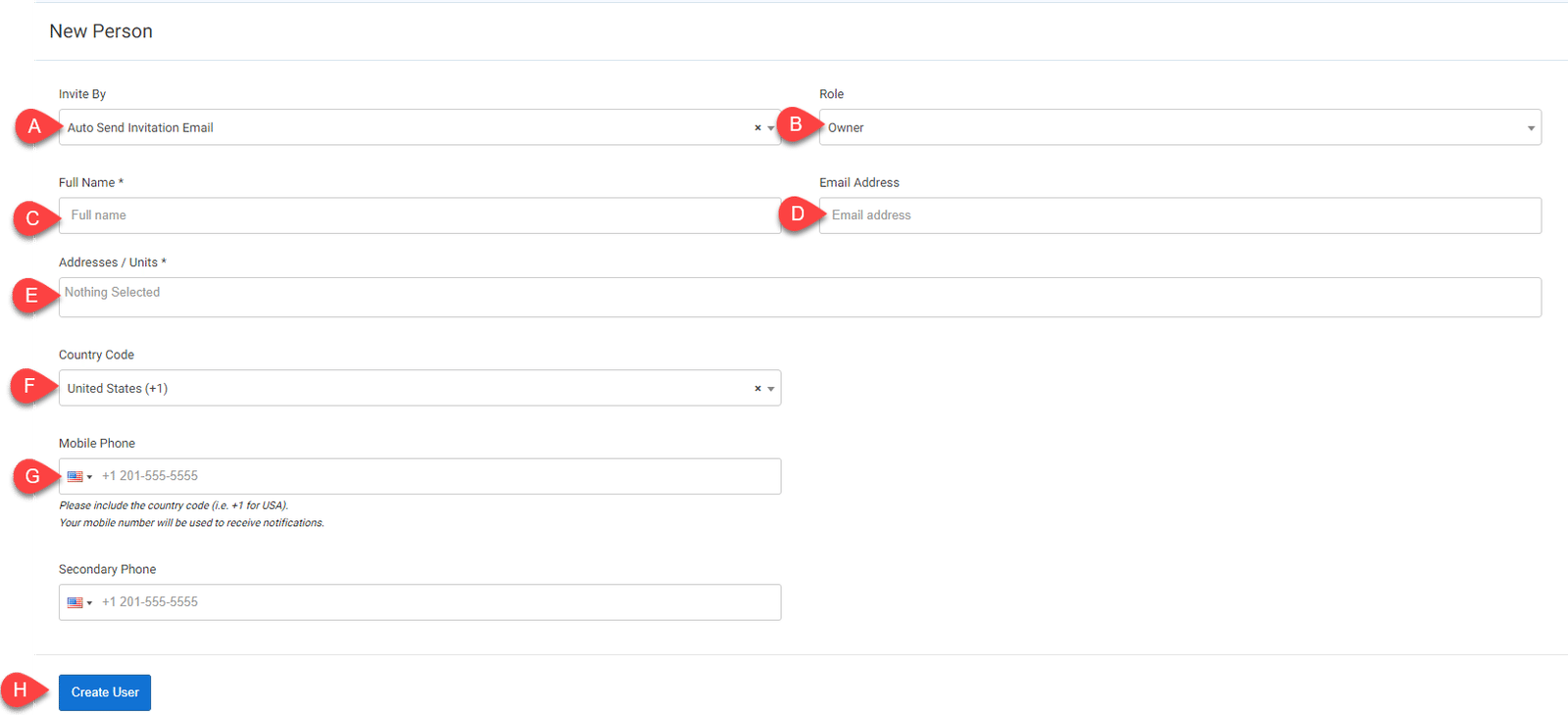
This will open the New Person form.
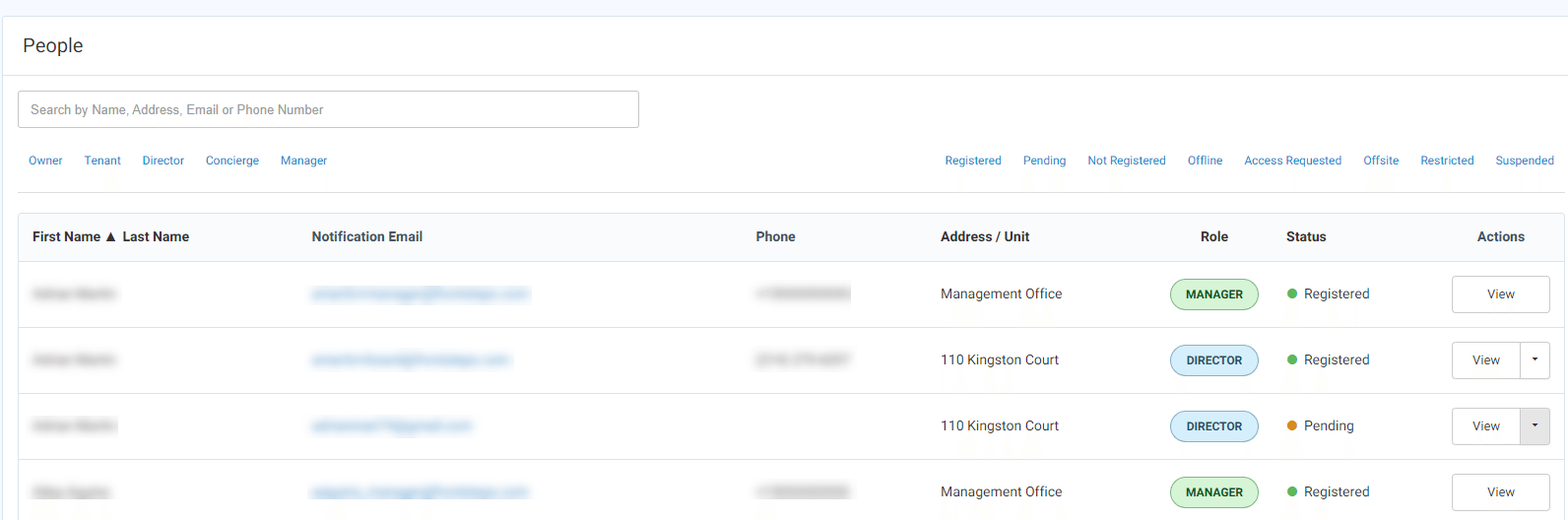
Once the User has been created you can view their information and their status.
Managers & Directors:
Managers and Directors also have the ability to add a user by inviting them to join the community portal.
To do this, click the 'Invite' icon in the top ribbon.

Enter the users Email Address, their Full Name, select their Unit/Address and select the role this user should have (Director, Tenant, Owner, Concierge). Once complete click the 'Send Email Invitation' button.
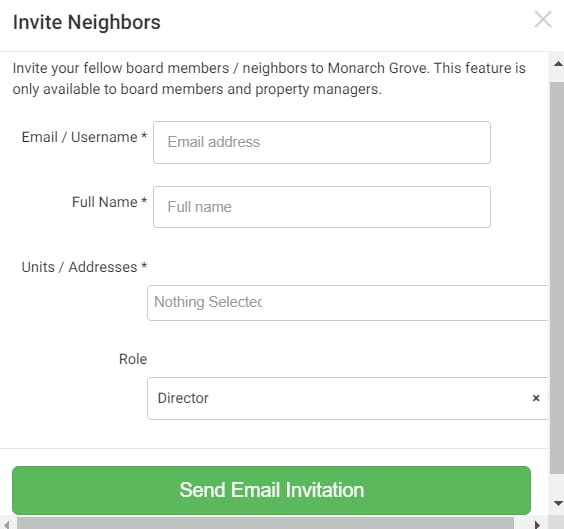
This will send an email to the User with a link they can use to complete the sign up process.
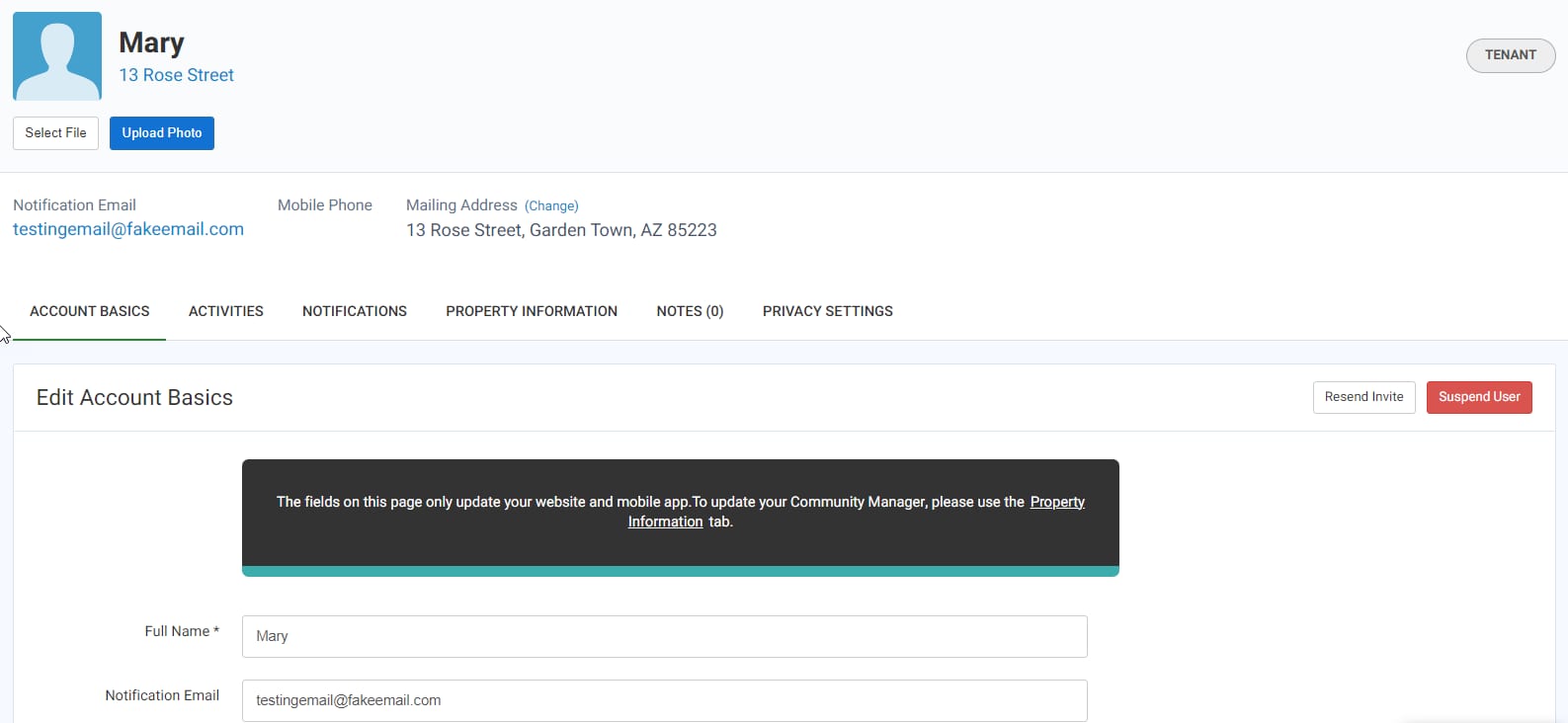
The user will be added to the Directory and the status of their account will show as 'Pending' until they complete the sign up process.
You will be redirected to the User profile where you can view and add more user information, such as phone number.
Please note that if your community has an accounting integration, the user must be created using your accounting platform. If you add the user following the below instructions the user will not sync with your accounting platform.
Managers/Admin:
To add a new User navigate to the ‘Directory’ menu and select the ‘Directory’ menu option.
From here you can add a new User by clicking the green ‘+Person’ button.
This will open the New Person form.
- Invite By: The invite by drop down allows you to select how you want to invite the Users to register for the Community Portal. The options are ‘Auto Send Invitation Email’, ‘Mail Invite Letter’ or ‘Do Not Auto Send Invitation’.
- Role: The role drop down allows you to select the role this user should be assigned. The options are ‘Owner’, ‘Tenant’, Director’ or ‘Concierge’.
- Full Name: Enter the Users full name
- Email Address: Enter the users email address
- Addresses/Units: Select their property or unit address. You can type in this field to find the specific property.
- Country Code: The country code defaults to the United States but update if necessary.
- Mobile Phone & Secondary Phone: Enter in the Mobile Phone number and/or secondary phone number for the User.
- Create Users: Once all the information has been entered click the ‘Create User’ button.
Once the User has been created you can view their information and their status.
Managers & Directors:
Managers and Directors also have the ability to add a user by inviting them to join the community portal.
To do this, click the 'Invite' icon in the top ribbon.
Enter the users Email Address, their Full Name, select their Unit/Address and select the role this user should have (Director, Tenant, Owner, Concierge). Once complete click the 'Send Email Invitation' button.
This will send an email to the User with a link they can use to complete the sign up process.
The user will be added to the Directory and the status of their account will show as 'Pending' until they complete the sign up process.
You will be redirected to the User profile where you can view and add more user information, such as phone number.