Manager - Reset User Password
We’re updating this article. Some screenshots or names may look older than what you see in the product.
Background
There may be situations where a Community Manager is asked to help reset a User’s FRONTSTEPS login password.
A feature has been added to enable a Manager to initiate the Password Reset process from the User’s profile information.
Notes: This process can only be performed for Registered users. This process cannot be used for the Manager and/or Administrator user type.
Initiating the User Password Reset Process from the User’s Profile
Access the FRONTSTEPS Manager Dashboard.
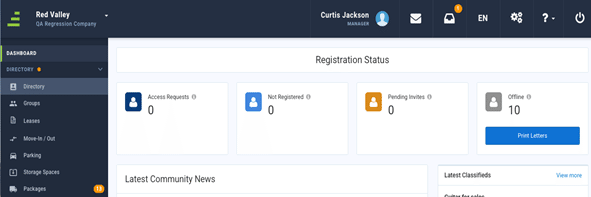
Select Directory from the menu.
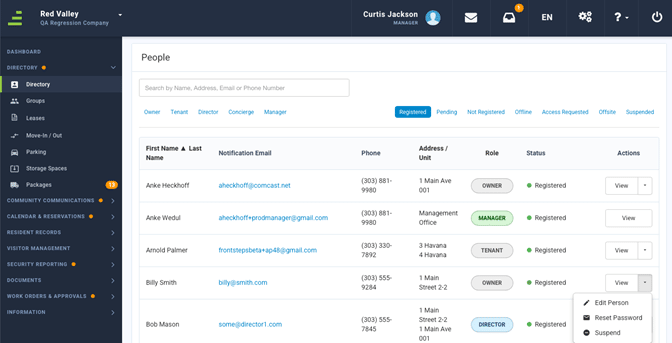
To initiate the Password Reset process for a user, select Reset Password from the drop-down menu to the right of the user profile line item.

A message will appear at the top right corner of the page indicating that the Password Reset email has been sent to the User, using the email address in the User’s profile.
User Password Reset Process
The User will receive the following email: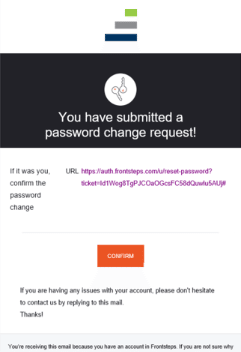
The User selects the CONFIRM option to confirm your password reset request. They are then redirected to the Change Your Password screen.
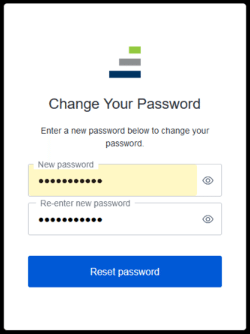
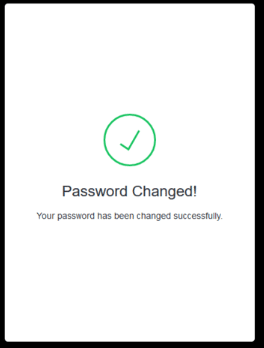
The User enters their new password, then re-enters the new password, and selects Reset Password. A screen will pop up confirming the password has been successfully reset.