
Manager Reporting

We now have use of Reporting within Manager. This will allow Caliber reports to be run directly through Manager.
Key Features:
- Accessible from the Manager Reporting Function : Quickly access Caliber Reports from the Manager Reporting function.
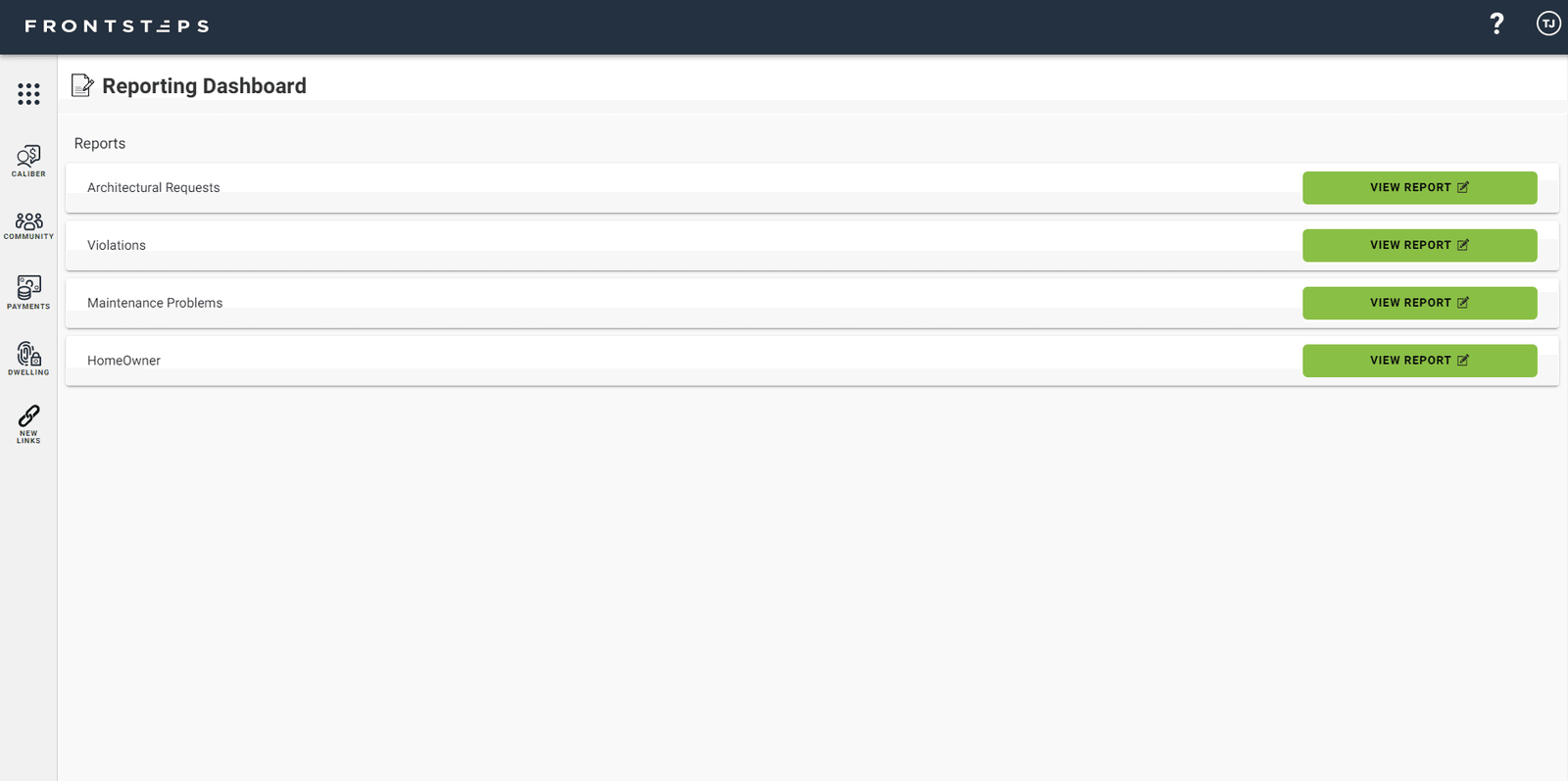
- List of Available Reports: Allows users an overview of all available Reports in Manager.
- Viewing Report Within Manager: Multiple functions within each report option.
- Q&A (Beta) Feature: Ask questions to view lists, requests, etc. within parameters you set.
- Export Report: Export the Report to reference and share.
How to Access and Use the Admin Portal:
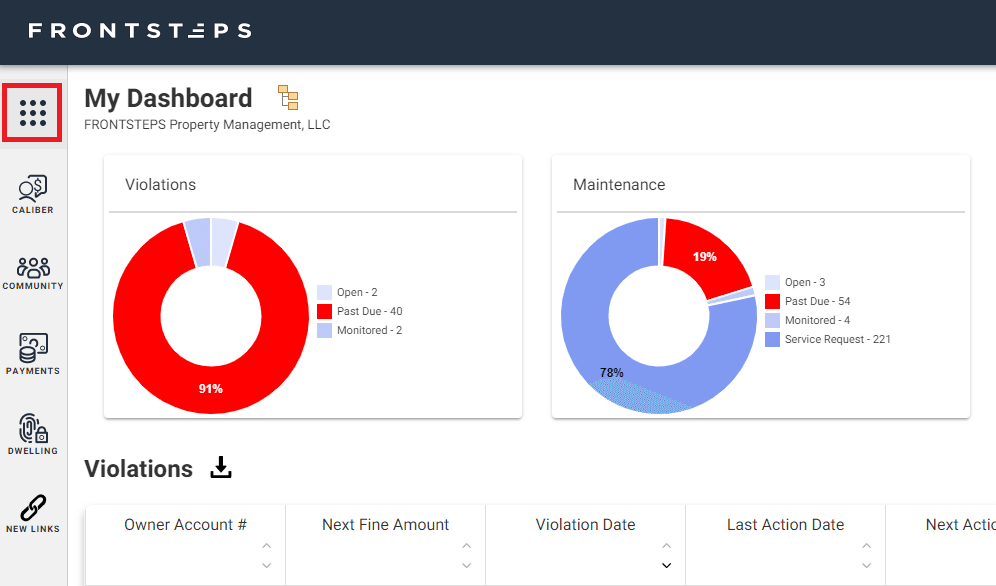
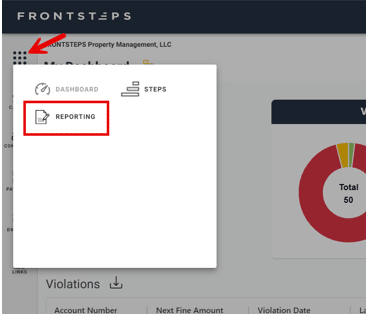
The ‘Reporting Dashboard’ is accessible by navigating to the 9 dots in the upper left corner and selecting “Reporting”
- Open Manager
- Make sure you are fully logged in, and in the Suite Manger Dashboard
- Select this icon from the top left of the Dashboard:
- Select ‘Reporting from the options that popup:
- You will see a list of all available reports:
- To view Report details:
- Click on ‘View Report’ for the desired report from the main list in the Admin Portal.
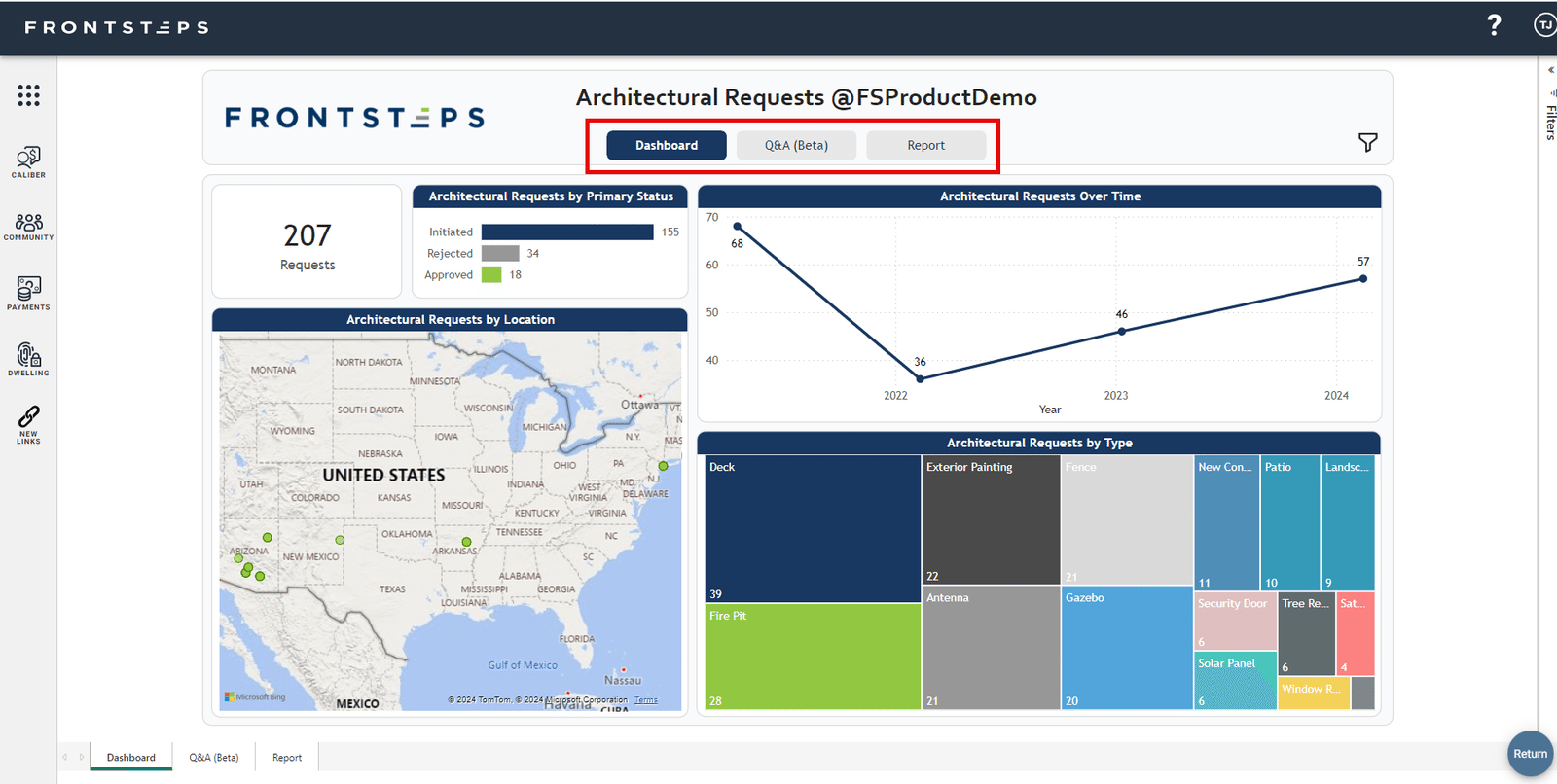
- You will see three options – Dashboard, Q&A (Beta), and Report:
- Click the ‘Return’ button in the bottom right corner to go back to the list of reports:
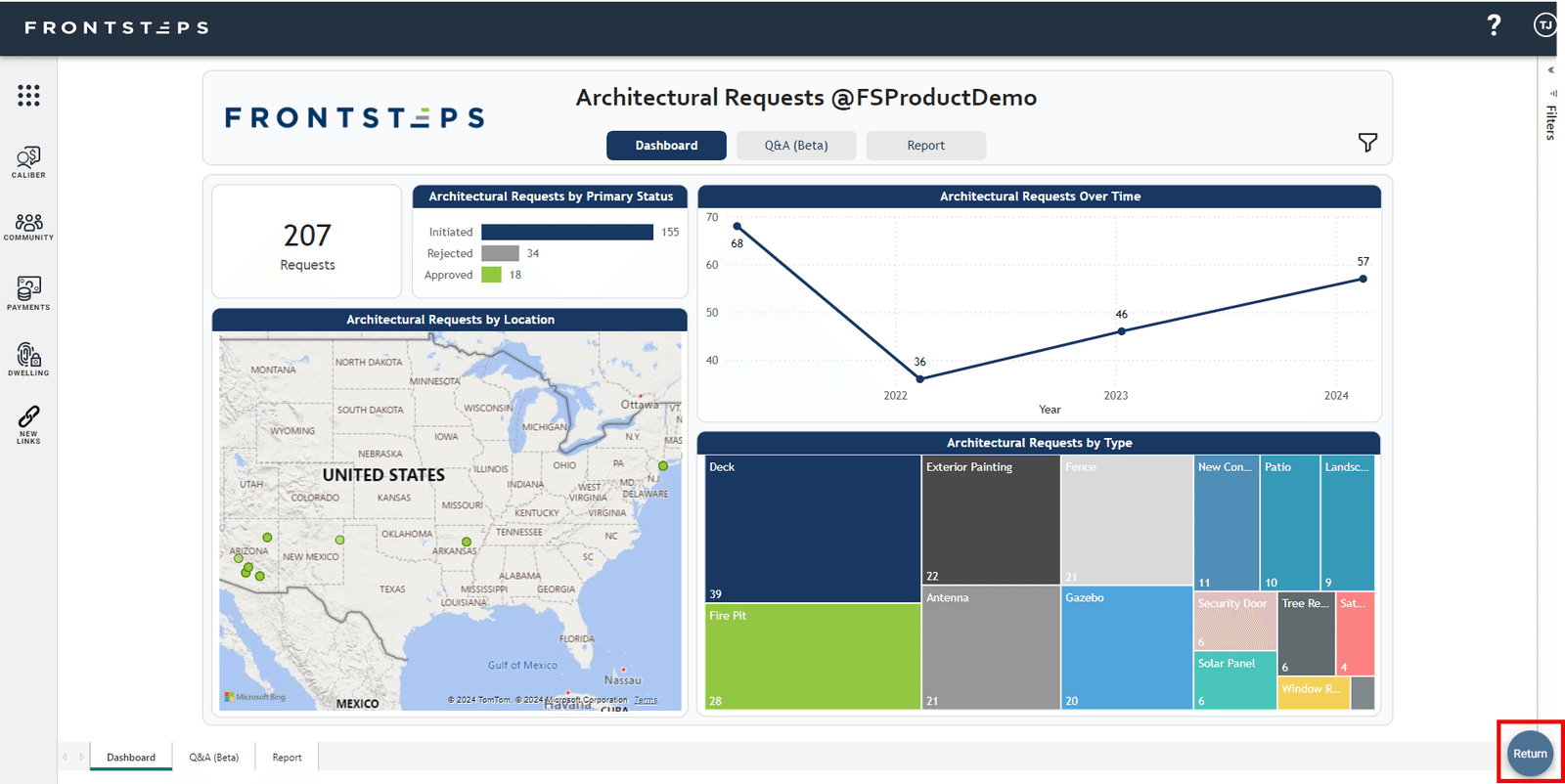
- Using the options within Reporting:
- ‘Dashboard’ will show you the item By Primary Status, Over Time, By Location, and By Type. You can navigate by clicking within each option to view further details.
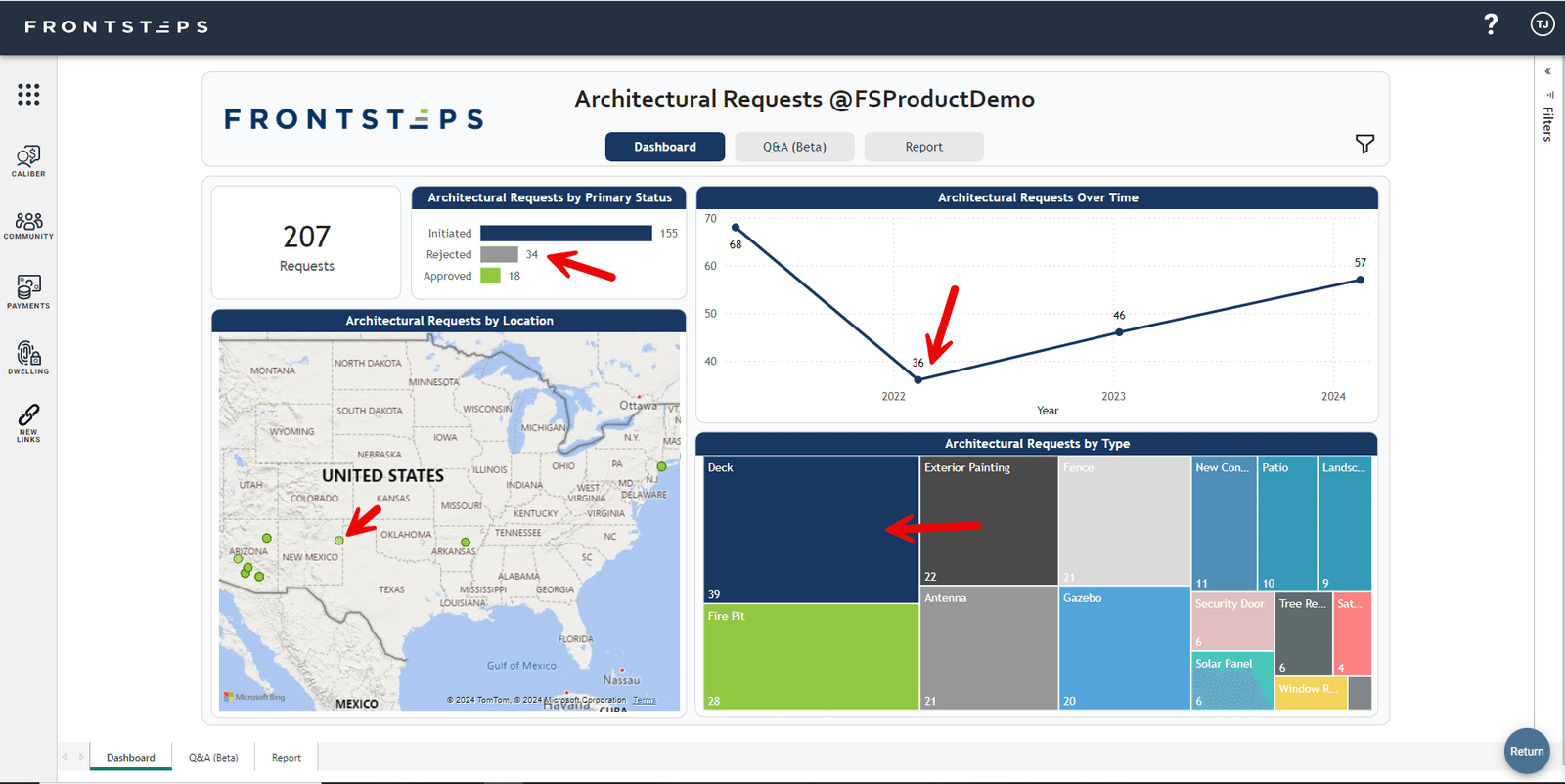
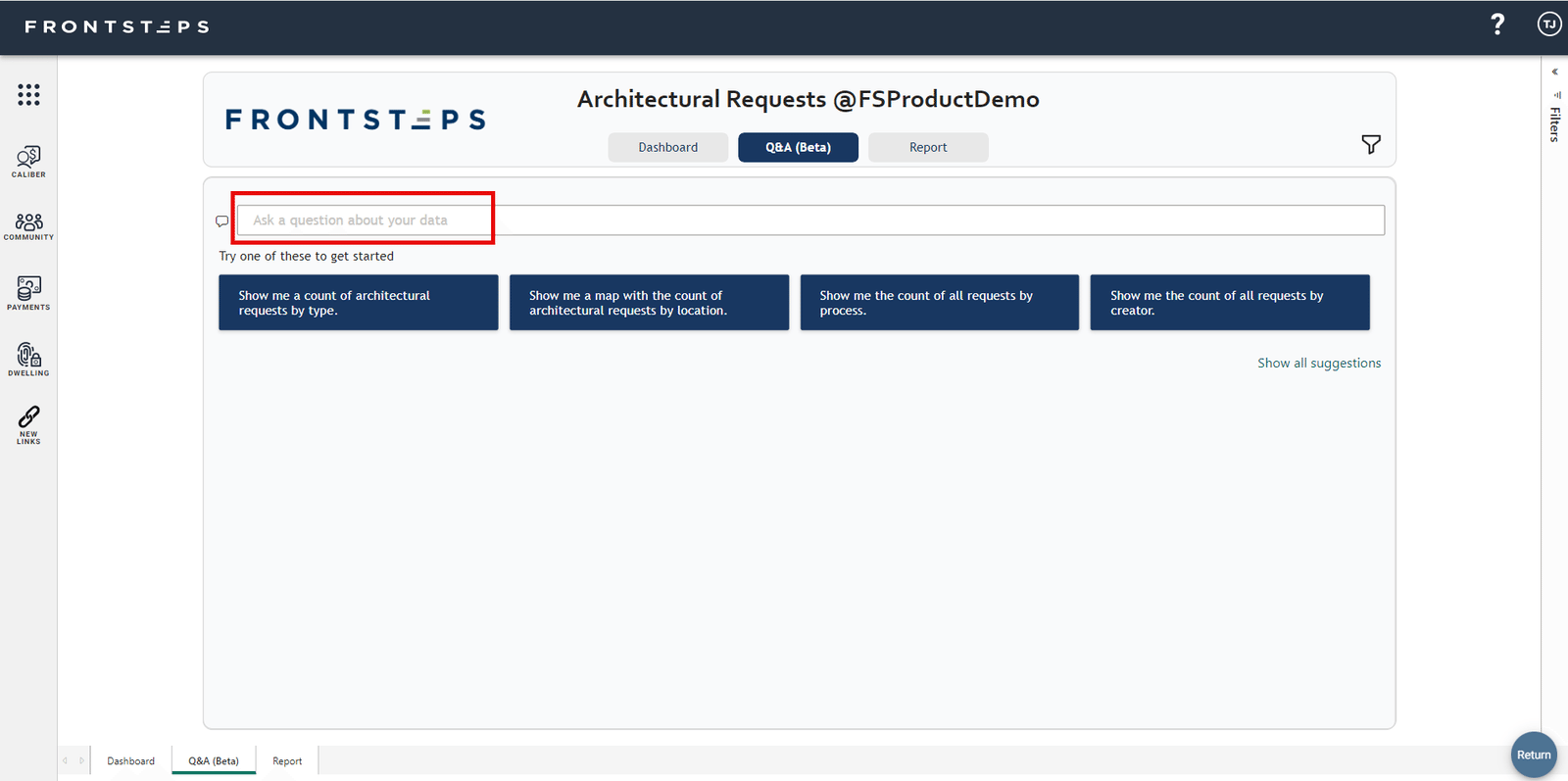
- ‘Q&A’ is in the Beta stage. It allows you to use key words and phrases to search within the report data to view specific items. There are suggestions for each report to get you started. Examples: “Show me a map with the count of architectural requests by location.” “Show me the count of all violations by category.” “Show me the count of all violations by category.”
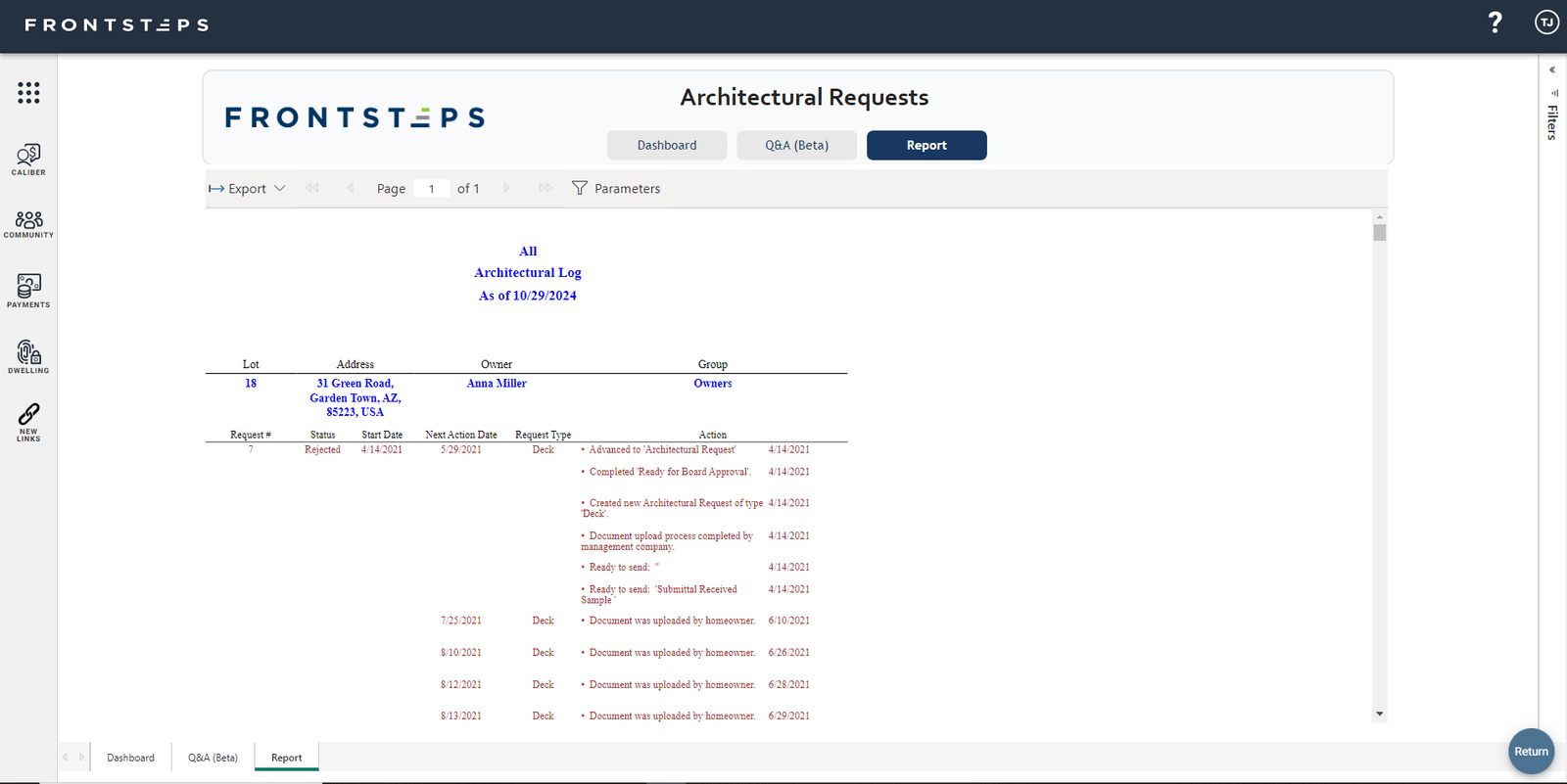
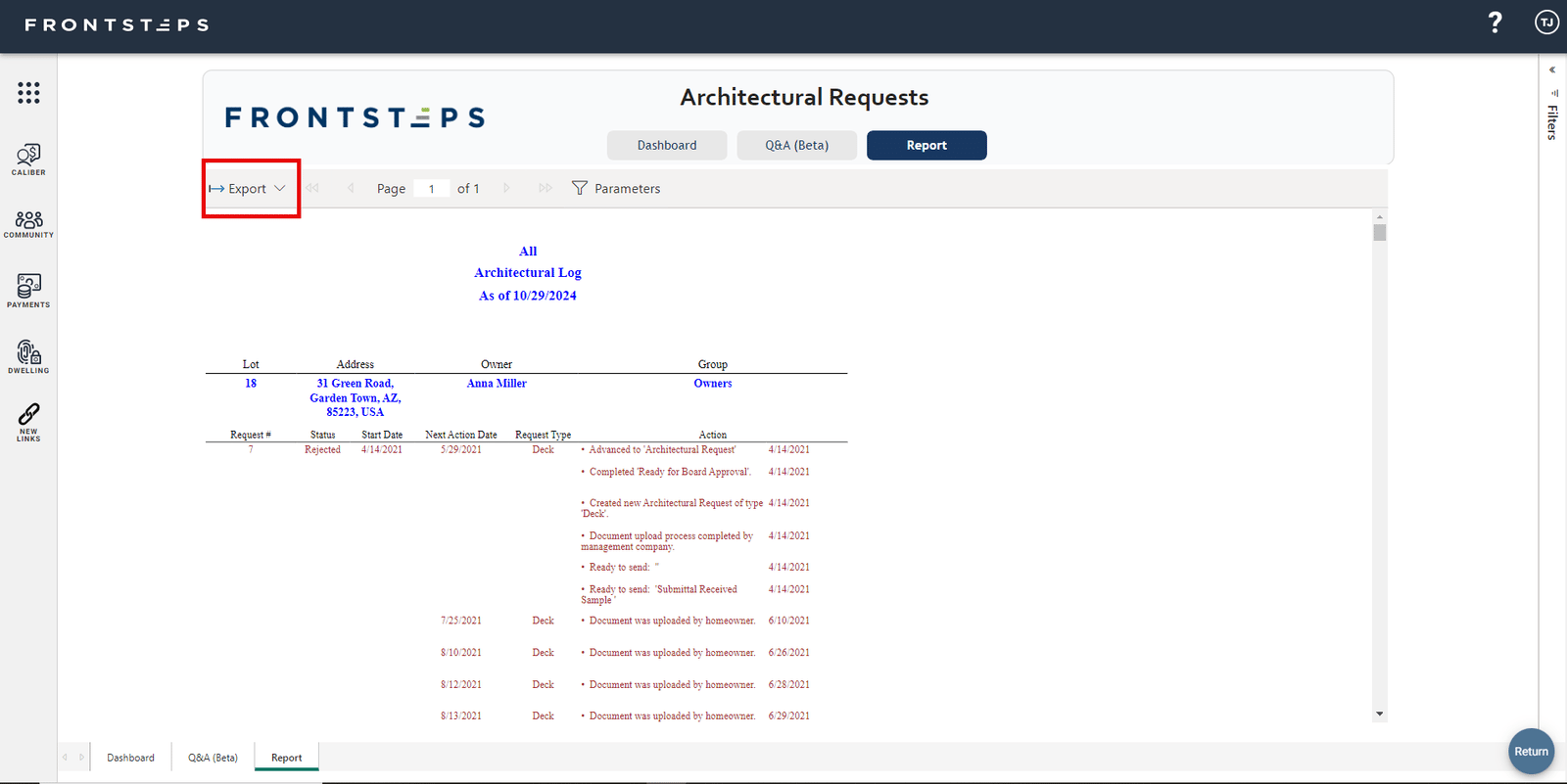
- ‘Report’ will show the reported data in the same format as the Caliber report:
- ‘Dashboard’ will show you the item By Primary Status, Over Time, By Location, and By Type. You can navigate by clicking within each option to view further details.
- To Export the report:
- Select “Export” from the top left of the report:
- Select your desired format from the list:
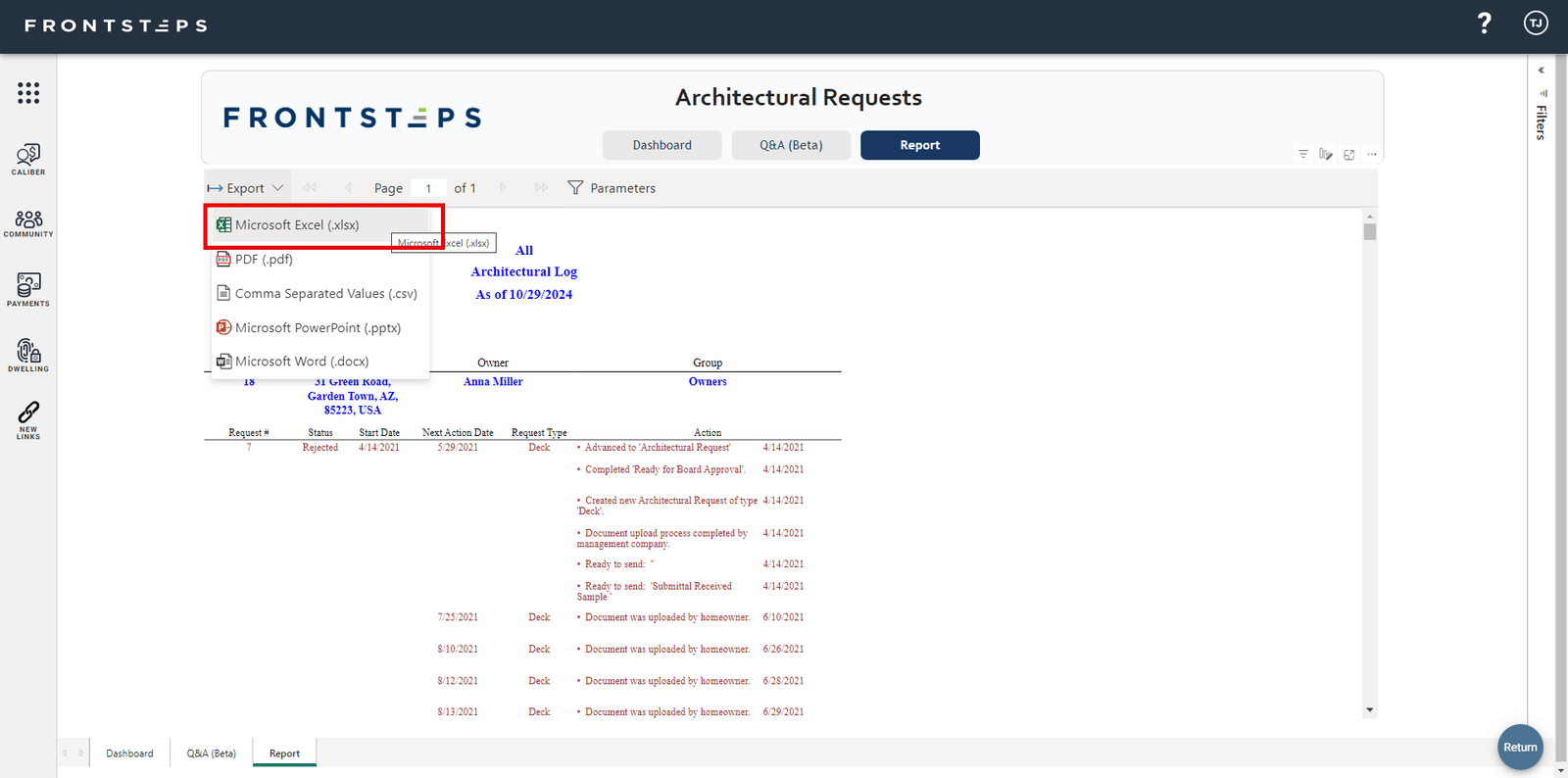
- The export will generate and appear in your ‘Downloads’ on your computer/browser
- Select “Export” from the top left of the report: