
Manager – Manage Resident Access to FRONTSTEPS Portal When Resident Moves to New Unit
We’re updating this article. Some screenshots or names may look older than what you see in the product.
Background
Previously, when a Resident moved from one unit to another within the same Community, and the Manager performed the Move Out function using an Accounting Integration provider, the Resident’s access to the FRONTSTEPS portal was automatically disabled. The Resident could then no longer log into the FRONTSTEPS portal even though they were still a resident of the Community.Functionality has been added to give the Manager the option to easily view Residents in this situation and either a) add the Resident’s new address to their profile which restores their access to the FRONTSTEPS portal, or b) change their status to Suspended, as the situation requires.
Note:
If the Resident has more than one unit in the Community, they will still be able to log into FRONTSTEPS since their account will still be active for the additional unit(s).
Resident Experience
If the Resident has been moved out of their former unit using the Move Out function through the Accounting Integration provider, and the Manager has not yet added their new unit information to the Resident’s profile, when the Resident attempts to log into FRONTSTEPS they will receive this message: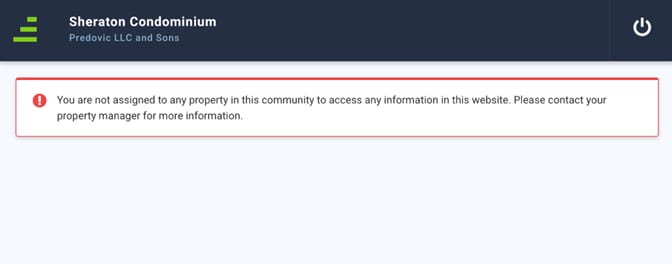
The Resident can then notify the Manager, who can perform the steps outlined in the next section.
Managing the Resident Profile and FRONTSTEPS Access
Managers can view and manage Residents who have been moved from one unit to another using the Move Out functionality of the Accounting Integration provider, and who then need to have the new unit’s information added to their profile, or have their account suspended depending on the Resident’s situation.From the Directory menu option, select Directory, then select the PEOPLE tab at the top of the screen.
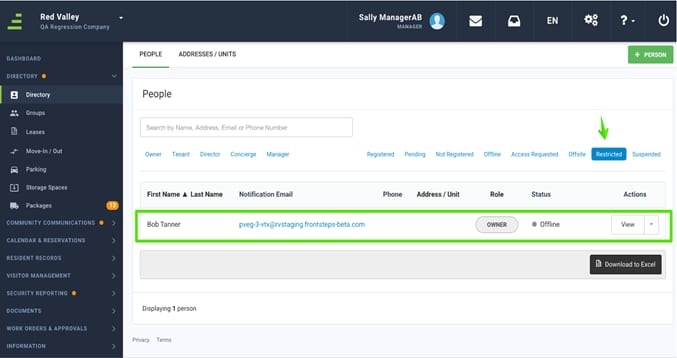
- Select the Restricted filter option.
- The Resident who is moving between units will display with no Phone or Address/Unit information, and a Status of Offline.
- Select the View option for the Resident.
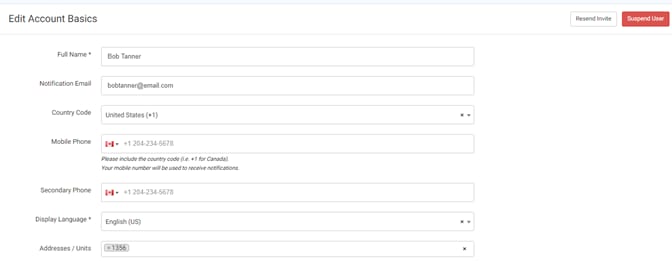
- For Communities without an Accounting Integration provider, on the Edit Account Basics screen, add the Resident’s new unit address and phone number information. The Resident's access to the FRONTSTEPS portal is now restored.
Select Suspend User to suspend the Resident from their FRONTSTEPS account.
- For Communities with an Accounting Integration provider, add the new unit address and phone number through the Accounting Integration provider, and not the FRONTSTEPS Portal. The Resident’s access to the FRONTSTEPS portal is now restored,
Select Suspend User to suspend the Resident from their FRONTSTEPS account.