
Manager - Internal Documents
The FRONTSTEPS Community Internal Documents module provides the following features:
- Folder and Document Search – Search for both documents and folders from one convenient location.
- Document Folder Organization – Up to 12 document folders are available per page. Additional folders are stored on subsequent pages, making it easier to find folders and avoid a long list to scroll through.
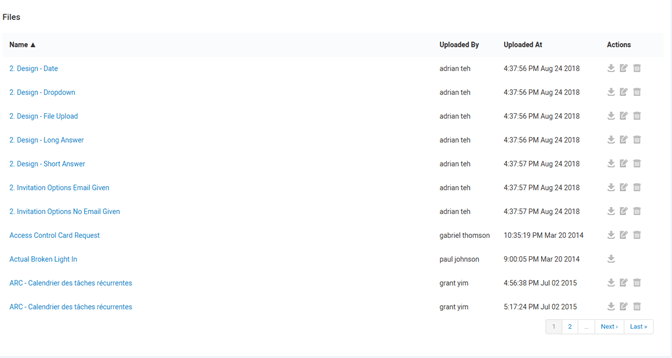
- File List – A list of document files is now available on the same page as the document folders, with 12 documents per page. This is beneficial for communities with many files and folders, letting them find a file without having to know which folder it resides in.
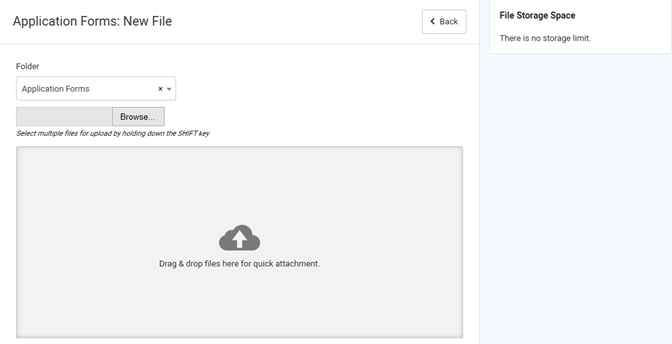
- Simplified File Add – You can now add a file using the +File option on the main page, and assign it to the appropriate folder at the same time. Note: the file size limit is 50mb. Documents larger than that cannot be added.
- Moving Files and Folders – A simple way to move files to other folders, as well as sub-folders to other folders.
- Changing Sub-folders to Parent Folders – Sub-folders can now be easily promoted to parent folders.
Internal Documents – Managers and Directors With Permissions Enabled
From the Manager Dashboard, select Documents → Internal Documents.
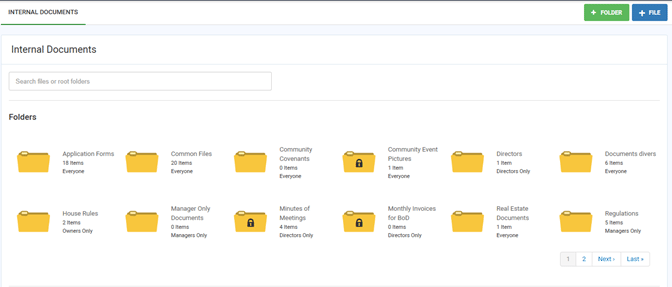
- To search for Files or Folders, type all or part of the File or Folder name in the Search field.
- Select the File name, or the Download action, to download a file.
- Use the options in the lower right corner of the Folders section to advance to the next page of folders or return to the previous page.
- Use the options in the lower right corner of the Files section to advance to the next page of files or return to the previous page.
File column information:
- Name
- Uploaded By – User Name
- Uploaded At – Date and Time
- Actions: Download, Edit, Delete
Adding folders and files
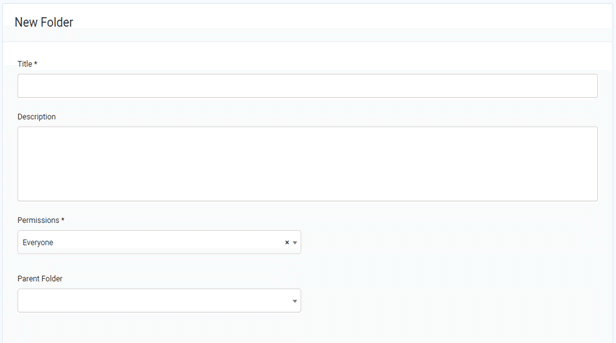
To add a Folder, select +Folder. Complete the information, and select a Parent folder if applicable.
To add a File, select +File. Complete the information and select the destination Folder.
Moving a Sub-folder to a different Parent Folder
- Select the Sub-folder, then select Edit.
- Select the new Parent Folder from the drop-down list, then select Update Folder.
Moving a File to a different Folder
- Select the Edit option next to the File.
- Select the new Folder from the drop-down list, then select Update File Info.
Promoting a Sub-folder to a Parent Folder
- Select the Sub-folder, then select the Edit option.
- Select the small "x" next to the Parent folder name in the Parent Folder drop-down field. The Parent folder name will be removed.
- Select Update Folder. The Sub-folder is now promoted to the Parent folder level.
Internal Documents – All Other Users
From the Dashboard, select Documents & FAQs → Documents.
Note: Users have access only to the folders and files which they have permission to view.
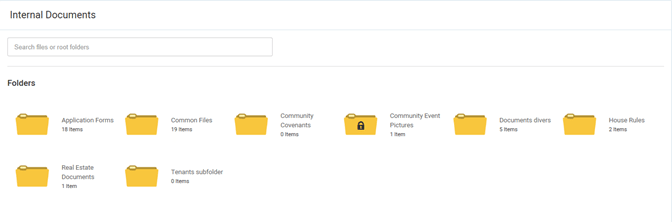
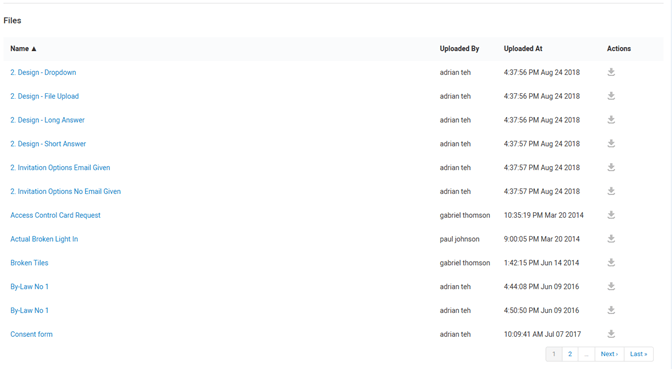
- To search for Files or Folders, type all or part of the File or Folder name in the Search field.
- Select the File name, or the Download action, to download a file.
- Use the options in the lower right corner of the Folders section to advance to the next page of folders or return to the previous page.
- Use the options in the lower right corner of the Files section to advance to the next page of files or return to the previous page.
File column information:
- Name
- Uploaded By – User Name
- Uploaded At – Date and Time
- Actions: Download