
Manager- How to Create a Newsletter
The Newsletter feature is a tool that Community Managers can use to communicate information with their Community members such as welcome information, holiday information or weekly newsletters.
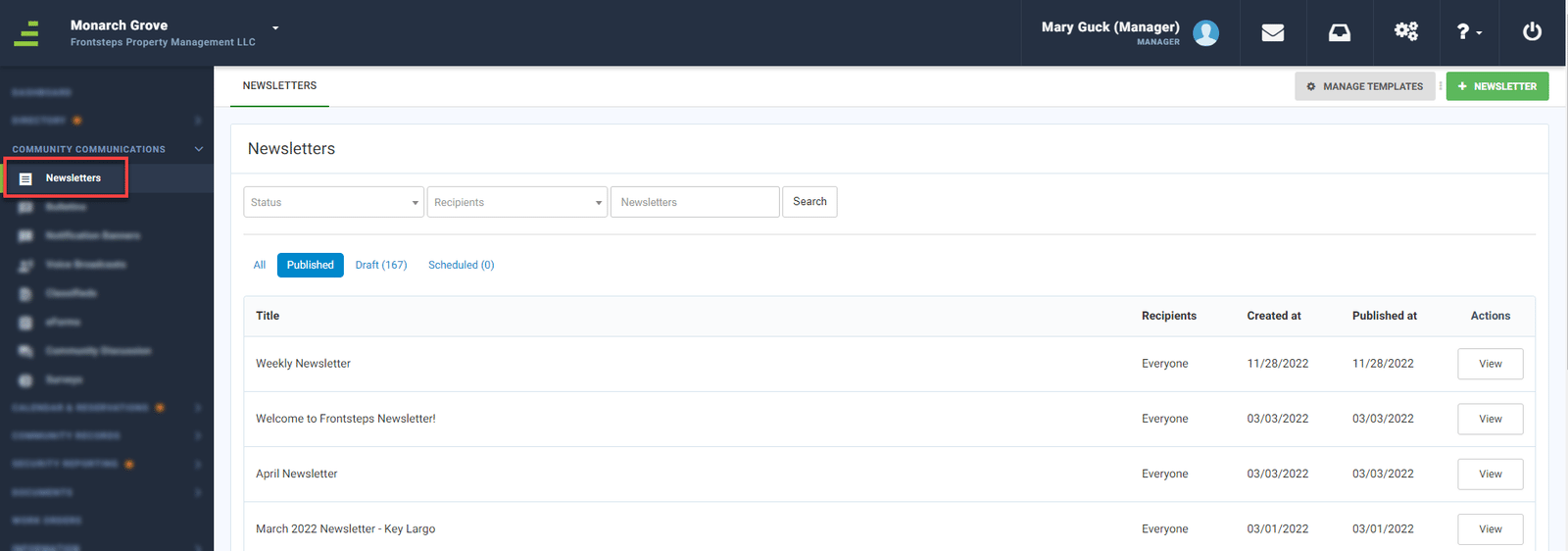
To create a Newsletter navigate to the ‘Community Communications’ menu and select the ‘Newsletters’ menu option.
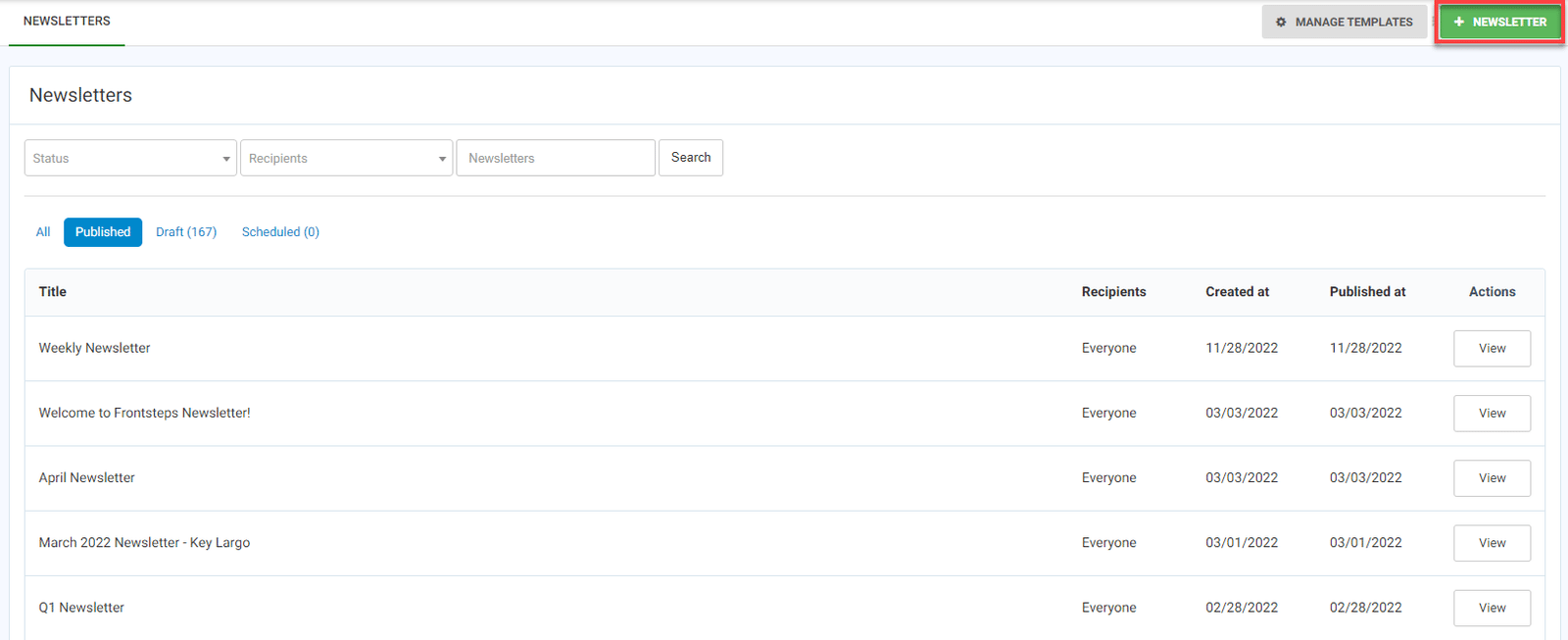
To add a new Newsletter, click the green ‘+Newsletter’ button.
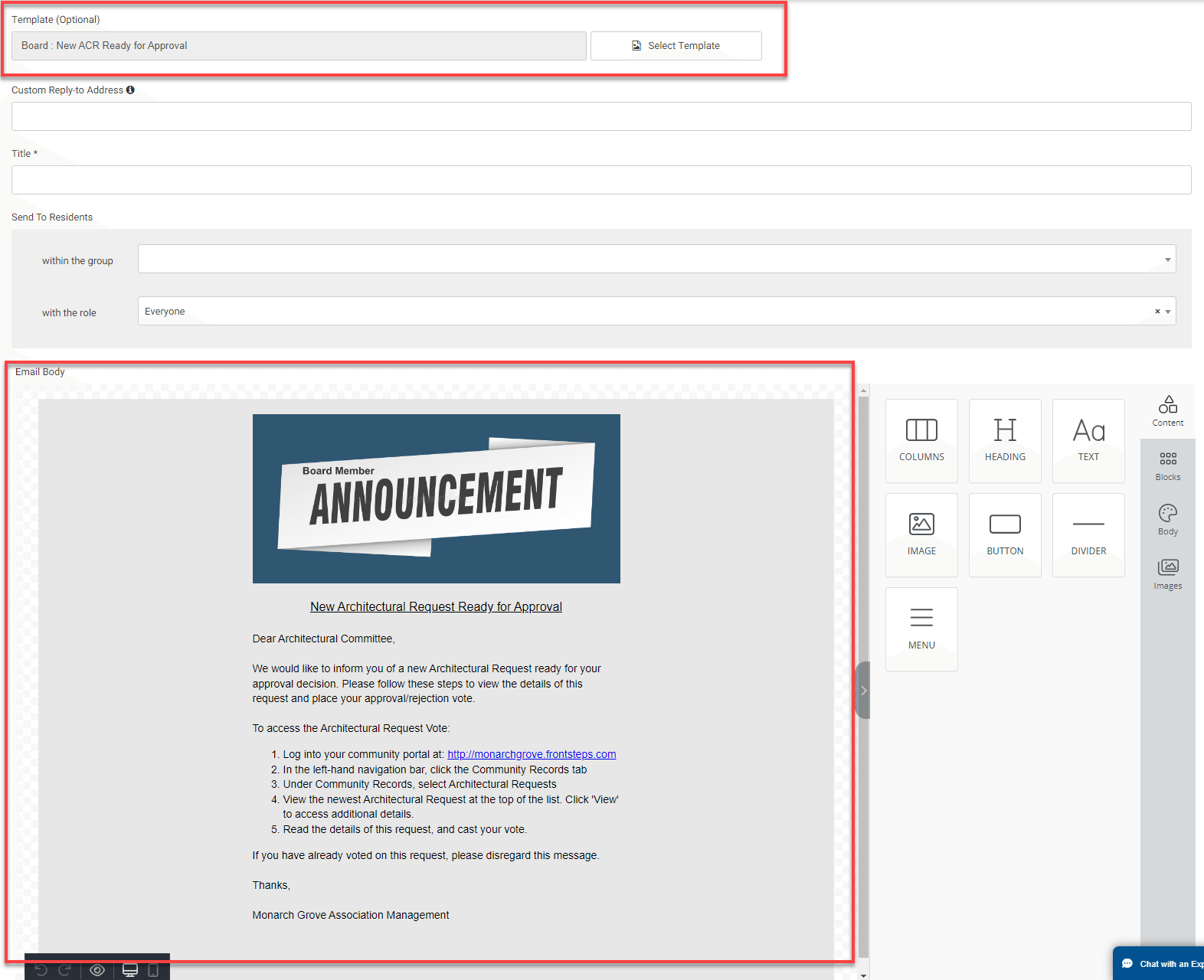
When creating a Newsletter you will be able to select an existing Template, or create a Newsletter from scratch.
If you select a template the content will automatically populate in the ‘Email Body’ section.
Community Managers should also: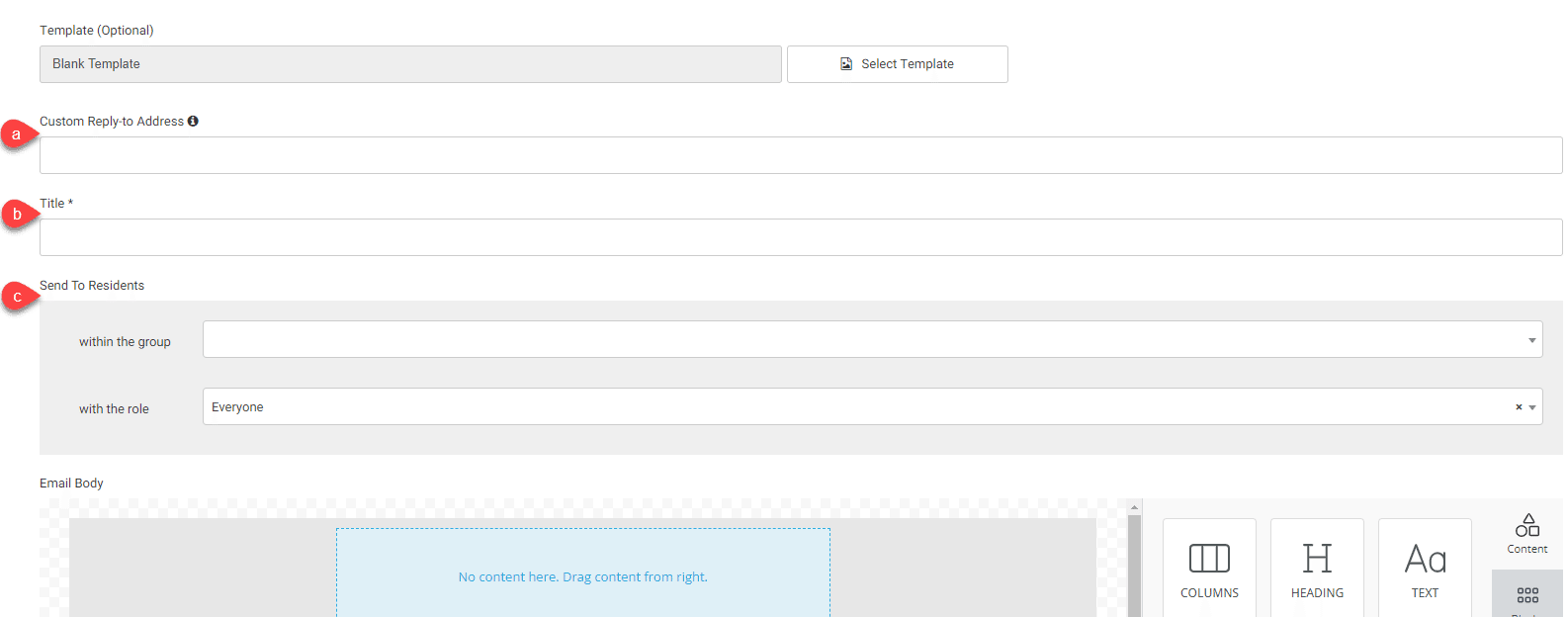
If you are creating a Newsletter from scratch, you will enter content within the ‘Email Body’ section. To do this you will use the selections from the right hand panel, including columns, headings, text, pictures, a button, divider or menu.
To add content to the body of your Newsletter, simply click the type of content you would like to add, for example a heading, and drag it into the Email Body.
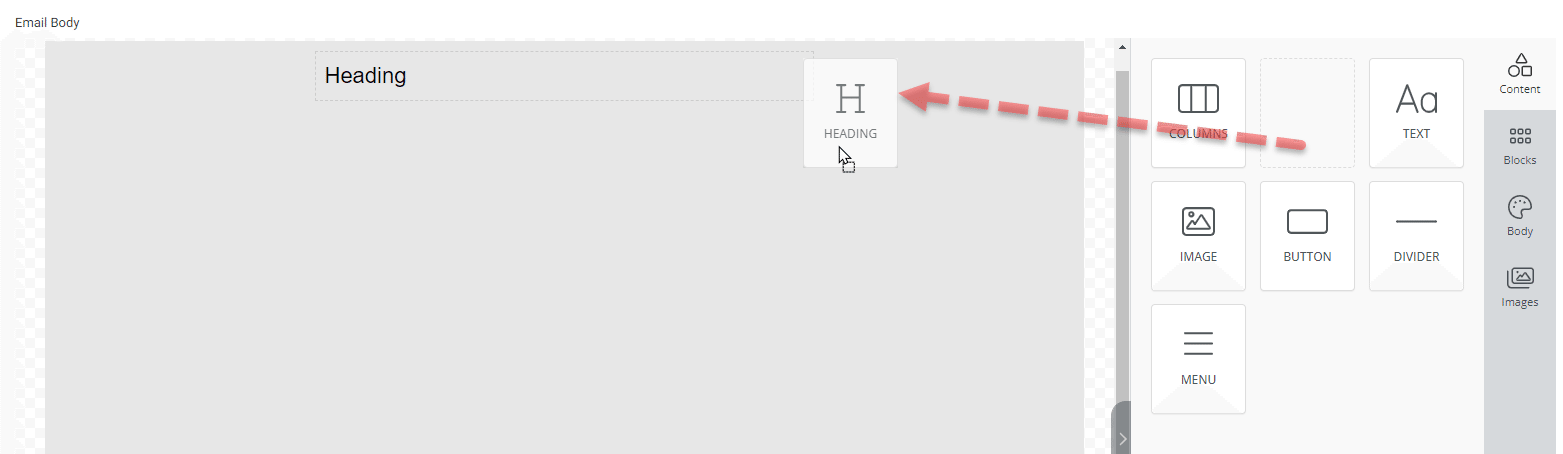
Once the section has been added, you may edit it. In the above example, we can edit the text in the Heading to be the title of our Newsletter.
You would complete the click and drag process to add more content to your Newsletter. For example, we may add a photo below the heading so we click and drag that section into the body and then click on it to edit/select the photo.
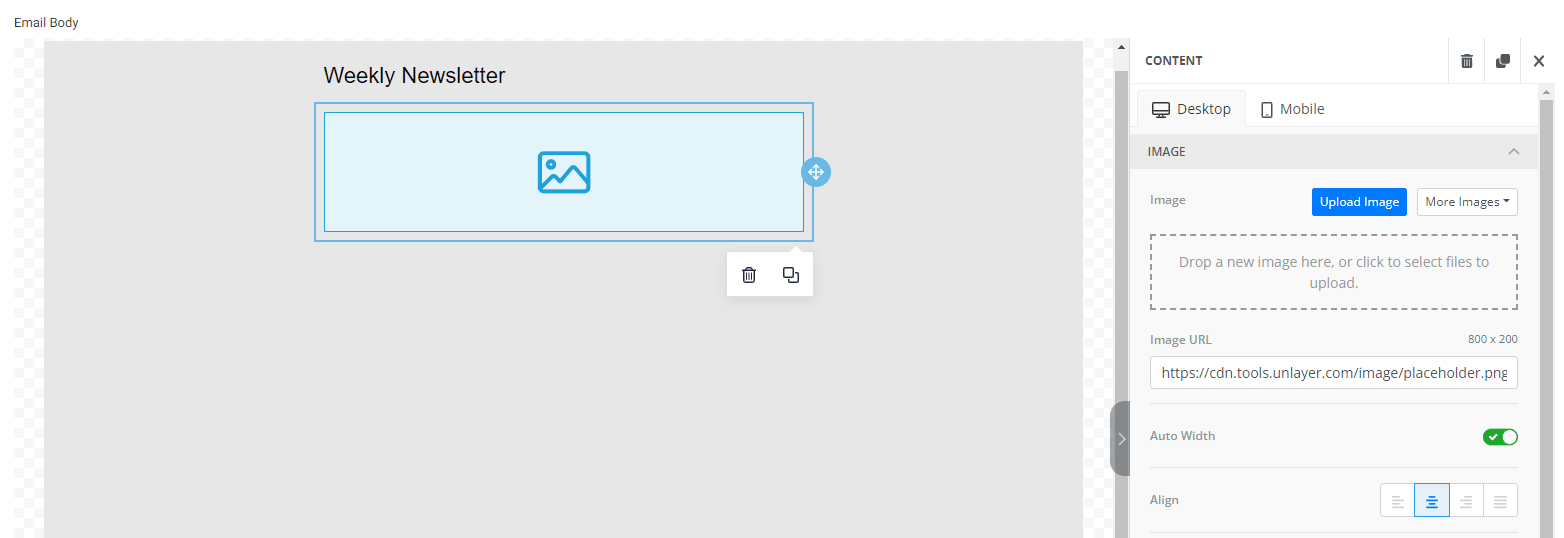
Repeat this process until the Newsletter is complete. Please note that the Newsletter will auto save while you are working on it.
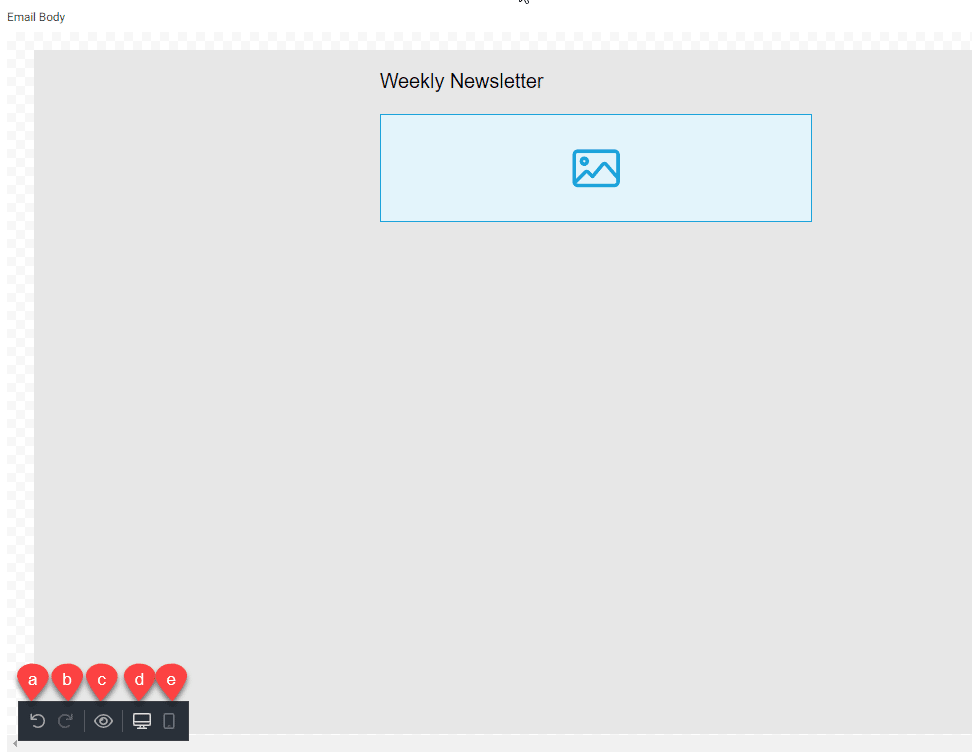
In the bottom left corner of the ‘Email Body’ section you have options to (a) undo the last action, (b) redo the last undone action, (c) a preview the newsletter, (d) view the newsletter in a ‘Desktop’ computer view, (e) view the newsletter in a ‘Mobile’ phone view.
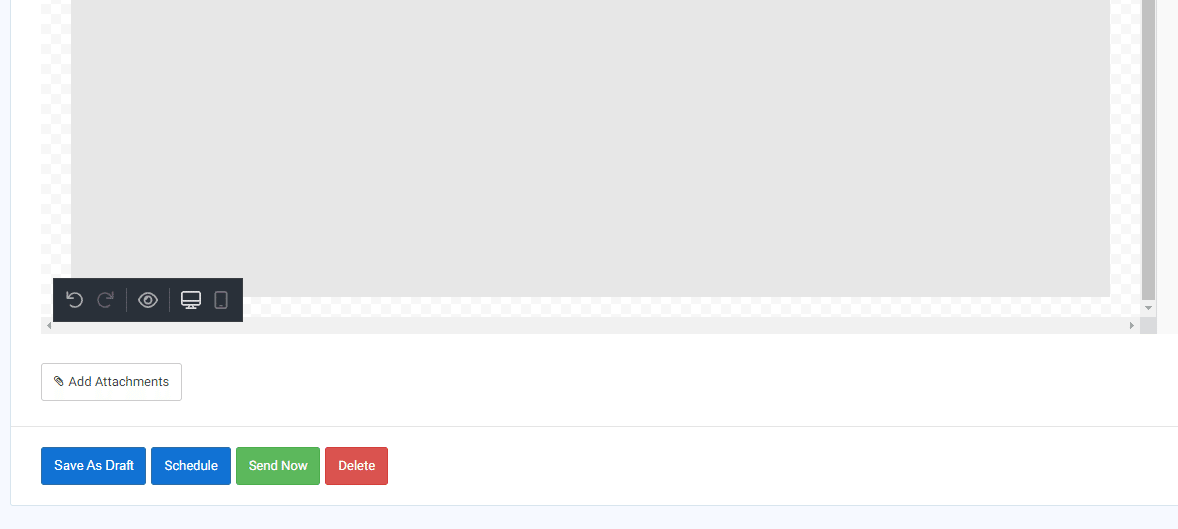
If you scroll to the bottom of the page, you will have the following options:
To create a Newsletter navigate to the ‘Community Communications’ menu and select the ‘Newsletters’ menu option.
To add a new Newsletter, click the green ‘+Newsletter’ button.
When creating a Newsletter you will be able to select an existing Template, or create a Newsletter from scratch.
If you select a template the content will automatically populate in the ‘Email Body’ section.
Community Managers should also:
- Enter a ‘Custom Reply-to Address, if applicable. This allows recipients to reply to the Newsletter.
- Give the Newsletter a ‘Title’.
- Choose who this Newsletter should be sent to. You can send the Newsletter to Everyone in the Community or only to specific ‘Groups’ such as a club or specific ‘Roles’ within the Community such as Directors.
If you are creating a Newsletter from scratch, you will enter content within the ‘Email Body’ section. To do this you will use the selections from the right hand panel, including columns, headings, text, pictures, a button, divider or menu.
To add content to the body of your Newsletter, simply click the type of content you would like to add, for example a heading, and drag it into the Email Body.
Once the section has been added, you may edit it. In the above example, we can edit the text in the Heading to be the title of our Newsletter.
You would complete the click and drag process to add more content to your Newsletter. For example, we may add a photo below the heading so we click and drag that section into the body and then click on it to edit/select the photo.
Repeat this process until the Newsletter is complete. Please note that the Newsletter will auto save while you are working on it.
In the bottom left corner of the ‘Email Body’ section you have options to (a) undo the last action, (b) redo the last undone action, (c) a preview the newsletter, (d) view the newsletter in a ‘Desktop’ computer view, (e) view the newsletter in a ‘Mobile’ phone view.
If you scroll to the bottom of the page, you will have the following options:
- ‘Add Attachments’ to be sent with the Newsletter.
- Note: File size should not exceed 20 MB and all attachments accumulatively for this submission should not exceed 25 MB
- ‘Save As Draft’ in the event you need to save the Newsletter to complete it at a later time.
- ‘Schedule’ the Newsletter to be sent at a future date.
- ‘Send Now’ allows you to send the Newsletter.
- ‘Delete’ to erase the Newsletter.