
Manager- FRONTSTEPS Caliber and FRONTSTEPS Community- Director Sync
We’re updating this article. Some screenshots or names may look older than what you see in the product.
Background
Based on customer feedback, FRONTSTEPS has enhanced the integration between FRONTSTEPS Caliber and FRONTSTEPS Community.Client Contact groups from Caliber, also known as Directors, Board of Directors, Architectural Committees, etc., can be synced to Community.
Accessibility
The feature is available to all users as follows:- Managers: Will have the ability to setup the various groups so the data will sync.
Availability - This enhancement is available to all customers who have both FRONTSTEPS Community and FRONTSTEPS Caliber.
Accounting Settings
There are pieces of setup that must be completed in order to sync the data from Caliber to Community. This setup can be completed by anyone with Manager permission.
To access to the Accounting settings, click the gear Icon in the top right corner of the Community Portal.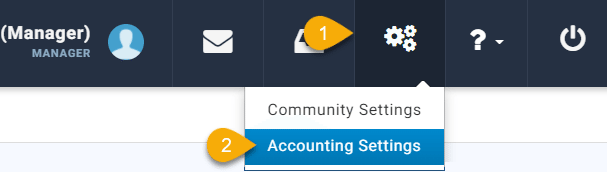
Within these settings, there are three different settings to setup.
ACR Settings
Once in the Accounting Settings, select the ‘ACR Settings’ from the menu on the right-hand side.
Using the ‘Architectural Request Approvers’ drop down, select the group that is responsible for viewing and approving the community Architectural Requests.
Please note that the group(s) must first be created in Caliber to show up in the drop down.
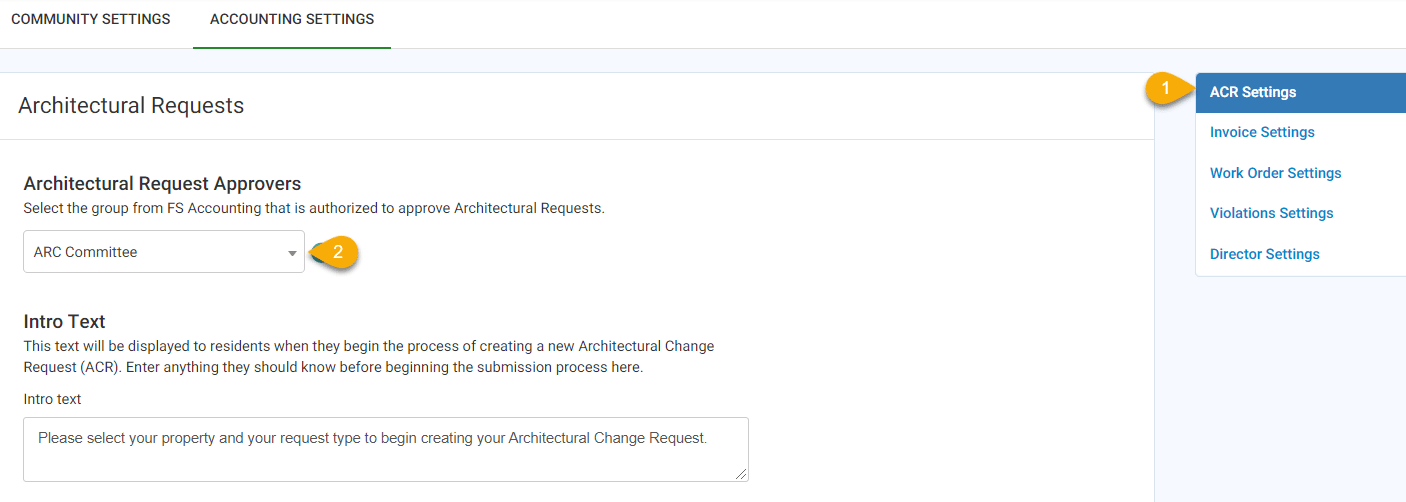
After the correct group is selected, scroll down to the bottom of the page to 'Additional Settings'.
Turn off the following settings, by clicking the toggle so that the green activator button is off:
- 'Display Processed Actions'
- 'Allow Notes'
- 'Send Updates Notifications to Manager'.
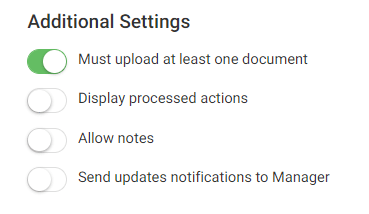
When complete, click the 'Update Settings' button.
Invoice Settings
Next click the 'Invoice Settings' from the menu on the right-hand side.
From the 'Invoice Approvers' drop down, select the group that includes the individuals who will be approving Invoices.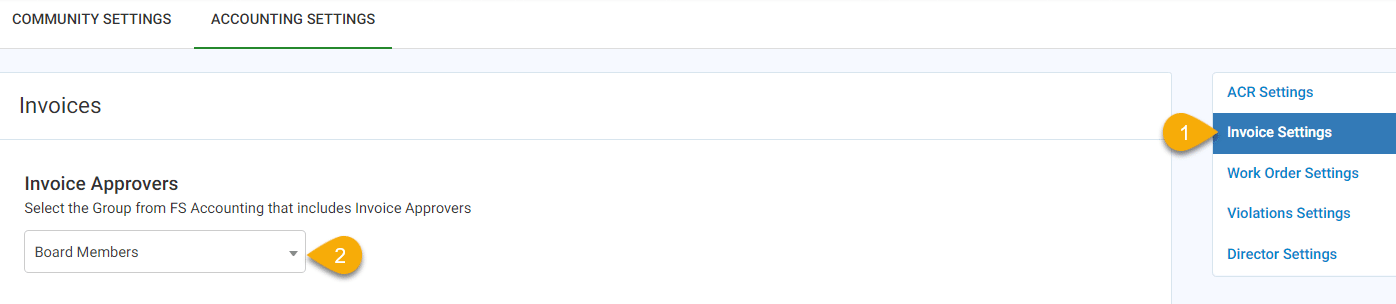
Please note that the group(s) must first be created in Caliber to show up in the drop down.
When complete, click the 'Update Settings' button.
Director Settings
Lastly, click the 'Director Settings' from the menu on the right-hand side.Use the 'Director Setting Approvers' drop down to select the group that contains members of the Board of Directors.
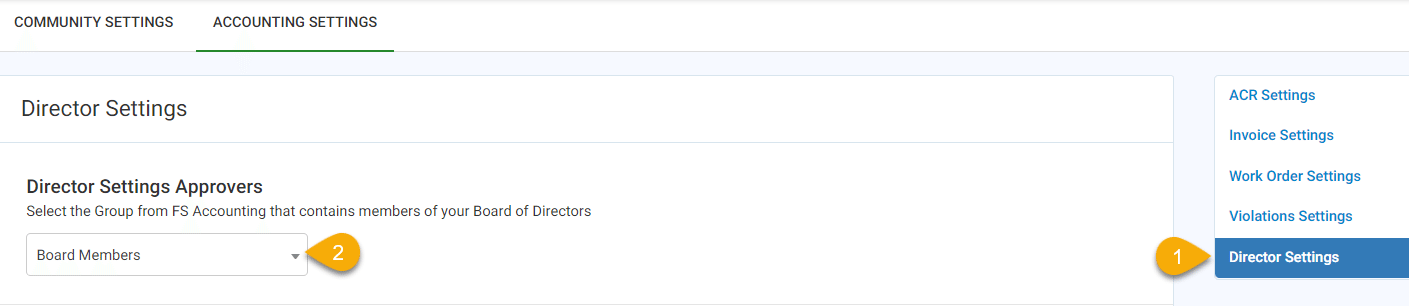
Please note that the group(s) must first be created in Caliber to show up in the drop down.
When complete, click the 'Update Settings' button.
It is important to note that the data syncs nightly, so any changes made to the group, or the various settings, will be reflected within the Community Portal the following day.