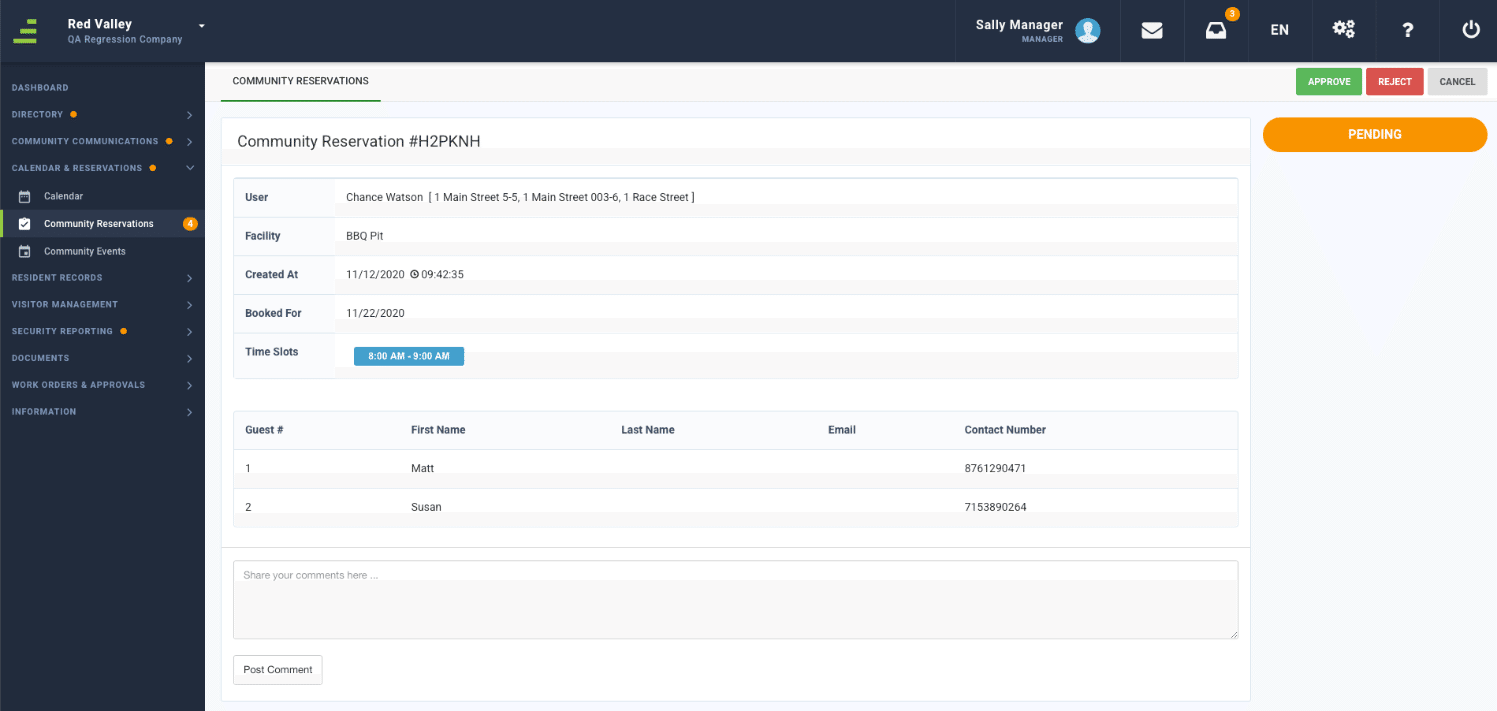
Manager - Facility Reservations Social Distancing Feature
We’re updating this article. Some screenshots or names may look older than what you see in the product.
Background
The Facility Reservations application has been enhanced to accommodate social distancing requirements.Managers can now set limits on the number of people participating in an event in a facility.
Residents will also be required to provide guest names and contact information. The main purpose for this information is for contact tracing for a situation such as a potential virus infection occurring at the event.
Setting Up Facility Social Distancing Restrictions
From the Manager Dashboard, select the Tools option using the icon.
icon.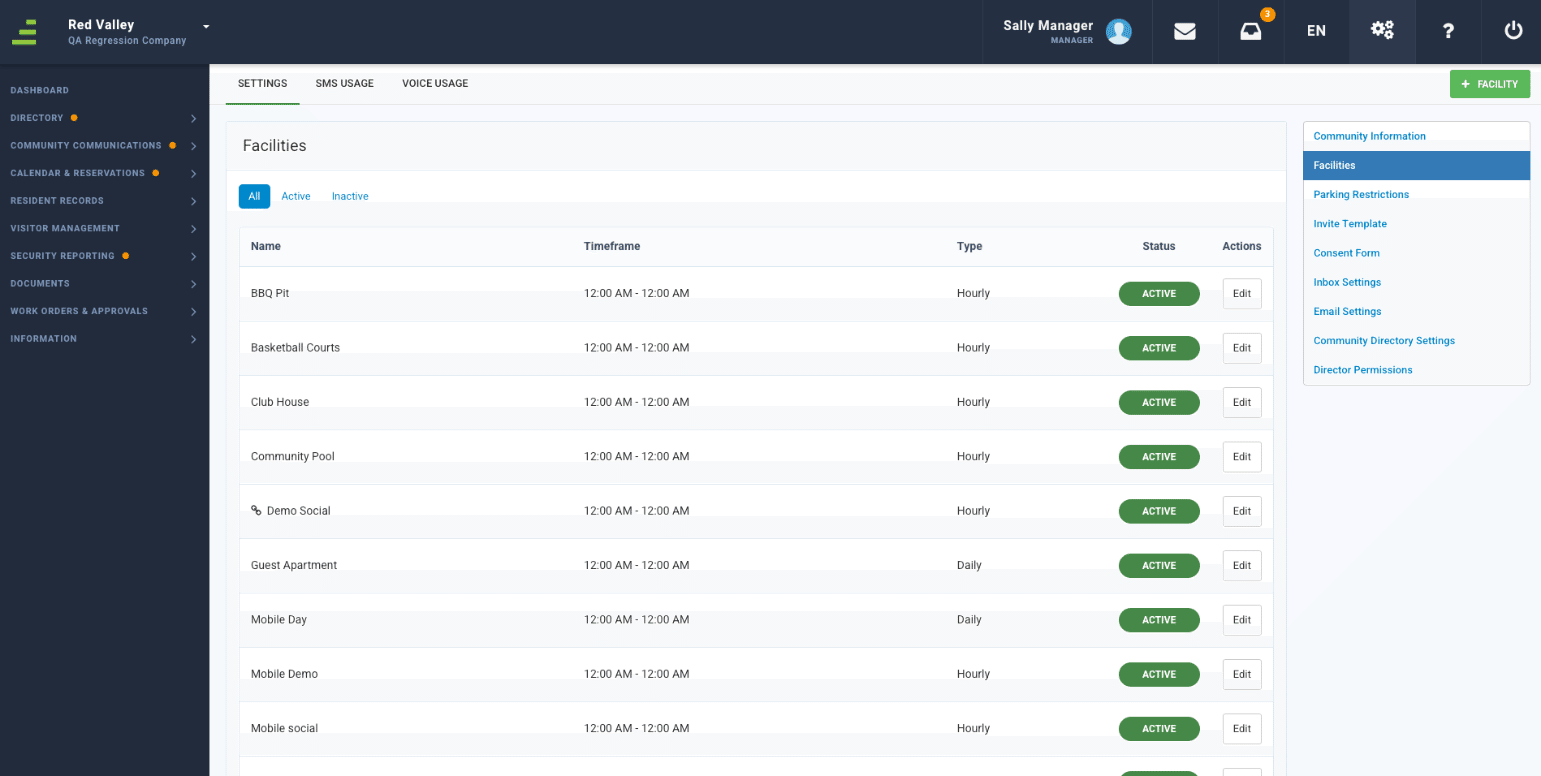
Select Facilities from the drop-down menu.
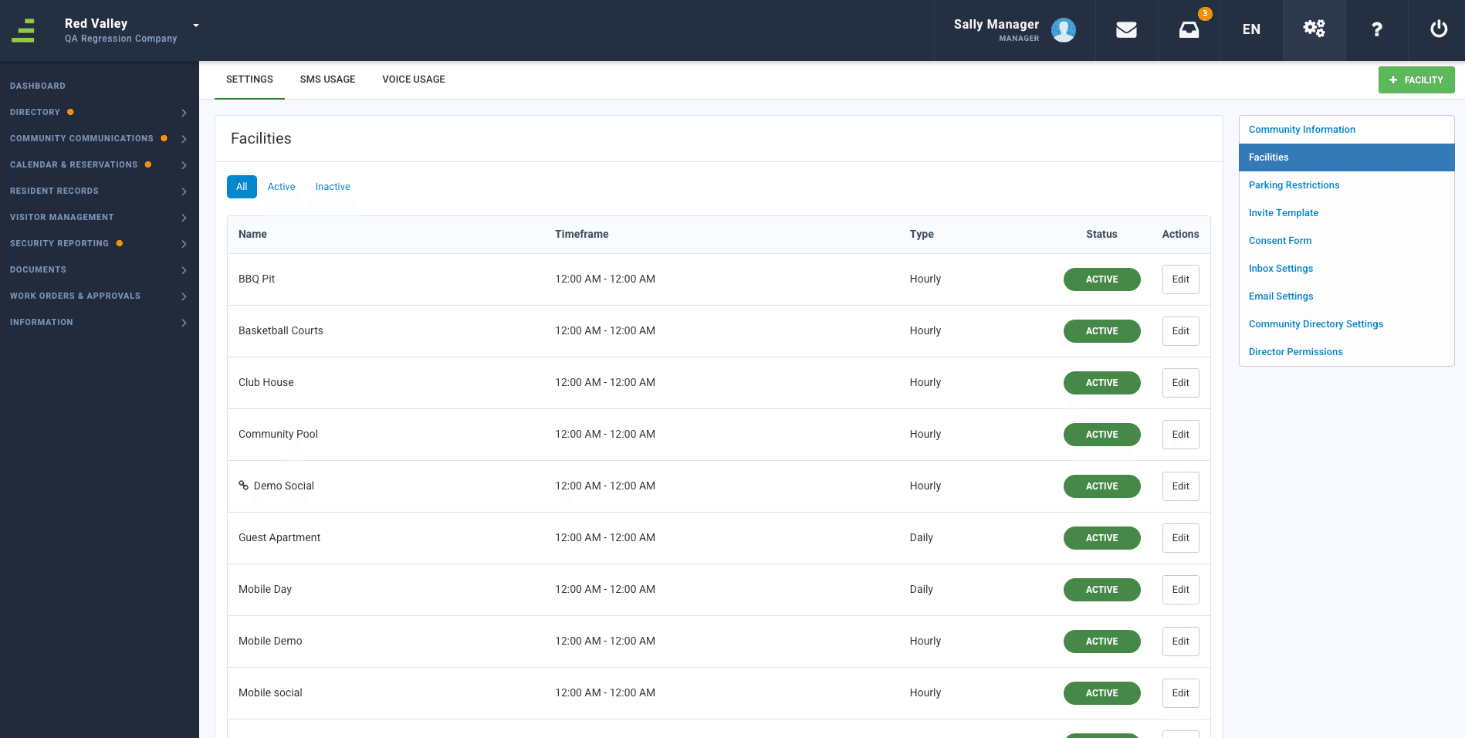
Select the Edit option next to the Facility you want to modify for social distancing.
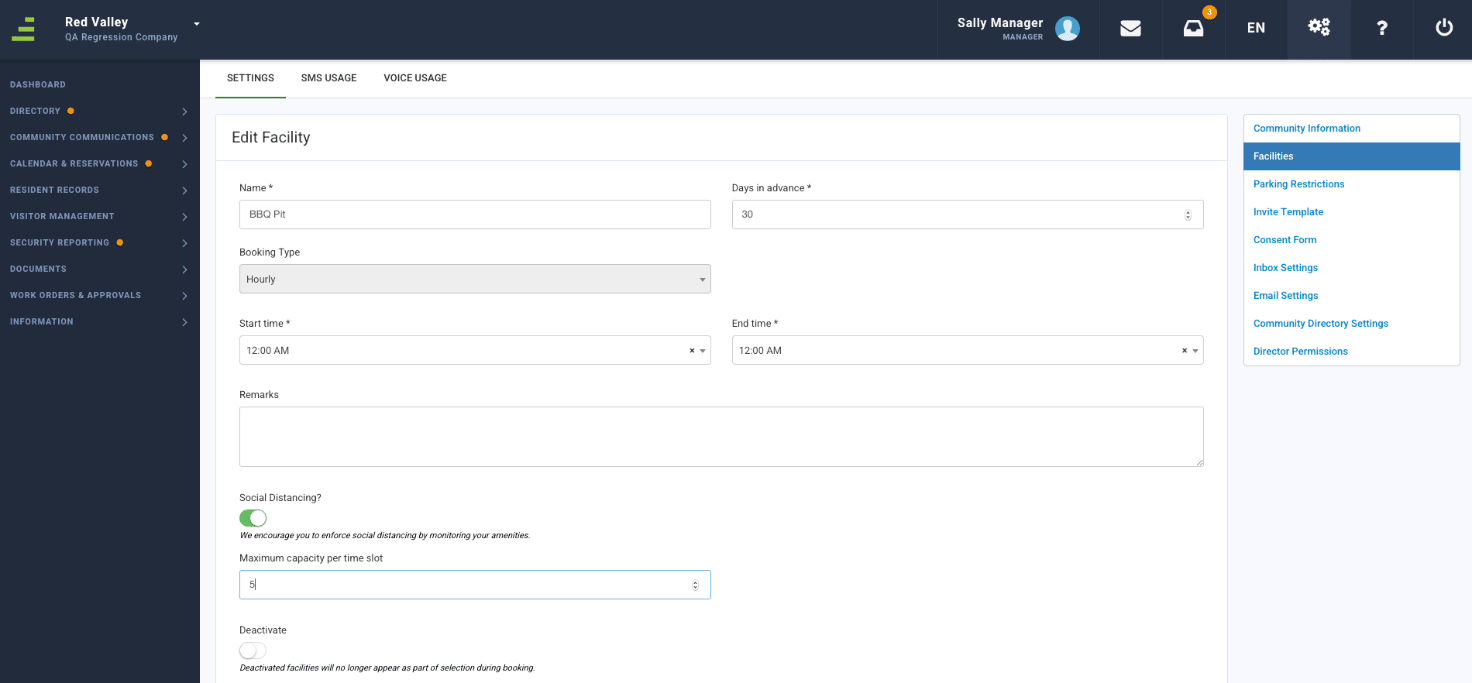
To enable social distancing restrictions, slide the Social Distancing? button to the right and it will turn green.
Add the maximum allowed per facility in the Maximum capacity per time slot field.
Select Update Facility.
Reserving a Facility for a Resident
To reserve a Facility for a Resident of your community, from the Manager Dashboard menu, select Calendar & Reservations, then select Community Reservations.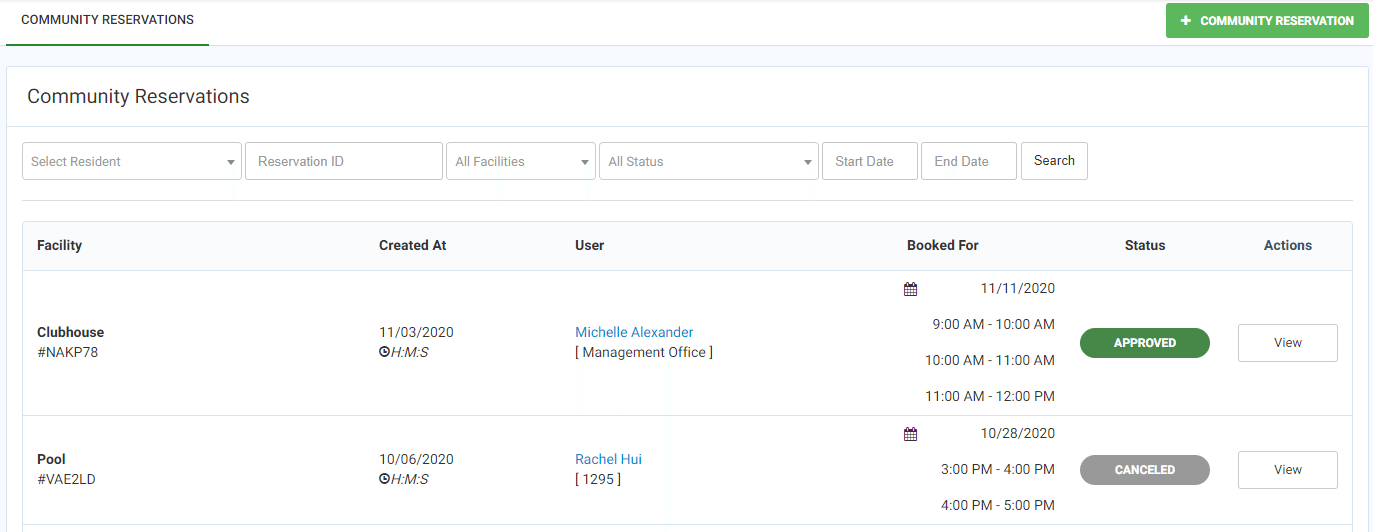
Select +COMMUNITY RESERVATION.
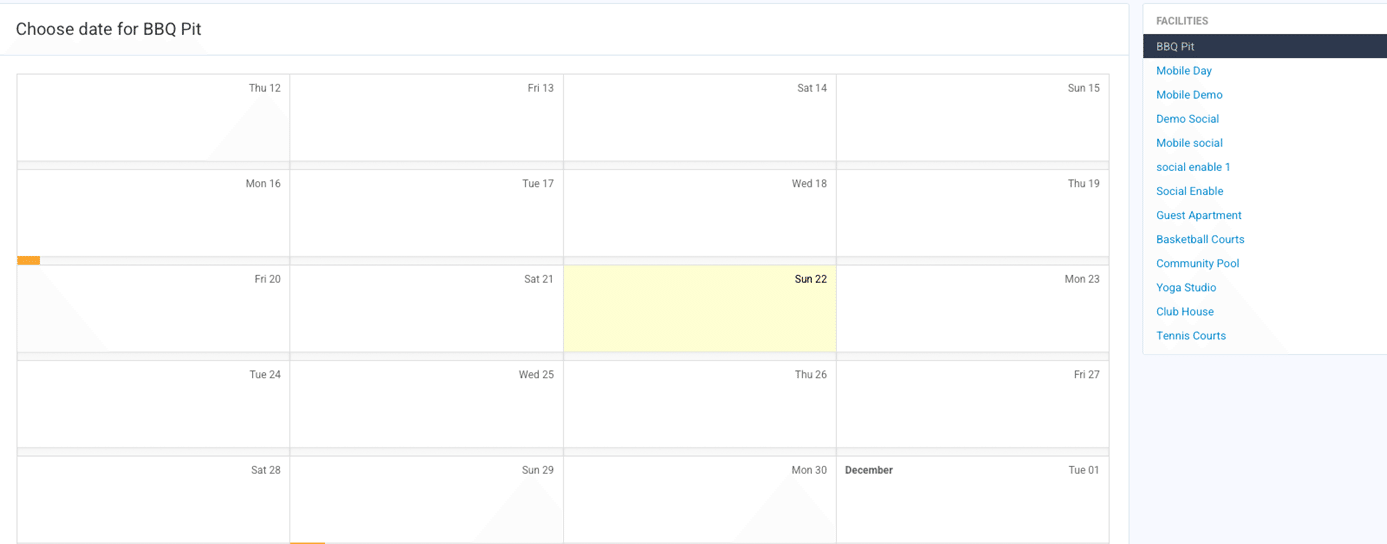
- Select the Facility from the Facilities list at the right. Select the date of the reservation.
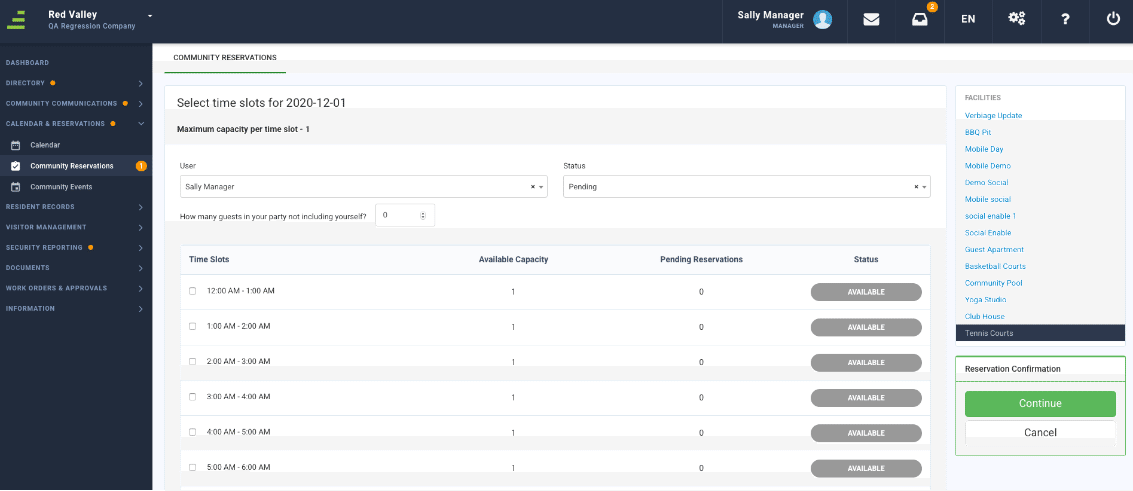
- On the Select time slots for <selected date> screen, select the User for whom you are making the reservation. To automatically approve the reservation upon submittal, select Approved from the Status drop-down list.
- Select the time slots for which you are reserving the Facility.
- Using the Available Capacity per time slot guideline, enter the appropriate number in the How many guests in your party not including yourself? field. Select Continue.
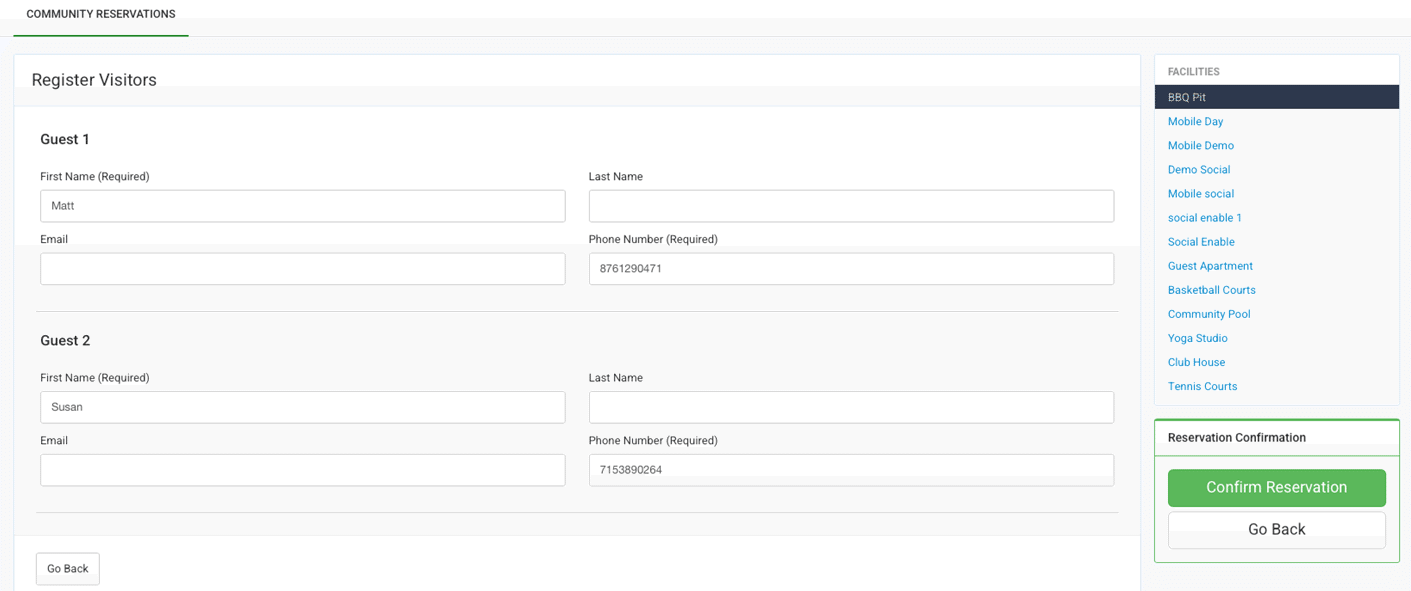
The Register Visitors screen requires guest contact information. The main purpose for this information is for contact tracing for a situation such as a potential virus infection occurring at the event.
- Complete the Guest information for each of the guests. First Name and Phone Number are required. Last Name and Email are optional.
- Select Confirm Reservation.
Approving a Facility Reservation Request Submitted by a Resident
To approve a facility reservation submitted by a Resident of your community, from the Manager Dashboard menu, select Calendar & Reservations, then select Community Reservations.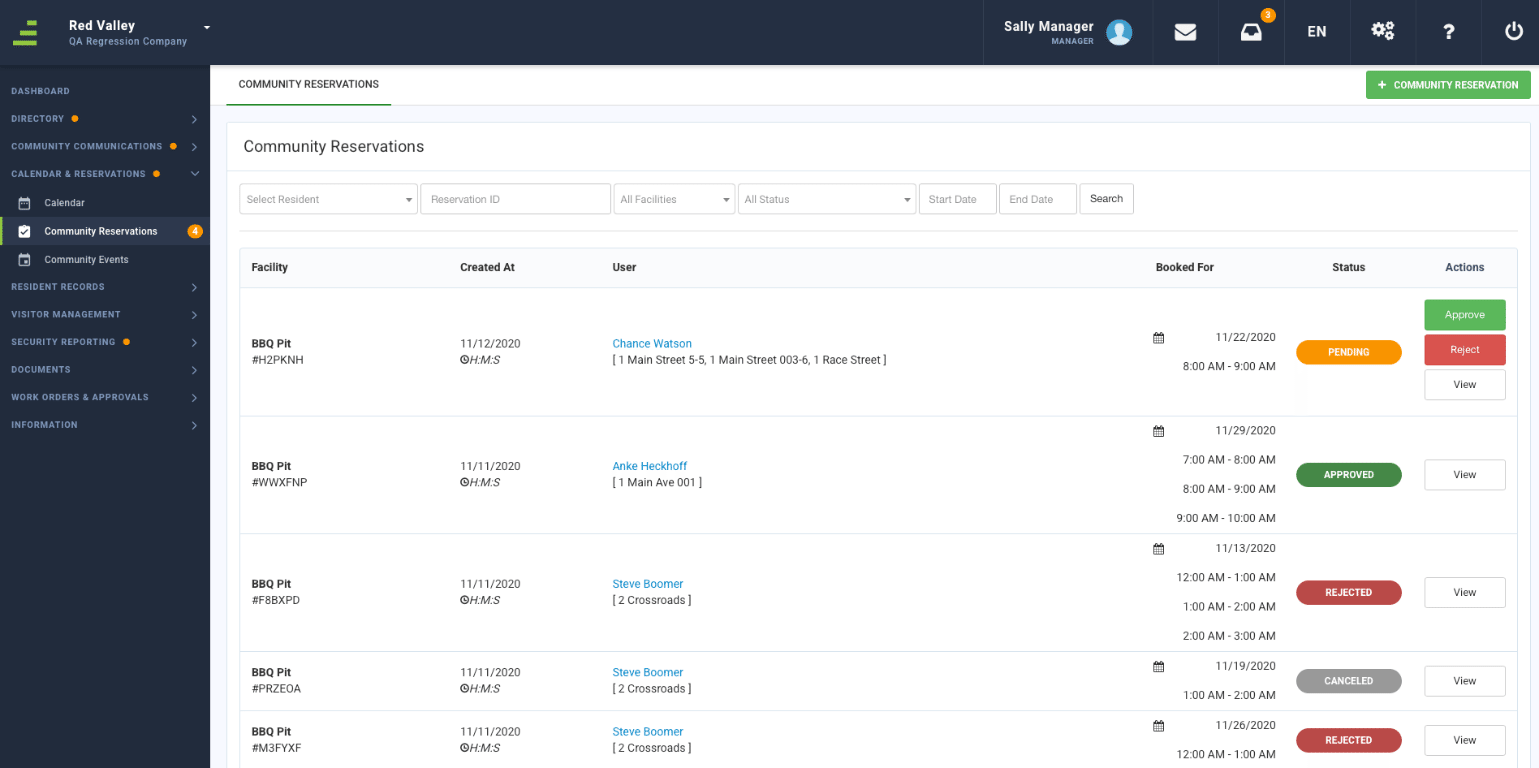
You can approve the reservation in one of two ways:
- Select the Approve option next to the reservation on the Community Reservations screen.
- Select the View option next to the reservation, review the information, then select Approve.