Manager/Director- Export Data Options
We’re updating this article. Some screenshots or names may look older than what you see in the product.
Background
Based on customer feedback, FRONTSTEPS has added the option to Export specific sets of data to a .CSV file from within the FRONTSTEPS Community Portal.Accessibility
The feature is available to Managers and Directors (BOD Members).Export Information
The ability to Export data into a .CSV file has been added to the following features:- Delinquencies
- Architectural
- Violations
- Work Orders
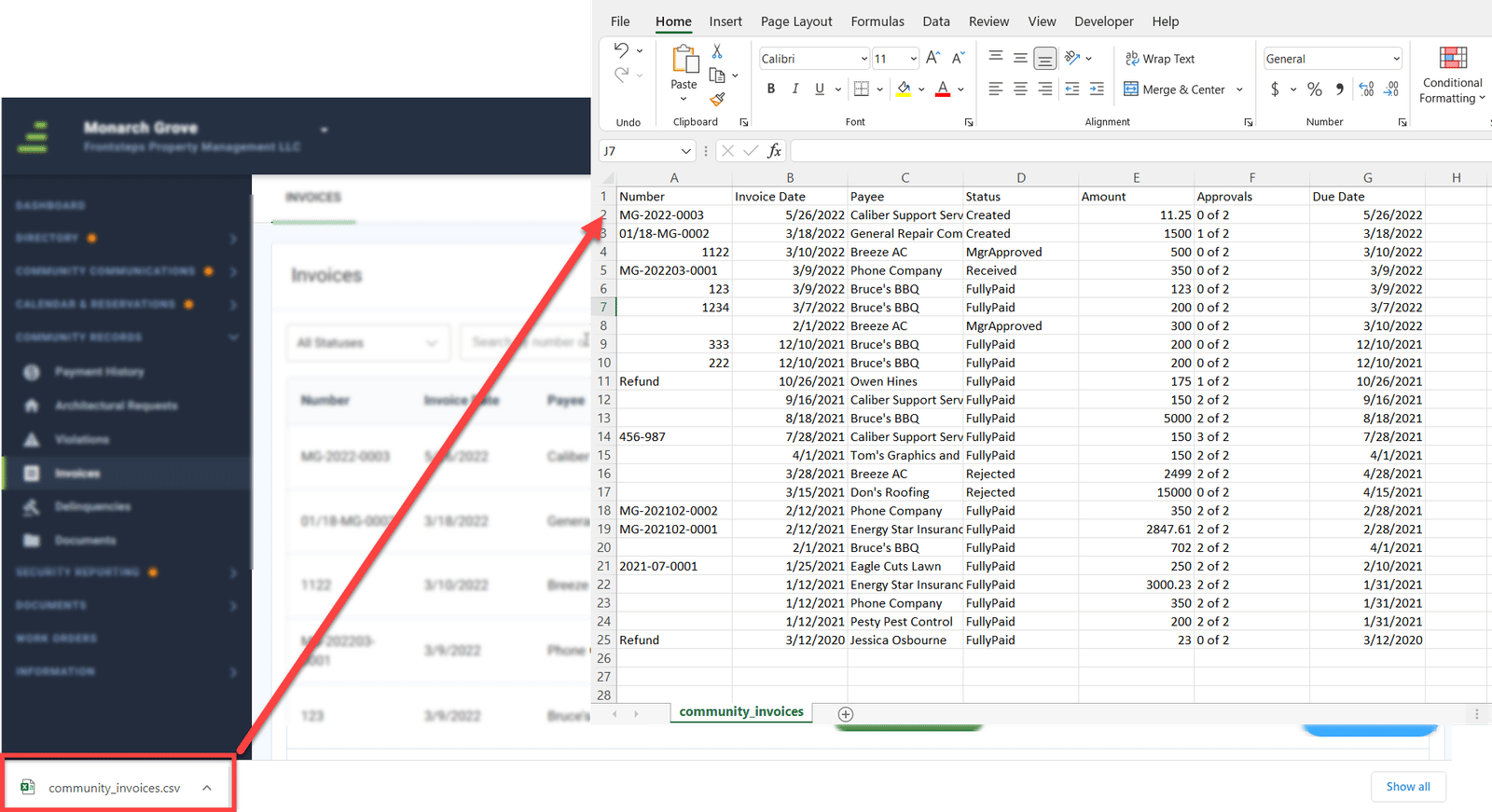
- Invoices
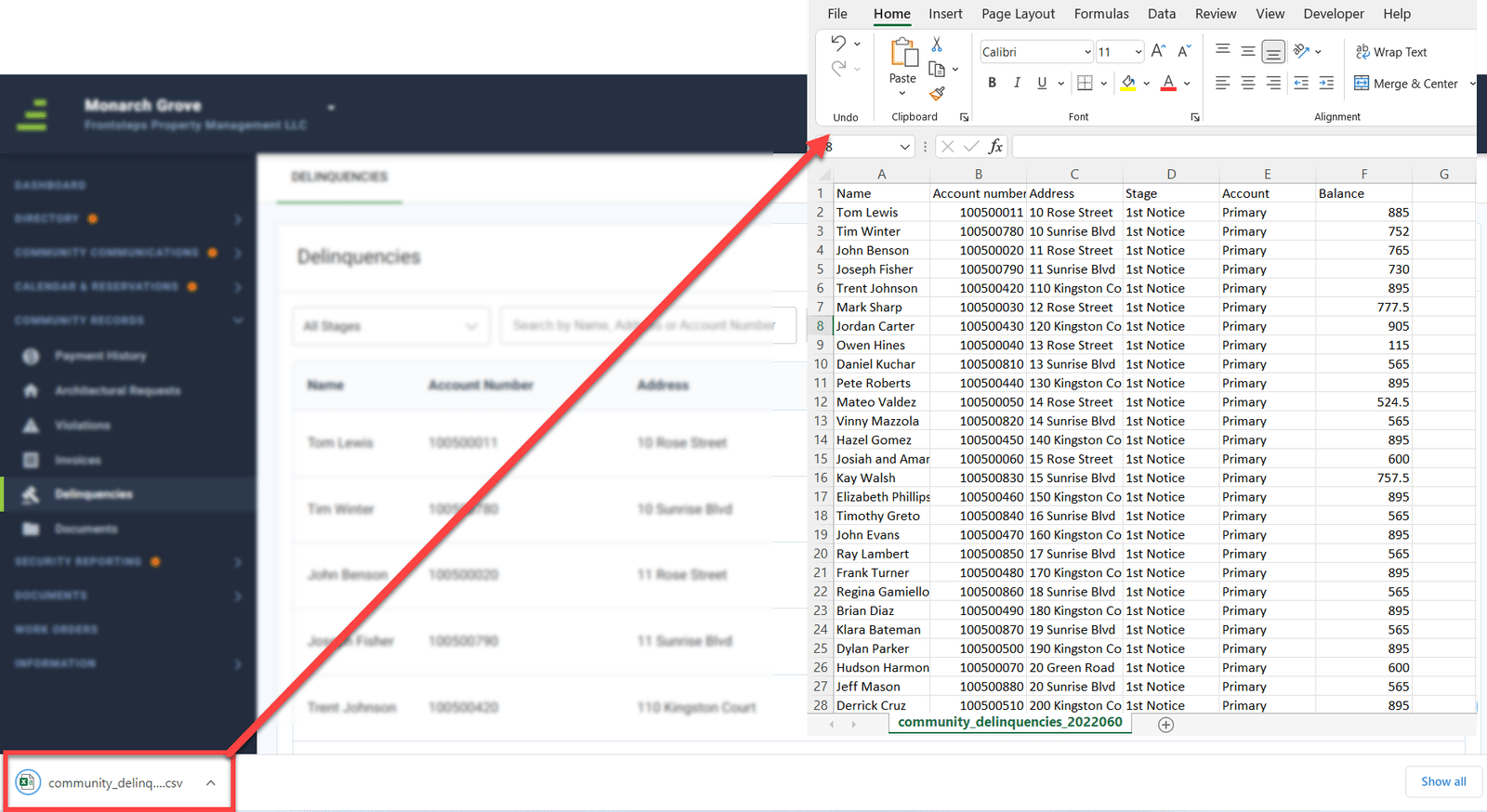
Please note that for Delinquencies and Architectural, all data will show on the Export file. In the next update this will change and only the filtered rows will show on the Export File.
Delinquencies
To Export Delinquency data:
- Click the ‘Community Records’ menu option
- Select ‘Delinquencies’
- Sort Data (if applicable)
- Click the ‘Export CSV’ button
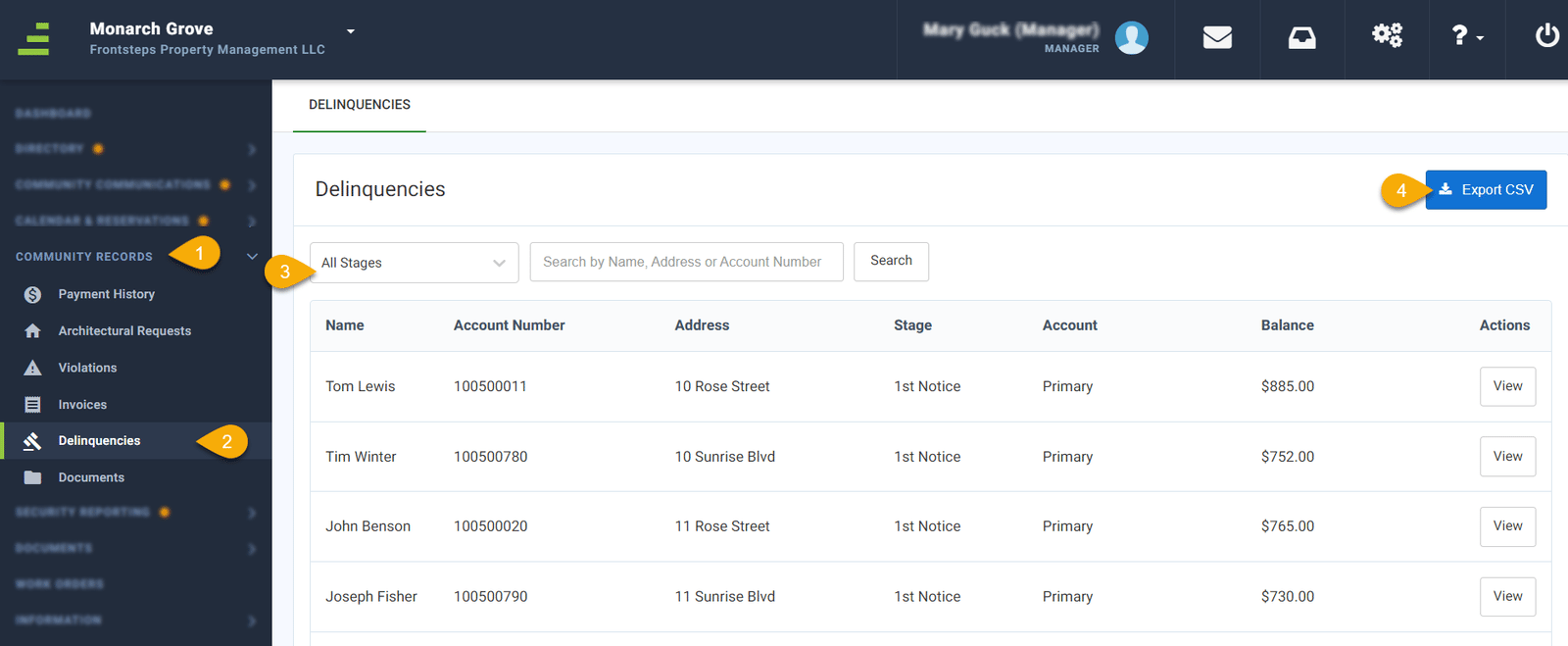
- The file will download in your browser, and you can click to open it.
Architectural
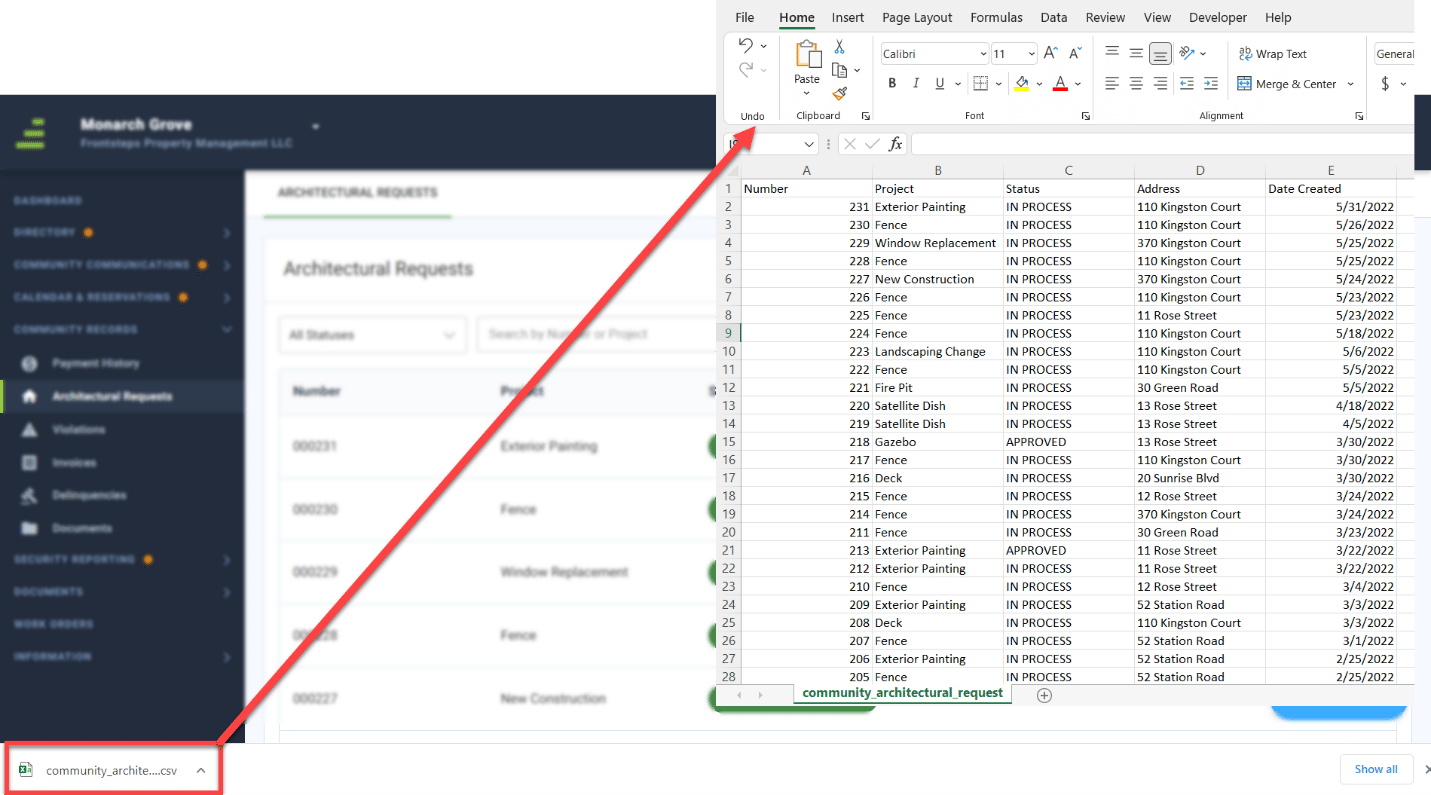
To Export Architectural data:- Click the ‘Community Records’ menu option
- Select ‘Architectural’
- Sort Data (if applicable)
- Click the ‘Export CSV’ button
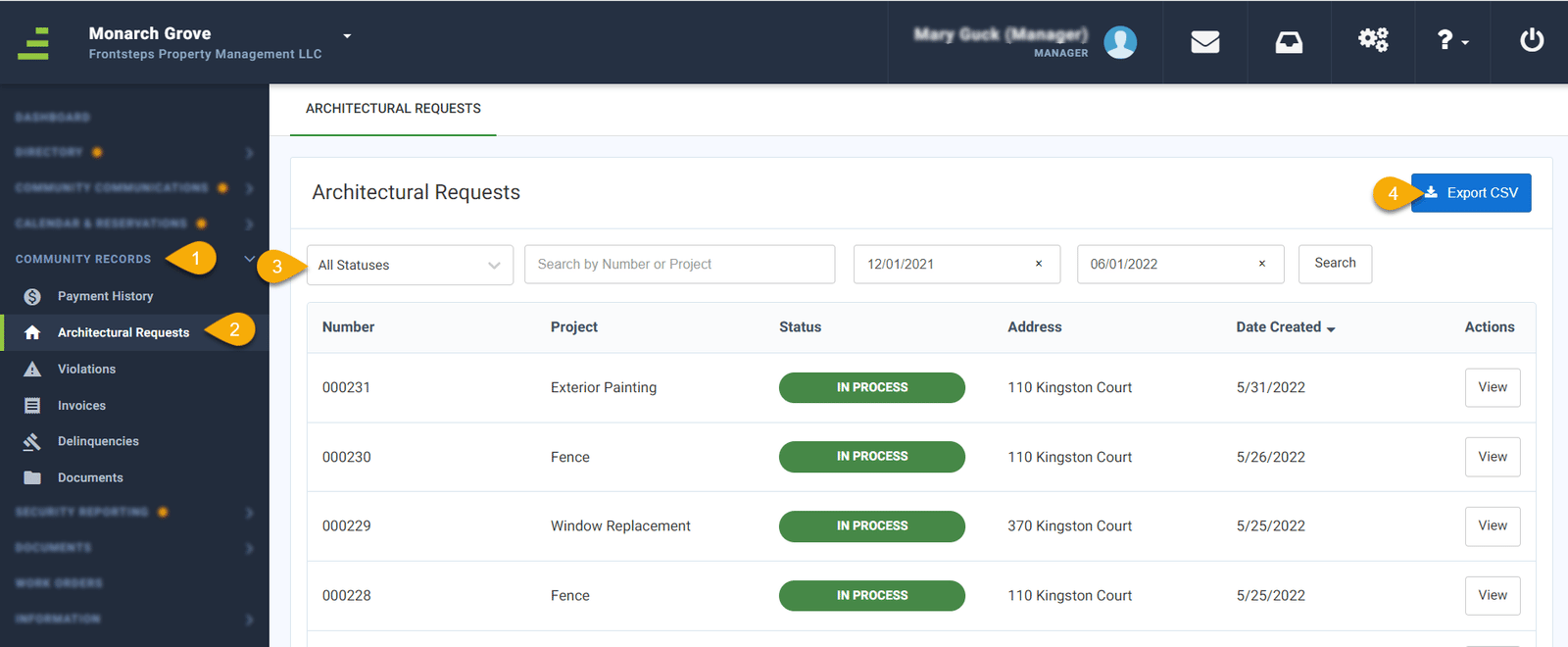
- The file will download in your browser, and you can click to open it.
Violations
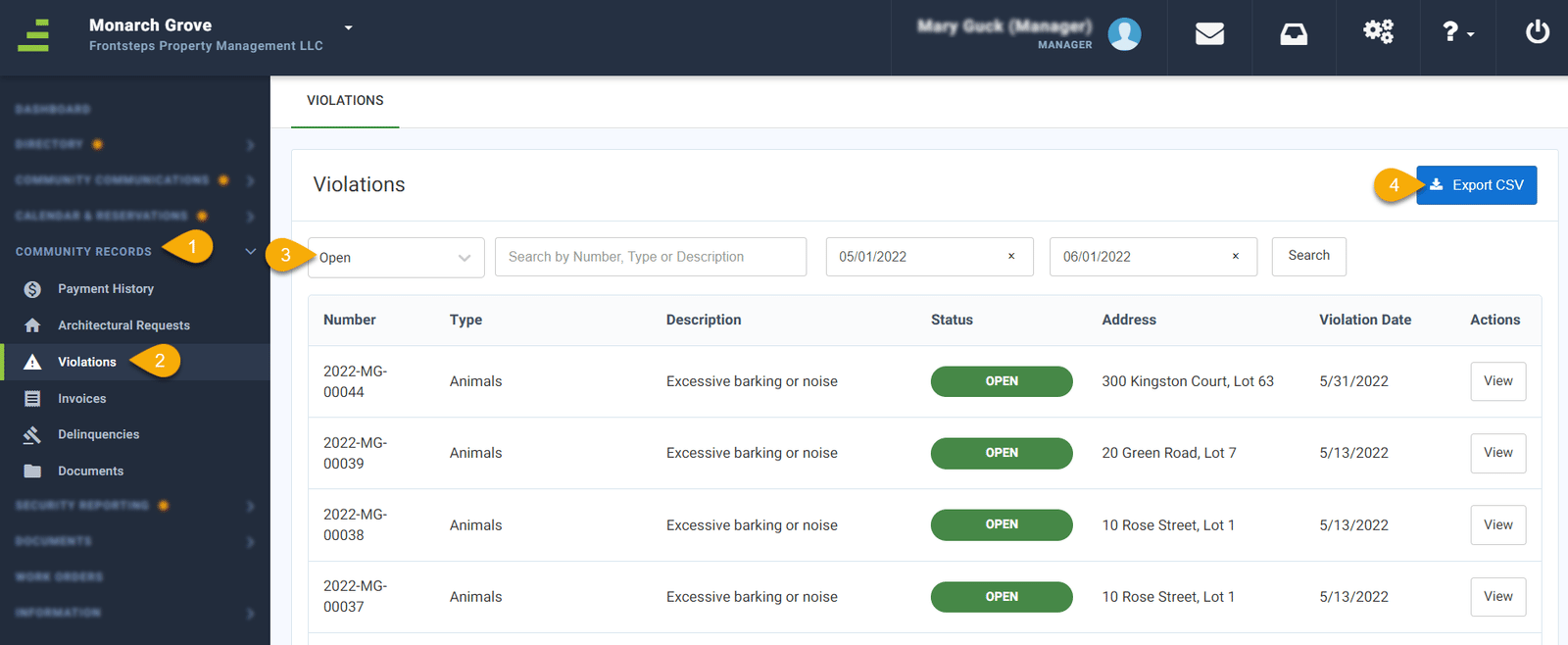
To Export Violation data:- Click the ‘Community Records’ menu option
- Select ‘Violations’
- Sort Data (if applicable)
- Click the ‘Export CSV’ button
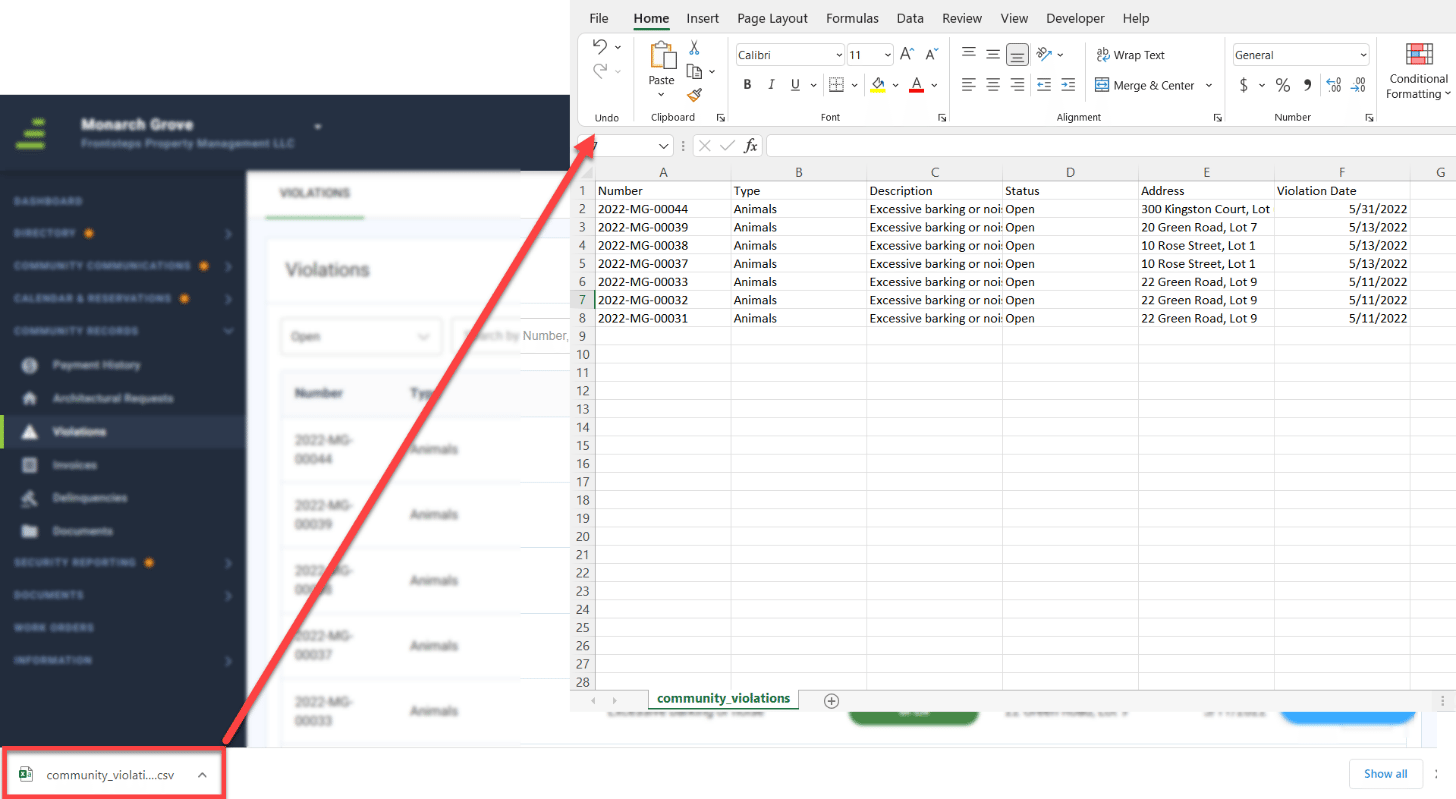
- The file will download in your browser, and you can click to open it.
Work Orders
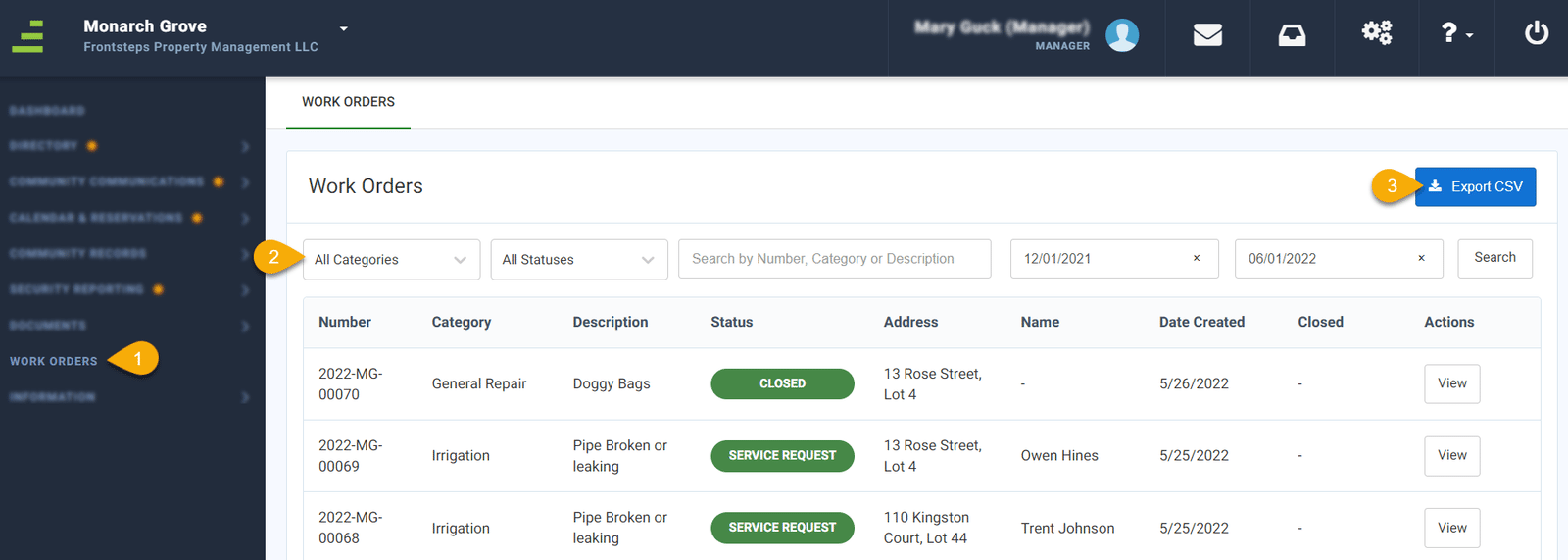
To Export Work Order data:- Click the ‘Work Order’ menu option
- Sort Data (if applicable)
- Click the ‘Export CSV’ button
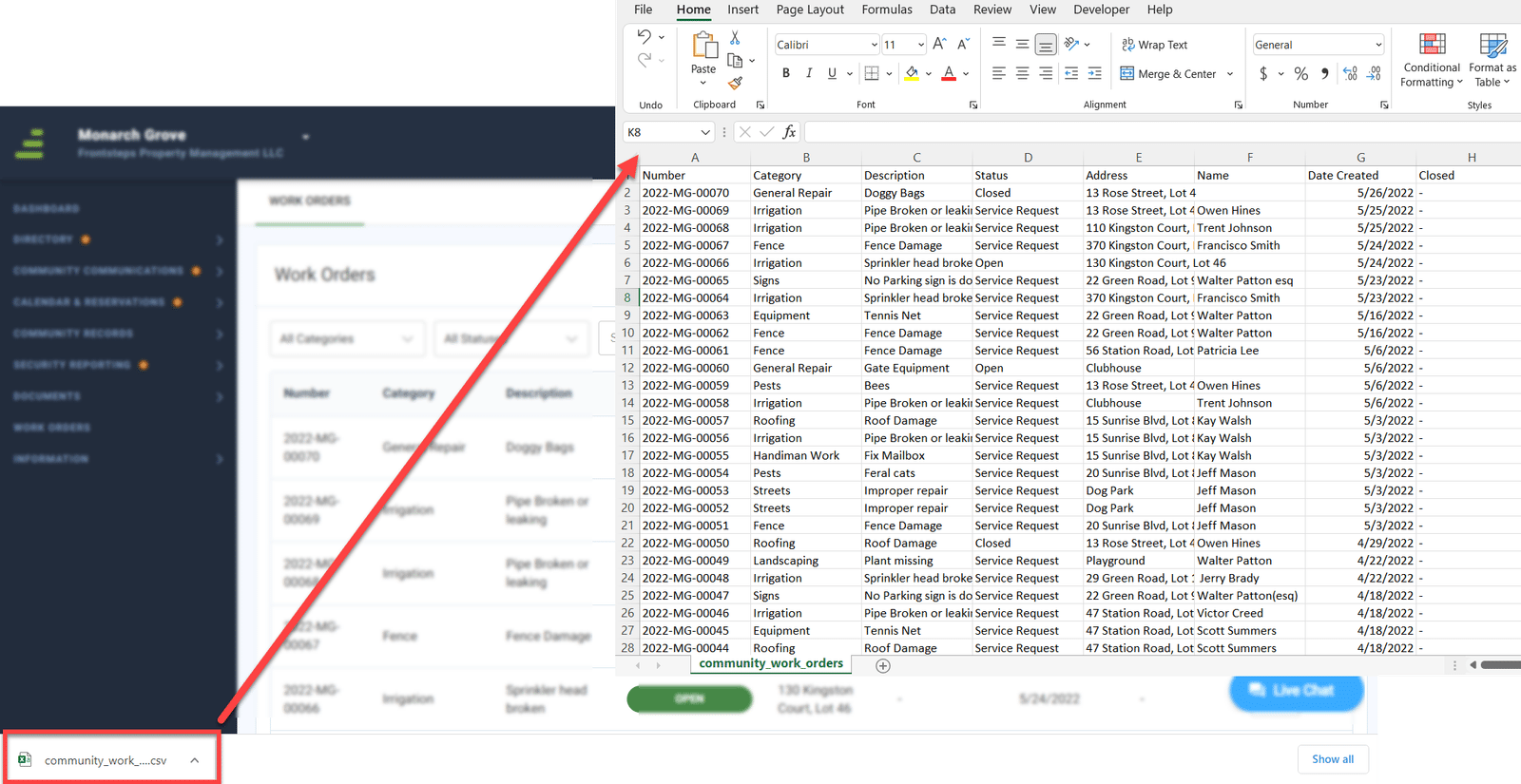
- The file will download in your browser, and you can click to open it.
Invoices
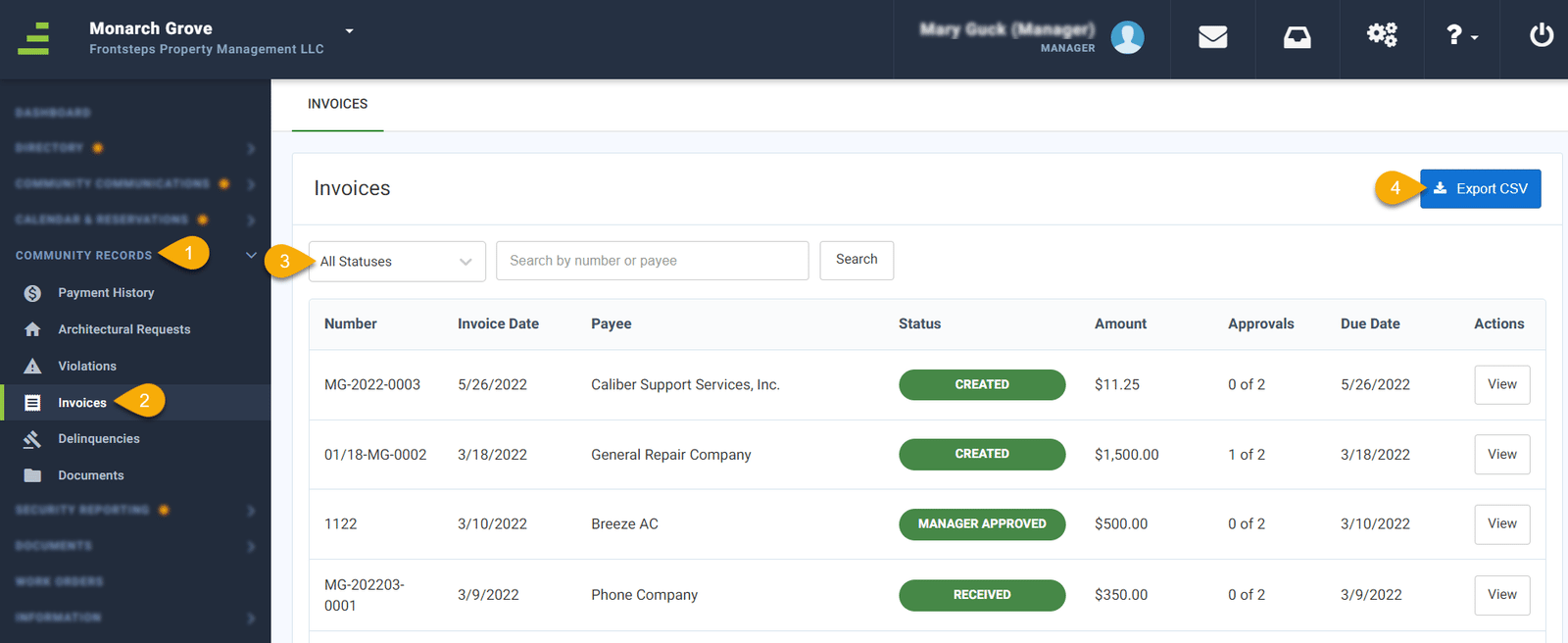
To Export Invoice Data:- Click the ‘Community Records’ menu option
- Select ‘Invoices’
- Sort Data (if applicable)
- Click the ‘Export CSV’ button
- The file will download in your browser, and you can click to open it.