
Manager- Community & Caliber: How to Setup Board Members (Directors)
This document is intended for Customers who have both FRONTSTEPS Caliber and FRONTSTEPS Community. In this document we cover the process of adding new Board Members (Directors) or Architectural Committee members and the associated set up.
Please note that adding and managing Board Members or Architectural Committee members will always be done within FRONTSTEPS Caliber. Any updates (ie, adding a new group or adding a new member) will be relayed to FRONTSTEPS Community during the nightly sync process.
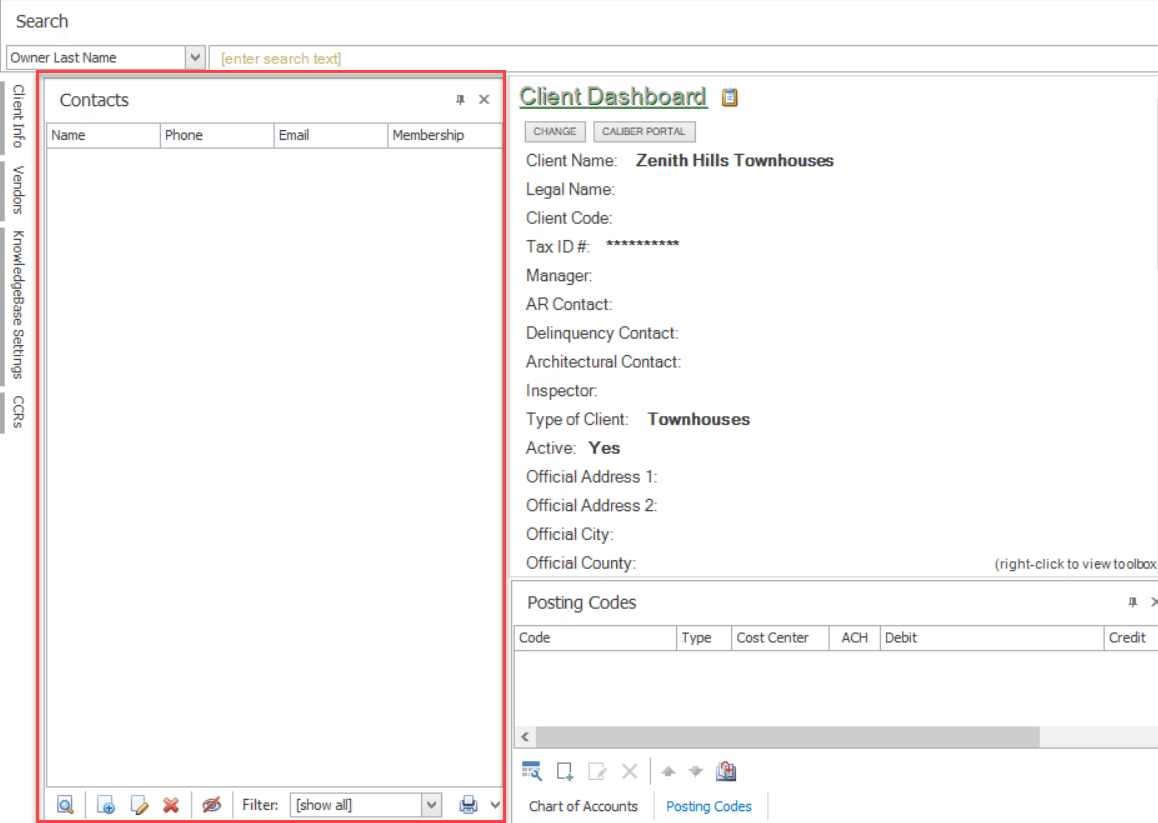
This task is done within the ‘Contacts’ toolbox located in the Client Dashboard. This toolbox is used to enter and maintain Board Members and other groups associated with an individual Client.
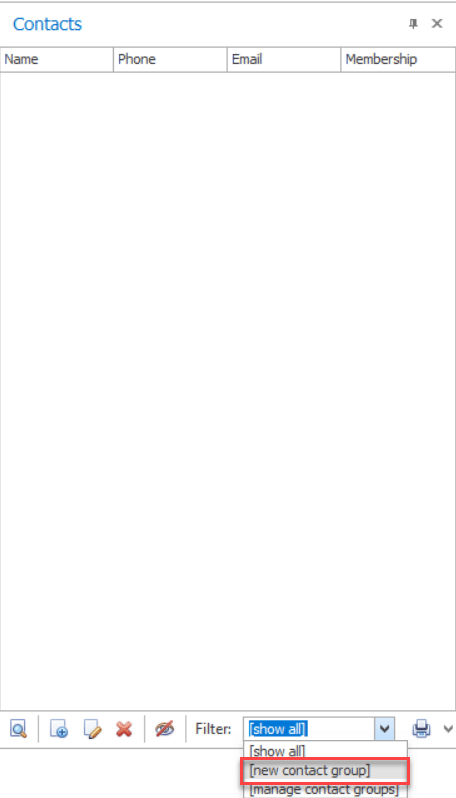
To create a new group, select the Filter drop down and select the option for ‘New Contact Group’.
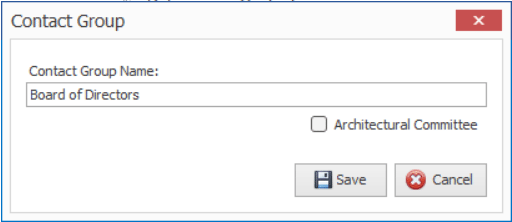
Enter in the name of the board group, such as Board of Directors, Architectural Committee, or other associated groups. Click ‘Save’ when complete.
Please note that if the board member has an existing homeowner account, you will use that to convert them to a board member (director). It is not necessary to add a new user account or email address.
This action is completed within the ‘Contacts’ toolbox located at the Client Dashboard.
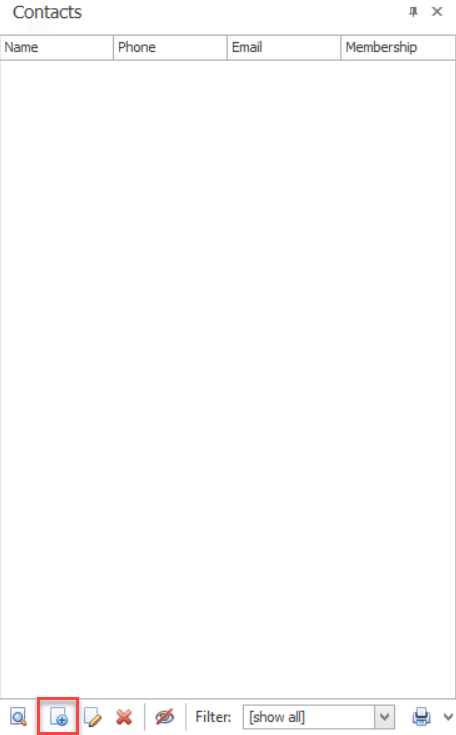
Click the ‘Add New Client Contact’ (white paper with blue plus sign) icon located at the bottom of the toolbox.
Select the ‘Type of Contact’ you would like to add (1). Once you select from Owner, Occupant, or Vendor those correlating names/companies will be available for you on the drop-down list on the right (2).
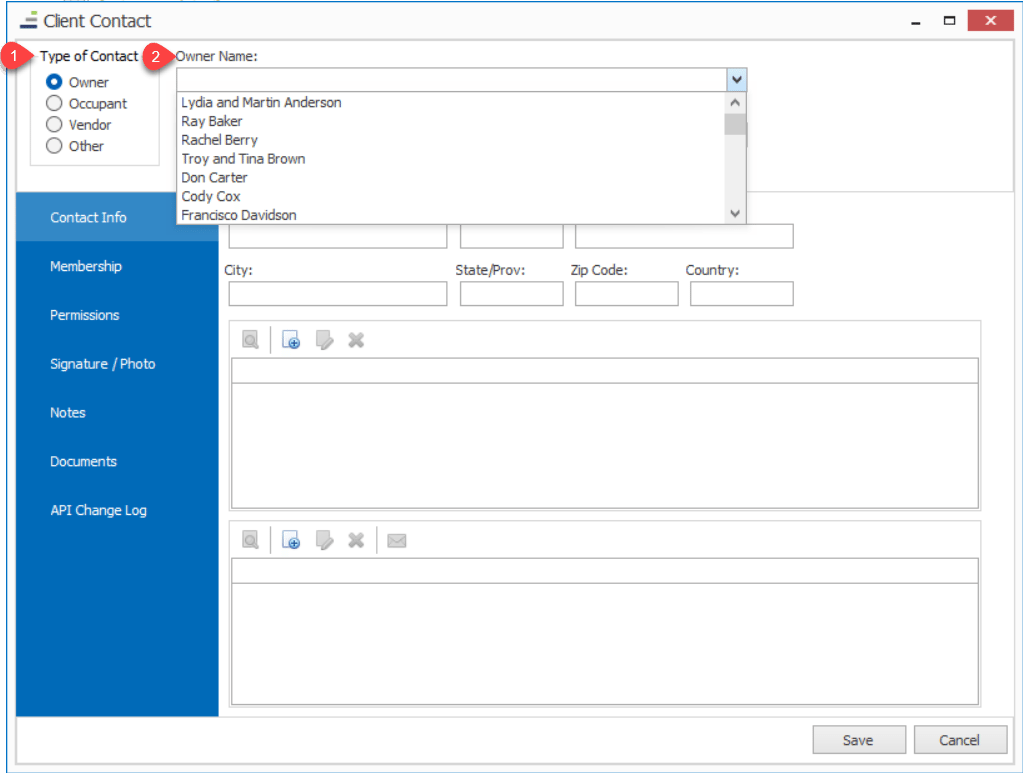
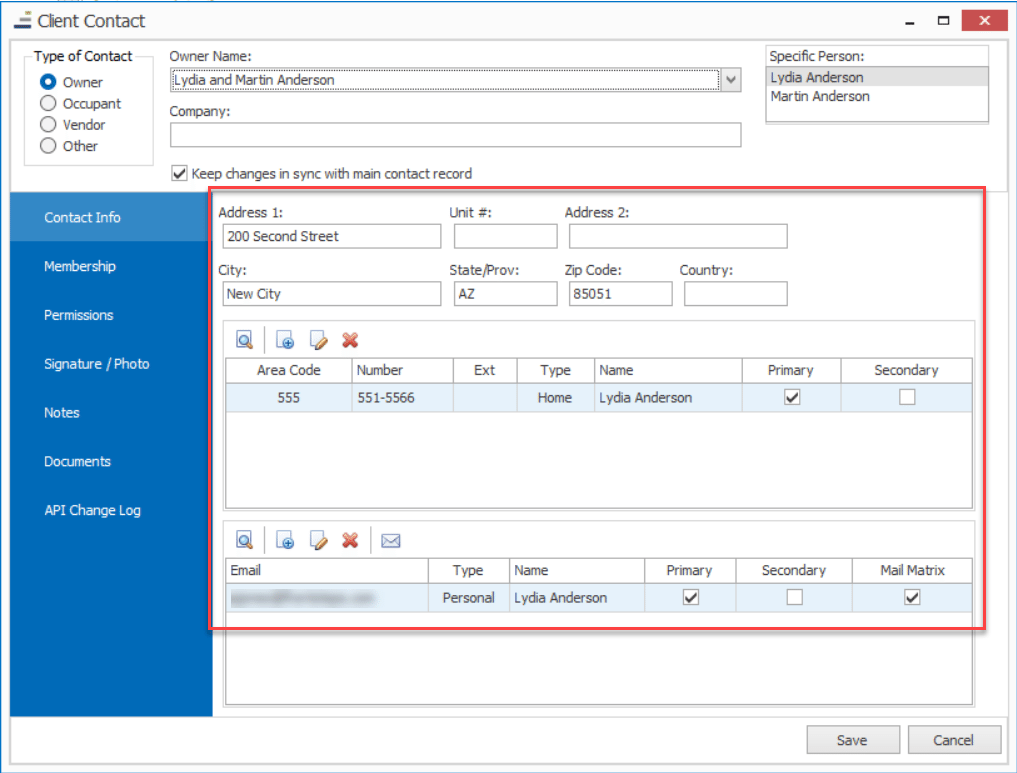
Once a name has been selected from the drop-down list, their corresponding address and contact information will be populated.
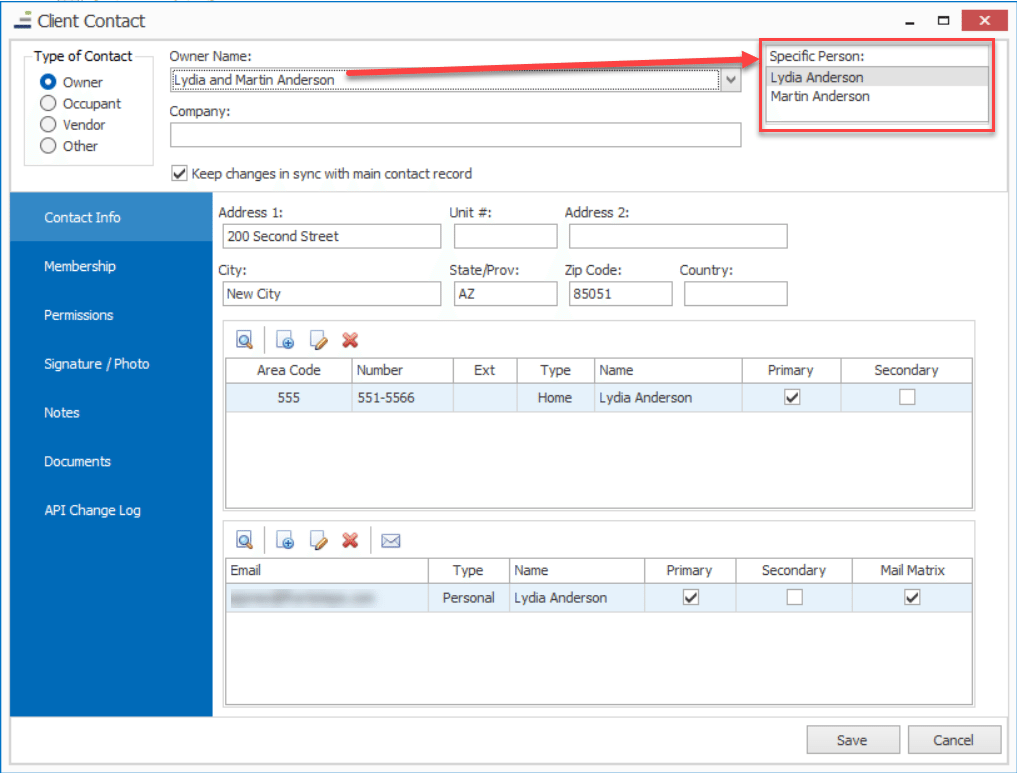
Please note that if there are two owners for the same unit (often the case with spouses), both names will appear in the upper right corner. Be sure to select the owner’s name who is the board or committee member.
Once the person has been selected, click on the ‘Membership’ tab.
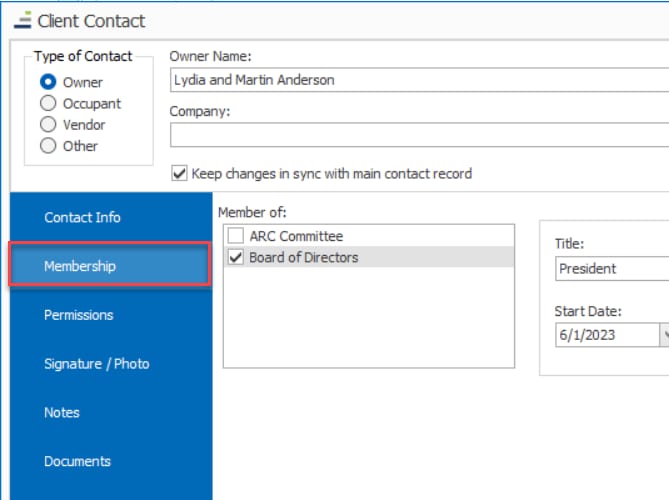
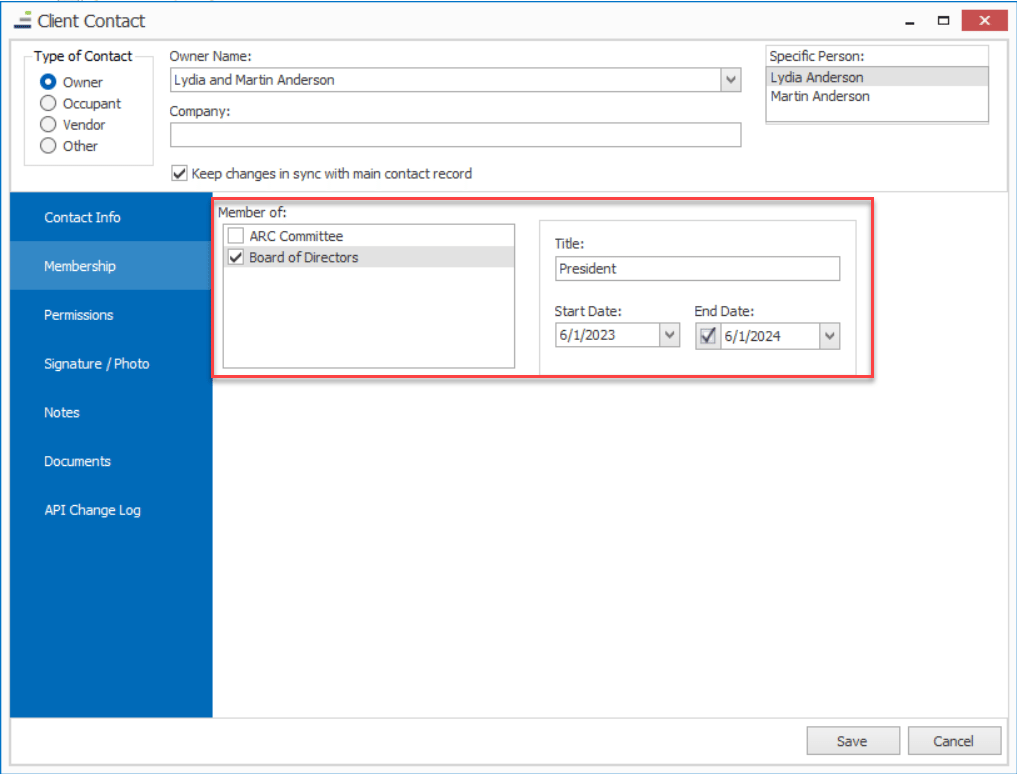
The ‘Membership’ tab is where you will assign the contact to their particular group (Board of Directors, Arch committee, etc.), enter in their title, and if applicable set their term dates. Please note that if an ‘End Date’ is entered, this user will lose any board level permissions on the Community Portal once that date has passed. They will retain their owner access if still listed as an active Owner within Caliber.
Next click on the ‘Permissions’ tab.
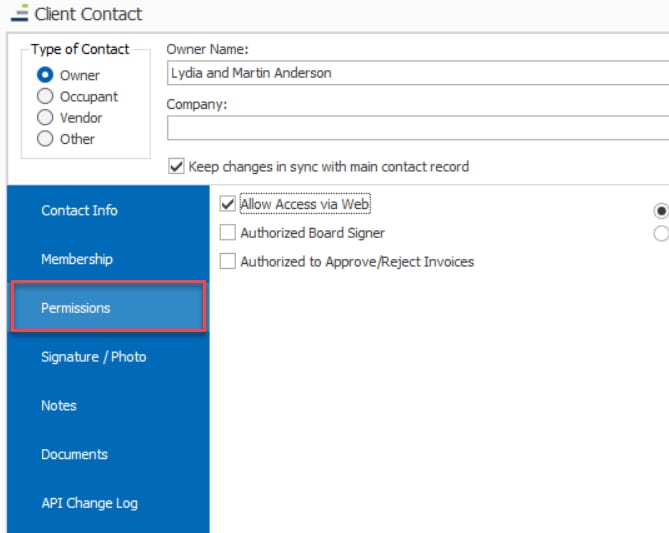
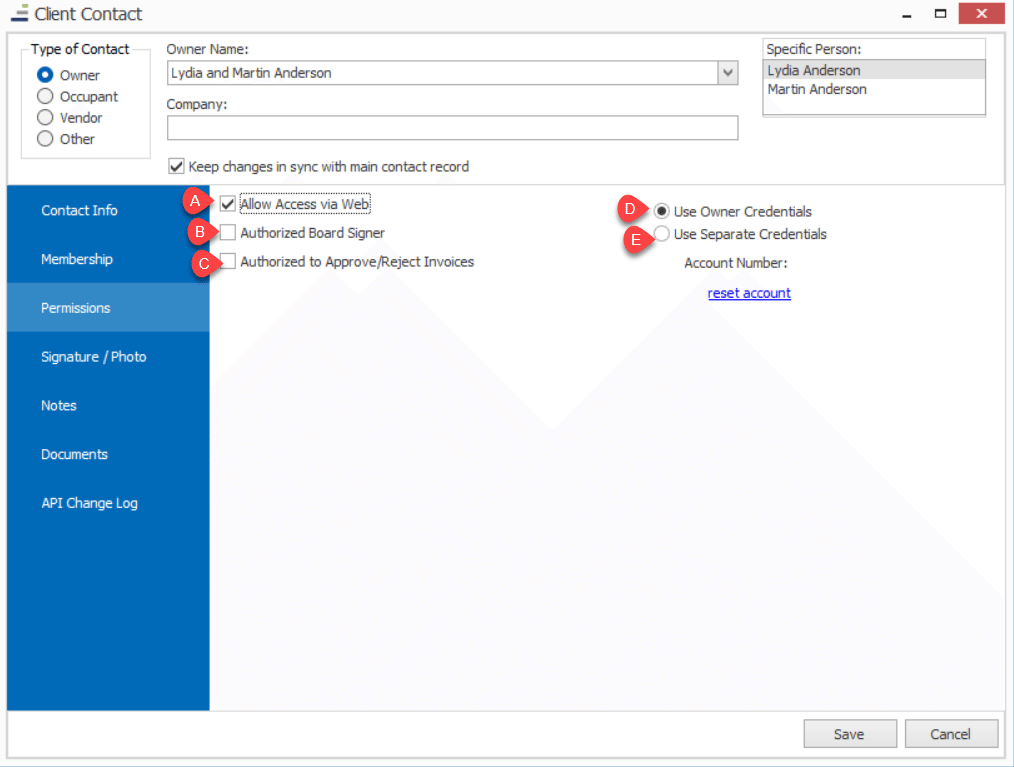
On the ‘Permissions’ tab you will need to check the box for ‘Allow Access via Web’ (A), this setting will give the user permission to access the portal with board level settings.
You will also have the option to set the user as an ‘Authorized Board Signer’ (B) for the Client. If checked, this setting will allow the member to have their digital signature appear on checks for the Client. Note, additional Setup will be required in the AP Workflow if this is checked.
Additionally, if this user is authorized to approve or reject invoices for this Client, check the box for ‘Authorized to Approve/Reject Invoices’ (C).
By default, the option for ‘Use Owner Credentials’ (D) is selected. This will allow the members to log into the Community portal using their owner credentials and have access to board information.
If there is a situation where this member needs board access, but you do not want them to use the same credentials as their owner account credentials, you may check the radio button for ‘Use Separate Account’ (E). This is not used often, but in the scenario that the member shares a community portal account with their spouse (meaning they have one login for both of them), this option may be checked.
If ‘Use Separate Account’ is checked, once the ‘Save’ button is clicked a unique account number will be created specifically for this board member, and they would have to register for the Community Portal as a new user would. This would allow them to have one set of credentials that would give access only to their owner’s account and they would have a separate set of credentials that would give them access only to their board information.
The remaining tabs do not require anything to be filled out.
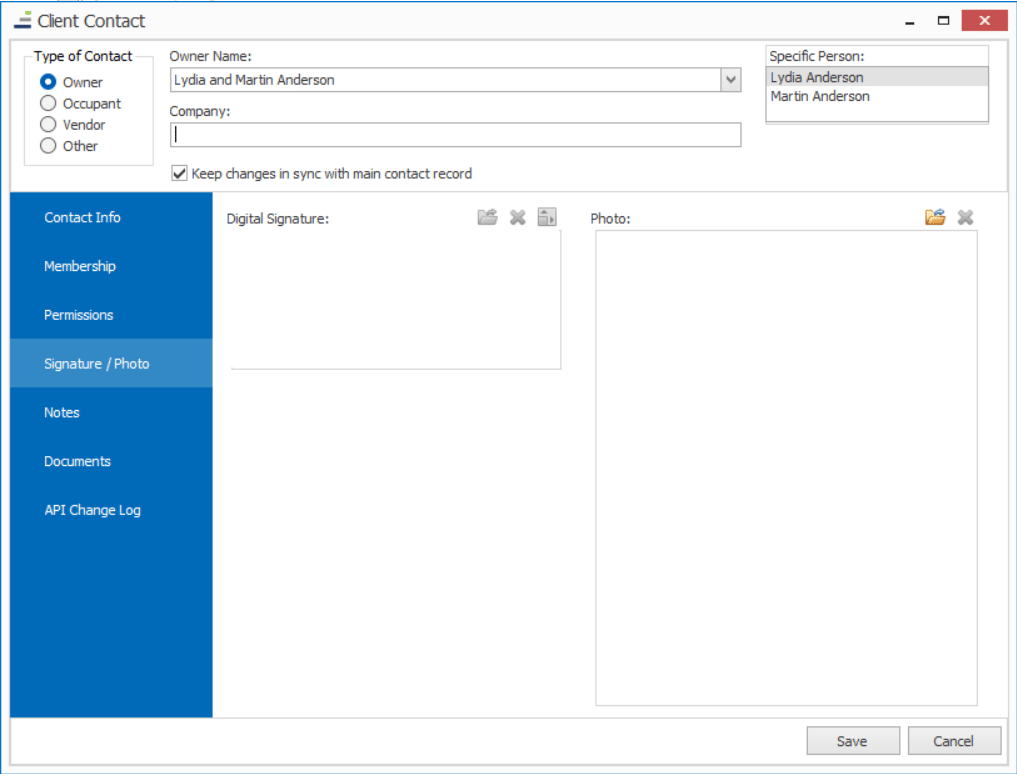
If you wanted to add a digital signature or photo of the board member, you can use the ‘Signature/Photo’ tab.
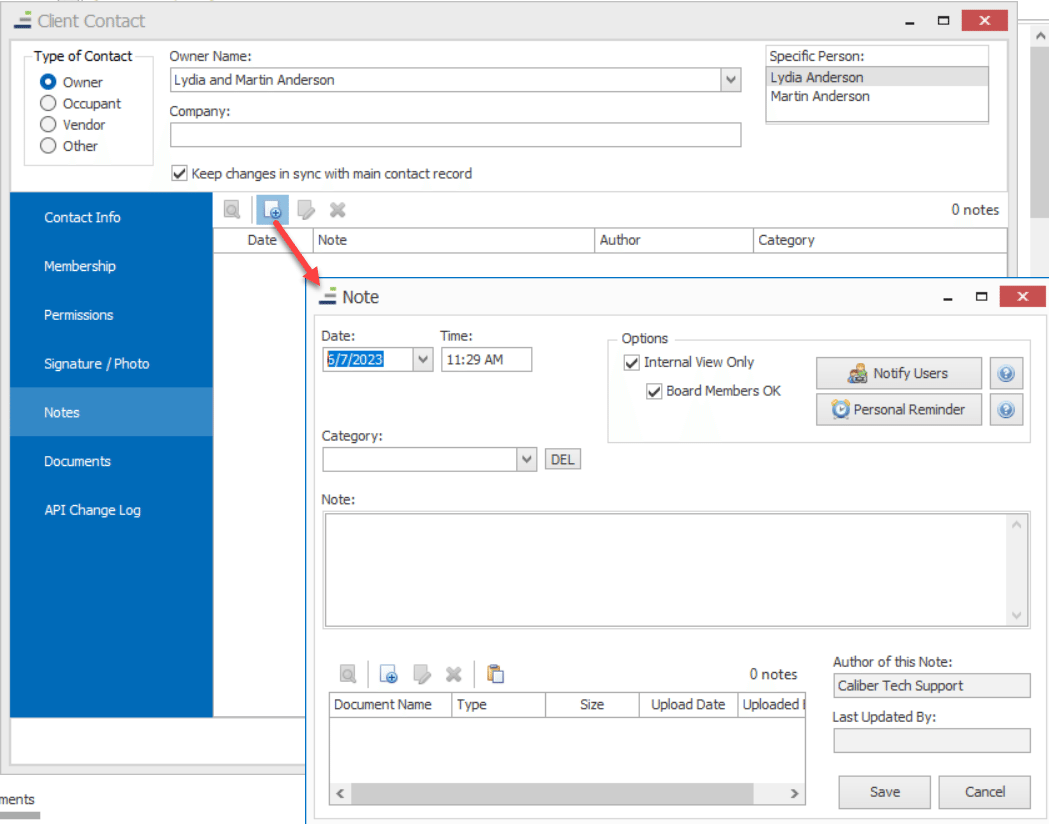
If you would like to add any notes related to the board member, you can use the ‘Notes’ tab.
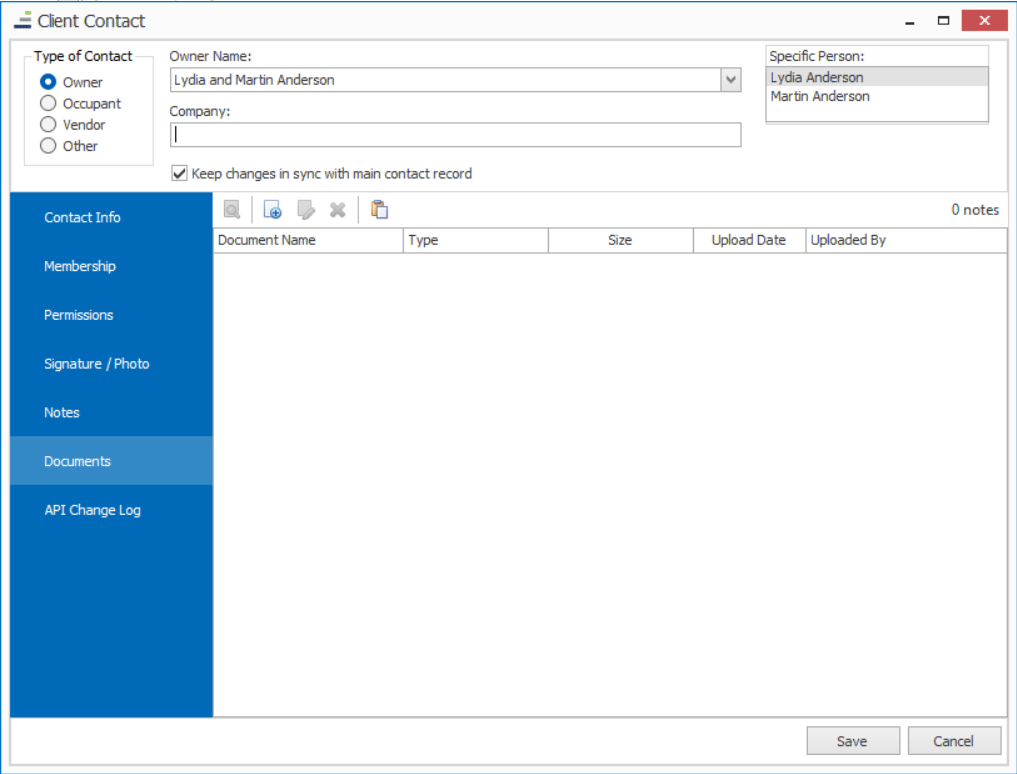
If there are any associated documents, such as a term agreement, you would like to add to this board members record, you would use the ‘Document’ tab.
Once all information is entered, click the ‘Save’ button.
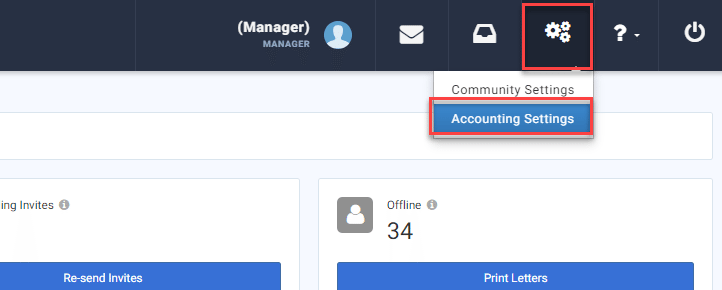
From their manager dashboard, click the ‘Settings’ gear and select the ‘Accounting Settings’ option.
From here select the ‘Director Settings’ option. Select the group from the drop-down that contains your Board of Directors.
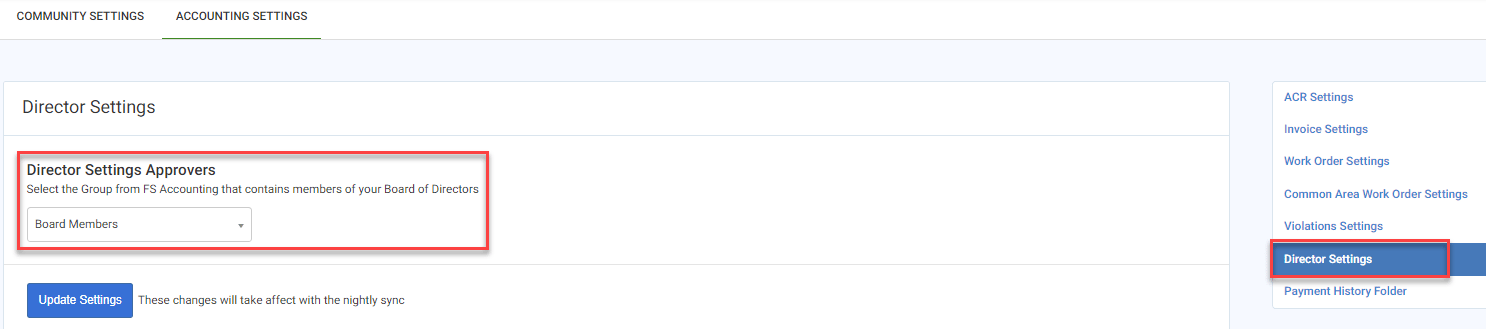
Click ‘Update Settings’ when done. This will update during the nightly sync process.
If your community is using the Architectural feature, navigate to the ‘ACR Settings’ option. From here you will select the group that is authorized to approve or reject architectural requests.

Click ‘Update Settings’ when done. This will update during the nightly sync process.
If your community is using Invoices, navigate to the ‘Invoice Settings’ option. From here you will select the group that is authorized to approve or reject invoices.
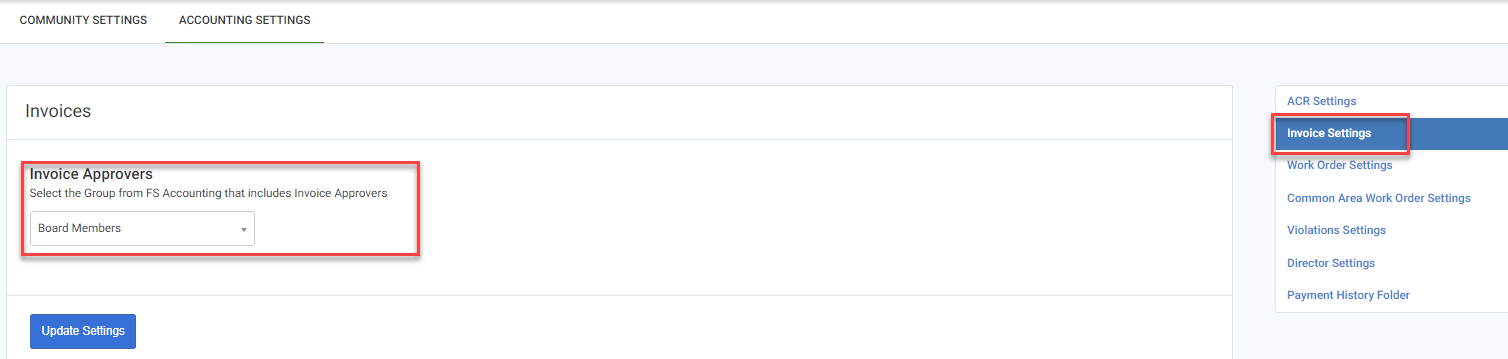
Click ‘Update Settings’ when done. This will update during the nightly sync process.
Please note that adding and managing Board Members or Architectural Committee members will always be done within FRONTSTEPS Caliber. Any updates (ie, adding a new group or adding a new member) will be relayed to FRONTSTEPS Community during the nightly sync process.
Creating Client Contact (Board) Groups
Before adding any Board Members or Architectural Committee members, you will need to set up the Client Contact group within FRONTSTEPS Caliber.This task is done within the ‘Contacts’ toolbox located in the Client Dashboard. This toolbox is used to enter and maintain Board Members and other groups associated with an individual Client.
To create a new group, select the Filter drop down and select the option for ‘New Contact Group’.
Enter in the name of the board group, such as Board of Directors, Architectural Committee, or other associated groups. Click ‘Save’ when complete.
Adding a Client Contact (Board Member)
Once the group(s) have been created, you can add Owners to it.Please note that if the board member has an existing homeowner account, you will use that to convert them to a board member (director). It is not necessary to add a new user account or email address.
This action is completed within the ‘Contacts’ toolbox located at the Client Dashboard.
Click the ‘Add New Client Contact’ (white paper with blue plus sign) icon located at the bottom of the toolbox.
Select the ‘Type of Contact’ you would like to add (1). Once you select from Owner, Occupant, or Vendor those correlating names/companies will be available for you on the drop-down list on the right (2).
Once a name has been selected from the drop-down list, their corresponding address and contact information will be populated.
Please note that if there are two owners for the same unit (often the case with spouses), both names will appear in the upper right corner. Be sure to select the owner’s name who is the board or committee member.
Once the person has been selected, click on the ‘Membership’ tab.
The ‘Membership’ tab is where you will assign the contact to their particular group (Board of Directors, Arch committee, etc.), enter in their title, and if applicable set their term dates. Please note that if an ‘End Date’ is entered, this user will lose any board level permissions on the Community Portal once that date has passed. They will retain their owner access if still listed as an active Owner within Caliber.
Next click on the ‘Permissions’ tab.
On the ‘Permissions’ tab you will need to check the box for ‘Allow Access via Web’ (A), this setting will give the user permission to access the portal with board level settings.
You will also have the option to set the user as an ‘Authorized Board Signer’ (B) for the Client. If checked, this setting will allow the member to have their digital signature appear on checks for the Client. Note, additional Setup will be required in the AP Workflow if this is checked.
Additionally, if this user is authorized to approve or reject invoices for this Client, check the box for ‘Authorized to Approve/Reject Invoices’ (C).
By default, the option for ‘Use Owner Credentials’ (D) is selected. This will allow the members to log into the Community portal using their owner credentials and have access to board information.
If there is a situation where this member needs board access, but you do not want them to use the same credentials as their owner account credentials, you may check the radio button for ‘Use Separate Account’ (E). This is not used often, but in the scenario that the member shares a community portal account with their spouse (meaning they have one login for both of them), this option may be checked.
If ‘Use Separate Account’ is checked, once the ‘Save’ button is clicked a unique account number will be created specifically for this board member, and they would have to register for the Community Portal as a new user would. This would allow them to have one set of credentials that would give access only to their owner’s account and they would have a separate set of credentials that would give them access only to their board information.
The remaining tabs do not require anything to be filled out.
If you wanted to add a digital signature or photo of the board member, you can use the ‘Signature/Photo’ tab.
If you would like to add any notes related to the board member, you can use the ‘Notes’ tab.
If there are any associated documents, such as a term agreement, you would like to add to this board members record, you would use the ‘Document’ tab.
Once all information is entered, click the ‘Save’ button.
FRONTSTEPS Community Settings
Once the groups and board members have been added into FRONTSTEPS Caliber and the nightly sync has occurred, community managers must assign the group(s) within the FRONTSTEPS Community settings.From their manager dashboard, click the ‘Settings’ gear and select the ‘Accounting Settings’ option.
From here select the ‘Director Settings’ option. Select the group from the drop-down that contains your Board of Directors.
Click ‘Update Settings’ when done. This will update during the nightly sync process.
If your community is using the Architectural feature, navigate to the ‘ACR Settings’ option. From here you will select the group that is authorized to approve or reject architectural requests.
Click ‘Update Settings’ when done. This will update during the nightly sync process.
If your community is using Invoices, navigate to the ‘Invoice Settings’ option. From here you will select the group that is authorized to approve or reject invoices.
Click ‘Update Settings’ when done. This will update during the nightly sync process.