
Manager- Community & Caliber: Adding a Tenant
For Management Companies using both FRONTSTEPS Community and FRONTSTEPS Caliber, new Tenants (renters) should be added within Caliber.
This ensures that the User and their information is entered into both Community and Caliber.
Please note that the 'Allow Tenant Move-In' feature must be enabled for the Community in order for the Tenant data to sync from FRONSTEPS Caliber to FRONTSTEPS Community.
To add a new user log into FRONTSTEPS Caliber and navigate to the ‘Group Dashboard’.
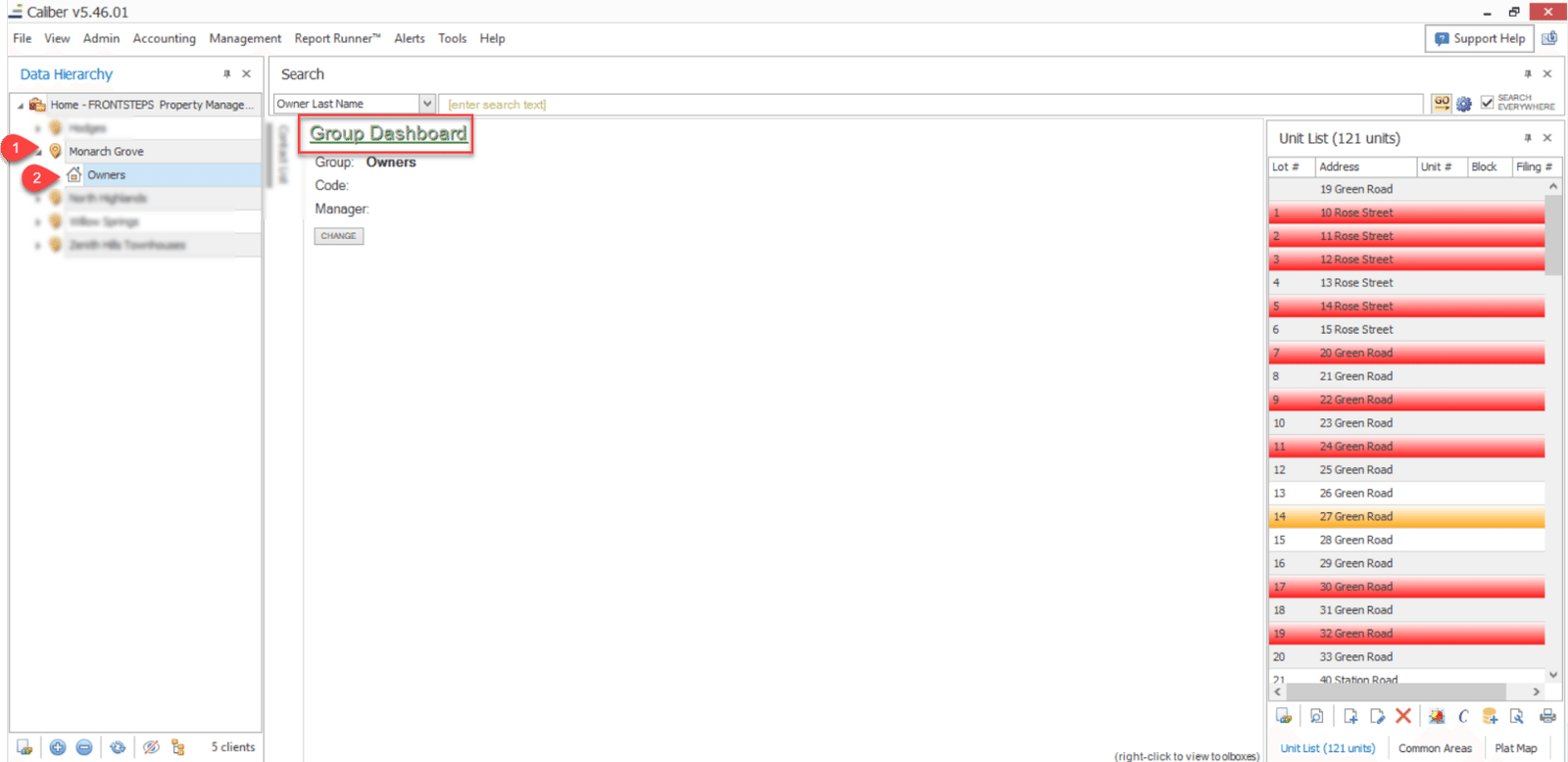
From the 'Group Dashboard', use the 'Unit List' toolbox select (double click) the Unit/Property you would like to add a Tenant/Renter to.
This will open the 'Account Dashboard'. From here navigate to the ‘Contacts’ toolbox and click the add icon.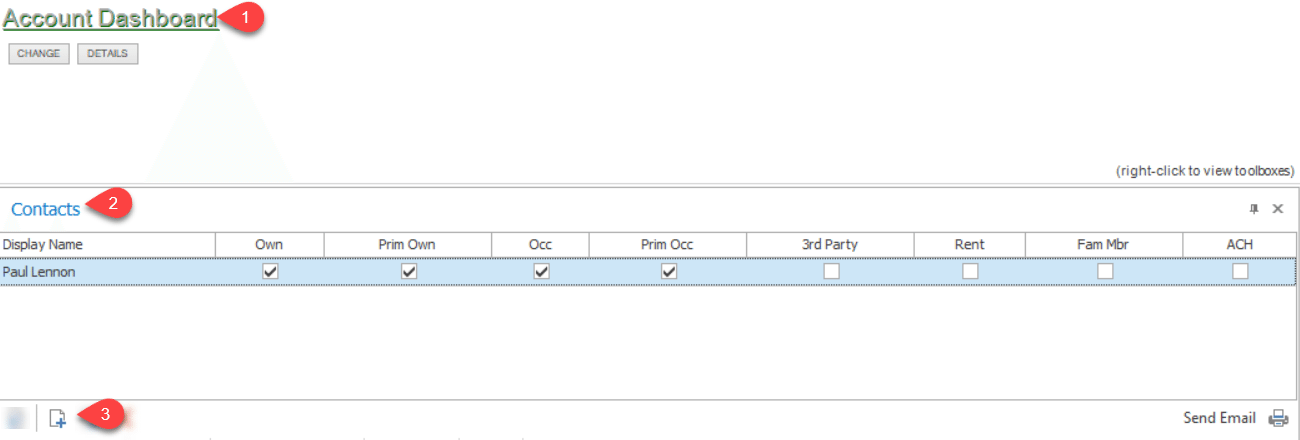
Enter in the new tenant information. Key information to add is their [a] First AND Last Name (both must be entered for the data to sync), [b] Occupancy status, [c] Phone number and [d] email address.
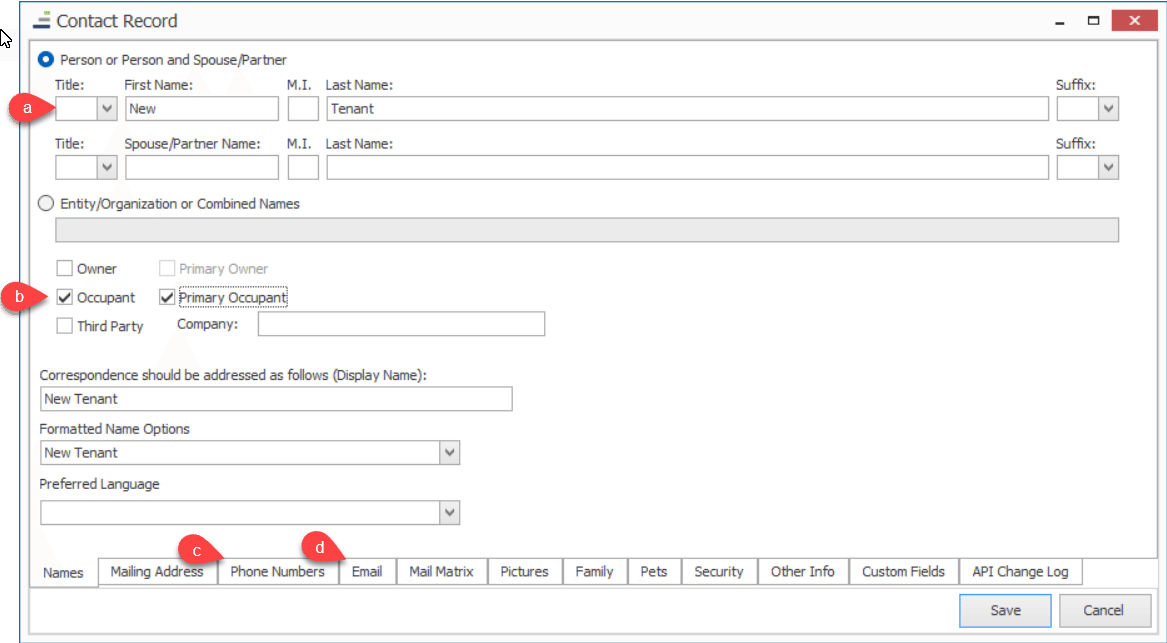
Click ‘Save’ when complete.
Once a new Tenant has been added in FRONTSTEPS Caliber AND the nightly sync has been completed, you must log into FRONTSTEPS Community and Move In that Tenant. This will give the Tenant the ability to access the Community Portal.
To access the Move In/Move Out feature log into FRONTSTEPS Community, navigate to the ‘Directory’ menu and select the ‘Move In/Move Out’ menu option.
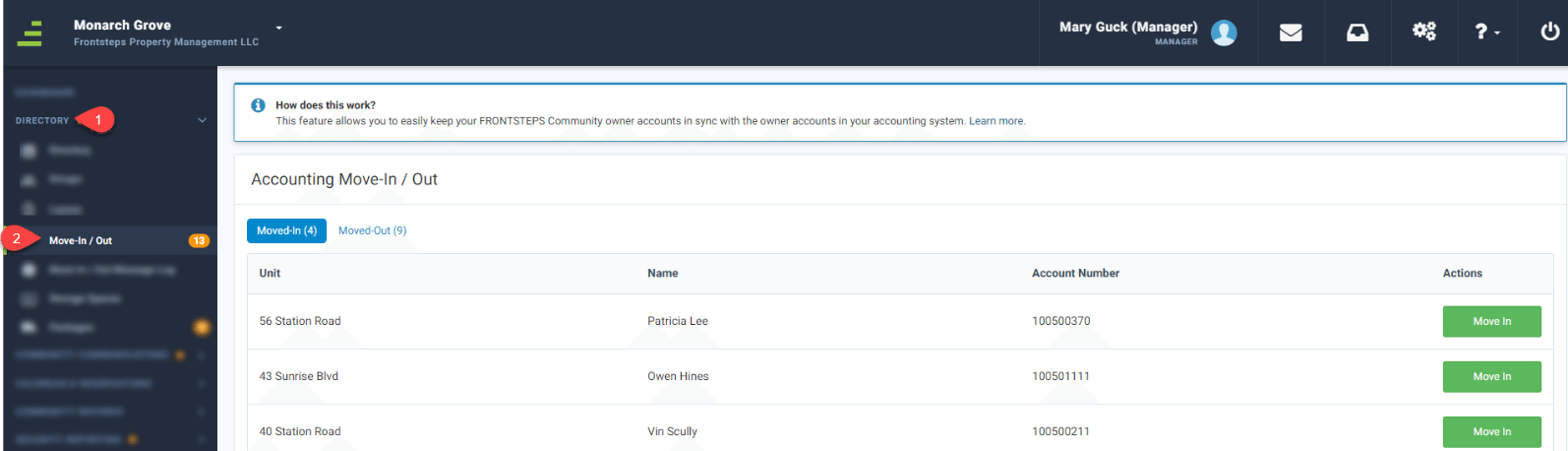
Listed here are the new accounts that were created in FRONTSTEPS Caliber, that have not yet been created in FRONTSTEPS Community.
Click the ‘Move In’ button to add the Tenant as a user of the Community portal.
If the "Auto Send Invite Email" feature is enabled for the Community:
This ensures that the User and their information is entered into both Community and Caliber.
Please note that the 'Allow Tenant Move-In' feature must be enabled for the Community in order for the Tenant data to sync from FRONSTEPS Caliber to FRONTSTEPS Community.
To add a new user log into FRONTSTEPS Caliber and navigate to the ‘Group Dashboard’.
From the 'Group Dashboard', use the 'Unit List' toolbox select (double click) the Unit/Property you would like to add a Tenant/Renter to.
This will open the 'Account Dashboard'. From here navigate to the ‘Contacts’ toolbox and click the add icon.
Enter in the new tenant information. Key information to add is their [a] First AND Last Name (both must be entered for the data to sync), [b] Occupancy status, [c] Phone number and [d] email address.
Click ‘Save’ when complete.
Once a new Tenant has been added in FRONTSTEPS Caliber AND the nightly sync has been completed, you must log into FRONTSTEPS Community and Move In that Tenant. This will give the Tenant the ability to access the Community Portal.
To access the Move In/Move Out feature log into FRONTSTEPS Community, navigate to the ‘Directory’ menu and select the ‘Move In/Move Out’ menu option.
Listed here are the new accounts that were created in FRONTSTEPS Caliber, that have not yet been created in FRONTSTEPS Community.
Click the ‘Move In’ button to add the Tenant as a user of the Community portal.
If the "Auto Send Invite Email" feature is enabled for the Community:
- An email invitation will automatically be sent to the Tenant if an email address wanted entered in Caliber.
- If you have not added an email for the tenant, you will need to add that information to their contact record within Caliber.
- When the systems sync at night the information in the Community portal will be updated and an email invitation will be sent.
- The Community Manager will need to manually send the invites.
- If an email was entered:
- The Community Manager can manually send the email invitation.
- If the tenant does not have an email address entered:
- The Community Manager may print the invite from the Community portal
- If an email was entered:
-
-
- The Community Manager can manually enter an email address in Caliber for the tenant, wait for the nightly data sync and then manually initiate the email invitation.
-