
Manager - Live Chat Support Feature
We’re updating this article. Some screenshots or names may look older than what you see in the product.
To ensure our customers have easy access to additional live support we have implemented an in-app Live Chat feature. This features gives customers the option to submit questions to support agents on a "live" basis. The Live Chat widget is available at the lower right hand corner of every page the Manager, Administrator or account owner navigates.
Note: The Live Chat feature is available from 8am-2pm Mountain Standard Time, Monday through Friday.
Live Chat Widget Display
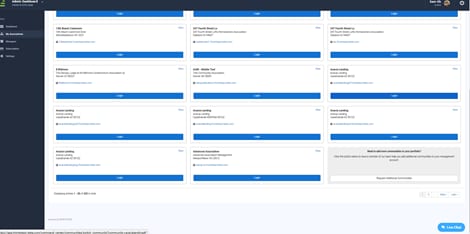
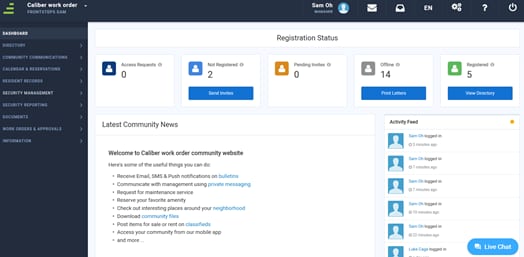
The Live Chat widget displays in the lower right hand corner of the Administrator and Manager pages.
Administrator
Manager
Engaging a Customer Support Representative
After selecting the Live Chat widget located at the bottom right corner of the page, a Live Chat window will appear.
Note: At any time, the Live Chat window can be collapsed by selecting the option.
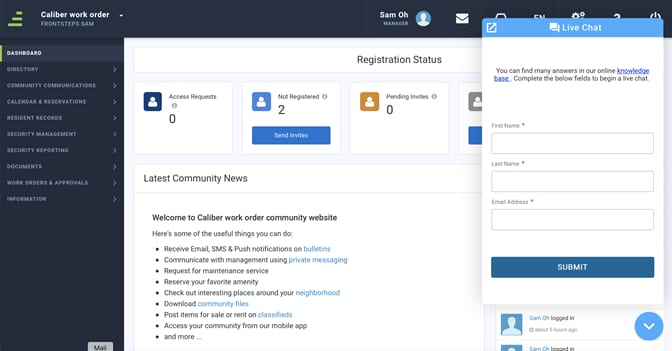
Enter your first name, last name, and contact Email Address, then select Submit.
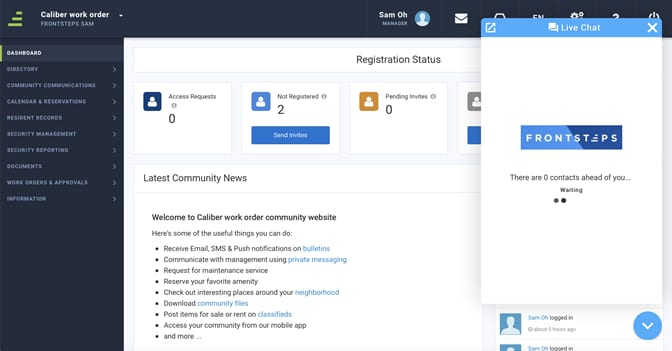
A message will appear in the Live Chat window informing you of the number of contacts are ahead of you in the queue.
Chatting With a Customer Support Representative
When it is your turn in the queue, a Customer Support Representative will join the Live Chat session and initiate a conversation with you.
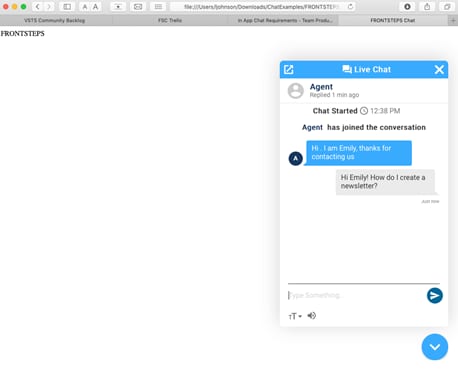
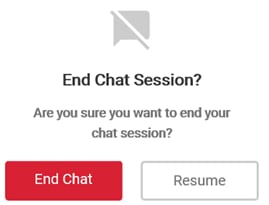
You can end your session by selecting the X in the upper right corner of the Live Chat window. When you select the X, the End Chat Session? window appears.
Note: The Live Chat feature is available from 8am-2pm Mountain Standard Time, Monday through Friday.
Live Chat Widget Display
The Live Chat widget displays in the lower right hand corner of the Administrator and Manager pages.
Administrator
Manager
Engaging a Customer Support Representative
After selecting the Live Chat widget located at the bottom right corner of the page, a Live Chat window will appear.
Note: At any time, the Live Chat window can be collapsed by selecting the
option.Enter your first name, last name, and contact Email Address, then select Submit.
A message will appear in the Live Chat window informing you of the number of contacts are ahead of you in the queue.
Chatting With a Customer Support Representative
When it is your turn in the queue, a Customer Support Representative will join the Live Chat session and initiate a conversation with you.
1) Once the Customer Service Representative engages, enter your question or comment in the Question field at the bottom of the Live Chat window.
2) Choose the  option to submit your question or comment.
3) Wait for the response from the Customer Support Representative.
4) Continue to converse with the Customer Support Representative as noted in steps 1-3.
Ending a Live Chat Session
You can end your session by selecting the X in the upper right corner of the Live Chat window. When you select the X, the End Chat Session? window appears.