
Linking Multiple Accounts in dwellingLIVE
FRONTSTEPS
Built for Connected Communities
Linking Multiple Accounts in
dwellingLIVE
Resident and Community Staff
Guide
How to link multiple dwellingLIVE accounts with a single set of login
credentials, and how to switch between them.
AU D I E N C E
Residents Owners,
Residents, Tenants) and
Community Staff
TO P I C S
My Account, Login
Credentials, Select
Login Account
D O C U M E N T T Y P E
Support Guide
FRONTSTEPS | frontsteps.com | Support Guide
★ Table of Contents
1 About This Guide
Who can link accounts and what to have ready
2 Linking Accounts as a Resident
Nine steps from My Account to Select Login Account
3 Linking Accounts as a Community Staff Member
Eight steps for staff with more than one community
4 Switching Between Accounts
Using Change Account from any page
5 Quick Reference Checklist
Both processes on one list
FRONTSTEPS Linking Multiple Accounts
frontsteps.com | Built for Connected Communities Page 1
1 About This Guide
All users in dwellingLIVE can link multiple accounts by applying a single set of login credentials to
each account. Once your accounts are linked, logging in shows a Select Login Account page where
you choose which account to open.
Who This Guide Is For
Resident Owners, Residents, and Tenants who have an account at more than one
property.
Community Staff Community staff members who have an account in more than one
community.
Before You Start
Use the Same Email and Password Every Time
Enter the same email and password on each account you want to link. Repeat the steps for every
property or community.
You can log into community.dwellinglive.com for each account you want to link[ ]
You have chosen one email address and one password to use on every account[ ]
Your new password is at least 12 characters long with at least one capital letter, one number, and
one special character
[ ]
FRONTSTEPS Linking Multiple Accounts
frontsteps.com | Built for Connected Communities Page 2
2 Linking Accounts as a Resident
1 Log into dwellingLIVE
Go to community.dwellinglive.com and log in as a resident.
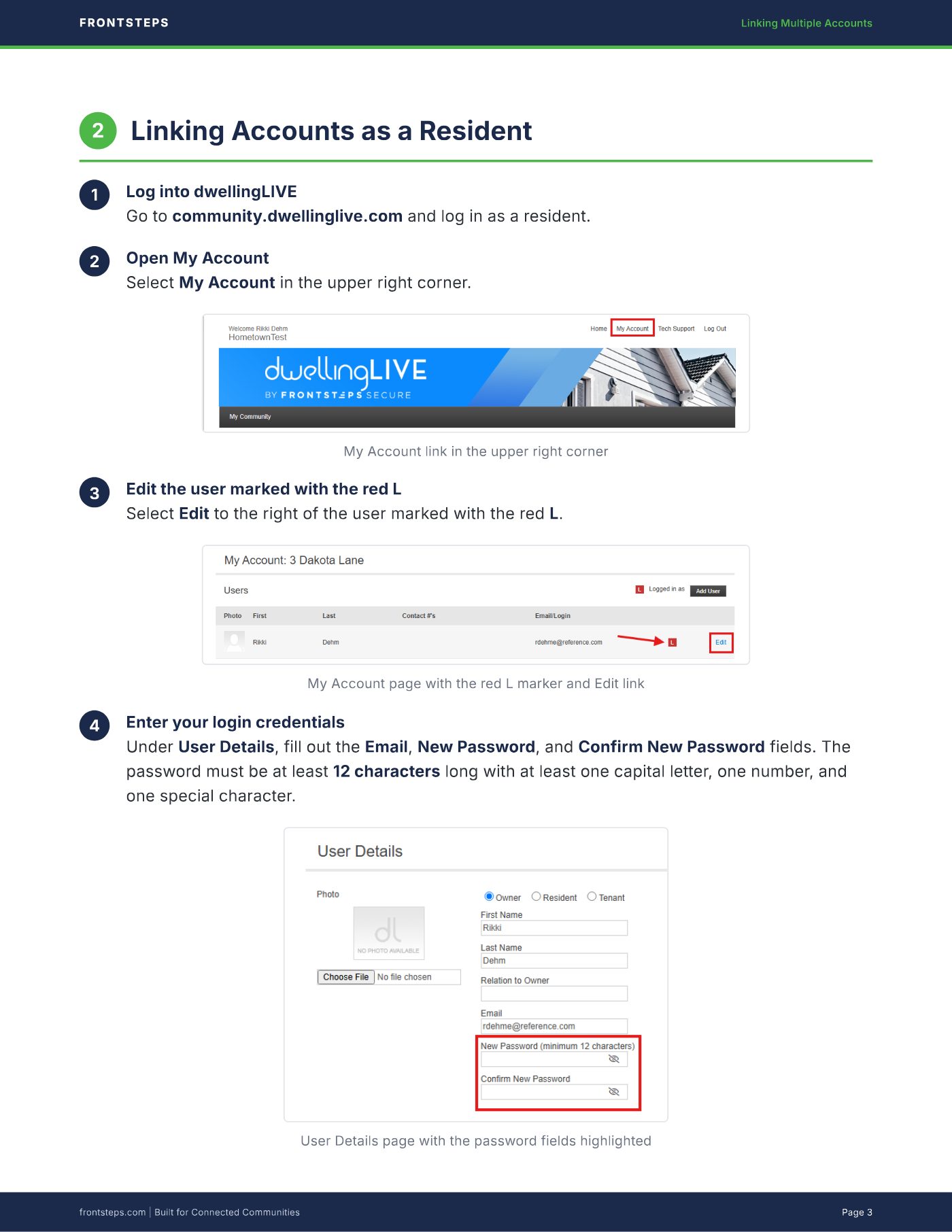
2 Open My Account
Select My Account in the upper right corner.
My Account link in the upper right corner
3 Edit the user marked with the red L
Select Edit to the right of the user marked with the red L.
My Account page with the red L marker and Edit link
4 Enter your login credentials
Under User Details, fill out the Email, New Password, and Confirm New Password fields. The
password must be at least 12 characters long with at least one capital letter, one number, and
one special character.
User Details page with the password fields highlighted
FRONTSTEPS Linking Multiple Accounts
frontsteps.com | Built for Connected Communities Page 3
5 Save
Select Save at the bottom of the screen when complete.
6 Log out
Log out of dwellingLIVE.
7 Repeat for each property
Repeat steps 1 through 6 for each property. On step 4, enter the same email and password for
each account.
8 Log back in
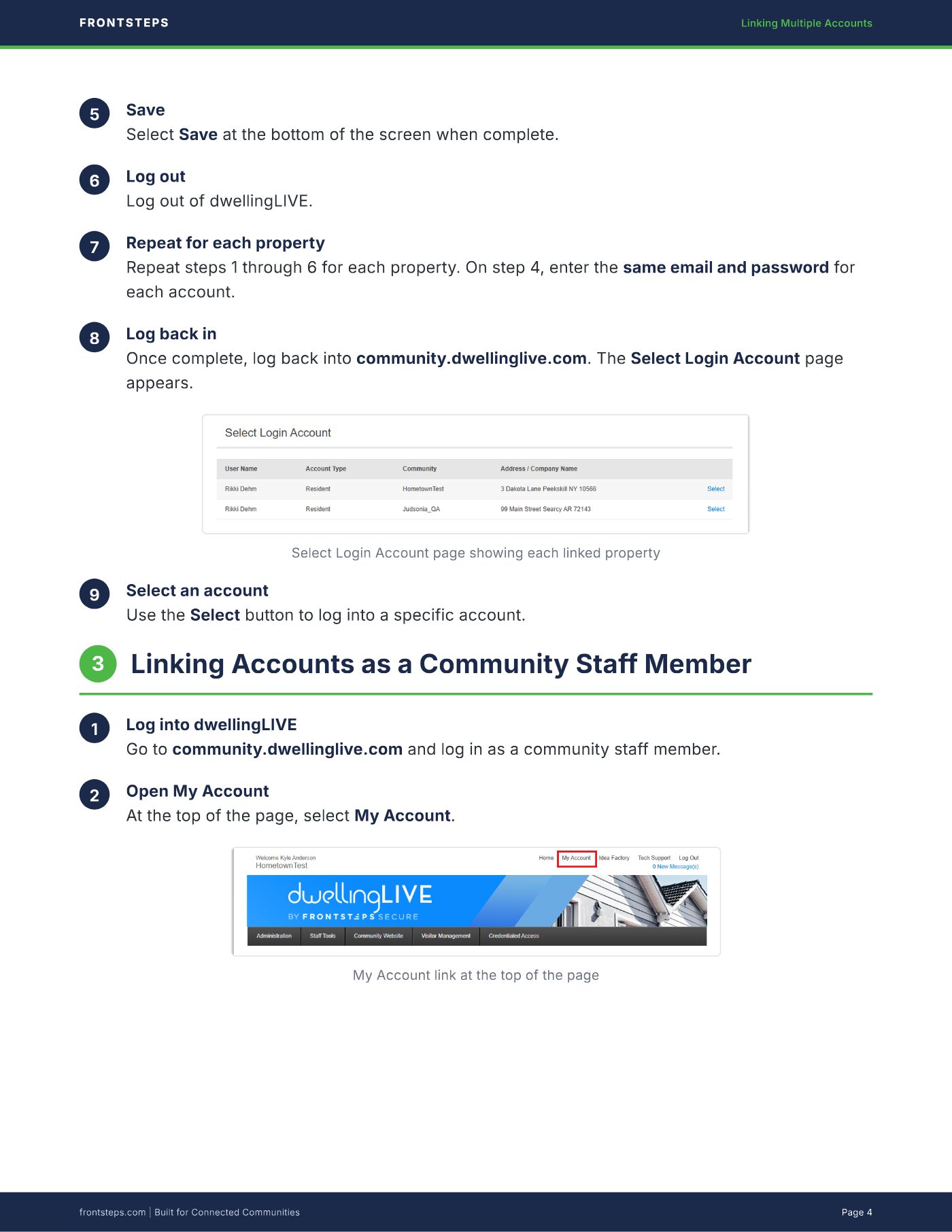
Once complete, log back into community.dwellinglive.com. The Select Login Account page
appears.
Select Login Account page showing each linked property
9 Select an account
Use the Select button to log into a specific account.
3 Linking Accounts as a Community Staff Member
1 Log into dwellingLIVE
Go to community.dwellinglive.com and log in as a community staff member.
2 Open My Account
At the top of the page, select My Account.
My Account link at the top of the page
FRONTSTEPS Linking Multiple Accounts
frontsteps.com | Built for Connected Communities Page 4
3 Enter your login credentials
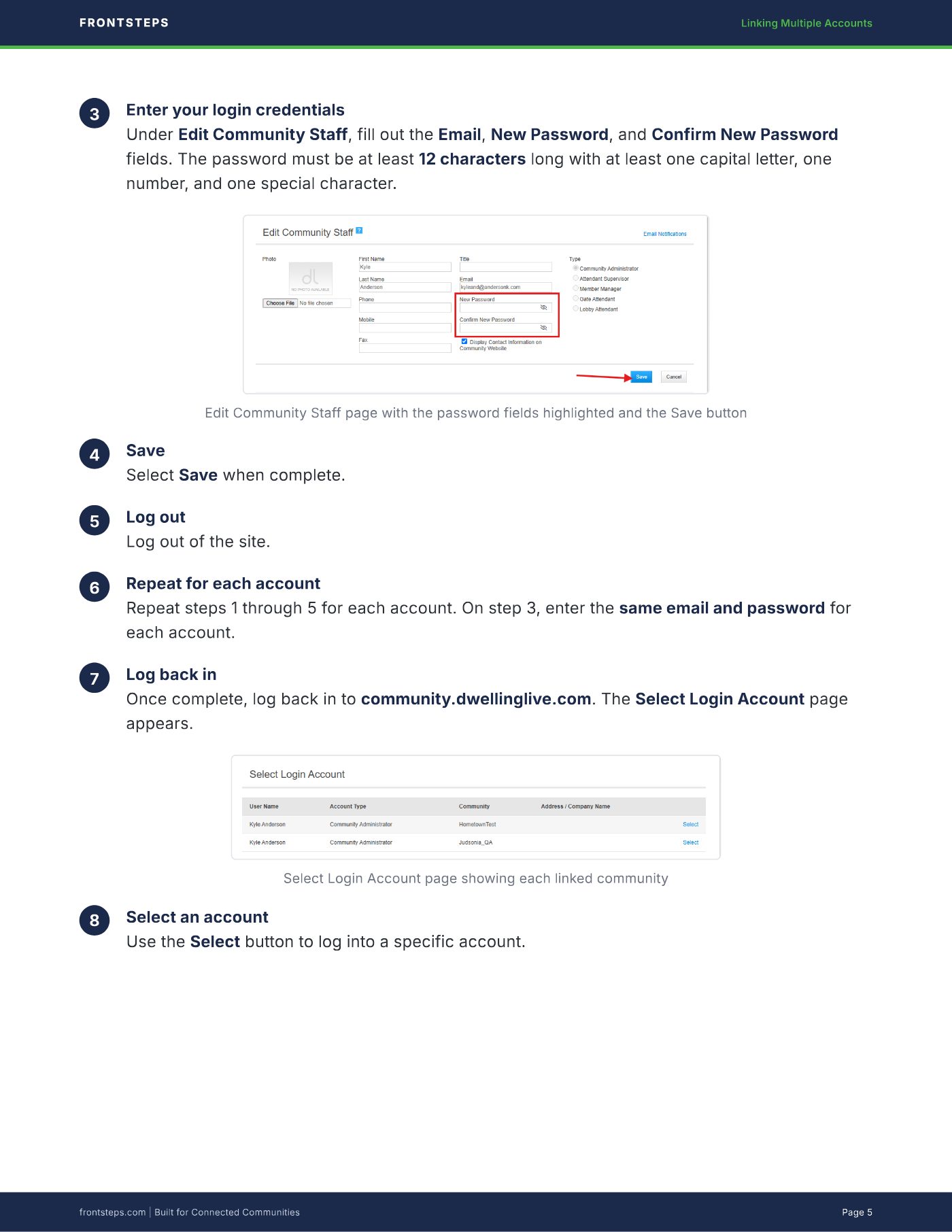
Under Edit Community Staff, fill out the Email, New Password, and Confirm New Password
fields. The password must be at least 12 characters long with at least one capital letter, one
number, and one special character.
Edit Community Staff page with the password fields highlighted and the Save button
4 Save
Select Save when complete.
5 Log out
Log out of the site.
6 Repeat for each account
Repeat steps 1 through 5 for each account. On step 3, enter the same email and password for
each account.
7 Log back in
Once complete, log back in to community.dwellinglive.com. The Select Login Account page
appears.
Select Login Account page showing each linked community
8 Select an account
Use the Select button to log into a specific account.
FRONTSTEPS Linking Multiple Accounts
frontsteps.com | Built for Connected Communities Page 5
4 Switching Between Accounts
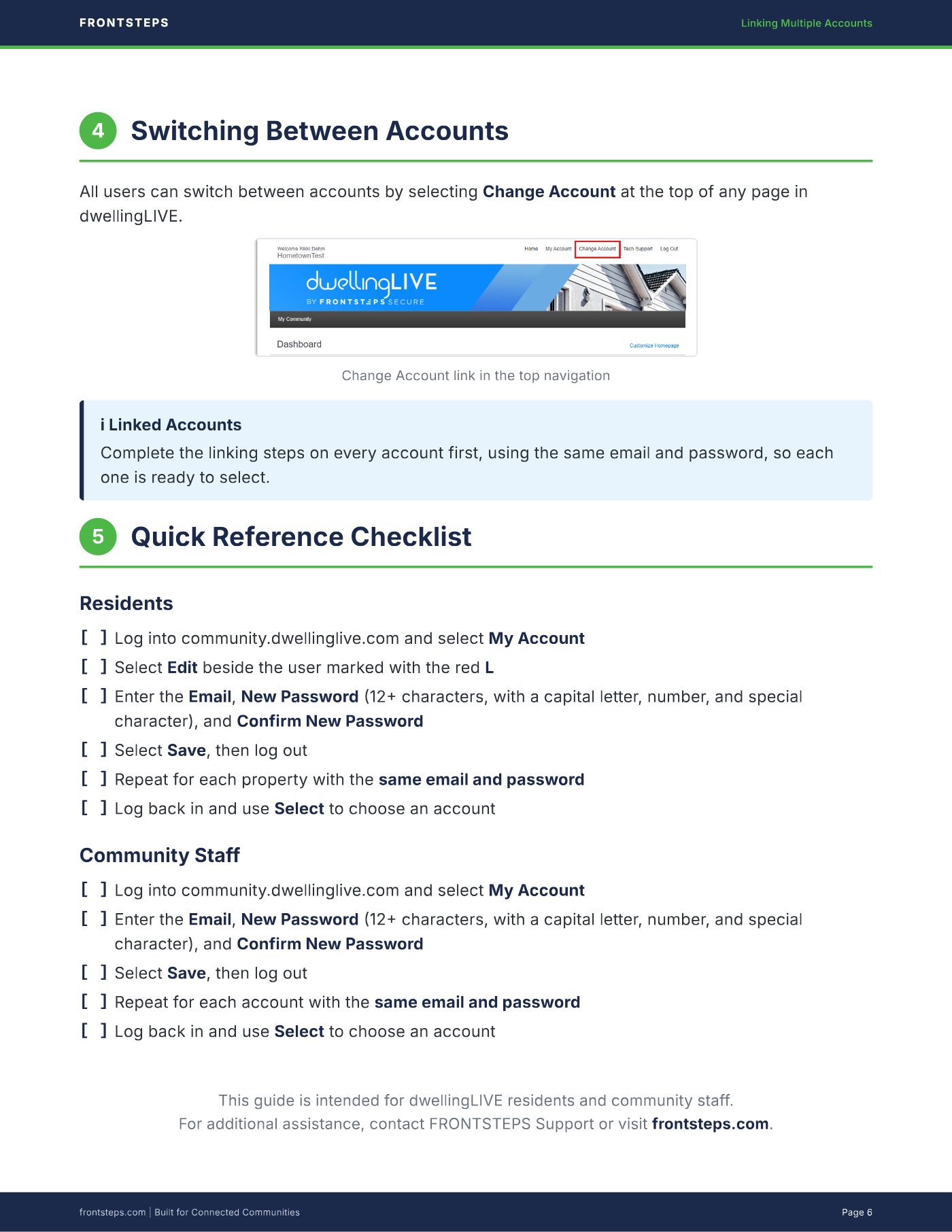
All users can switch between accounts by selecting Change Account at the top of any page in
dwellingLIVE.
Change Account link in the top navigation
i Linked Accounts
Complete the linking steps on every account first, using the same email and password, so each
one is ready to select.
5 Quick Reference Checklist
Residents
Community Staff
This guide is intended for dwellingLIVE residents and community staff.
For additional assistance, contact FRONTSTEPS Support or visit frontsteps.com.
Log into community.dwellinglive.com and select My Account[ ]
Select Edit beside the user marked with the red L[ ]
Enter the Email, New Password 12 characters, with a capital letter, number, and special
character), and Confirm New Password
[ ]
Select Save, then log out[ ]
Repeat for each property with the same email and password[ ]
Log back in and use Select to choose an account[ ]
Log into community.dwellinglive.com and select My Account[ ]
Enter the Email, New Password 12 characters, with a capital letter, number, and special
character), and Confirm New Password
[ ]
Select Save, then log out[ ]
Repeat for each account with the same email and password[ ]
Log back in and use Select to choose an account[ ]
FRONTSTEPS Linking Multiple Accounts
frontsteps.com | Built for Connected Communities Page 6