
Inbox Feature
The Inbox feature within the FRONTSTEPS Community Portal functions similarly to an email box and allows direct messages between a Resident and a Community Manager.
The inbox feature will be visible to users with the Resident, Director and Manager user roles.
Manager View:
As a Manager (or Admin) once you have logged in you will be see the ‘Inbox’ in the upper left corner of the Community portal.

If you have any unread messages a orange dot will appear next to the Inbox icon.
Once you open the inbox you will be able to see all messages that have been sent to the Community Managers from Residents.
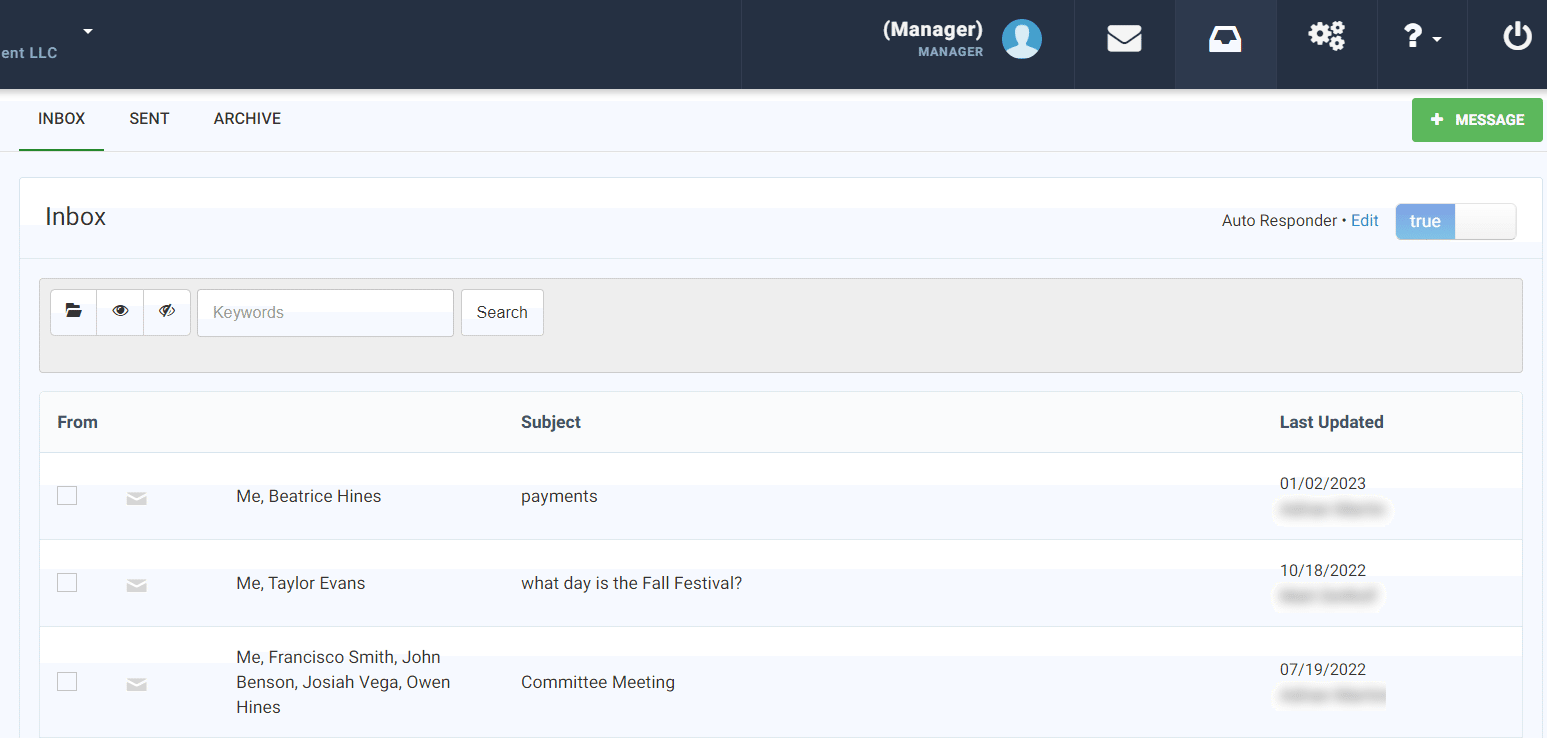
To create a new message to a Resident (or group of Residents), click the green ‘+Message’ button in the upper left corner.
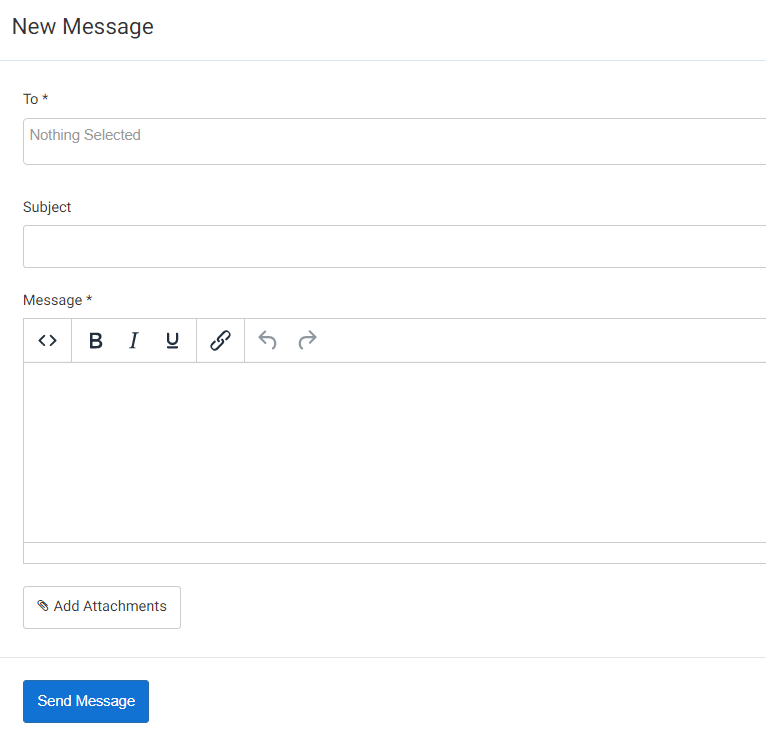
From here you can use the ‘To’ field to select the resident(s) that you would like to send a message to, and then enter the message details.
Once complete click the ‘Send Message’ button.
Resident/Director View:
As a Resident or Director once you have logged in you will be see the ‘Inbox’ in the upper left corner of the Community portal.

If you have any unread messages a orange dot will appear next to the Inbox icon.
Once you open the inbox you will be able to see all messages that have been sent to you from the Community Managers.
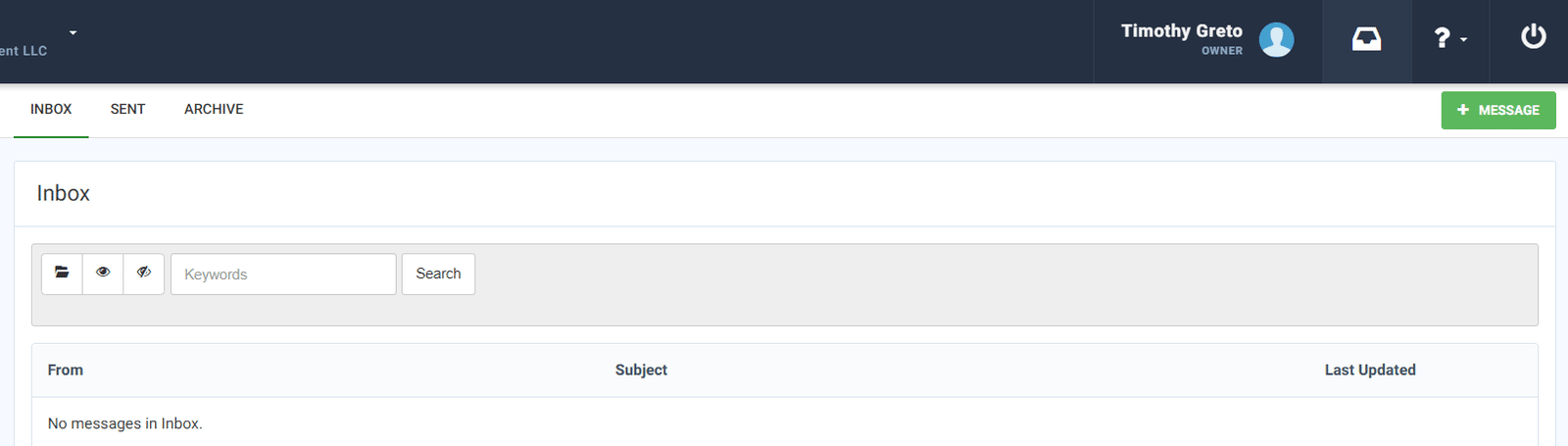
To compose a new message to the Community Manager(s), click the green ‘+Message’ button in the upper left corner.
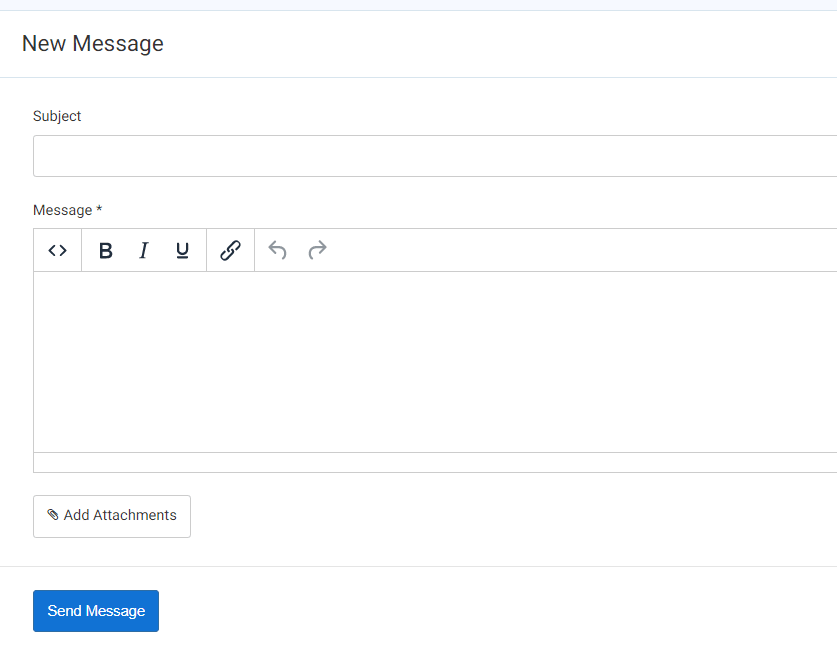
From here you will enter the message details and click the ‘Send Message’ button once complete.
Please note that the Inbox feature will not create a new case with FRONTSTEPS Support, it will only send a message to the Community Manager(s).
If a Resident/Director needs assistance from FRONTSTEPS they would need to fill out the ‘contact support form’.
https://kb.frontsteps.com/s/contactsupport
The inbox feature will be visible to users with the Resident, Director and Manager user roles.
Manager View:
As a Manager (or Admin) once you have logged in you will be see the ‘Inbox’ in the upper left corner of the Community portal.
If you have any unread messages a orange dot will appear next to the Inbox icon.
Once you open the inbox you will be able to see all messages that have been sent to the Community Managers from Residents.
To create a new message to a Resident (or group of Residents), click the green ‘+Message’ button in the upper left corner.
From here you can use the ‘To’ field to select the resident(s) that you would like to send a message to, and then enter the message details.
Once complete click the ‘Send Message’ button.
Resident/Director View:
As a Resident or Director once you have logged in you will be see the ‘Inbox’ in the upper left corner of the Community portal.
If you have any unread messages a orange dot will appear next to the Inbox icon.
Once you open the inbox you will be able to see all messages that have been sent to you from the Community Managers.
To compose a new message to the Community Manager(s), click the green ‘+Message’ button in the upper left corner.
From here you will enter the message details and click the ‘Send Message’ button once complete.
Please note that the Inbox feature will not create a new case with FRONTSTEPS Support, it will only send a message to the Community Manager(s).
If a Resident/Director needs assistance from FRONTSTEPS they would need to fill out the ‘contact support form’.
https://kb.frontsteps.com/s/contactsupport