
Importing Balances into Caliber
Set-Up
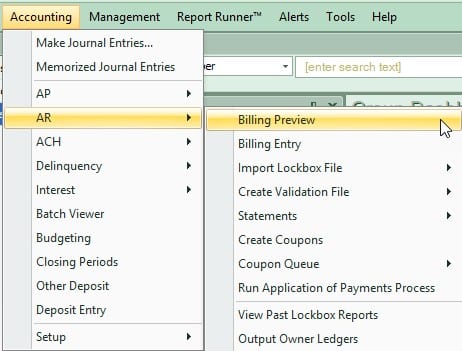
To begin the process of importing AR balances into Caliber, go to Accounting > AR > Billing Preview.
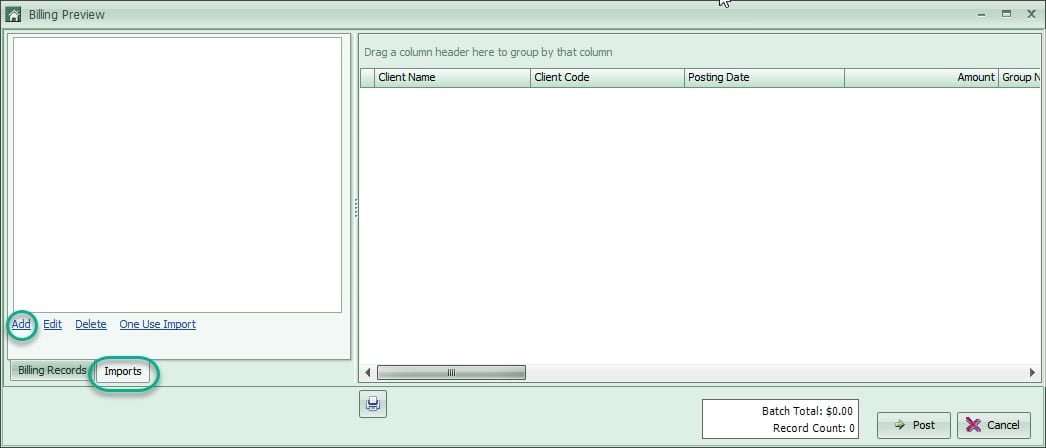
At the bottom of the client list on the left side, choose the Imports tab. The first step is to create a new import process. To do this, click on Add on the left side.
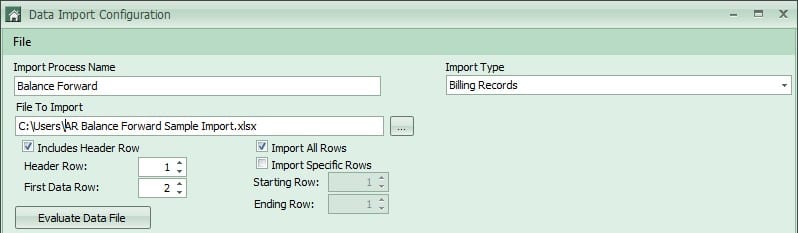
In the Select Process window, select <New Process> and click Open. On the next screen, add an Import Process Name (such as Balance Forward) and choose your File to Import. You should have a spreadsheet formatted to match our AR Balance Forward Sample Import. Check the box that says “Includes Header Row” and then Evaluate Data File.
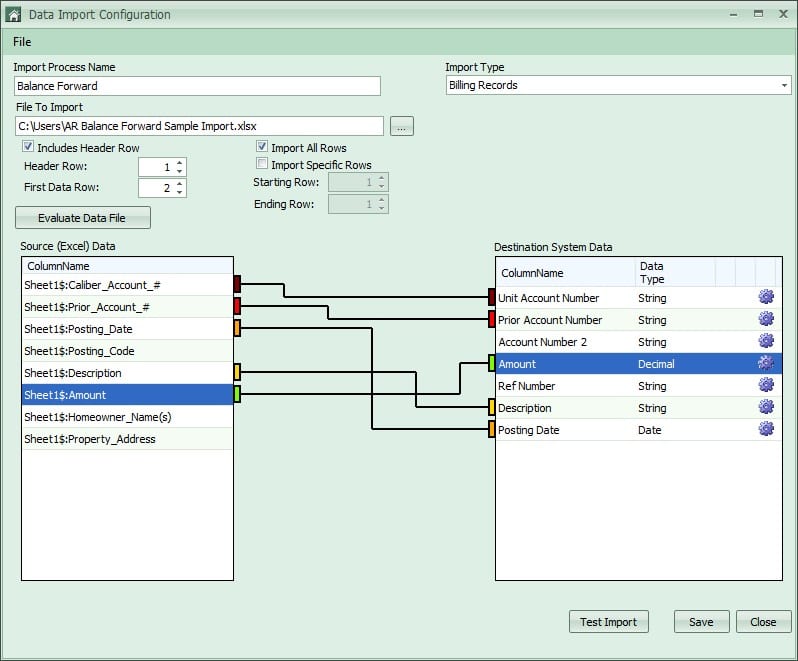
After clicking Evaluate Data File, the column headers from your spreadsheet will show in the Source (Excel) Data box on the left. These headers need to be ‘linked’ to the corresponding column in the Destination System Data box on the right. To do this, click on the name on the left and drag it to the name on the right. Continue this process for all columns. If there is not a column on the right that matches your data, the information in that column may be for reference only.
Once all columns are linked, click on Test Import. In the Test Succeeded notification, click Yes to view the results. On the Results screen, verify that the information is going into the right fields and that all data is formatted correctly.
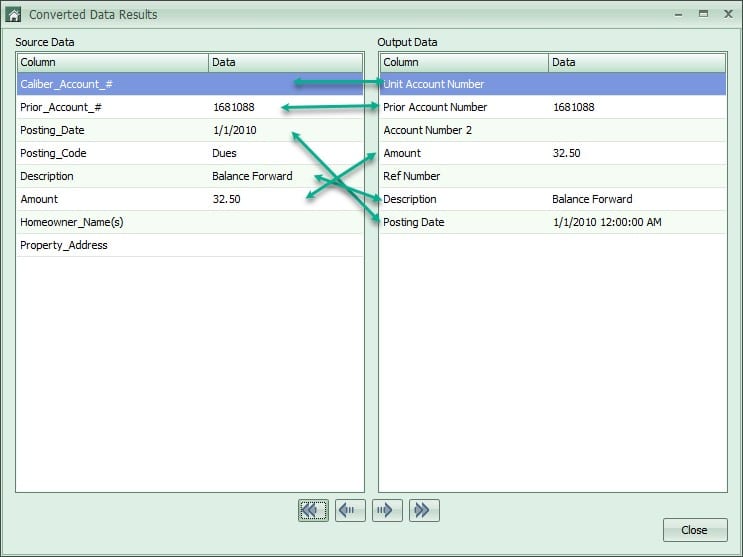
After verifying, click Close. Once back on the Data Import Configuration screen, click Save and then Close. You will now see your new process in the upper left corner of the Billing Preview screen.
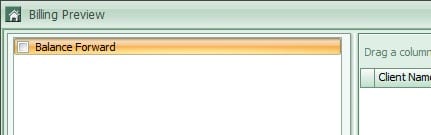
Importing
In the Billing Preview window, check the box next to the new process you created. An Import Properties box will come up.
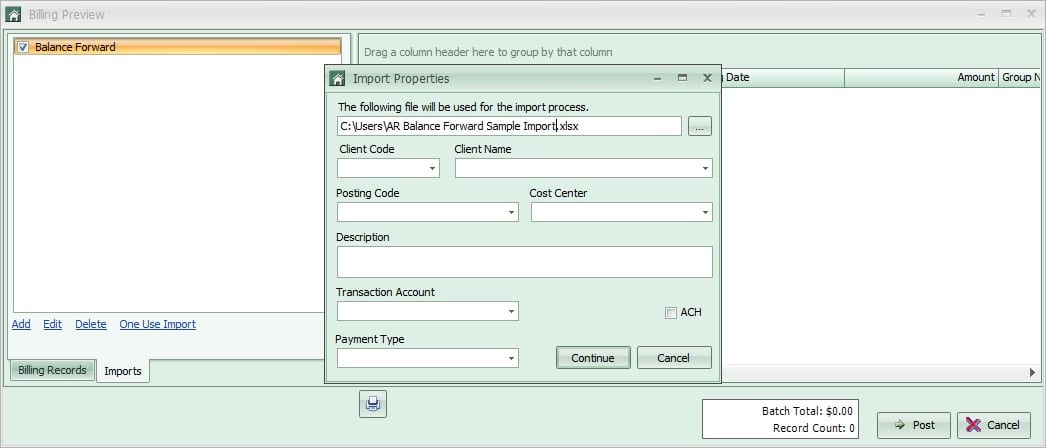
Fill in all fields in this window (cost center and payment type are only necessary if they are used by the client). Click Continue
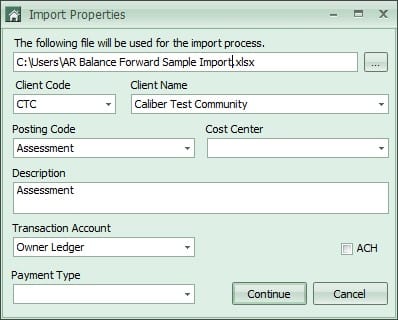
The system will then process the chosen file and display matching records.
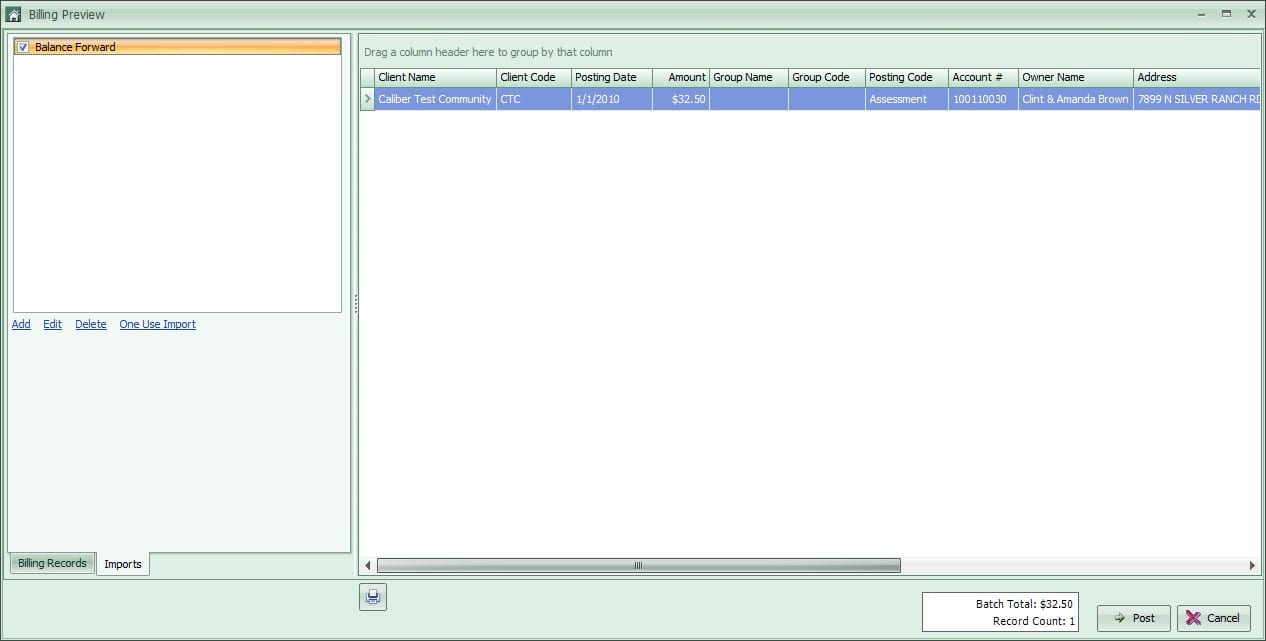
If any of the records did not match, a warning message will appear stating that some items failed to import. Choose yes to view the list. Make any needed changes to the spreadsheet, and begin the import again.
Once all items show in the Billing Preview screen and dates/amounts have been verified, click Post.
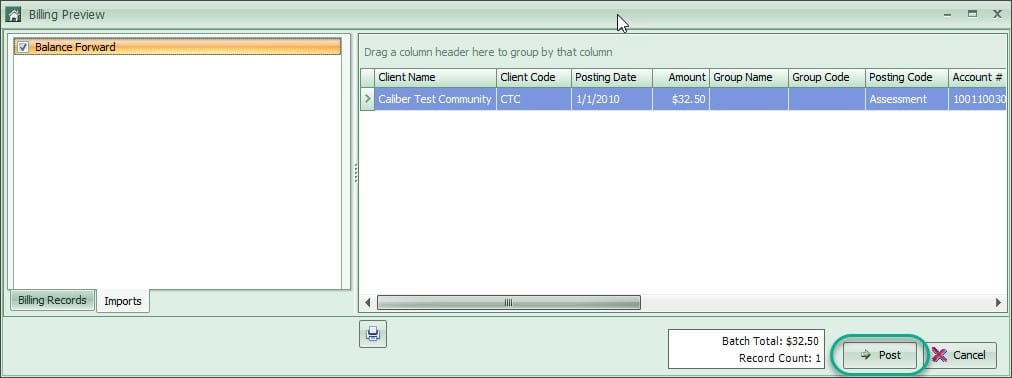
This process will need to be completed for each posting code and client.