
How To View a Vendor's Metrics in FRONTSTEPS Manager
How To View a Vendor's Metrics in FRONTSTEPS Manager
The Metrics tab on a vendor's profile gives you a quick, at-a-glance snapshot of that vendor's activity — how many work orders are open or past due, and where their invoices stand in the approval and payment process. This guide walks you through opening a vendor's Metrics tab and understanding what each section shows. The Metrics tab is view-only: nothing on this screen can be edited, so it's a safe way to check on a vendor's status at any time.
-
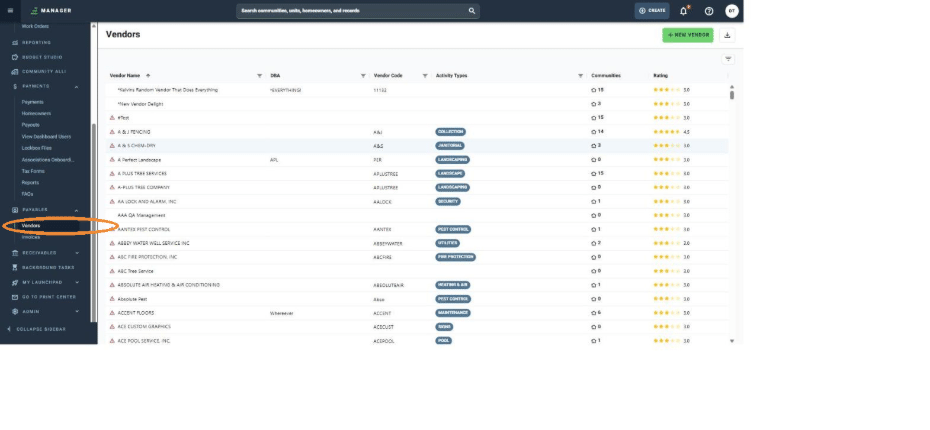
In the left-hand menu, click "Payables," then click "Vendors."
-
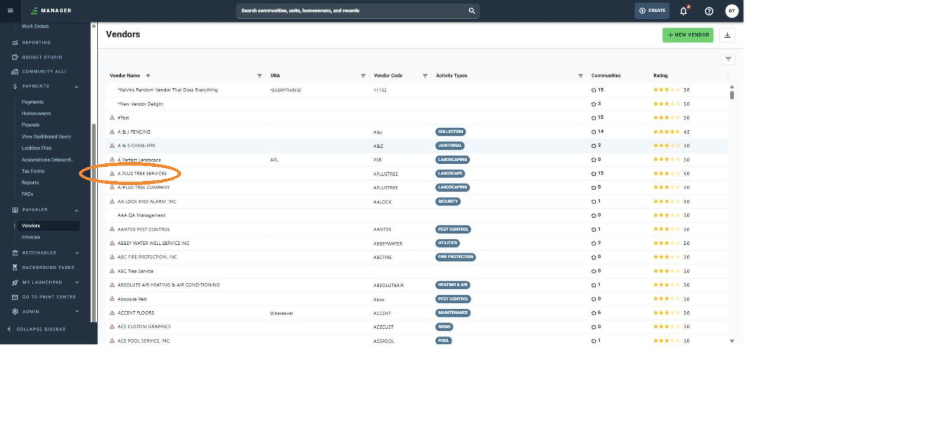
In the vendor list, find the vendor you want to review and click its name (for example, "A PLUS TREE SERVICES").
-
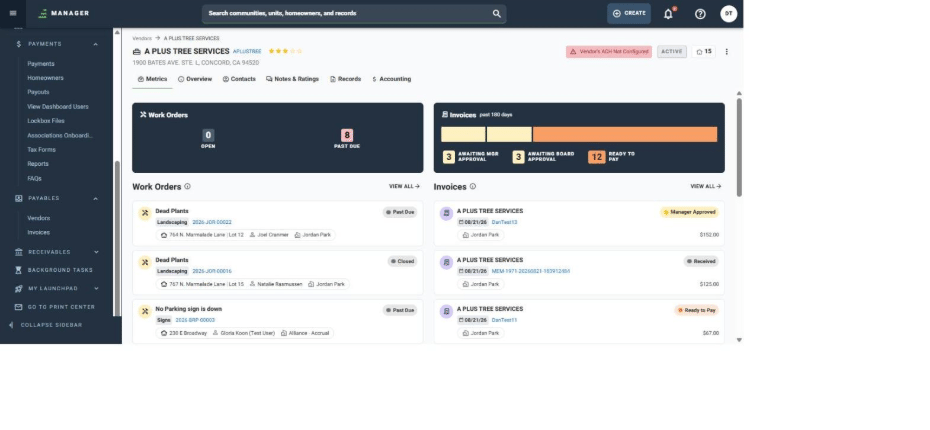
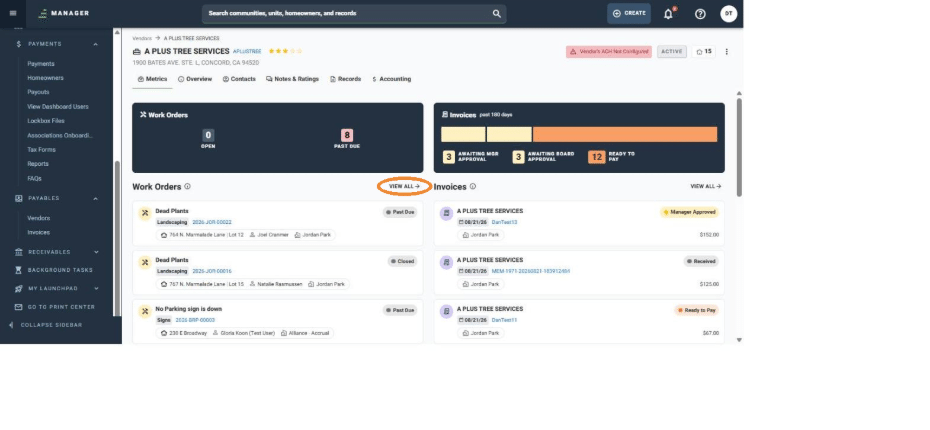
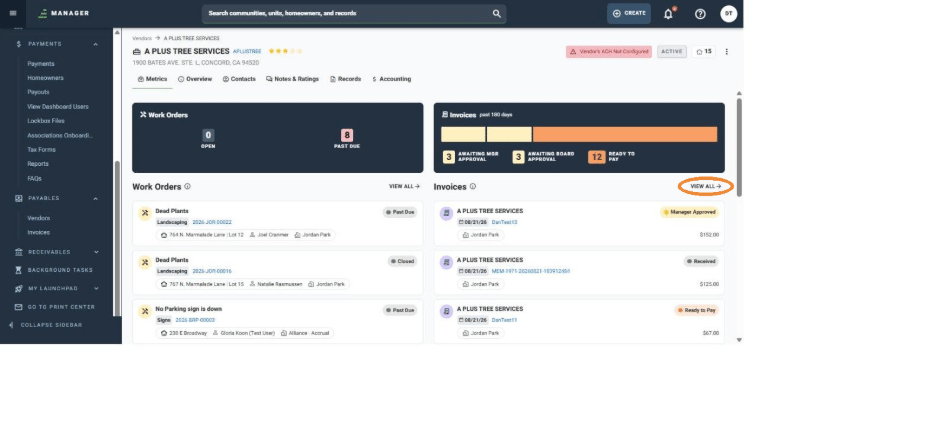
This opens the vendor's profile. The "Metrics" tab is selected by default, showing a summary of the vendor's work orders and invoices.
-
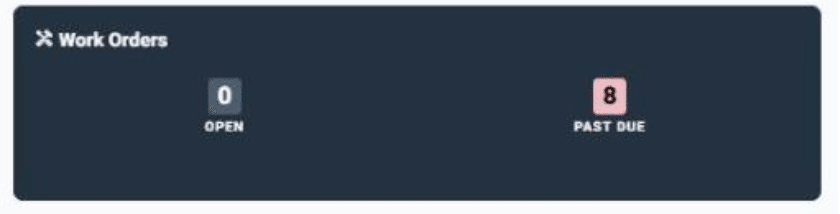
The "Work Orders" panel shows how many of this vendor's work orders are currently Open and how many are Past Due.
-
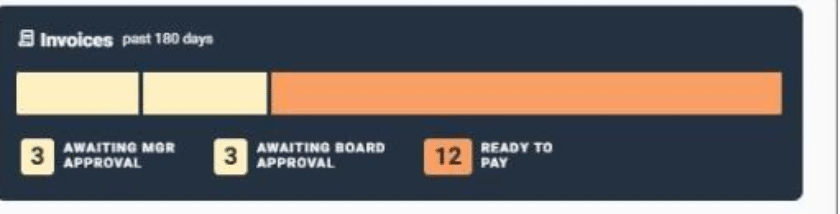
The "Invoices" panel shows a breakdown, for the past 180 days, of this vendor's invoices that are Awaiting Manager Approval, Awaiting Board Approval, or Ready to Pay.
-
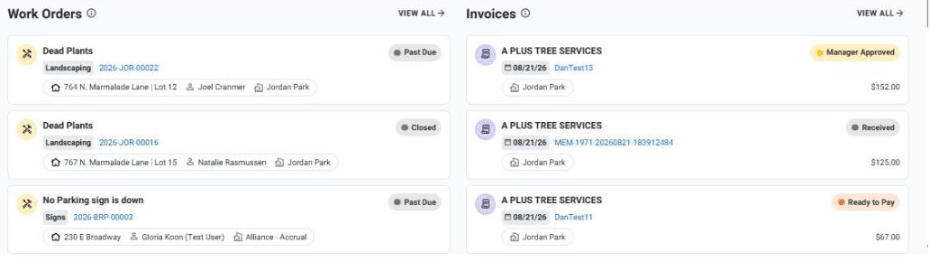
Below the two panels, the "Work Orders" and "Invoices" lists show the vendor's most recent items, along with their status, category or amount, and location.
-
Click "View All" next to Work Orders to see this vendor's complete work order history.
-
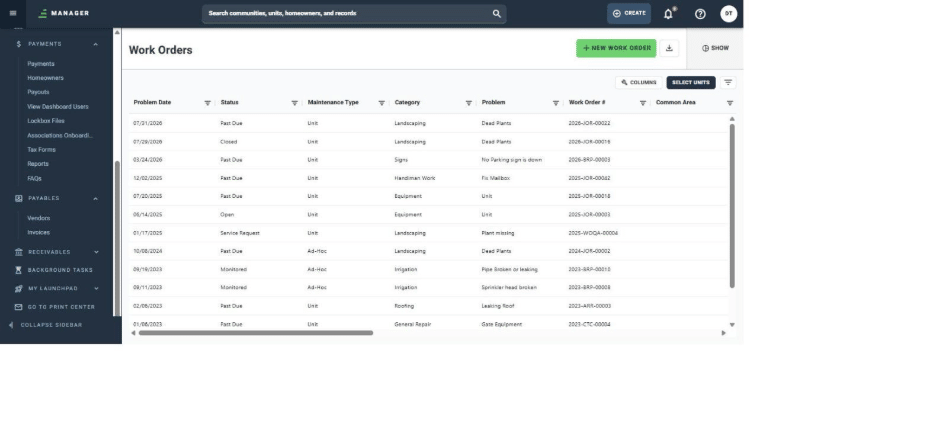
This opens the Work Orders list filtered to this vendor, where you can see every work order along with its status, category, problem, and date.
-
Click "View All" next to Invoices to see this vendor's complete invoice history.
-
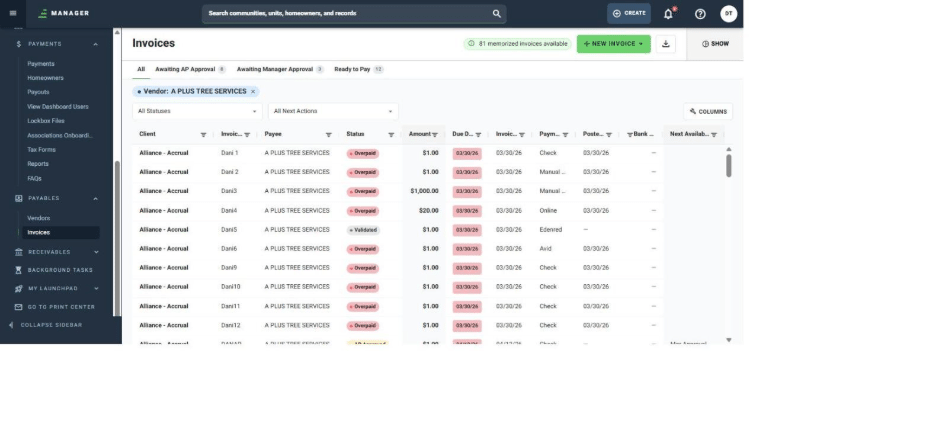
This opens the Invoices list filtered to this vendor, where you can see every invoice along with its status, amount, and due date.
-
Use the breadcrumb at the top of the page (or your browser's back button) to return to the vendor's profile at any time. Since the Metrics tab is read-only, you can browse freely without risk of changing any vendor information.