How to use the FRONTSTEPS Manager Print Center
How to use the FRONTSTEPS Manager Print Center
This guide provides a comprehensive overview of the Print Center, outlining all available options and tools to ensure printing operations are managed efficiently. By following this walkthrough, users will learn to navigate the Main Menu, including Support, Configuration, User Management, Payments, and Email History, understanding how all this option works.
-
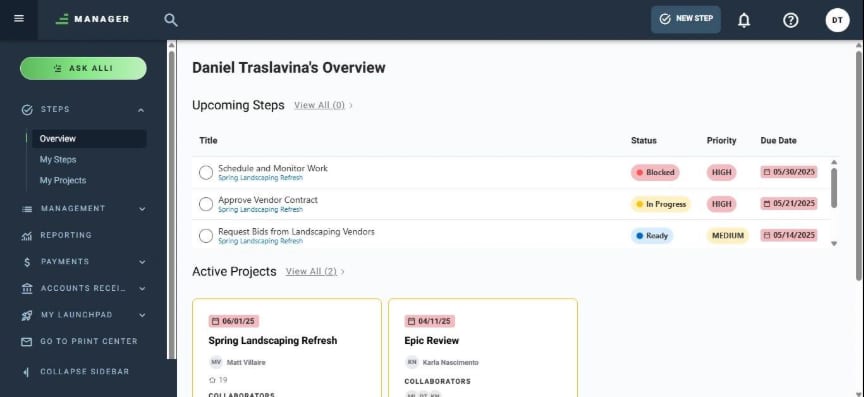
Navigate to https://suite.frontsteps.com/#/steps/overview
-
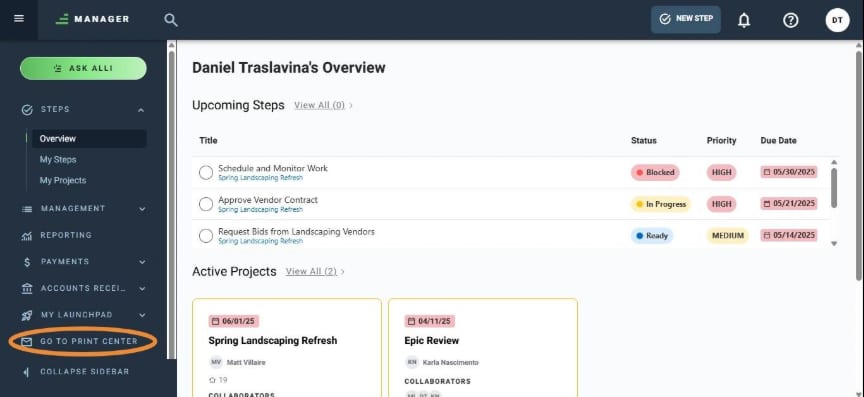
Select the Go to Print Center option from the Manager Main Menu.
-
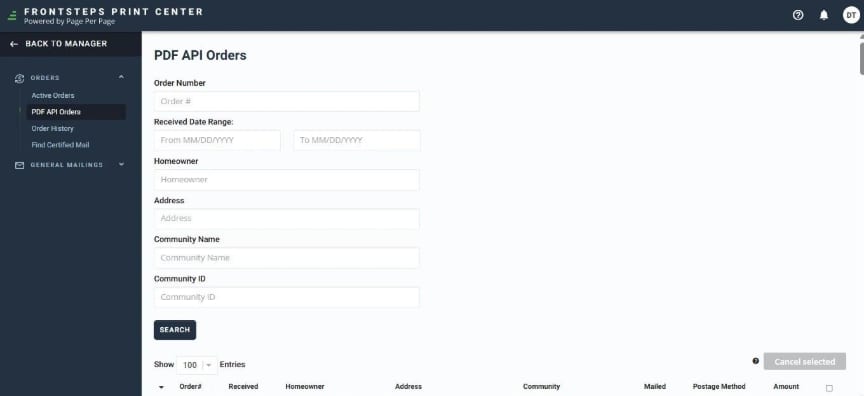
If the Management Company was previously registered in Page Per Page, the PDF API Orders option will appear as the FS Print Center landing page.
-
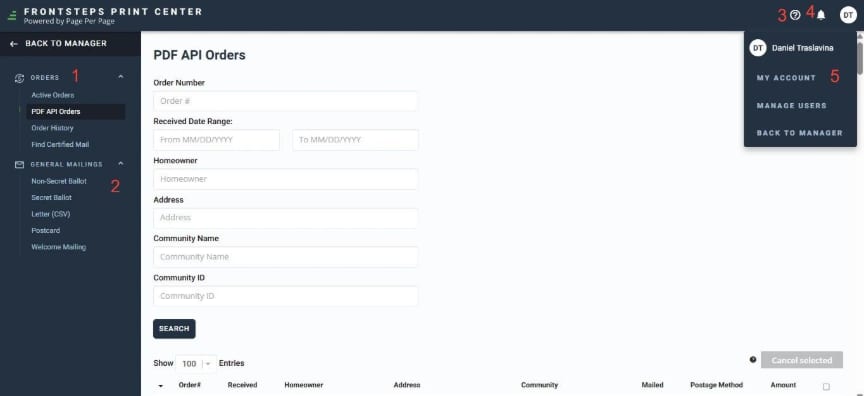
Inside the FS Print Center, you will see the following items:
1)Orders Menu: Includes all options related to Order Management.
2)General Mailing: Includes all special functionalities offered as a service by Page Per Page outside of Order Management.
3)Support Menu Access: Access to Page Per Page Support.
4)System Notifications.
5)Account Menu and User Management Access: Access to account settings and user management within the platform.
-
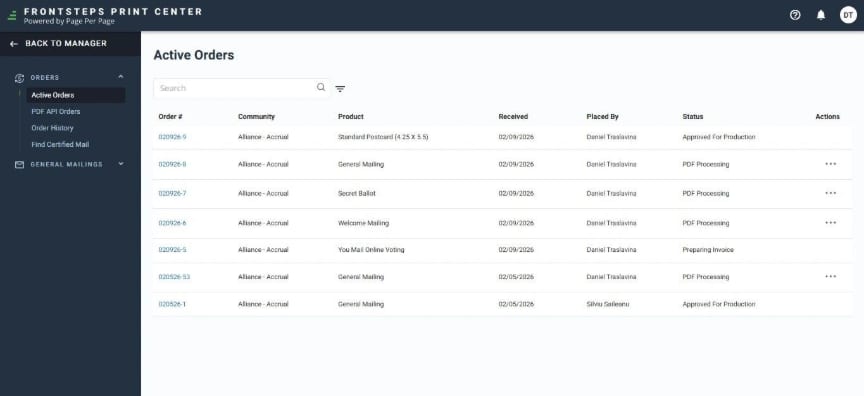
Active Orders: Shows all mailing orders that are currently in progress. This includes orders that are still being processed, printed, or prepared for mailing.
From here, users can monitor the status of active jobs and review details before they are completed.
All active orders generated from the General Mailing options are recorded here. The user can cancel any of the orders from the three-dot menu.
-
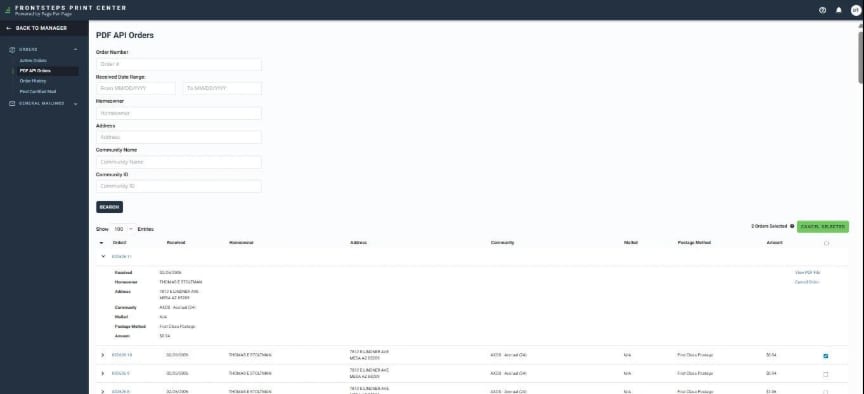
PDF API Orders: Displays orders that were created automatically through the Page Per Page API. These orders usually come from integrations with other systems that send PDF documents to be printed and mailed (FS Manager). This section helps track and review those automated requests.
Each row in the list can be expanded to view the order details, cancel the order or download the order to your local computer.
Further details can be viewed by clicking on the ID number.
It also allows you to select multiple orders and cancel them simultaneously.
-
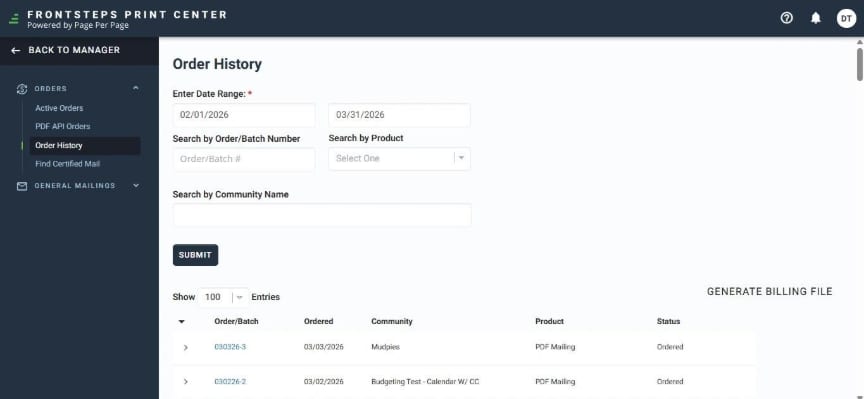
Orders History: Contains a record of all completed and past orders. Users can review previous mailings, check details of what was sent, and download documents or invoices related to those finished orders.
The Billing File button allows the user to trigger manually the billing file so the system can produce the billing information for that order.
-
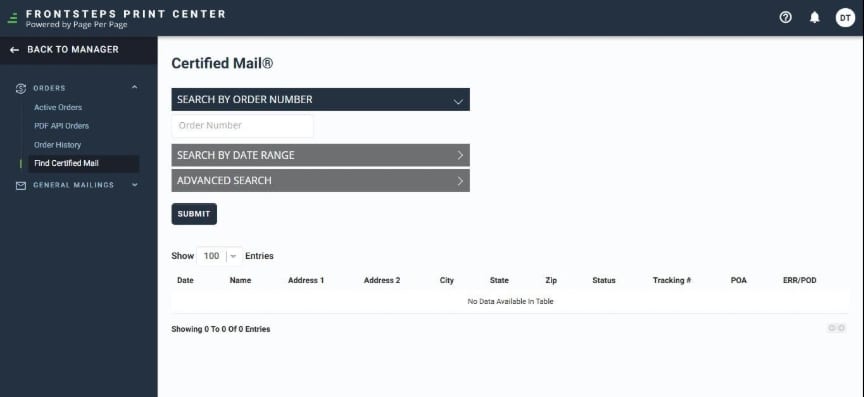
Find Certified Mail: Allows users to search and track certified mail sent through the system. It helps verify delivery status and access tracking information, which is useful when proof of mailing or delivery is required.
-
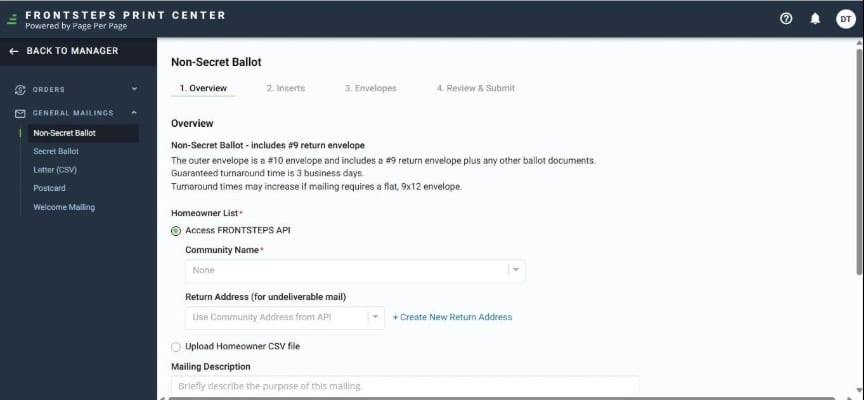
General Mailing includes all special functionalities offered as a service by Page Per Page outside of Order Management.
-
Non-Secret Ballot – Creates a ballot mailing where the voter’s identity can be associated with their vote.
-
Secret Ballot – Creates a ballot mailing that keeps votes anonymous and prevents linking voters to their selections.
-
Letter (CSV) – Allows users to send personalized letters by uploading a CSV file with recipient information.
-
Postcard – Used to create and send postcard-style mailings for short announcements or reminders.
-
Welcome Mailing – Designed to send welcome letters or packages to new homeowners or residents joining the community.
-
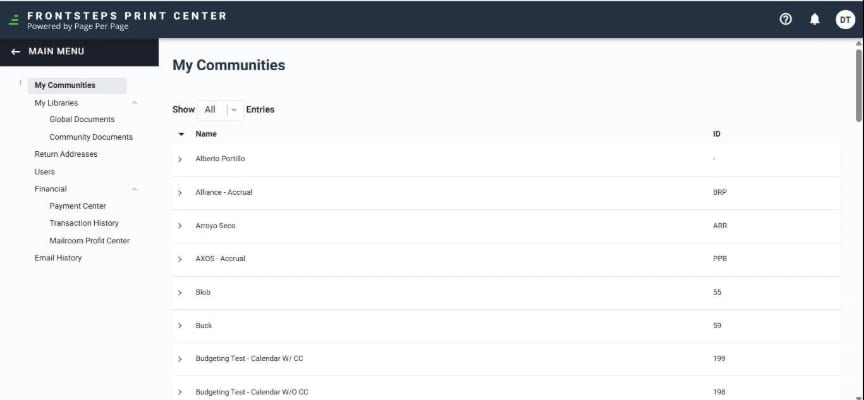
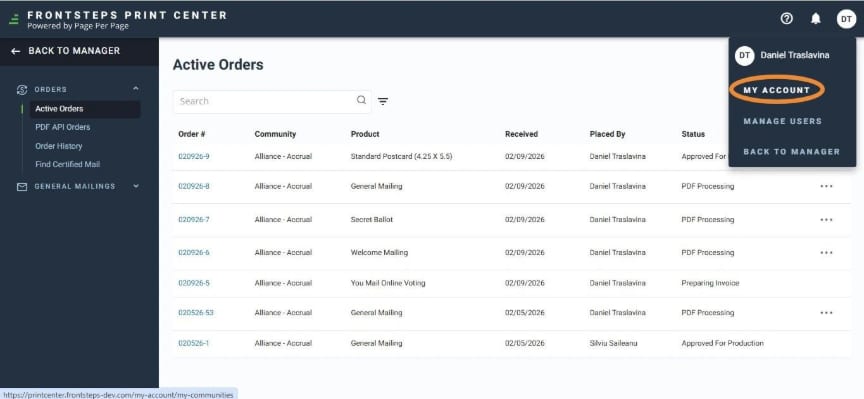
Click on the My Account option to access account settings and user management within the platform.
-
The My Account menu includes the following options:
1)My Communities – Displays the list of communities associated with the account and allows users to manage or select the community they are working with.
2)My Libraries – Provides access to stored resources and document libraries used for creating mailings.
-
Global Documents – Contains document templates available across all communities in the account.
-
Community Documents – Stores documents that are specific to a particular community.
3)Return Addresses – Allows users to manage and configure the return addresses that will appear on mailed items.
4)Users – Lets administrators manage user accounts, roles, and permissions within the system.
5)Financial – A section that groups financial tools and features related to payments and transaction management
-
Payment Center - Allows users to manage payments, billing details, and financial account settings.
-
Transaction History – Displays a record of past financial transactions and payment activities.
-
Mailroom Profit Center – Provides reporting and tracking related to mailroom- related revenue or costs.
6)Email History – Shows a log of emails sent through the system for tracking and reference purposes.