How-to
FRONTSTEPS Manager
Managers & CAMs
How To Update a Work Order
Article 000002229 · Updated Mar 31, 2026
How To Update a Work Order in FRONTSTEPS Manager
This guide provides a step-by-step process for updating work orders in FRONTSTEPS Manager, making it essential for users looking to streamline their maintenance management. By following these instructions, users can efficiently change statuses, add descriptions, and upload photos, ensuring accurate record-keeping and communication. It simplifies the workflow, saving time and reducing errors in maintenance requests. Viewing this guide will enhance your proficiency in using Community Manager effectively.
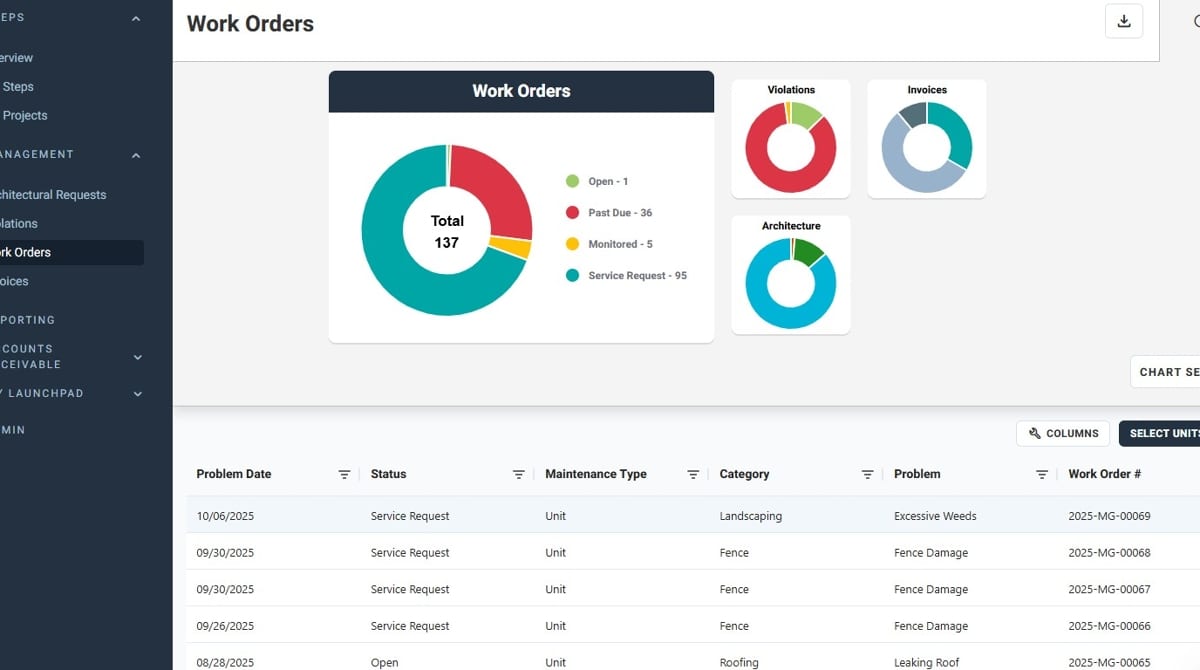
- Navigate to "Work Orders"
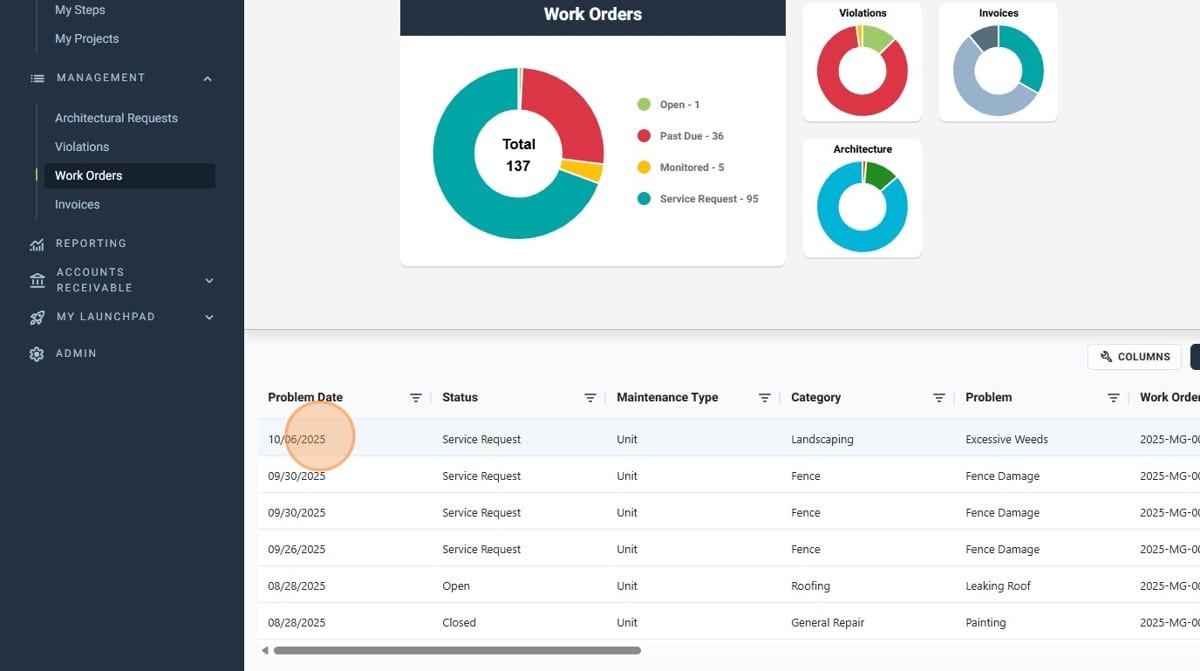
- Click on the Work Order you wish to update
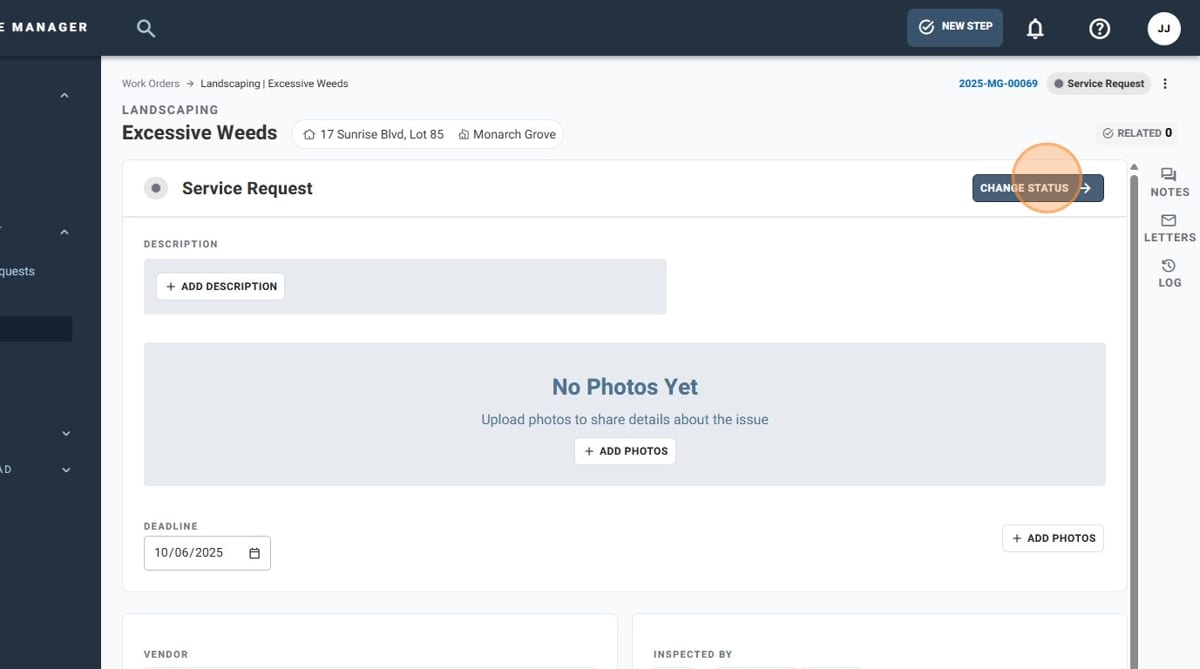
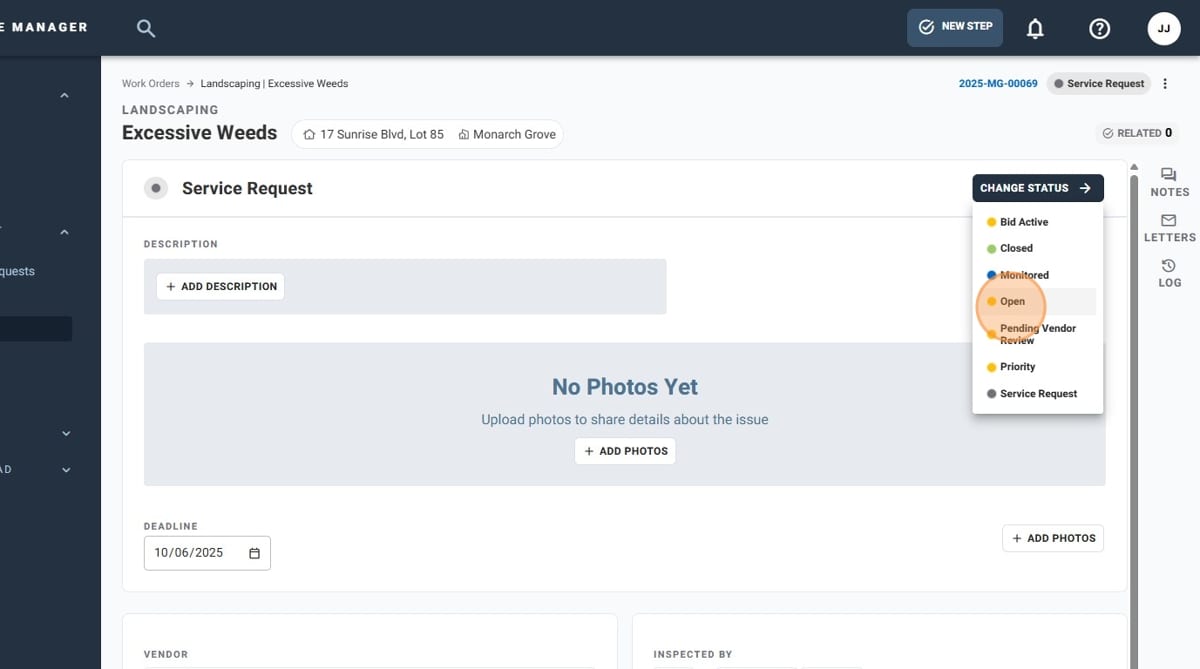
- If you need to update the status of the Work Order, click "Change Status"
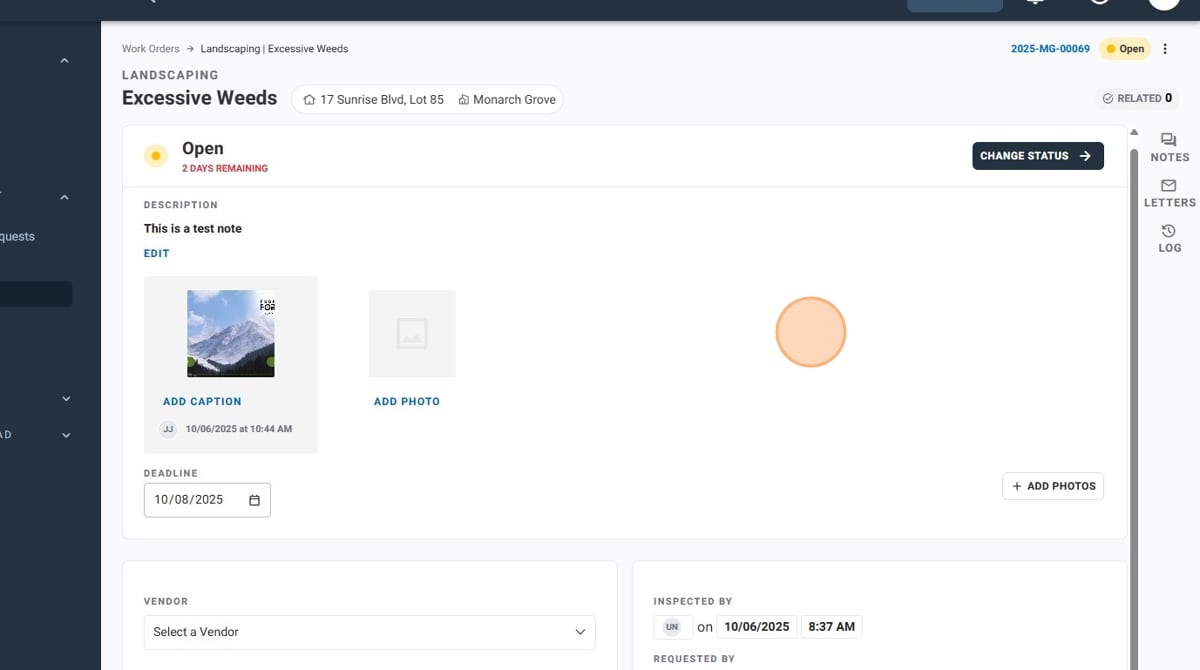
- A list of available statuses will populate. Select the appropriate option from the list. Changes made will be reflected immediately upon selection
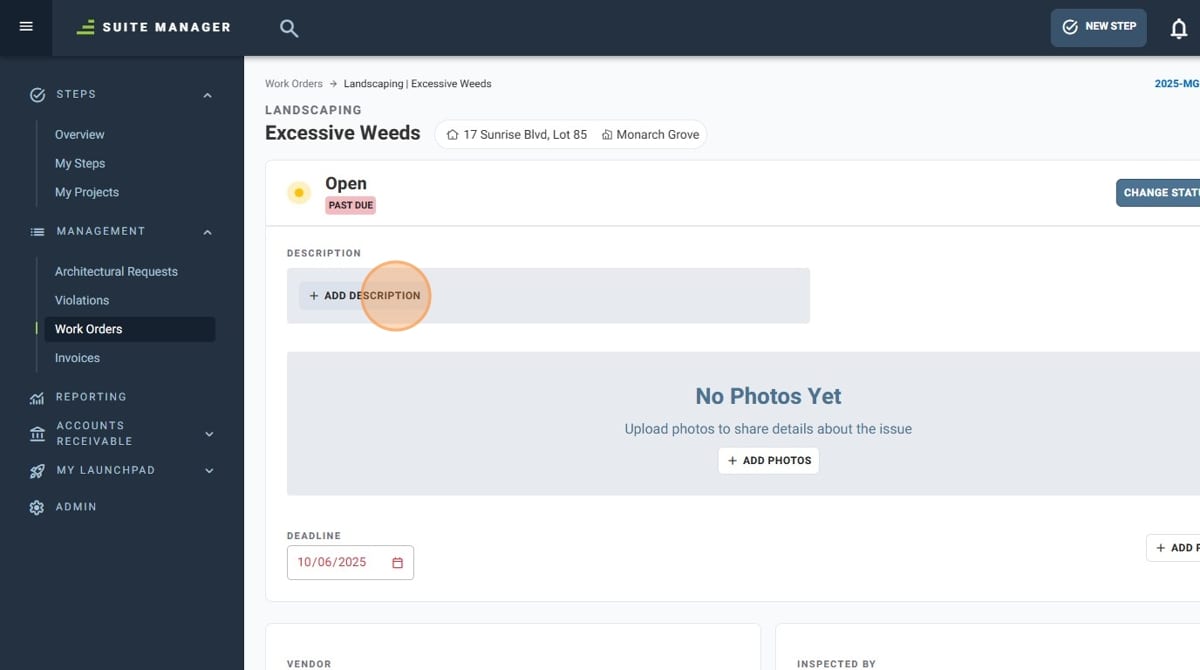
- If you'd like to update the description of the Work Order, click "Add Description"
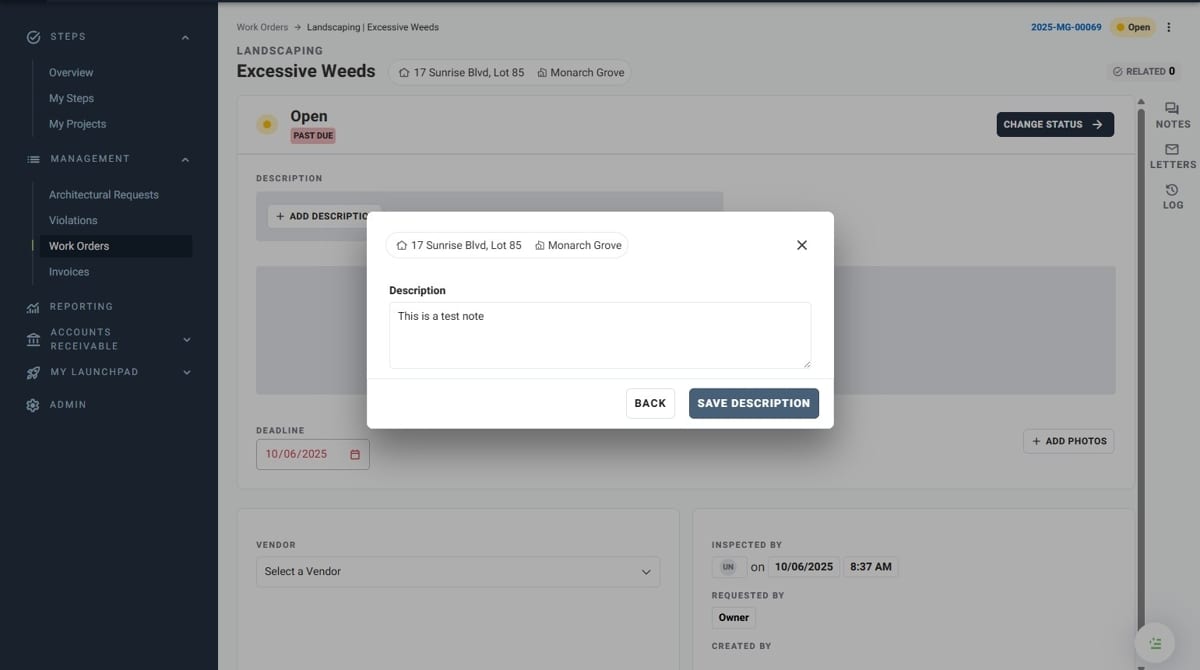
- Enter your description in the "Description" field
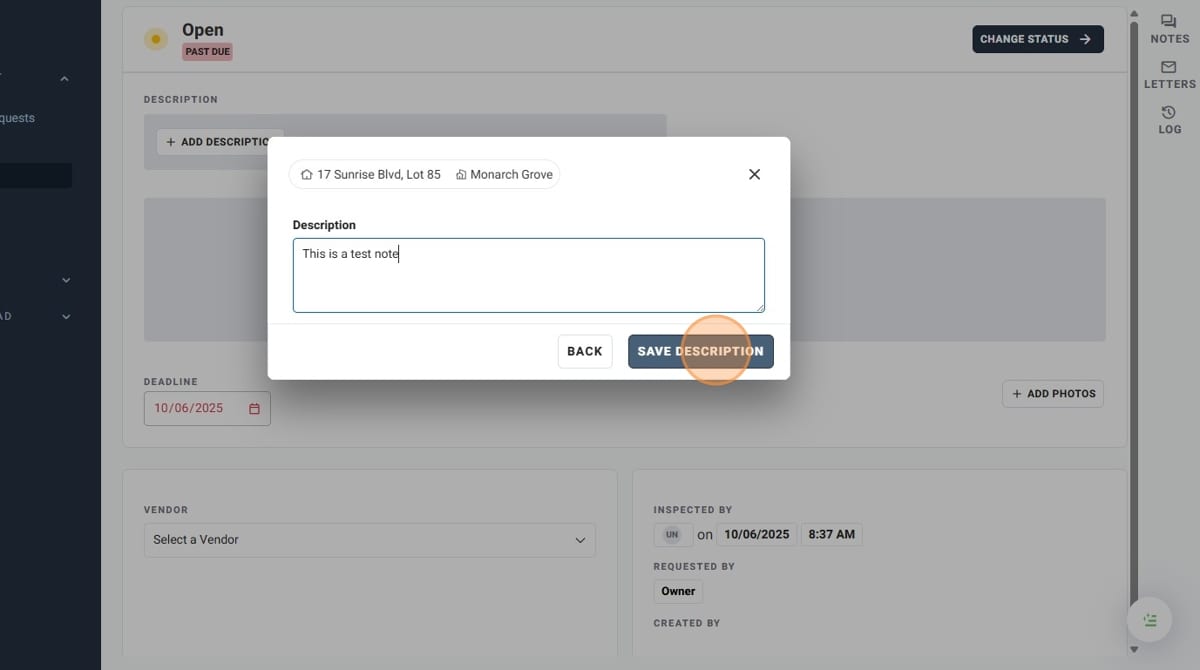
- Click "Save Description" when you are finished. The description will be updated upon saving
- If you need to add photos to your Work Order, click "Add Photos"
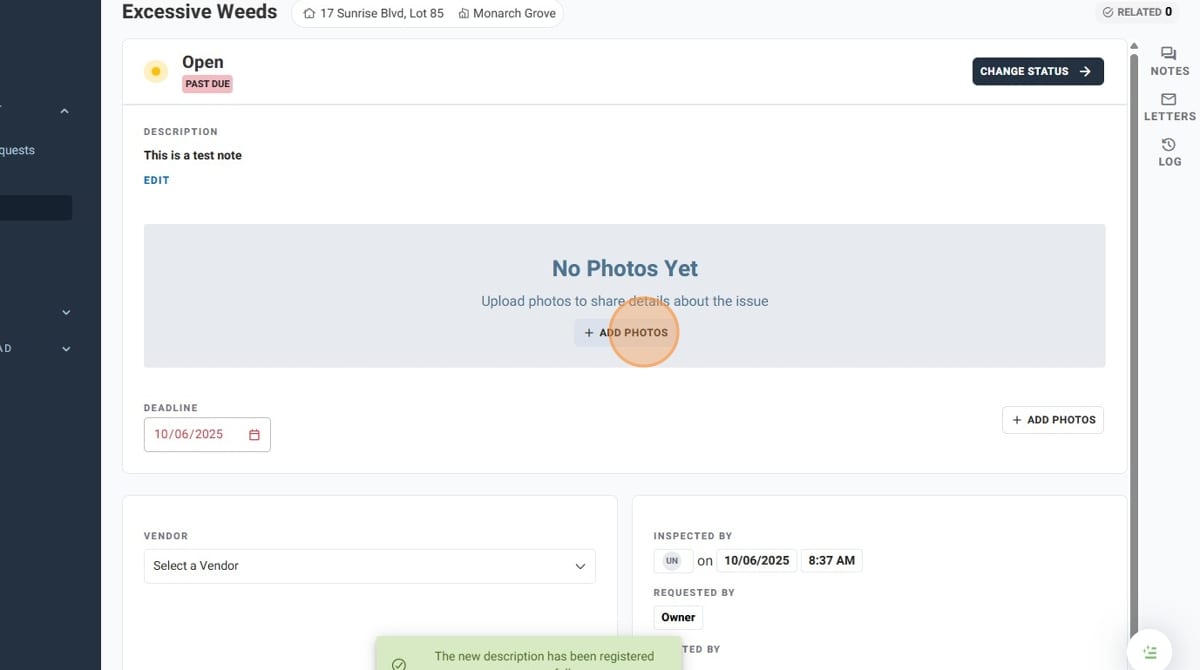
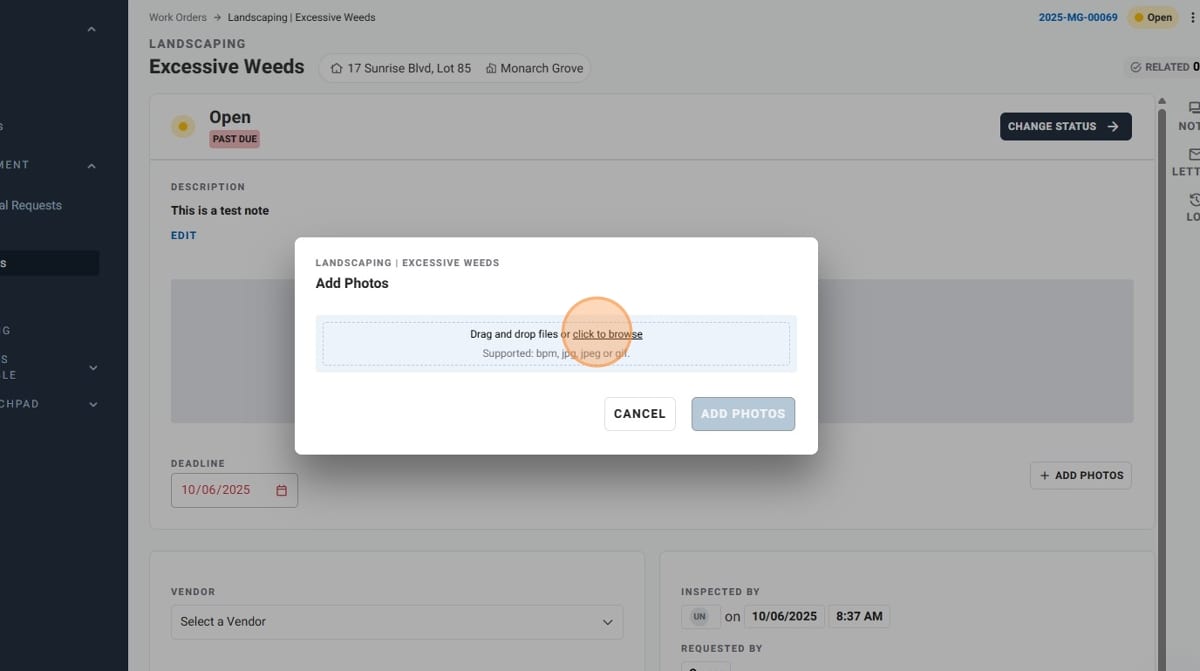
- Click on the file upload window or drag and drop your images to the window to upload your images
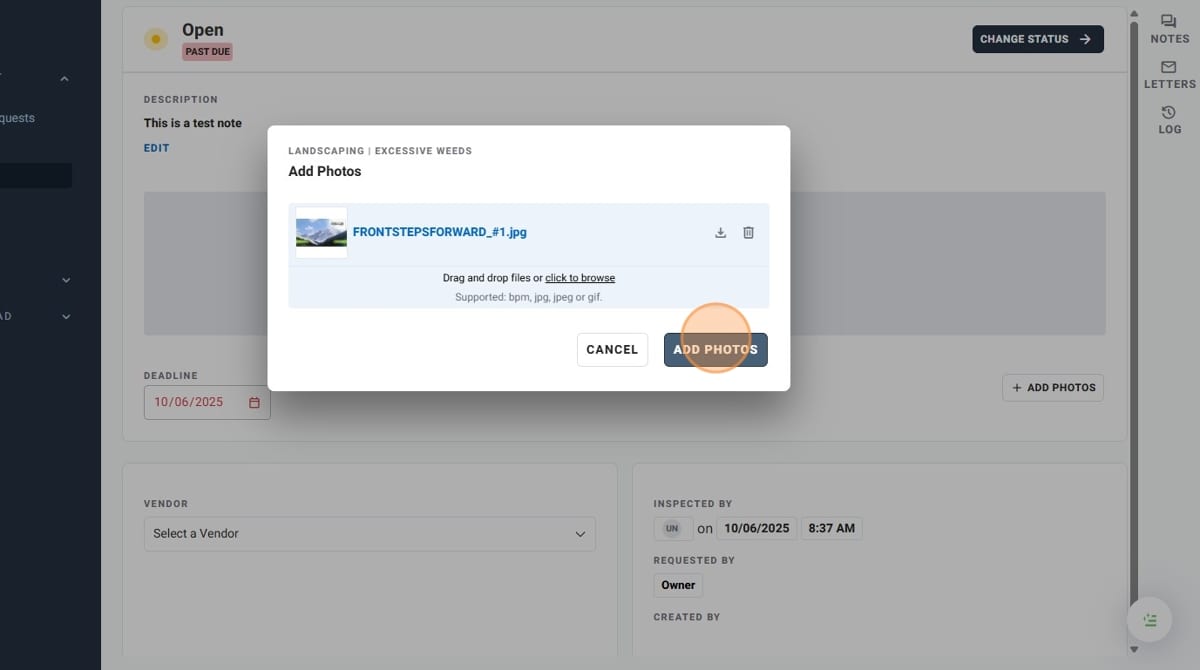
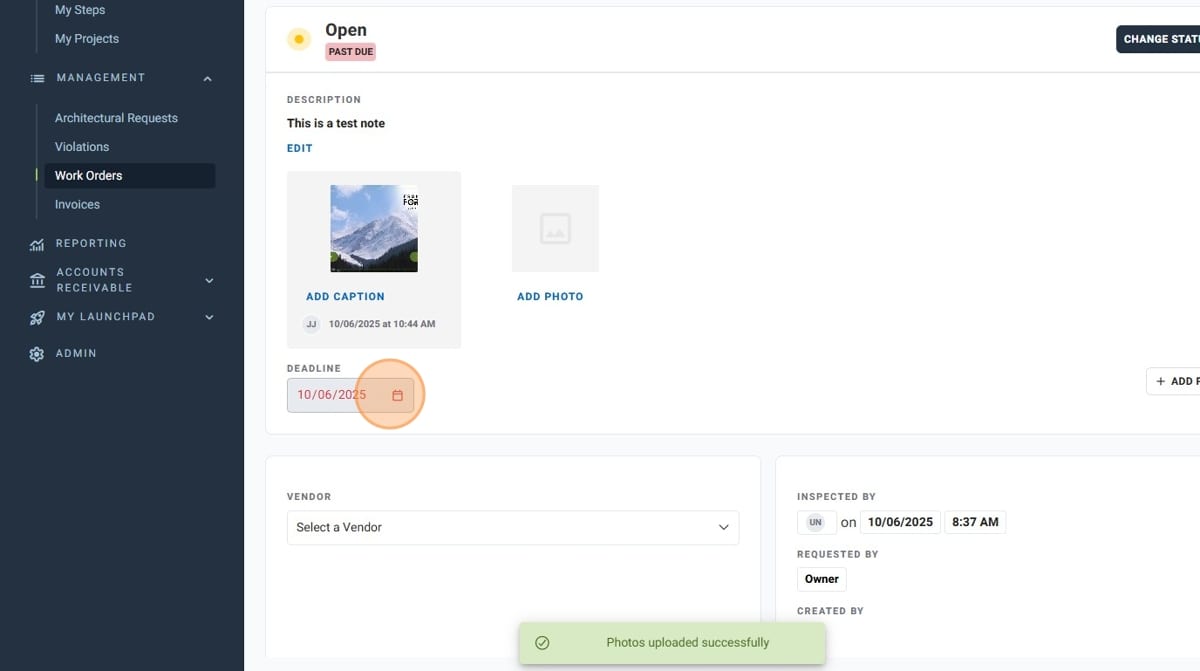
- Click "Add Photos" when you have uploaded all of your images. The photos will be added to the Work Order
- If you need to update the due date of the Work Order, click the date field below the "Deadline" header
- To add a specified vendor to your Work Order, click on the dropdown below "Vendor" and select it from the list
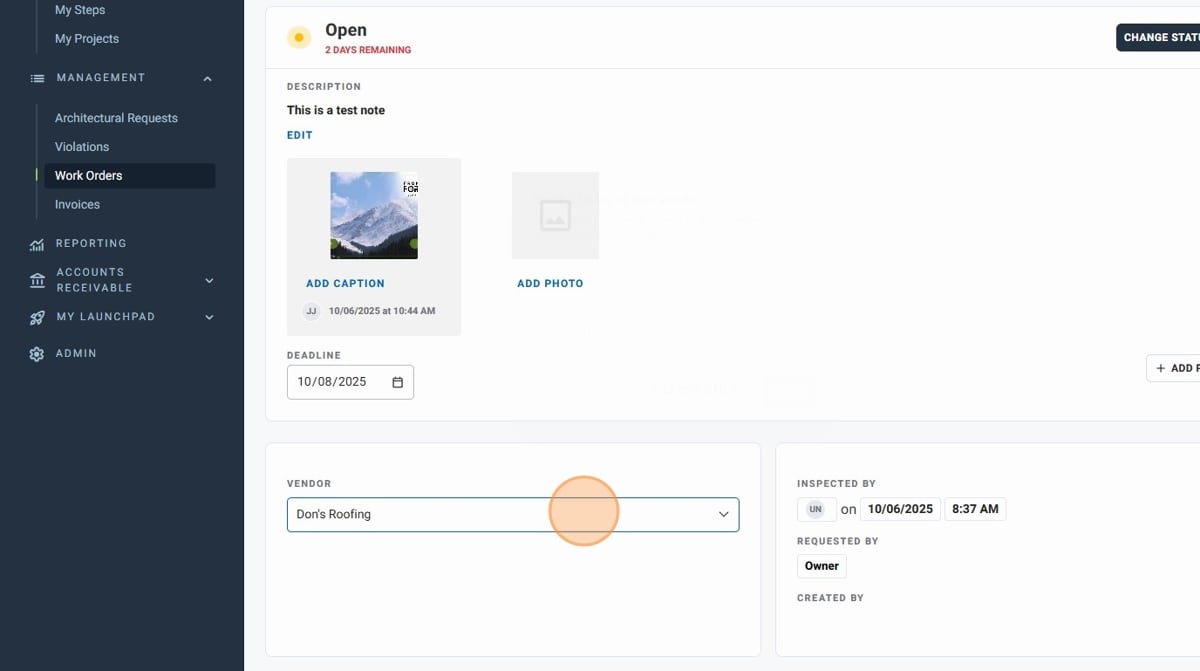
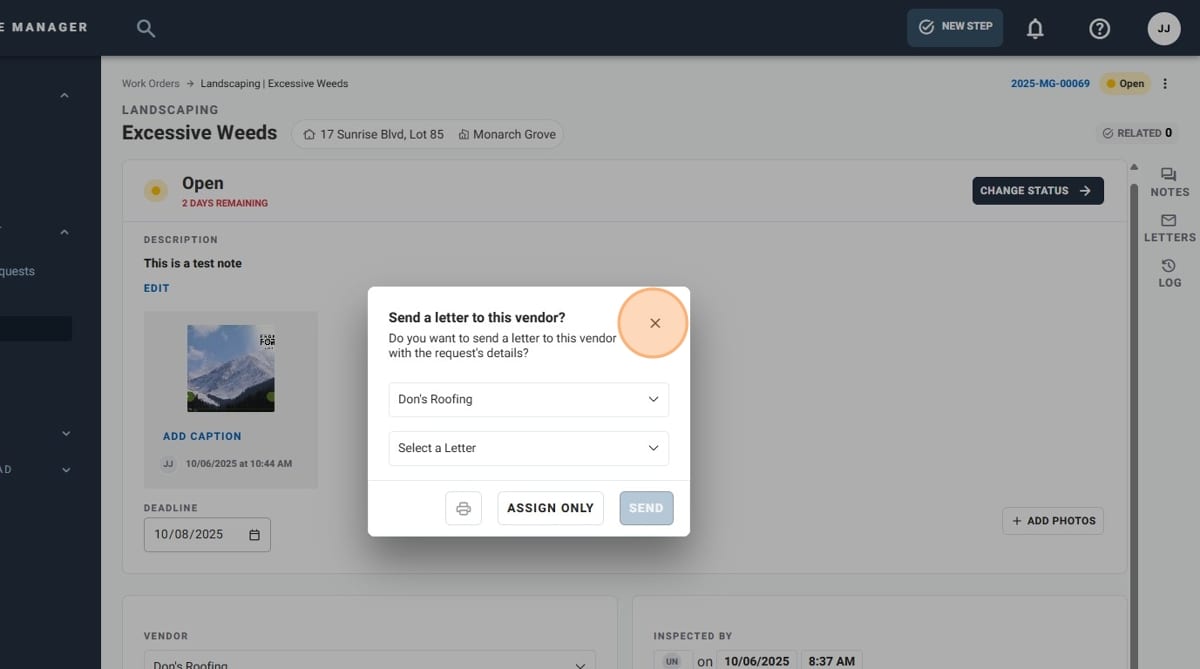
- Once you select a vendor, a pop-up will ask if you'd like to send a letter to the vendor with the Work Order's details. If so, click the "Select a Letter" field and select the letter you'd like to send from the dropdown, and then click "Send". If not, click "Assign Only". You also have the option to print the letter with the printer icon on the left
- The "Inspected By" and "Requested By" fields can be updated by clicking on the corresponding fields and selecting the appropriate option
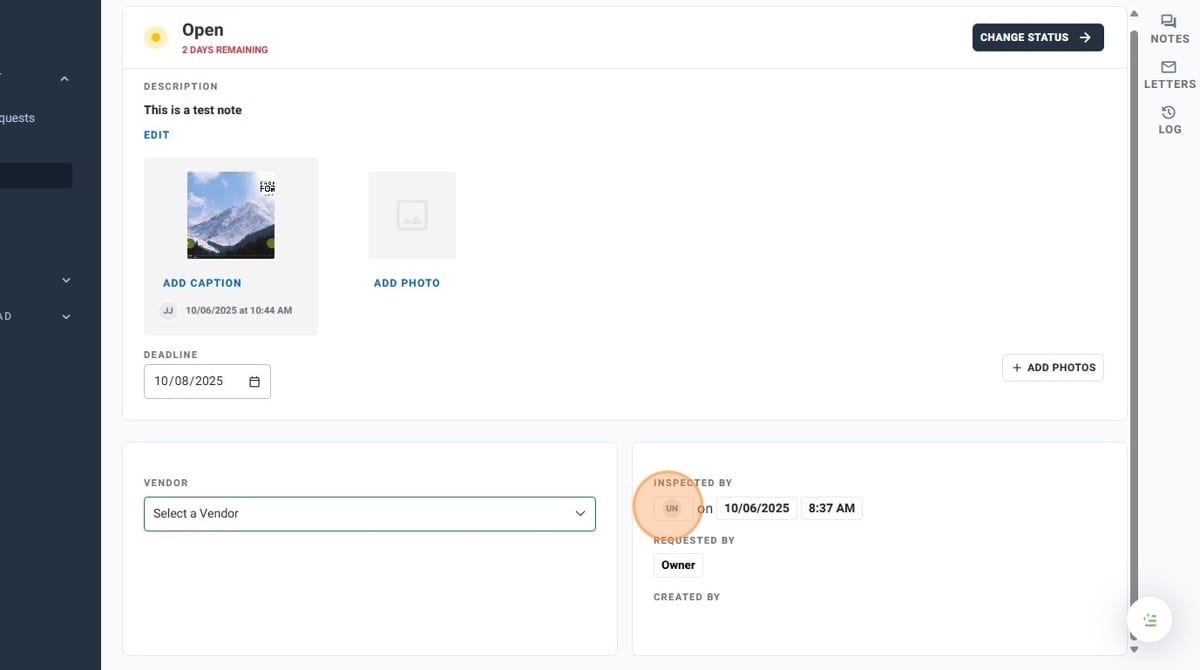
- You have successfully updated a Work Order!