How to Sign-Up and Sign In to Manager
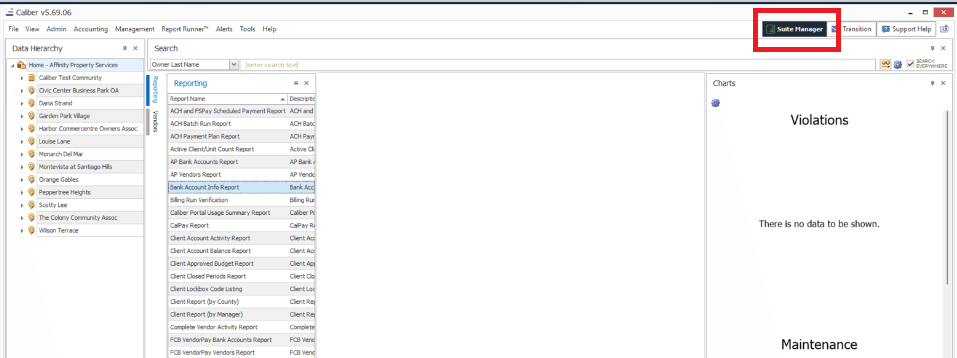
To sign up for the Manager tool you must log into FRONTSTEPS Caliber desktop. Be sure to use your unique login credentials, as the Manager tool login will be specific to that profile.
- From Caliber desktop select the Manager button in the upper right hand corner of your screen
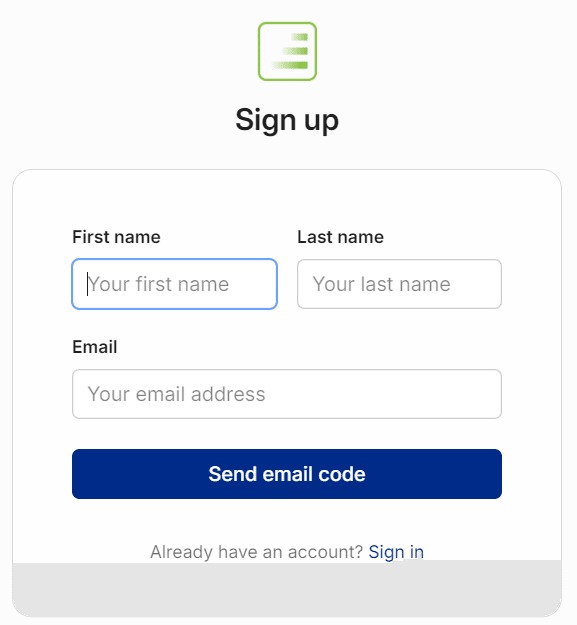
- The Manager registration will open within your browser and it will be auto-populated with the users First Name, Last Name and Email address from within Caliber. Click ‘Send Email code’.
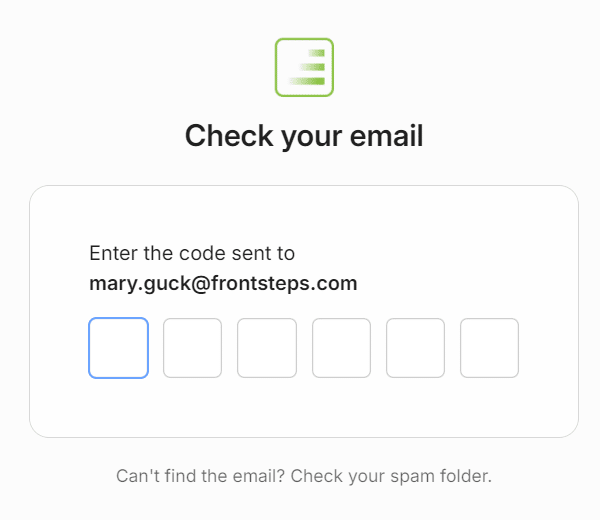
- This will email you a one time code, to complete the registration. Enter in the code that was received and you will be signed in.
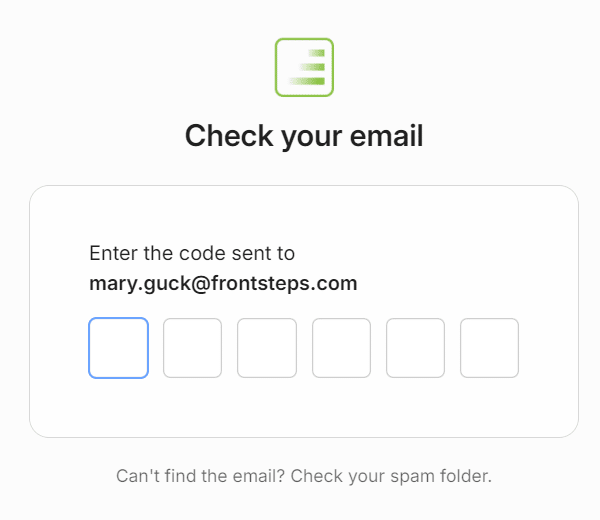
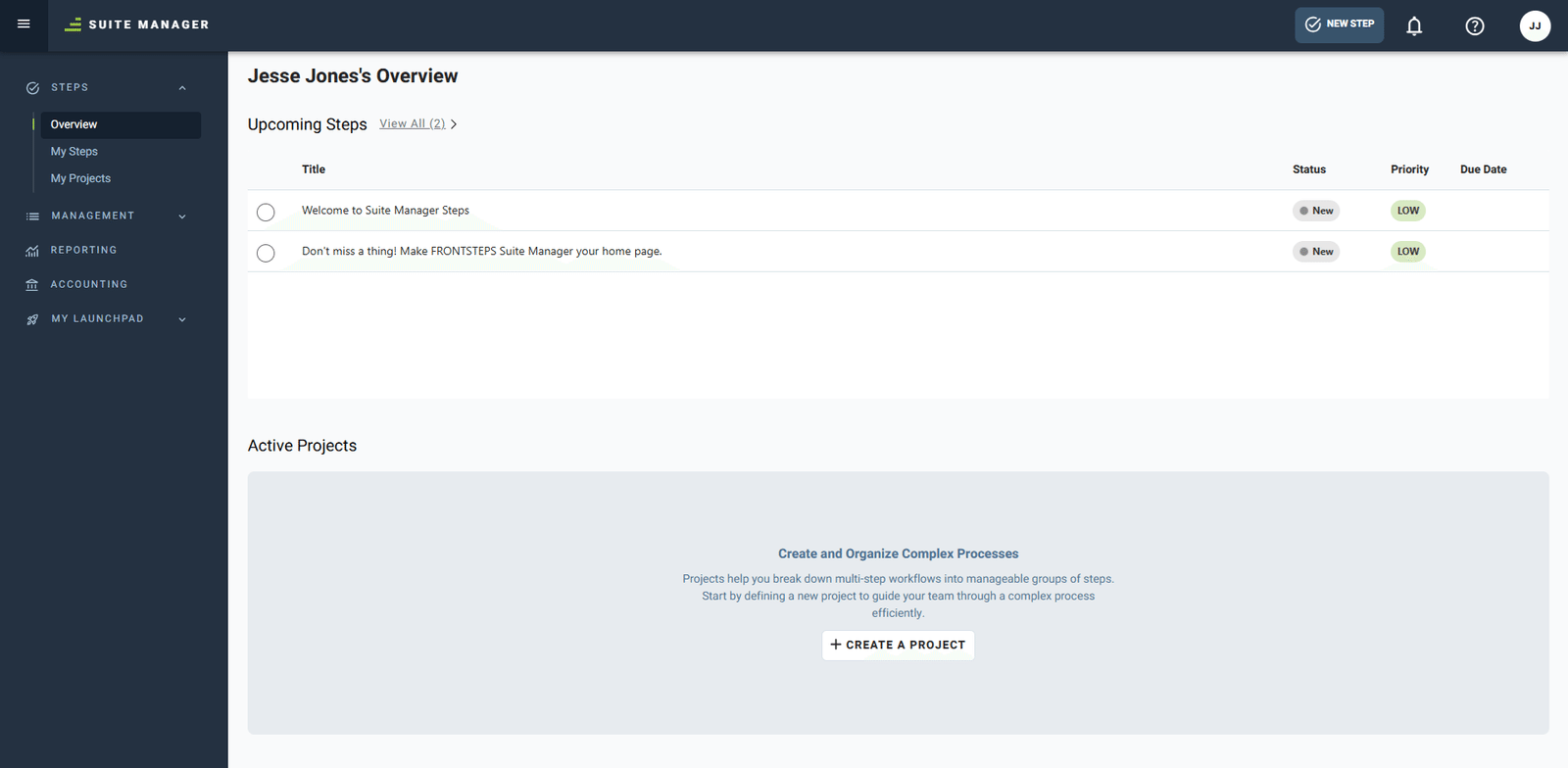
- You are now signed in and will see the Manager landing page
Sign In Process:
Once you have registered you will be able to simply sign in.
If you did not log out of your previous session (and it didn’t time out), you can simply access the Manager tool from the Caliber Tools menu or by opening a browser and going to: Suite.frontsteps.com
If the users session has ended, or they have logged out. They will need to sign is again by following the below steps:
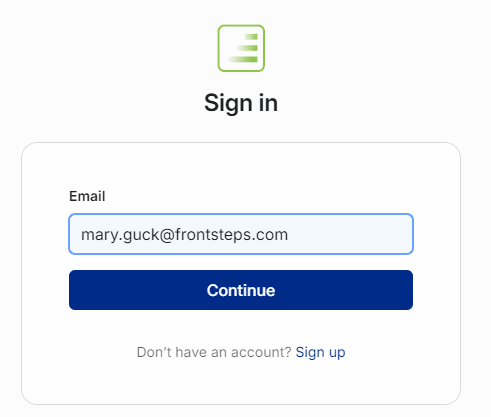
- Navigate to suite.frontsteps.com and enter your email address. When complete, click ‘continue’.
- Enter in the code sent to the email address.