How to Send, Process, and Monitor Letters for Architectural Requests via Bulk Print
How to Send Architectural Letters to Bulk Print
This guide provides a clear and straightforward process for sending an Architectural Request Letter to the Bulk Print Queue. By following the outlined steps, users can efficiently manage how these letters are queued and tracked within the system.
-
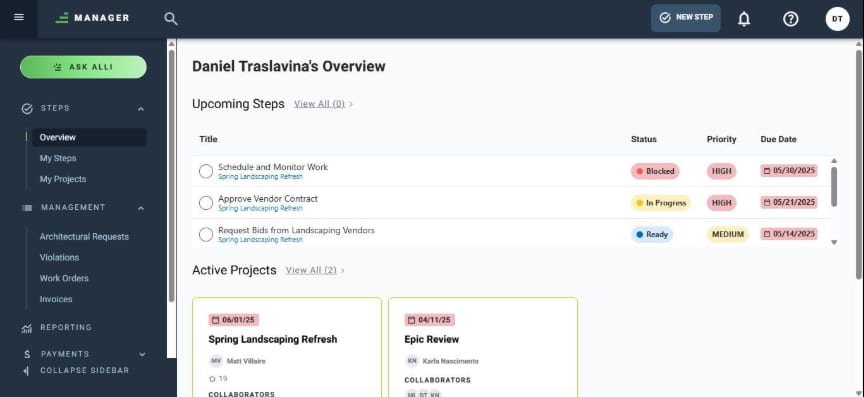
Navigate to https://suite.frontsteps.com/#/steps/overview
-
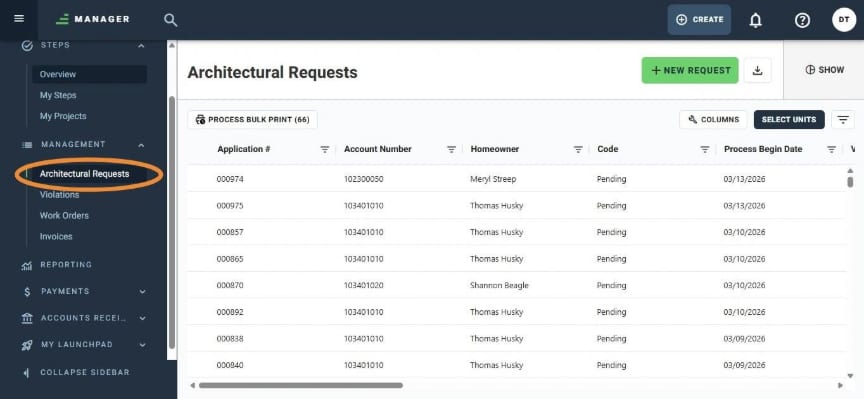
Go to the Architectural Requests module.
-
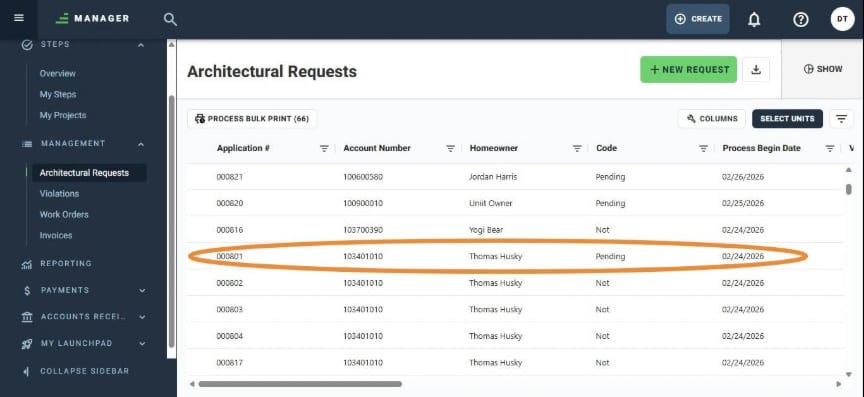
Select the Architectural Request Item you want to work on.
-
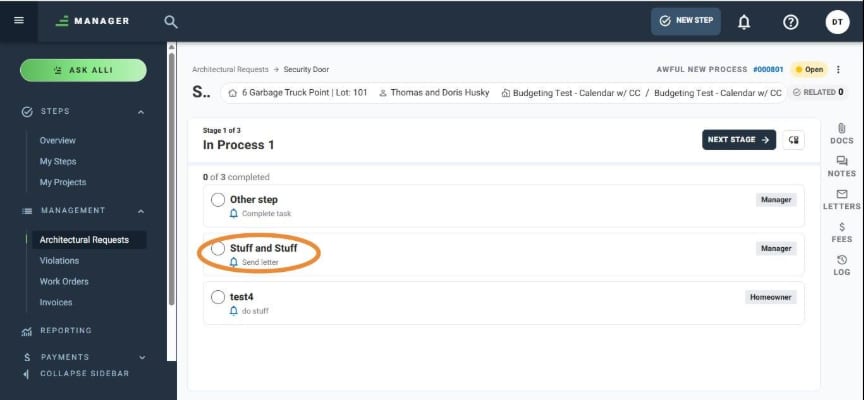
Process a 'Send Letter' step type within a stage to select 'Bulk Printing' as the delivery method.
-
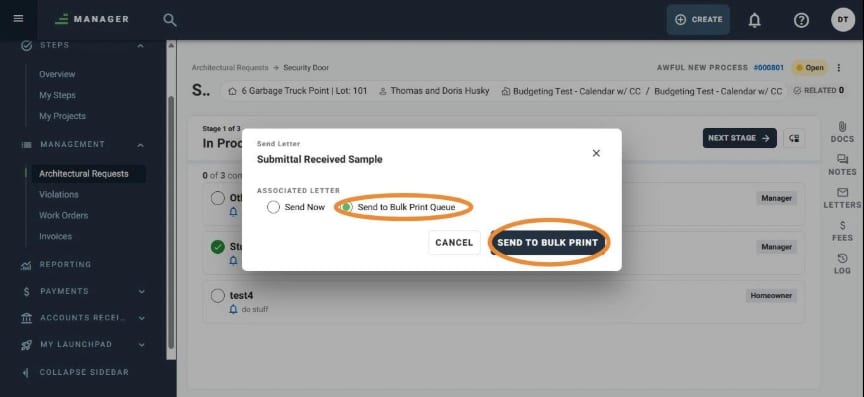
Select the 'Send to Bulk Print Queue' option to queue the Architectural Letter and click the 'Send to Bulk Print' button to confirm the action.
-
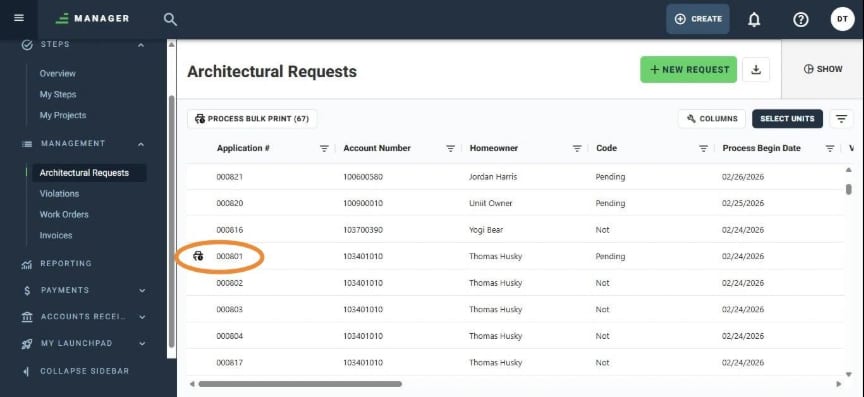
Once queued, a status icon will be visible on the left side of the item in the Architectural Request list view. Ready for selection and future bulk print processing.
How to Process and Monitor Letters for Architectural Requests Items via Bulk Print
This guide provides a straightforward process for sending Architectural Requests Letters to the Bulk Print Queue. By following these steps, users can efficiently select marked items, trigger the generation task, and monitor the resulting Background Task. It serves as a practical resource for verifying that letters are sent via email, physical printing, or both, according to the Mail Matrix configuration, while ensuring all communications are tracked through the Processing Result Report.
-
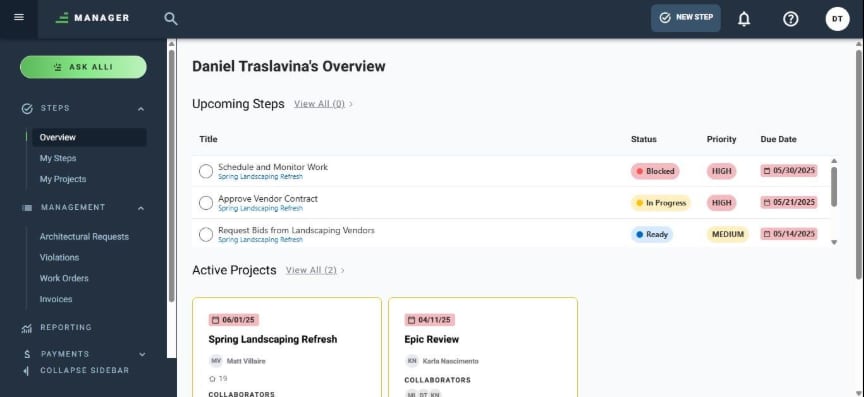
Navigate to https://suite.frontsteps.com/#/steps/overview
-
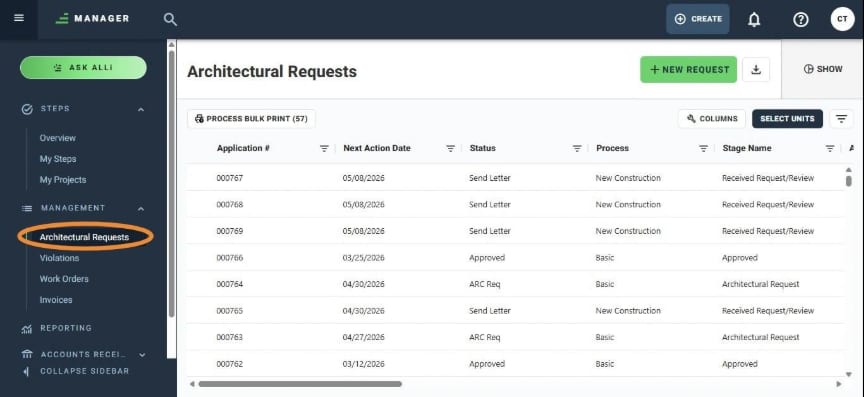
Go to the Architectural Request module.
-
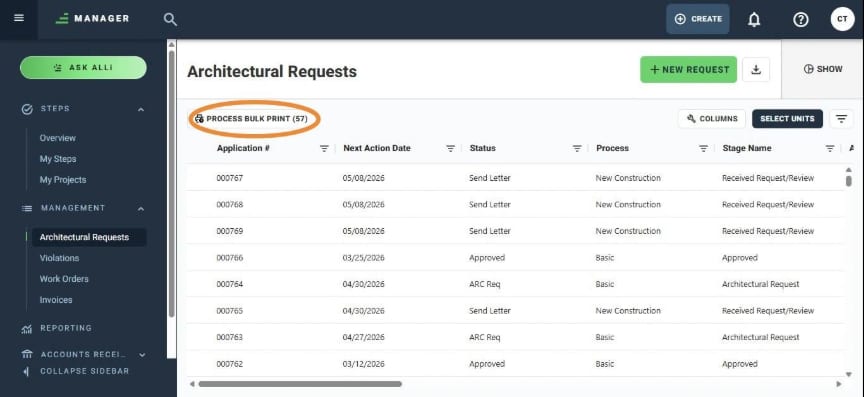
Click the Process Bulk Print button to access the Architectural Requests List View, filtered by all items marked for bulk printing. The number in parentheses on the button indicates the total count of violation items maked for bulk print.
-
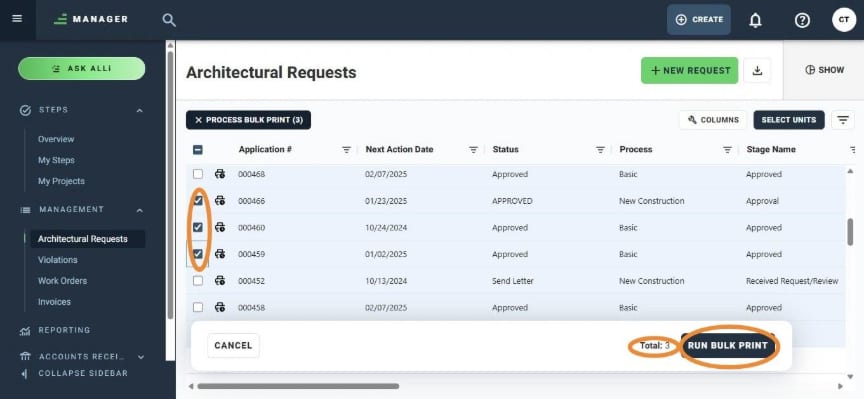
Select the checkboxes for the Architectural Request items in the Bulk Print queue that you wish to print. The total count of selected items will be displayed at the bottom of the screen. Clicking Run Bulk Print button will initiate the bulk printing process.
-
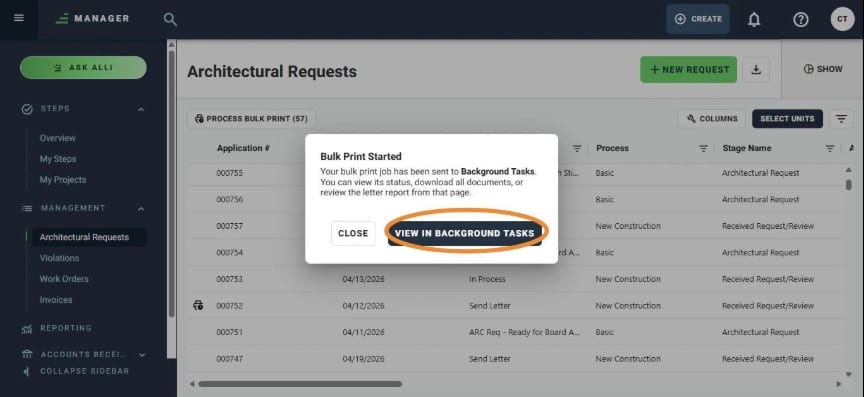
A confirmation modal will appear once the Bulk Printing process has started. Clicking the View in Background Tasks button will redirect the user to the screen that list all active background tasks.
-
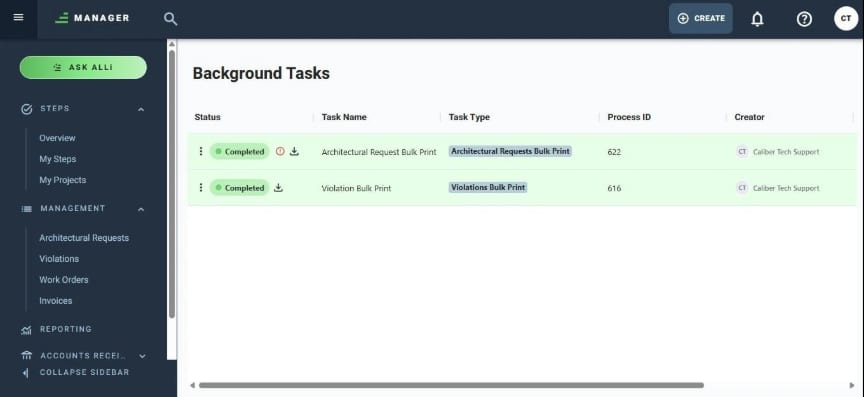
In the Background Task List view, you can monitor the generated process along with its current status.
-
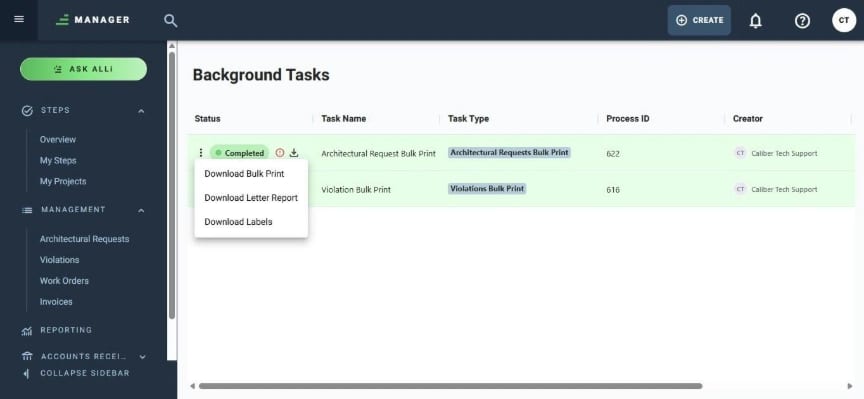
Once the process reaches Completed status, clicking the Three-Dot Menu will allow you to:
-
Download the letters to be printed on a local printer. ( the same for the Download icon on the right)
-
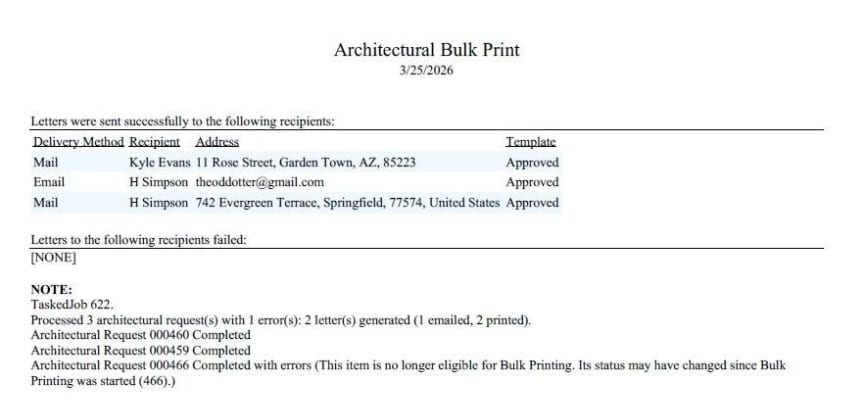
Download a detailed report showing the status of each item (sent via email or successfully printed).
-
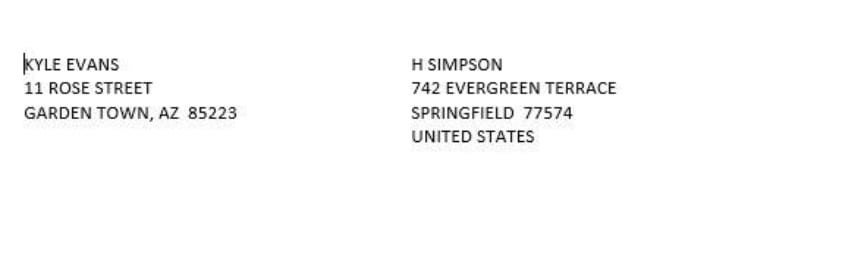
Download the labels document for items sent to print for future mailing.
-
Download Report
-
Label Document