How-to
FRONTSTEPS Manager
Managers & CAMs
How to reprocess Bulk Printing process reports and label documents generated with errors
Article 000002260 · Updated Apr 9, 2026
How to reprocess Bulk Printing process reports and label documents generated with errors
This guide demonstrates how to reprocess Processing Reports and Label Documents from Bulk Printing processes for Architectural Requests and Violations that completed with "Completed with Errors" status. By using the Retry option, users can regenerate either item without reprocessing the entire Bulk Printing process, enabling recovery from partial failures while maintaining efficiency.
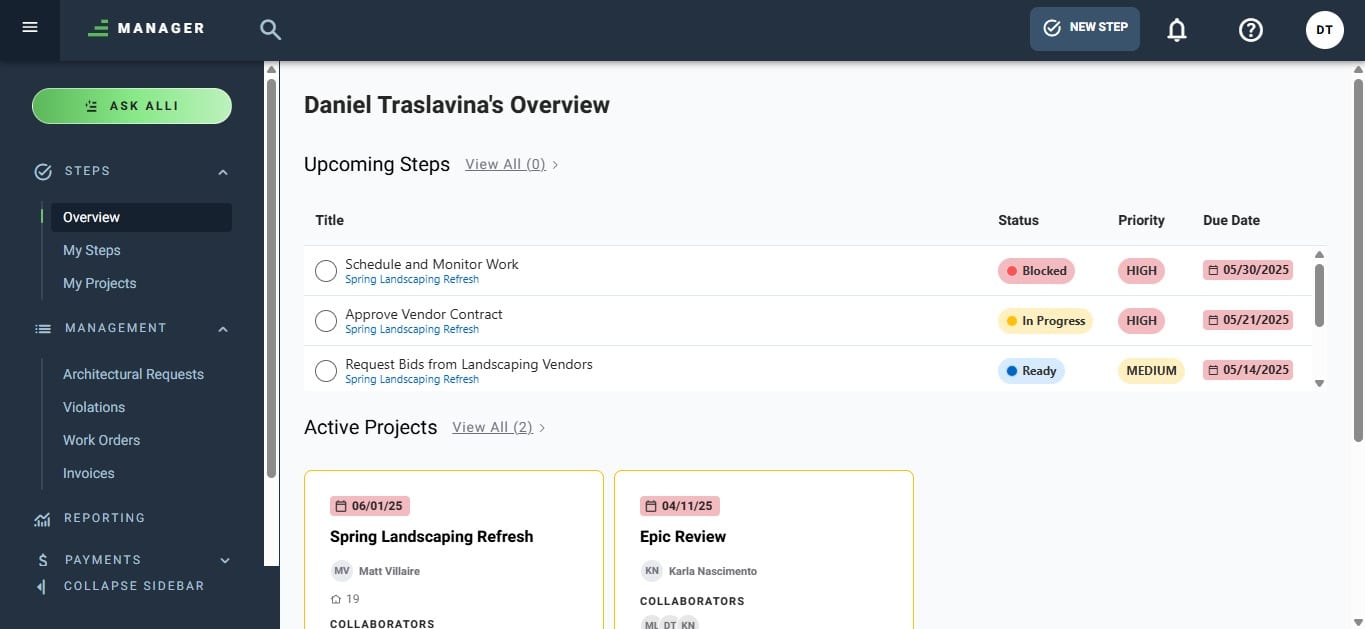
- Navigate to https://suite.frontsteps.com/#/steps/overview
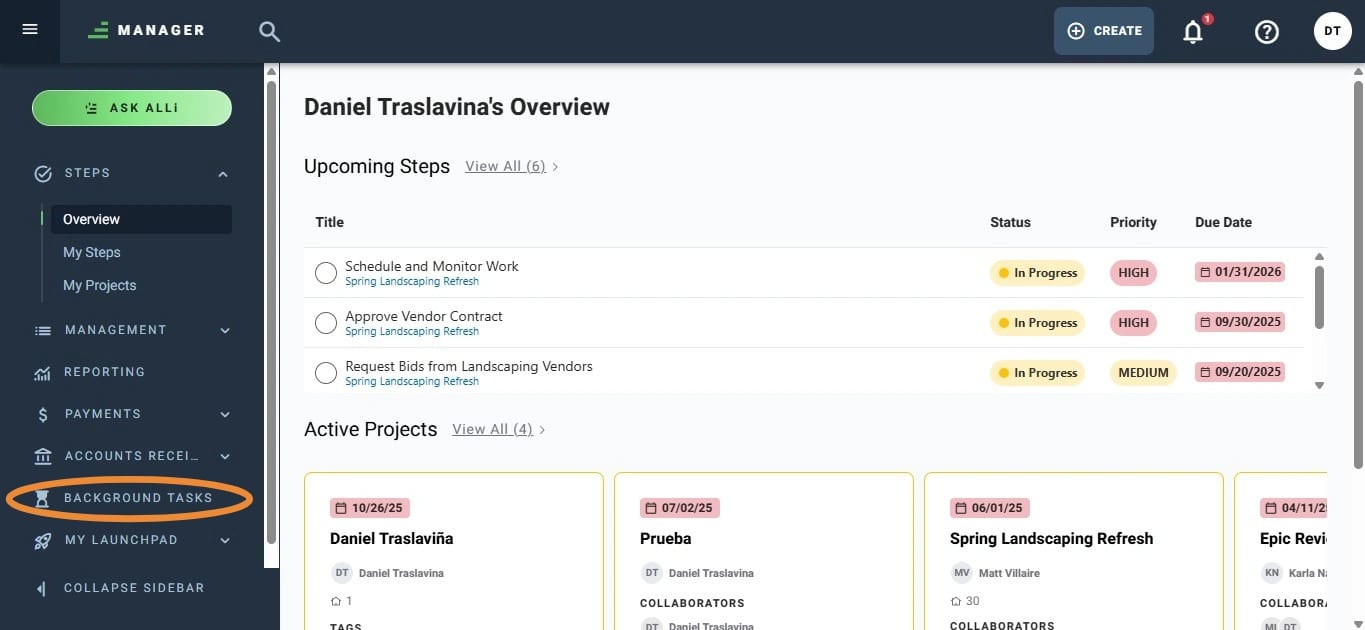
- Go to Background Task Module.
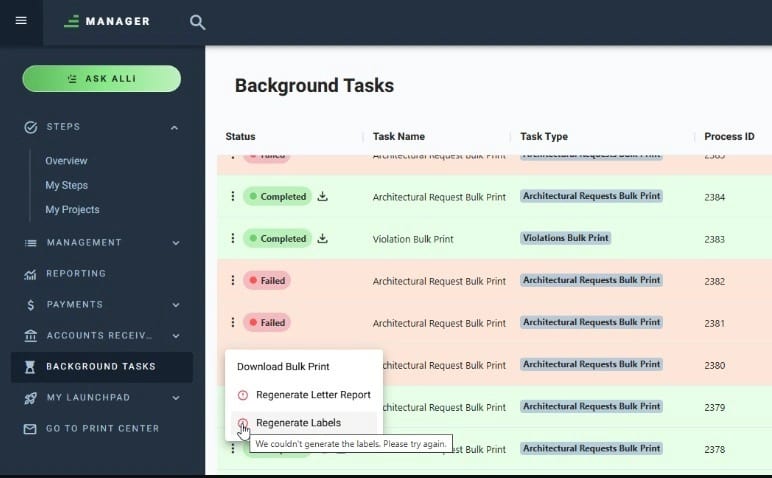
- The Background Tasks module will display all background tasks. If applicable, users can view Bulk Printing processes have Completed with errors status; these will include a tooltip with the error description and an enabled three-dot menu.
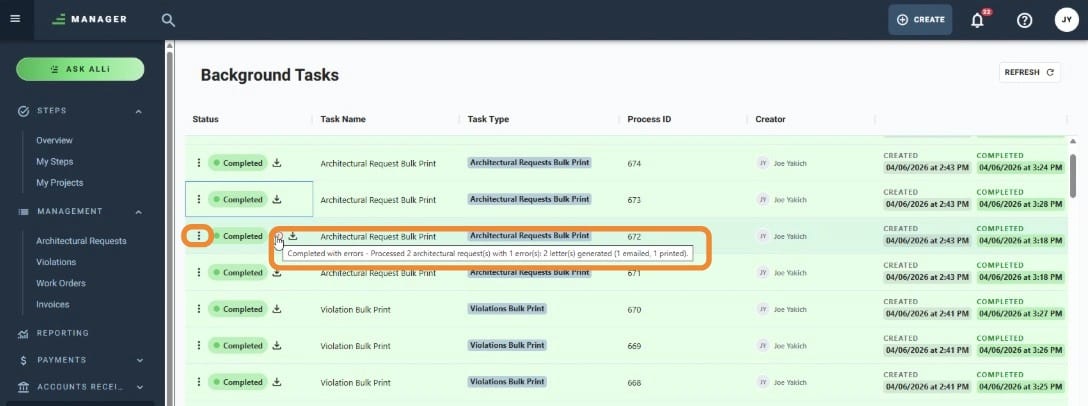
- When clicking the three-dot menu, if a process finished with a 'Completed with Error' status due to a failure in generating either the process report or the labels document, options will appear to regenerate both items. This allows you to fix the error without having to reprocess the entire bulk printing process, ensuring no document is lost. Both options will display a tooltip explaining the error that occurred.
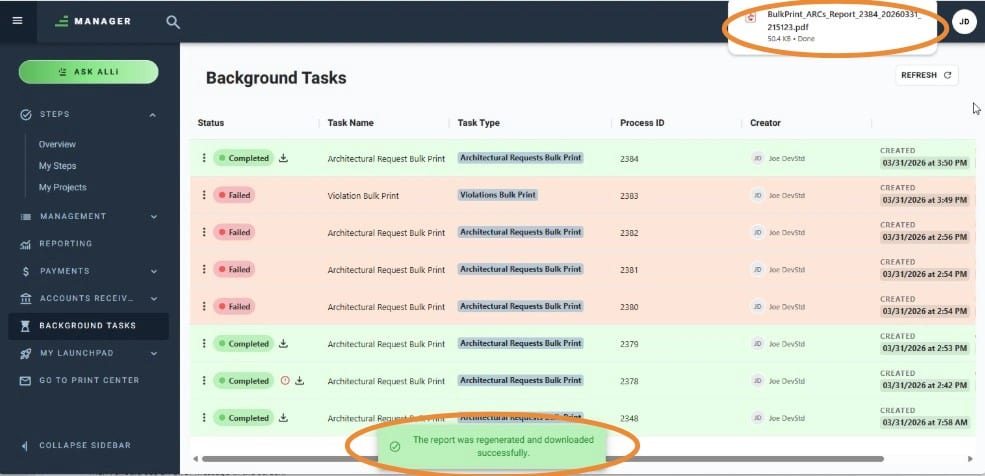
- After clicking either option, if the regeneration is successful, a toast message will appear on the screen to confirm the operation. The regenerated item will then be automatically downloaded to the user’s local machine
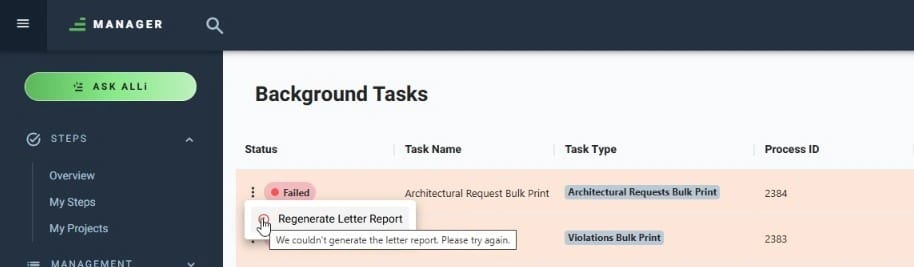
- If a Bulk Print process ends with a 'Failed' status and the process report also fails to generate, an option to regenerate the report will be included.