
How to Remove a Manager in the FRONTSTEPS Community Portal
How to Remove a Manager in the FRONTSTEPS Community Portal
Admin Dashboard
Instructions
- Login to the Admin Dashboard.
- Select My Associations.
- Find the community where the manager is assigned and click View.
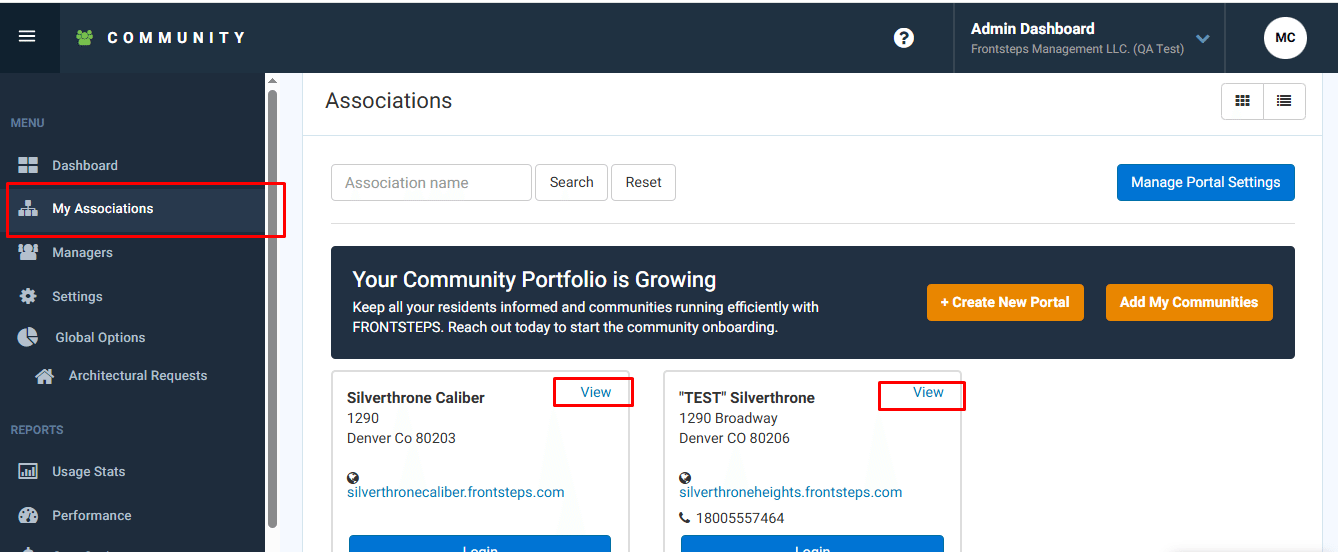
My Associations — click View next to the relevant community
- Locate the user you want to remove, then click Remove.
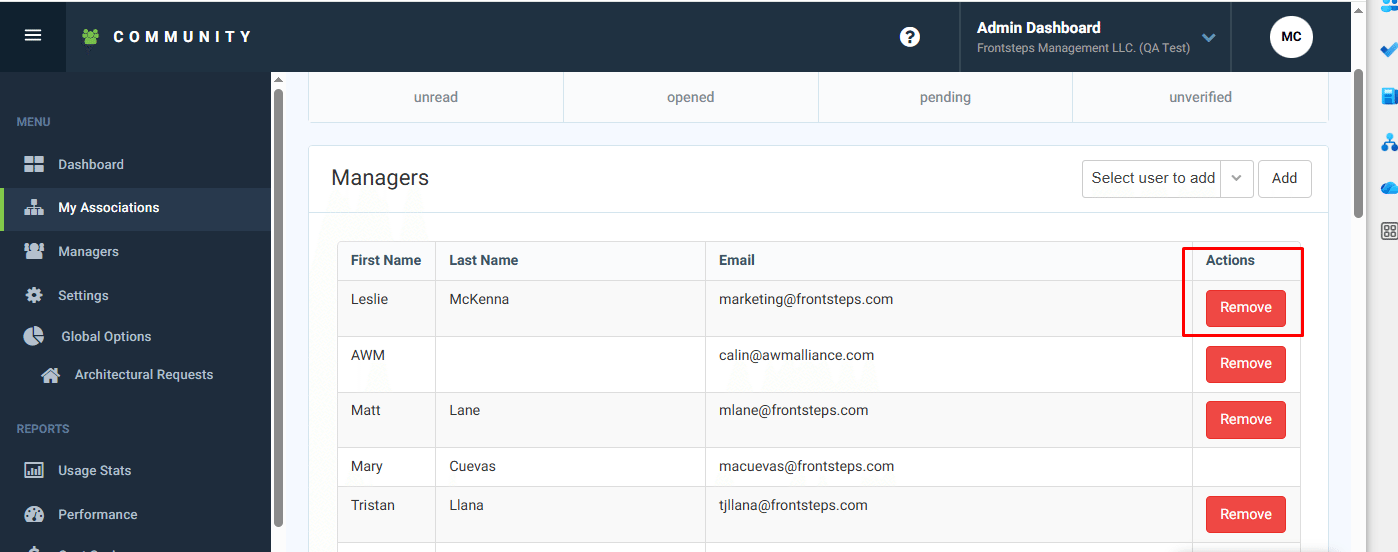
Community's Managers list — click Remove next to the user
- Go to the Managers tab.
- Search for the same user and click View.
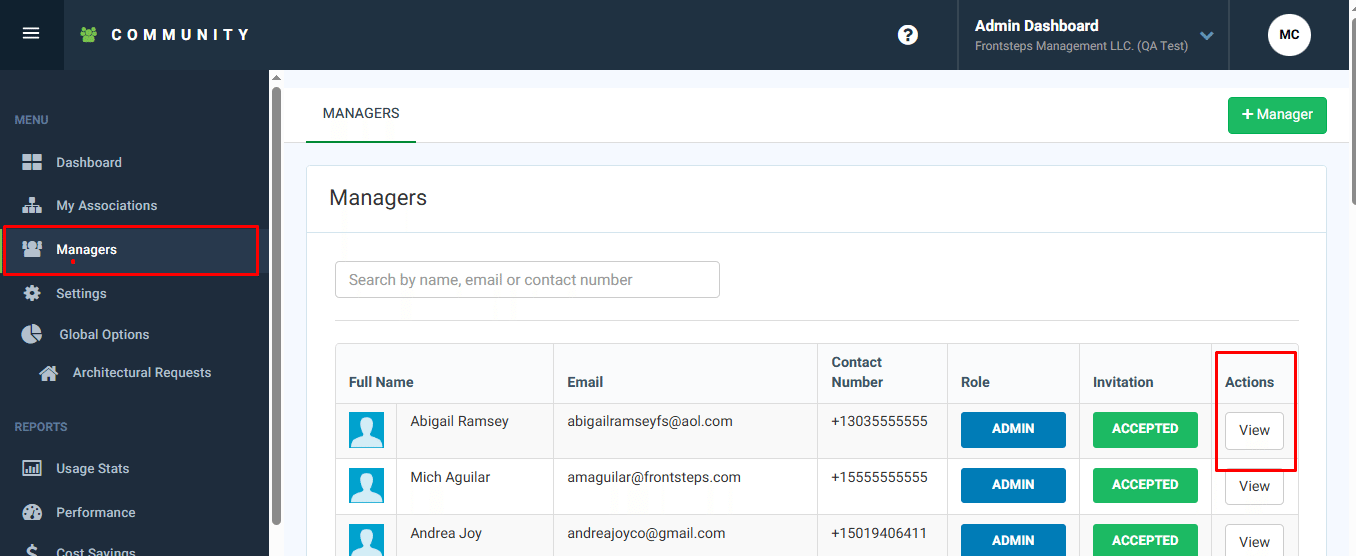
Managers tab — search for the user and click View
- Click Delete Manager to complete the removal.
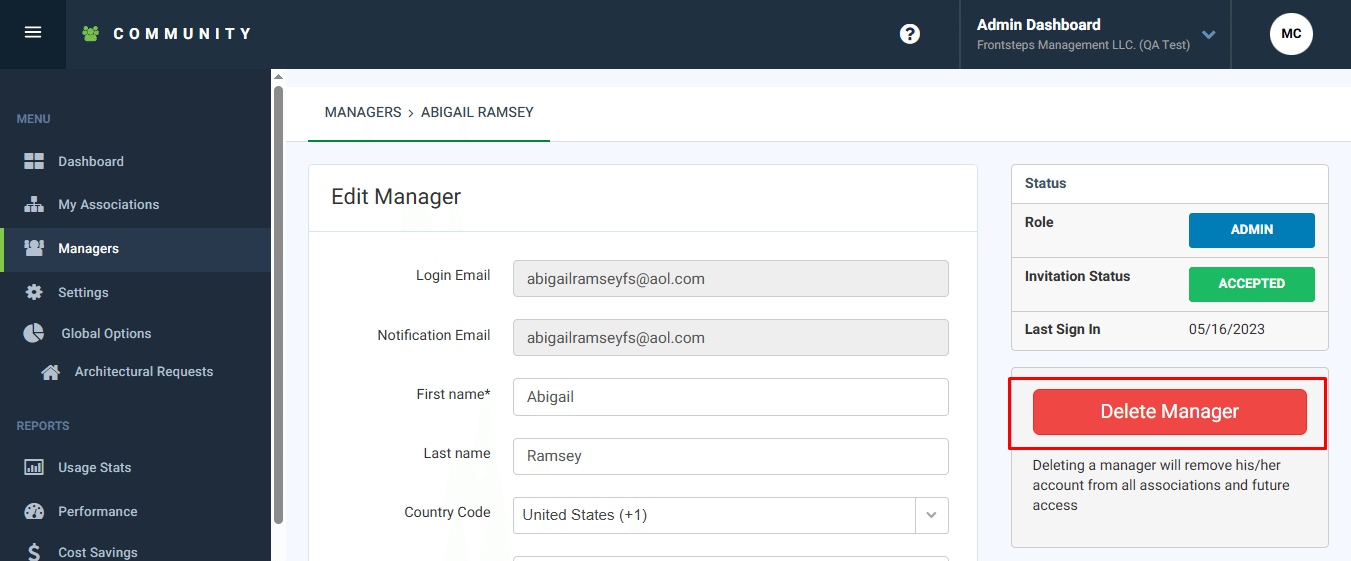
Edit Manager page — click Delete Manager to complete the removal
Note: Only users with an Admin role can add or remove managers within a community.